Apply appliance changes
Appliance Apply enforces selected desired state from multiple service pages in one ordered Photon submission.
Interface overview
This verified appliance view provides visual orientation before you begin.
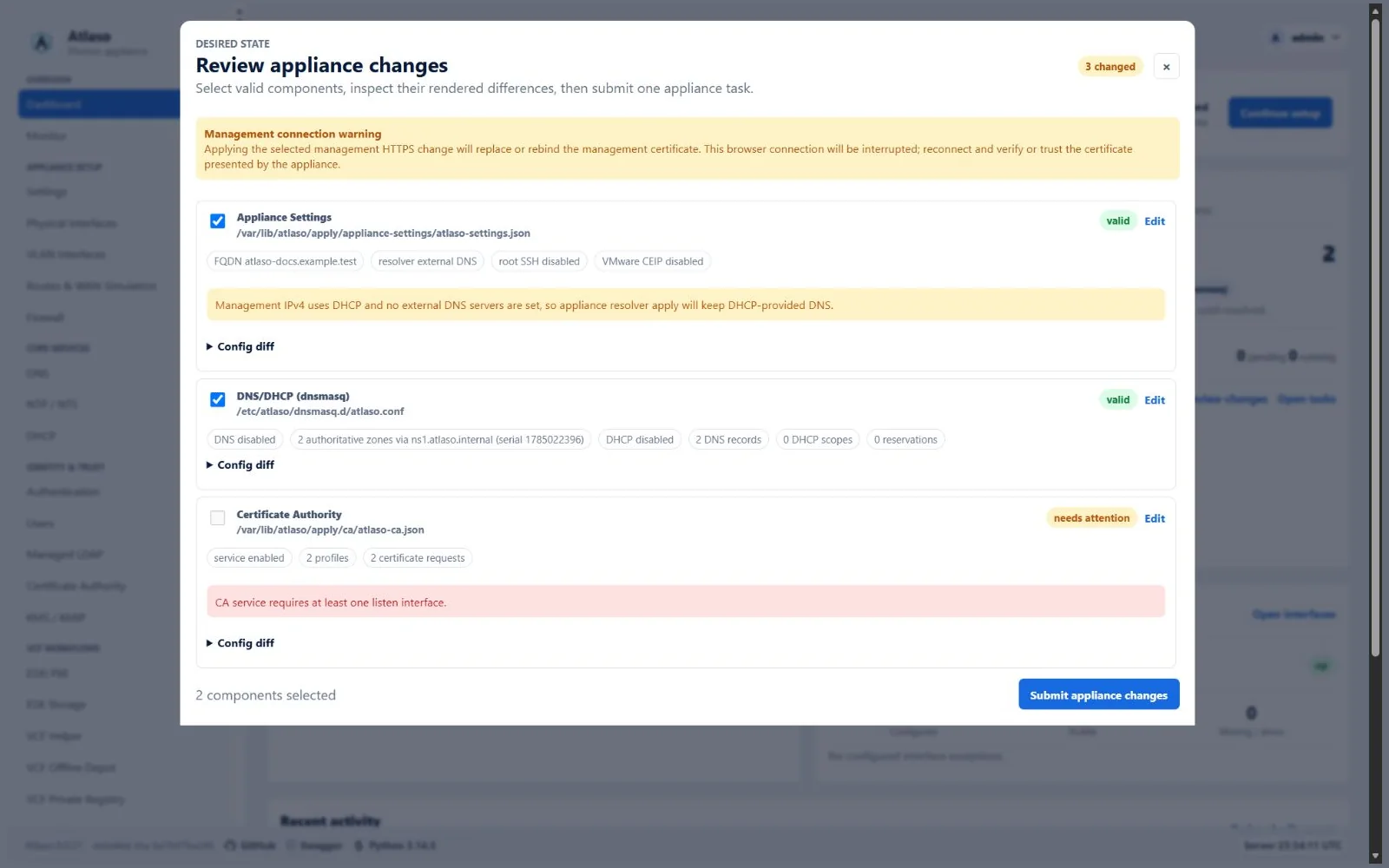
Figure: Appliance change review with valid and invalid desired-state units.
Important
Editing and applying are separate actions. Autosave updates Atlaso's desired state; it does not change Photon services. Host changes begin only after an administrator selects valid units and chooses Submit appliance changes.
Before you begin
You need:
- an administrator account with permission to apply appliance changes;
- saved desired-state changes on one or more service or settings pages;
- validation errors resolved for every unit you intend to submit; and
- no other Appliance Apply task pending or running.
Before submitting a change that can interrupt management access, prepare the local appliance or VMware console.
Atlaso groups related settings into apply units. DNS and DHCP share one DNS/DHCP (dnsmasq) unit. Web Terminal changes
can require Appliance Settings, Public Services, and Firewall. A management-to-access conversion with a
gateway change also selects Routing & WAN with Network and uses the protected handoff. For the combined
DHCP-to-Access sequence without an intermediate Apply, see the
networking guide. A WAN-only change to a mirrored management
default uses the same handoff. Each WAN unit executes from its captured snapshot.
Reverse proxies publish with Public Services, using Certificate Authority for enabled HTTPS, Firewall for
listener admissions and DNS/DHCP for managed authoritative records. Select changed dependencies together; see the
reverse-proxy guide for artifacts and recovery checks.
When effective source NAT or port forwarding depends on changed Network and WAN state, reviewing Network also
selects and locks Routing & WAN. The review validates that WAN candidate before submission, so required changes
and any blocking errors are visible together.
Routing & WAN owns routing and WAN simulation; Traffic Publishing owns source NAT and port forwarding.
Turning either feature off removes its runtime state while preserving saved rows. NAT is suspended while Routing
is off. Port forwards couple Firewall and Traffic Publishing, including when deleting the last mapping; service edits
also validate listener conflicts. See Traffic Publishing for dependencies and recovery.
Review pending changes
- Finish editing the desired state on the relevant service pages.
- Open Review appliance changes from the lower-left sidebar card or a page-level pending-change action.
- Read the status of every changed unit and every required dependency:
| Status | Meaning | What to do |
|---|---|---|
| valid | The desired state passes current validation. | Inspect it and keep it selected if it belongs in this run. |
| needs attention | Atlaso found an error that prevents submission. | Open the unit's page, correct the error, and review again. |
| Warning | The unit is valid but has an operational caution. | Read the warning and confirm the effect before submission. |
- Expand each selected unit and inspect its summary and rendered difference.
- Clear the checkbox for a valid unit that should remain pending for a later run.
Valid changed units are selected by default; invalid independent units are not. Unselected changes remain pending. The review also lists unchanged components that must run for management protection, certificate deployment, DNS publication, or routing and Firewall consistency. These required dependencies stay checked and locked, with a reason beside each component. Clear the originating change to defer its dependencies; the server recomputes the plan after each selection change. A required component needing attention blocks submission until its validation is resolved.
The summary shows changed components, required dependencies, explicit choices, and complete scope. For example, 2 changed components + 5 required dependencies = 7 components to process means one task with seven components. Network/WAN dependencies protect management access and replay translation even when they have no pending edits.
Submission revalidates reviewed snapshots and dependencies. Validation clients review unchanged units for runtime drift. Clients submit the token, roots, and full scope. Reopen changed plans in Review appliance changes before submission. A changed storage manifest or disk identity clears any typed format confirmation; inspect the disk and confirm again.
Select Network to verify DHCP/SLAAC listeners and DNS/DHCP to publish generated DNS, even after startup renewal. If applied listener ownership is unproven, apply the named service first. Inspect locked pending Certificate Authority, Firewall, Appliance Settings, and Public Services changes; clear Network to defer them. Omitted dependencies block submission.
Warning
Review related units together when a feature crosses service boundaries; partial application can leave behavior unavailable.
Submit and monitor
- Confirm that the selection contains only the units intended for this run.
- Choose Submit appliance changes.
- Keep the task dialog open. Scroll the component grid to see more rows or columns; count and actions stay below.
- Open a component row to inspect its bounded, redacted result.
- Wait for completion; the dialog, sidebar badge, pending count, and global write lock update without a page reload.
If another session starts an Apply after the current one, the monitor finishes the current task's refresh first.
Components run sequentially. On failure, Atlaso marks the rest skipped. Writes are locked while a master task
is pending or running; read-only pages, task inspection, authentication, and safe cancellation remain available.
Management-path changes bundle Certificate Authority, Network, Firewall, Appliance Settings, and Public Services after
all dependencies expand. This recoverable handoff retains the previous addresses, listener, firewall and TLS identity
until bounded Atlaso loopback, candidate nginx, dynamic-address and host-facing /openapi.json checks prove readiness.
It validates bundled TLS, persists the resolver and source-restricted firewall, then retires the old path. Before the
Network baseline commits, helper-confirmed DHCP/SLAAC addresses enter observed state, keeping the listener eligible.
Failure restores all previous state and reports the same actionable failing layer and rollback result on each component.
Baselines use submitted snapshots, including resolver values; unrelated edits remain pending. Missing known-good Network
baselines block mutation. Durable state and backups remain until database commit is proven and acknowledged. See the
technical reference for the complete handoff and recovery contract.
Safe cancellation lets the running component finish. Every helper or adapter command in that component completes before remaining components are skipped and the terminal master task releases the mutation lock.
An ordinary Appliance Settings Apply keeps management access online, checks readiness, and restores the previous configuration on failure; see the technical reference. Retained older tasks may show Applying management settings; Atlaso is reconnecting to task status. Current tasks do not restart the worker.
If reconnect exceeds its bounded grace window, or status fails outside a planned restart, the dialog shows Live task status is temporarily unavailable with a link-free instruction to open Tasks in another tab if it persists. Atlaso retries and retains the last known task and lock until an authoritative response. Inspect the master task and appliance connectivity in Tasks before reloading the affected page.
Verify the result
- Confirm that the master task is succeeded.
- Confirm that every selected component is succeeded, not failed or skipped.
- Return to the affected service page and confirm its pending indicator cleared.
- Verify the resulting runtime behavior from the relevant service guide.
When enabling local DNS, apply DNS/DHCP (dnsmasq) before the subsequent Appliance Settings resolver change. Atlaso keeps
the last-applied external or DHCP resolver active until then, so an unapplied selection cannot redirect to loopback.
When disabling applied local DNS, selecting DNS/DHCP (dnsmasq) includes Appliance Settings first, moving the
management resolver away from 127.0.0.1 before the local listener stops.
If enabling Management HTTPS creates a pending CA-managed certificate, the review includes Certificate Authority and
installs its files before Appliance Settings. Changing the management HTTP/HTTPS mode or public listener port uses
the protected handoff to recompute Network, Firewall, and Public Services listeners together. If Network has separate
pending edits, select Network explicitly with Appliance Settings before submitting that change.
Examples include checking service health, resolving a managed DNS name, reaching the intended listener, or confirming
installed configuration from the appliance console. Use the service-specific procedure; a green UI status is insufficient.
In development, adapters normally run in dry-run mode. A successful dry-run proves that Atlaso validated and recorded the command intent; it does not prove that Photon services changed.
Appliance-mode dry runs validate and record command intent without changing native last-applied baselines. Development adapters may retain their comparison behavior, but dry-run results are not evidence of the appliance's native runtime configuration. Management rollback must use the prior addressing mode and values established from verified original runtime ownership and configuration; a dry run cannot establish that the prior address was static or replace native DHCP evidence.
Recover from a failed apply
- Open the failed component and read its validation, ordered task events, error, and redacted command output.
- Correct the desired state on the owning service page.
- Review pending units again; successful units keep their baselines, while failed and skipped changes remain pending.
- Submit only the units required for the corrected run.
Tasks retain bounded stage, component, skip, cancellation, handoff and recovery events at every log level. Correlate IDs and timestamps with Operational Logs and the Audit log. Safe stages and return codes may remain while the cause is unknown; see Important-event coverage for evidence and limits.
If Atlaso restarts during ordinary Apply, startup fails the running master and child, skips pending children, and unlocks. On interrupted handoff, the helper stops and verifies surviving Apply processes, restores state, and records recovery. Startup restores native networking and listeners before serving, retaining the journal and Apply lock. Bounded HTTP confirmation checks the old path and records rollback before releasing the lock; failure leaves recovery pending. Recovery also runs after helper timeout because the fixed Apply service can outlive its waiter. Before retry, the helper stops and verifies the separate fixed recovery service to prevent concurrent network mutations.
When rollback cannot be proven, the failed task retains ownership of recovery and blocks another management correction. A console correction preflight retries existing recovery for that exact retained terminal task. If recovery remains unproven, inspect the task's recovery result before starting another correction. A reachable management address, a reboot, or successful service startup alone does not prove that rollback completed or restored the prior addressing mode.
The helper retains rollback state until Atlaso commits component results and baselines. If restart follows that commit, startup idempotently acknowledges the candidate instead of claiming rollback. Unproven helper acknowledgement or rollback keeps the Apply lock until startup or immediate recovery reconciles it, including older tasks without the pending marker. Before resubmitting, review the task; a changed selected unit is rejected and requires a new review.
Safety boundaries
/ui/management/appliance-applyalone enforces ordinary desired state. Confirmed complete factory reset on Backup and Restore is the recovery exception: it validates and applies every clean unit without a follow-up Apply.- Only one Appliance Apply master can be pending or running.
- Photon mutations use constrained
atlaso-helperactions; the web process does not receive broad root access. - Previews, diffs, task results, logs, and audit details redact sensitive-looking values.
- Secret-bearing Local Users, Certificate Authority and Managed LDAP inputs use mode
0600only during helper execution. The control plane and helper remove them on terminal outcomes; startup removes stale inputs after interruption. - Read-only Local Users status uses an isolated short-lived input and cannot overwrite a pending apply payload.
- A successful component updates only that component's last-applied baseline.
- Fresh-appliance baseline initialization records comparison metadata only; it does not run helper commands.
Complete technical contents
No original section was removed. See the technical reference for implementation and recovery contracts.