VCF backups
Open VCF Backups to configure supported VCF backup targets and follow their task-based execution.
Interface overview
This verified appliance view provides visual orientation before you begin.
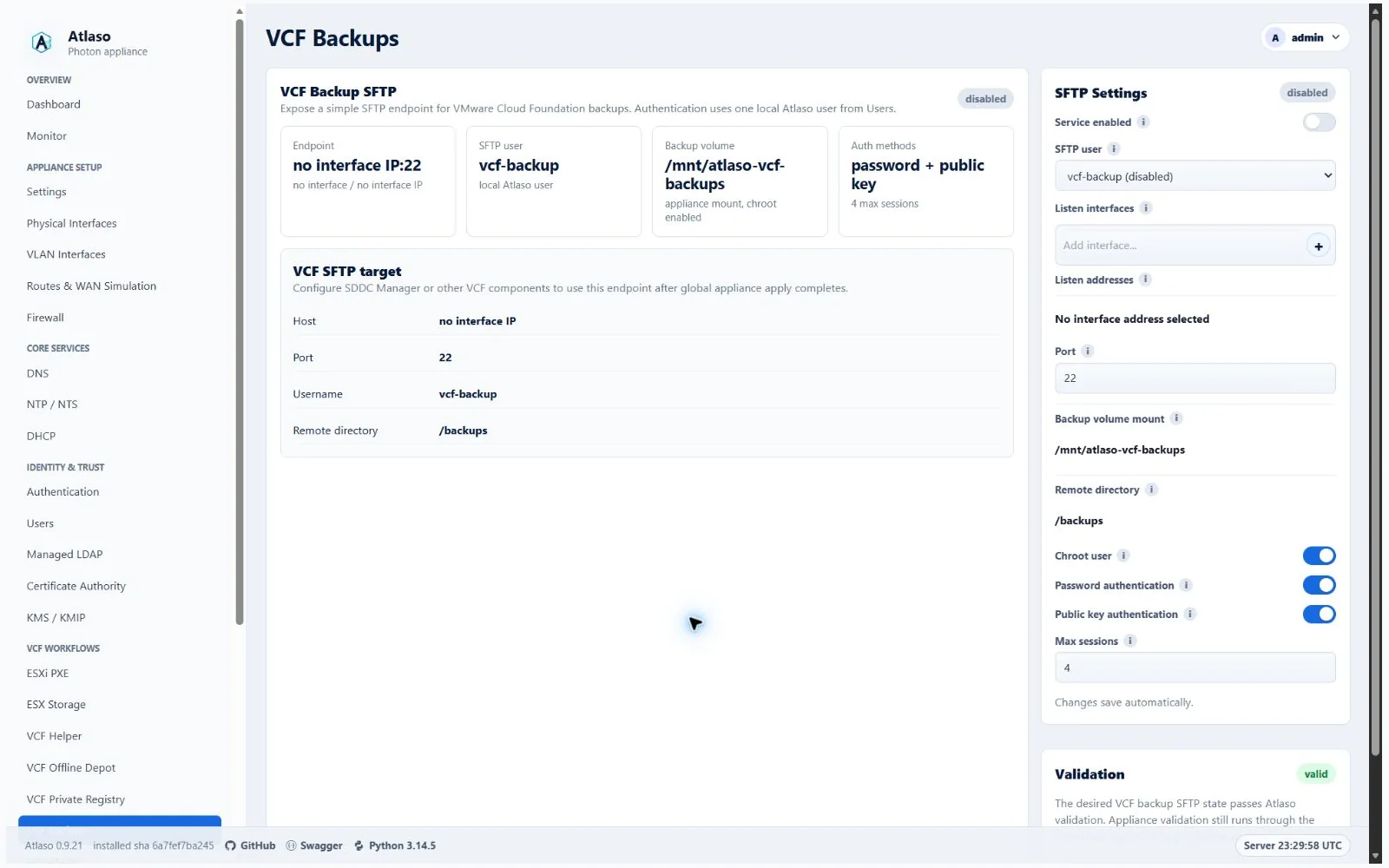
Figure: VCF Backups in the verified clean-appliance desktop state.
Configure a target
- Select the supported VCF appliance and provide its network endpoint.
- Use the minimum required credential and confirm TLS identity when prompted.
- Review storage location, retention, and validation warnings.
- Save the desired configuration and submit any required VCF Backups apply unit.
- Start the backup operation and follow it on Tasks.
Credentials must remain encrypted or transient and must not appear in jobs, audits, logs, or screenshots.
Automatic interface-address refresh validates the backup listener together with other service sockets before saving. If a DHCP/SLAAC observation would collide with an enabled reverse proxy, Atlaso retains the prior backup binding; resolve the conflicting listener intent before applying again.
Verify and recover
Treat a successful task plus a readable backup artifact as completion. Record the target, timestamp, task identifier, and artifact identity. Periodically test the documented restore path in an isolated environment; an unverified archive is not sufficient recovery evidence.
Additional verified states
These captures show responsive layouts and useful operational states referenced by this page.
VCF backups
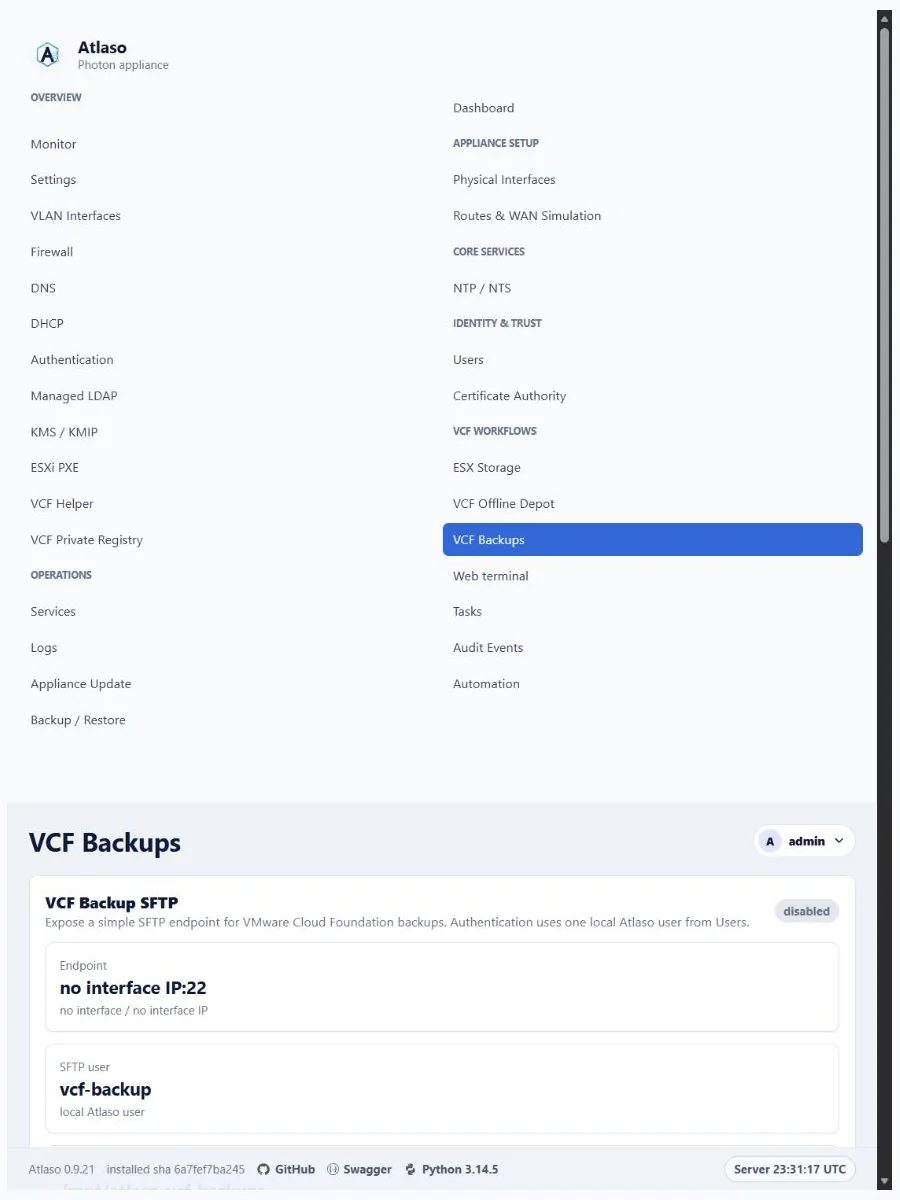
Figure: VCF Backups in the verified clean-appliance responsive state.