Tasks
Open Tasks to follow appliance apply, update, automation, and service operations. Each row represents one auditable job with its type, state, timestamps, and result.
Interface overview
This verified appliance view provides visual orientation before you begin.
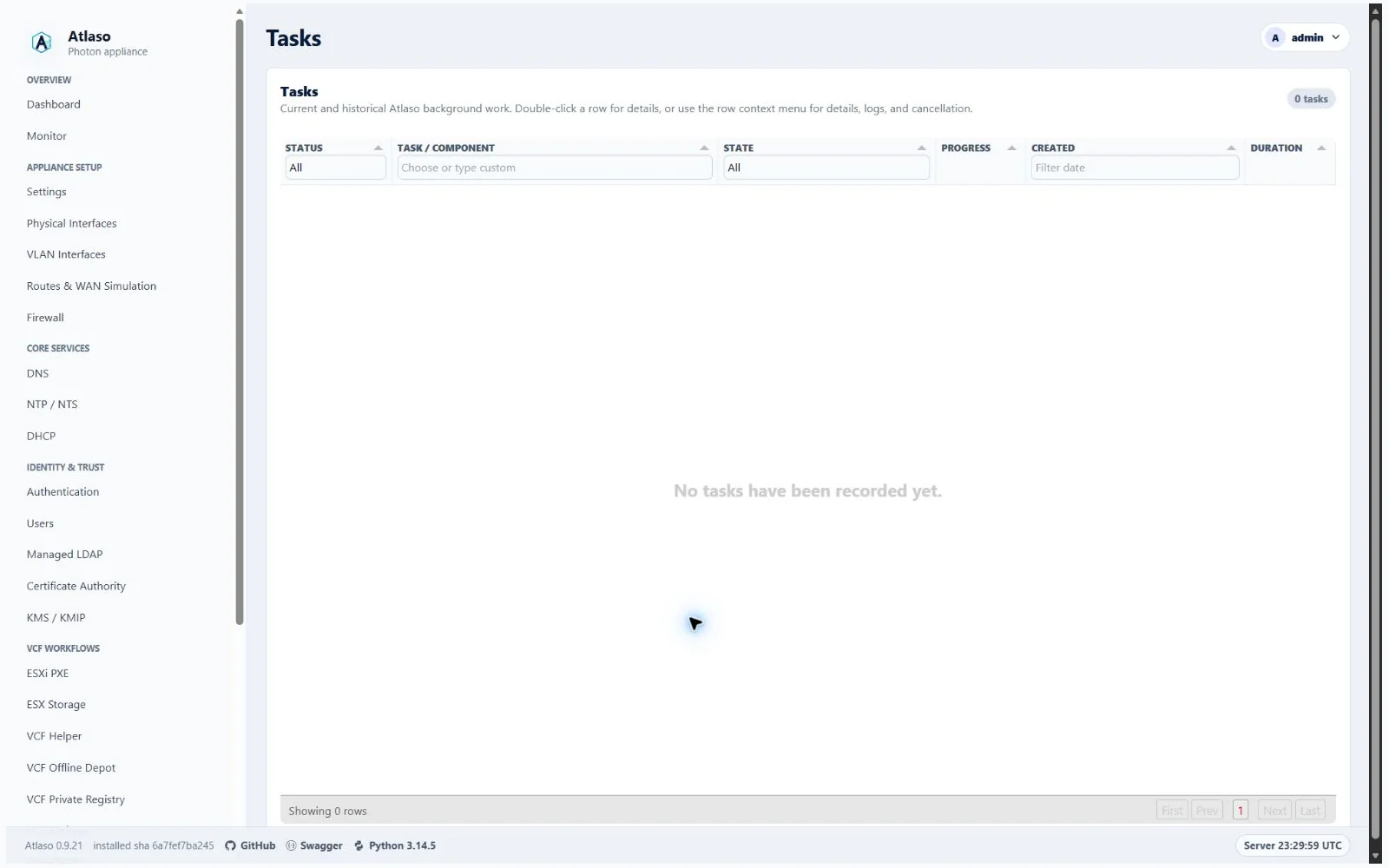
Figure: Tasks in the verified clean-appliance desktop state.
Follow a task
- Locate the highlighted task after submitting an operation.
- Open its detail view to inspect ordered steps, selected units, validation, and result.
- Wait for a terminal state: succeeded, failed, skipped, or cancelled.
- For appliance apply, confirm that selected and skipped units match the review submission.
When you open several task logs in quick succession, the last task selected owns the log dialog. Atlaso cancels the older request where possible and ignores any stale success or error that arrives after the newer selection or after the dialog was closed.
An open log refreshes automatically while its task is active and reads trailing output after completion. Use From beginning and the page controls to inspect its complete retained history; Follow live advances with new output. Reading older entries preserves your position and selection. A stale-connection notice keeps the last useful output visible while the viewer retries. These controls also apply to standalone VCF download logs and service logs; see Operational logs for retention and refresh behavior.
Pending and running tasks are not proof that appliance state changed. Treat only a successful terminal result plus the service-specific verification as success.
During a real Appliance Update installation, nginx temporarily replaces ordinary management and public browser pages with the update-only status surface. That page is a bounded projection of this same parent/child hierarchy, including the exact task ID, ordered Photon OS, PowerShell Modules, and Atlaso Release children that were selected, their states, and parent progress. It intentionally omits logs, commands, credentials, source locations, and detailed errors. A terminal page is not yet proof that ordinary UIs can reopen: Atlaso first reconciles release/finalizer evidence, any scheduled worker restart, nginx reload, and browser-listener health. If the appliance reboots during that interval, the same durable task identity remains on the status page until restoration is proven.
VCF Offline Depot downloads use the same task type for profile-row starts and Automation starts. Their result records identify the profile, trigger, optional schedule, planned time, and sanitized task log. A scheduled VCFDT overlap is a terminal skipped task linked to the already-active profile download, Software Depot ID task, or VCF Offline Depot Appliance Apply; a failed execution-time prerequisite is a terminal failed task. Neither outcome implies depot content changed, and neither is replayed automatically.
Diagnose a failure
Read the failed step and its ordered important-event history, then correlate the task identifier with
Operational logs and the Audit log. Important events retain bounded stage, outcome, and
safe failure or recovery detail with the task even when the App log level filters successful INFO entries. The task
history holds at most 64 important-event records and reports when additional events were truncated. Correct desired
state in the owning page and submit a new task. Do not edit task history or fabricate a successful result.
Task history pages exclude the changing status and progress summary, which remains in the task detail dialog. Updating that summary does not reset an older log page. Result changes and audit events are captured transactionally as an ordered history stream. New fields and appended output do not move an existing history cursor; updated or removed fields add entries while earlier output stays readable. Existing retained tasks are initialized when the appliance starts. Cancelling or rolling back a producer transaction does not publish uncommitted log entries.
Important task events cover significant queued, started, skipped, no-op, partial, failed, cancelled, and recovered outcomes when the owning producer reports them. They are not a trace of every request or helper command. Routine reads, polls, and repeated healthy observations do not create task events. A task can identify the failing stage and available safe return/error code without establishing the underlying native cause; use the linked service's verification procedure when the evidence remains incomplete. See Important-event coverage.
Cancellation and execution ownership
Tasks and the API expose the same backend-owned can_cancel, cancel_reason, and cancel_confirmation fields.
The task detail shows the reason even when cancellation is unavailable. Its Cancel action also works for a task
opened directly outside the current grid page or filters. Cancellation uses the refreshed grid capability when
available; a closed detail dialog cannot override the current confirmation or eligibility. A stale browser action
cannot override the backend policy. An accepted request records cancel_requested_at and cancel_requested_by;
running work keeps its active status until its owner verifies the stop and cleanup. cancel_completed_at and
cancel_outcome record the final disposition. cleanup-required remains active and blocks worker admission while
recovery needs attention. A media failure racing an accepted cancellation confirms the stop once rollback and
upload cleanup succeed; only unresolved cleanup retains that queue hold. Startup recovery also requires proof that
no unresolved swap journal, replacement tree, or staging directory remains. Malformed recovery evidence retains the
request and queue hold until recovery succeeds. Embedded Appliance Update actions use the current caller's
permissions. Do not interpret a cancellation request as proof that a local process or a remote operation stopped.
| Task owner | Queued cancellation | Running cancellation |
|---|---|---|
| Appliance Update check | Reserved before worker claim | Current bounded check finishes and cleans credentials; remaining checks skipped |
| Appliance Update installation or source synchronization | Reserved before worker claim | Unavailable; existing update/recovery owner must finish |
| Appliance Apply | Cancelled before its atomic execution claim; apply lock released | Current component and cleanup finish; remaining components skipped; applied changes remain |
| Network Boot media download/upload | Reserved before claim; owned upload removed | Transfer/extraction checkpoint, then staged filesystem rollback and upload cleanup |
| Network Boot media deletion | Reserved before worker claim | Unavailable once destructive deletion starts |
| Managed script | Reserved before worker claim | Unavailable because script side effects have no generic rollback contract |
| VCF depot download | Reserved before claim; queued profile status restored | Unavailable until the VCFDT owner finishes |
| Diagnostic bundle | Reserved before worker claim | Unavailable; bounded collector descendant shutdown is not verified |
| VCF software identity replacement | Unavailable | Unavailable; identity operation owner must finish |
| Remote SDDC deployment, depot target configuration, or CA trust | Unavailable | Unavailable; stopping a watcher does not stop or undo remote work |
| Manual placeholder | Cancelled before execution | Unavailable |
| Other/unregistered task types | Unavailable | Unavailable until an explicit safe owner contract is registered |
An update check request can wait up to six minutes for the current helper's deadline and credential cleanup. Media cancellation checks before each transfer attempt and after each 1 MiB read. A network operation can wait up to its 300-second socket timeout (including each bounded redirect); extraction commands have 60-second deadlines. Cancellation does not interrupt filesystem publication halfway through. Failed cleanup retains active ownership and the request for recovery. Worker restart revalidates task-owned update units or restores interrupted media swaps before confirming cancellation. Web startup confirms accepted queued Apply cancellations before classifying other interrupted Apply jobs. Paired Firewall/NAT publication finishes as one transaction; a request after its final work preserves completion.
Completed child results remain intact. Completed update checks refresh availability before cancellation is confirmed,
including during restart recovery; skipped streams retain their previous confirmation. A verified parent stop skips
children that never started. If completion wins
the race, Atlaso preserves success or failure and records completion-won; repeated requests never rewrite that result.
The API requires admin:all; browser administrators can request supported cancellations, while service administrators
are limited to supported Network Boot media tasks. Child rows cannot independently cancel their parent's operation.
Additional verified states
These captures show responsive layouts and useful operational states referenced by this page.
Tasks
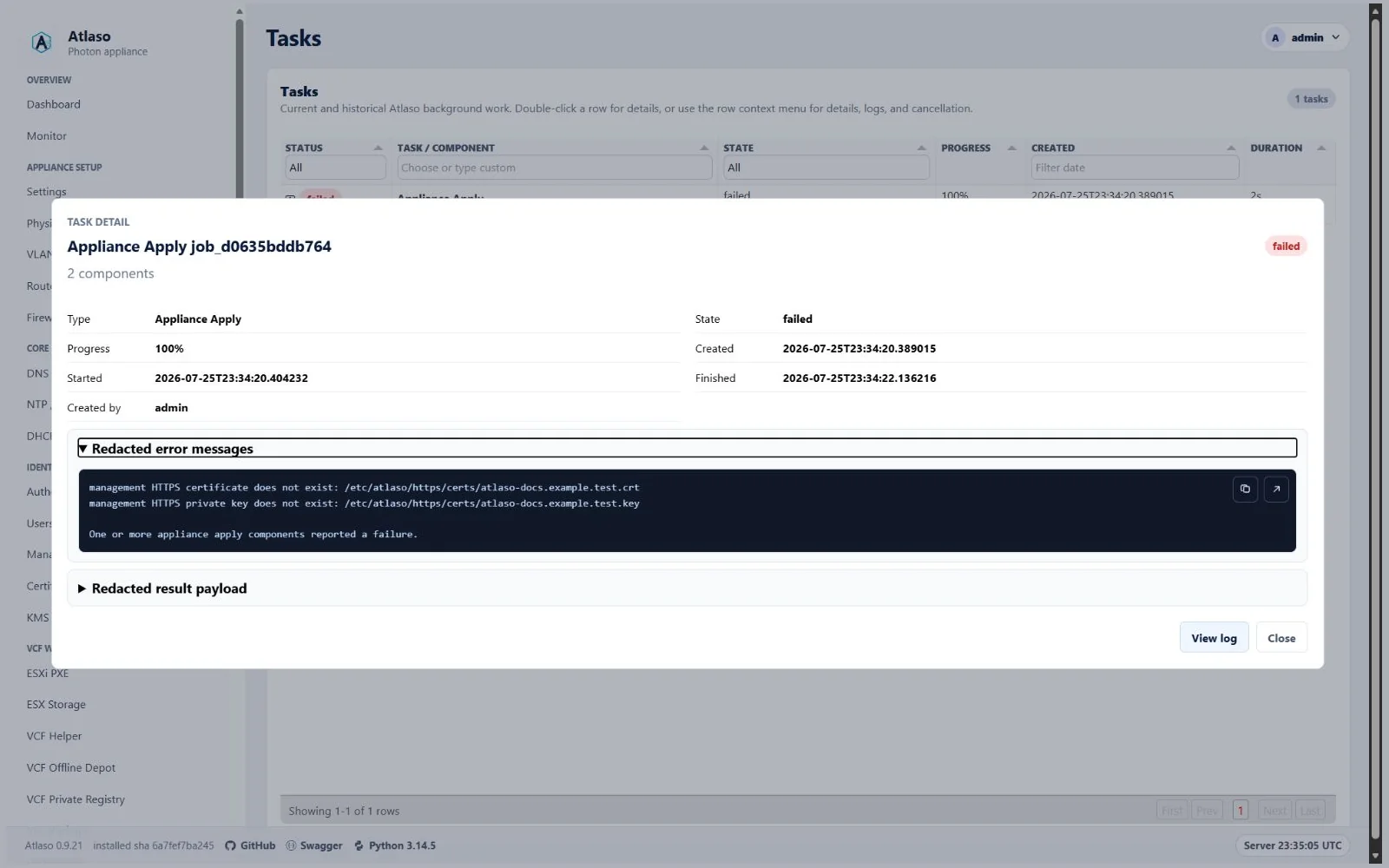
Figure: Failed appliance apply task with redacted operator detail.
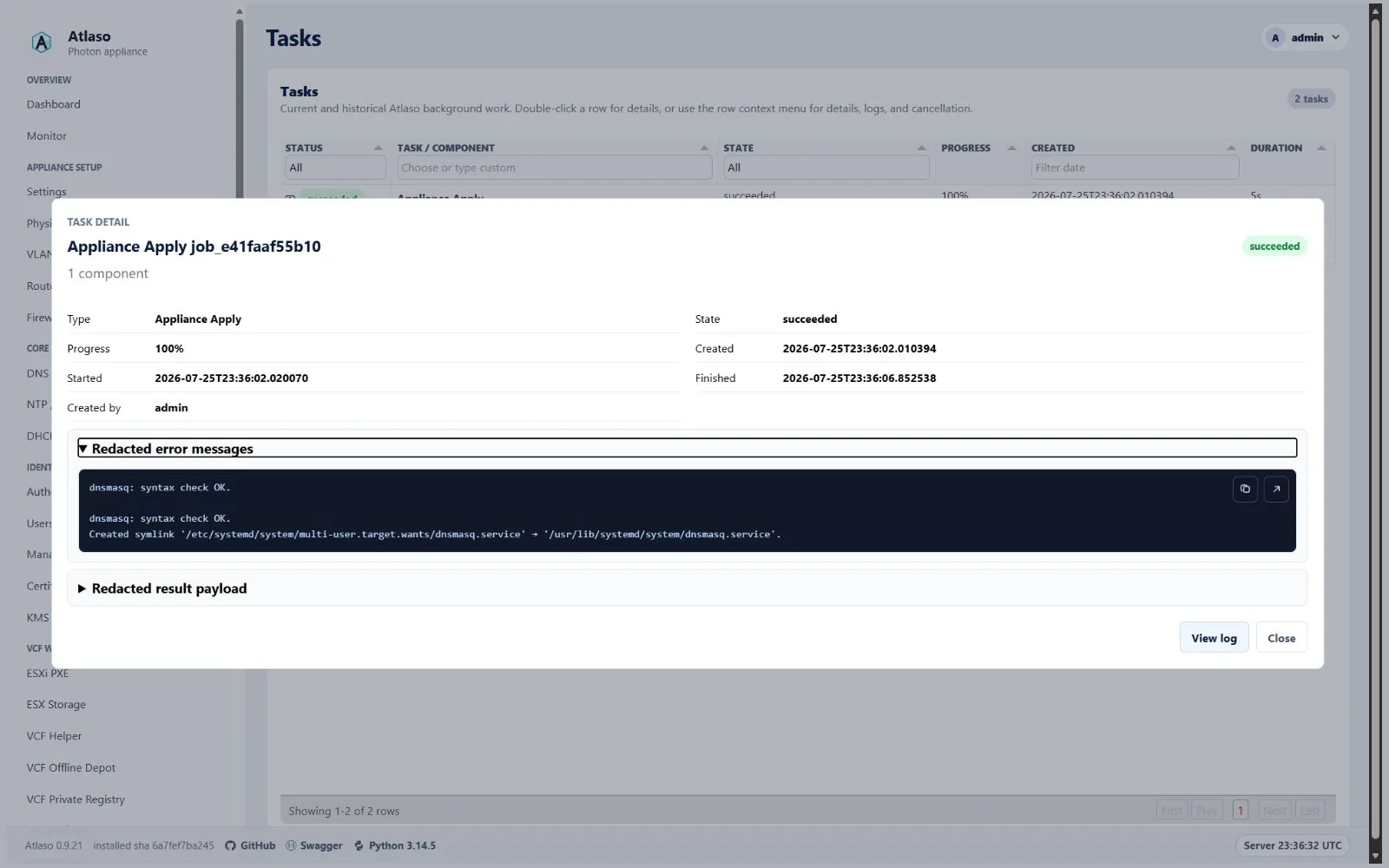
Figure: Successful appliance apply task with verified dnsmasq output.
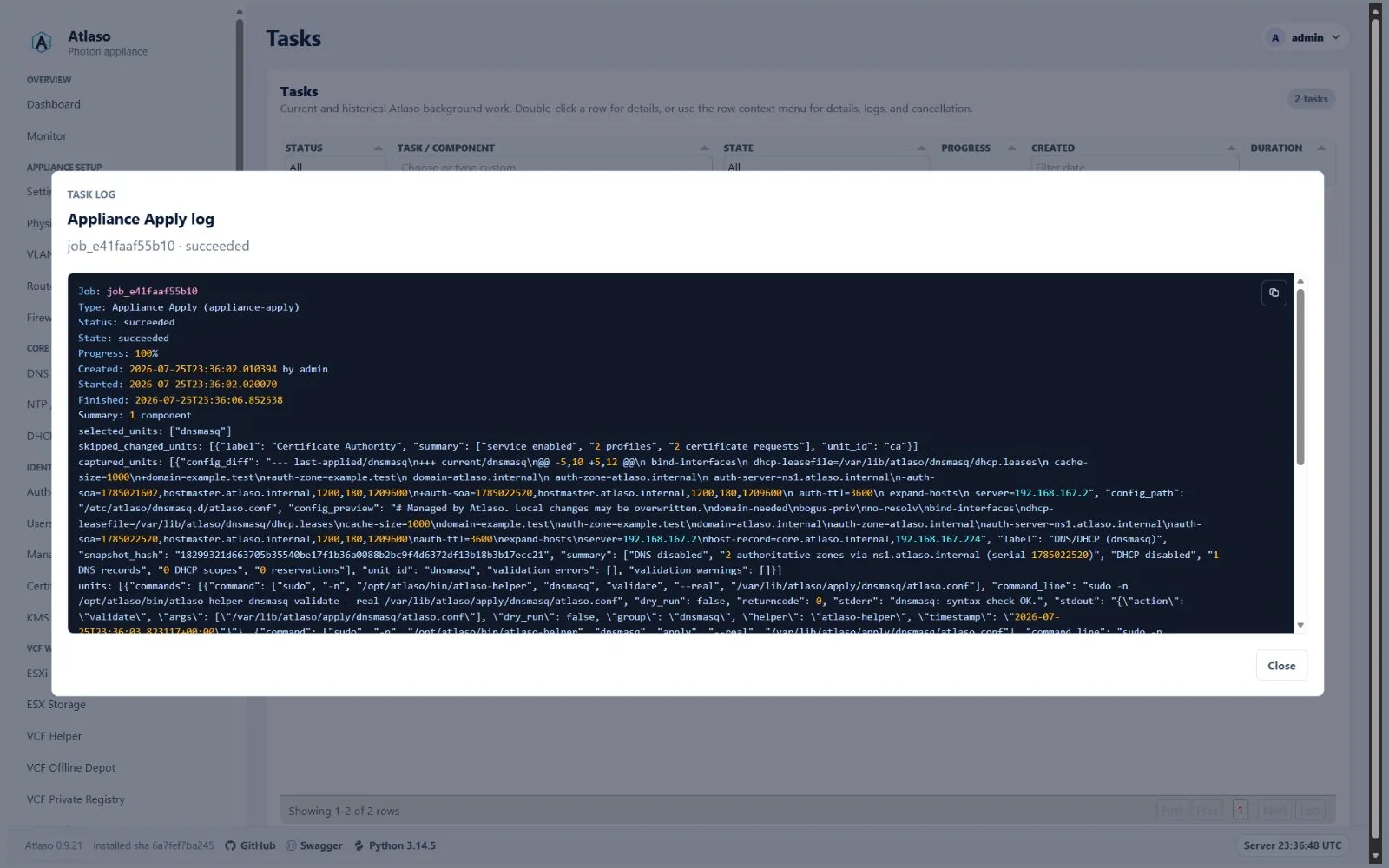
Figure: Successful appliance apply log with captured commands and audit events.
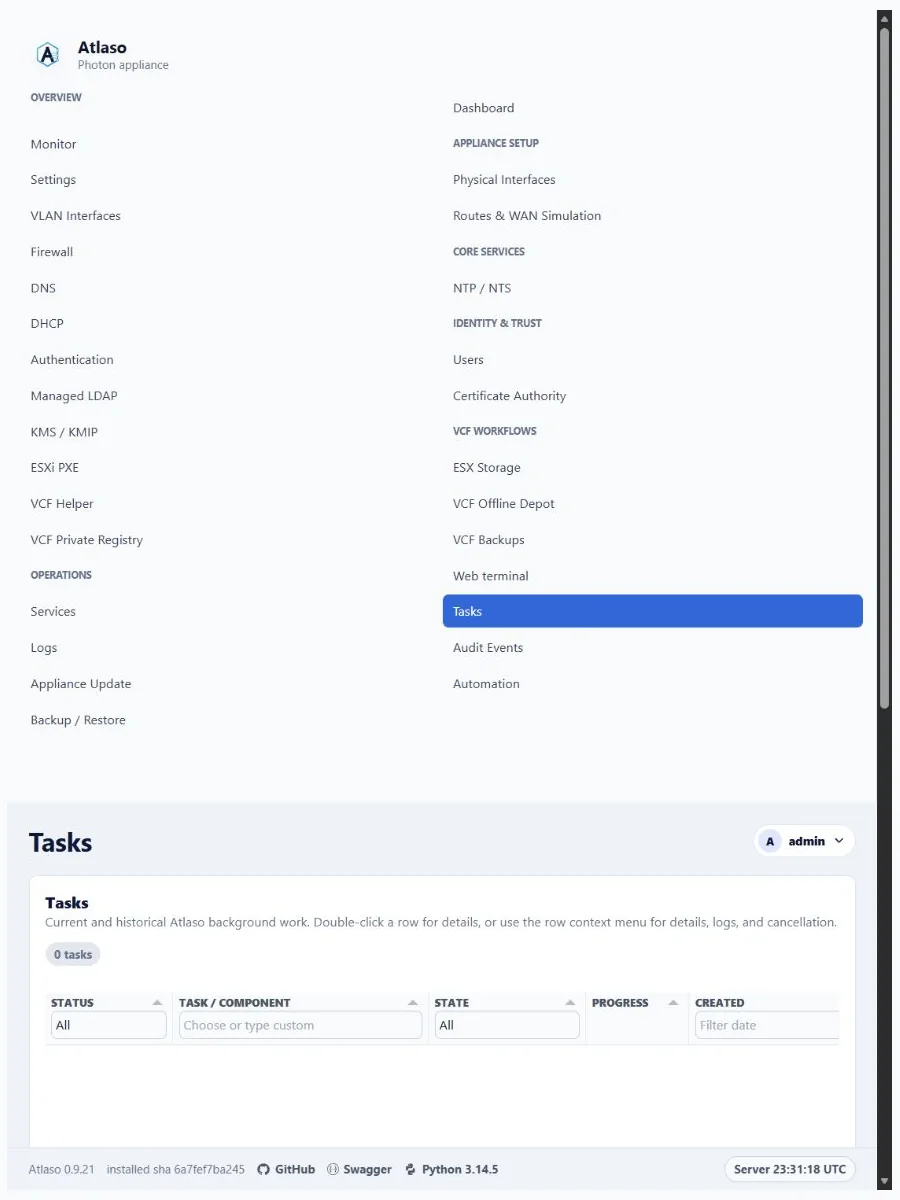
Figure: Tasks in the verified clean-appliance responsive state.