Verified interface gallery
The baseline images were captured from the dedicated Atlaso-Docs VMware Workstation VM. That baseline
runs Atlaso 0.9.21. Later captures use dedicated documentation or validation appliances and record their
exact version and source revision in the manifest with viewport, capture method, and sensitive-data review.
The clean, configured, pending, failed, and applied labels describe observed appliance states. A successful state is shown only where the corresponding task completed successfully.
Api / Docs
Route: /api/docs
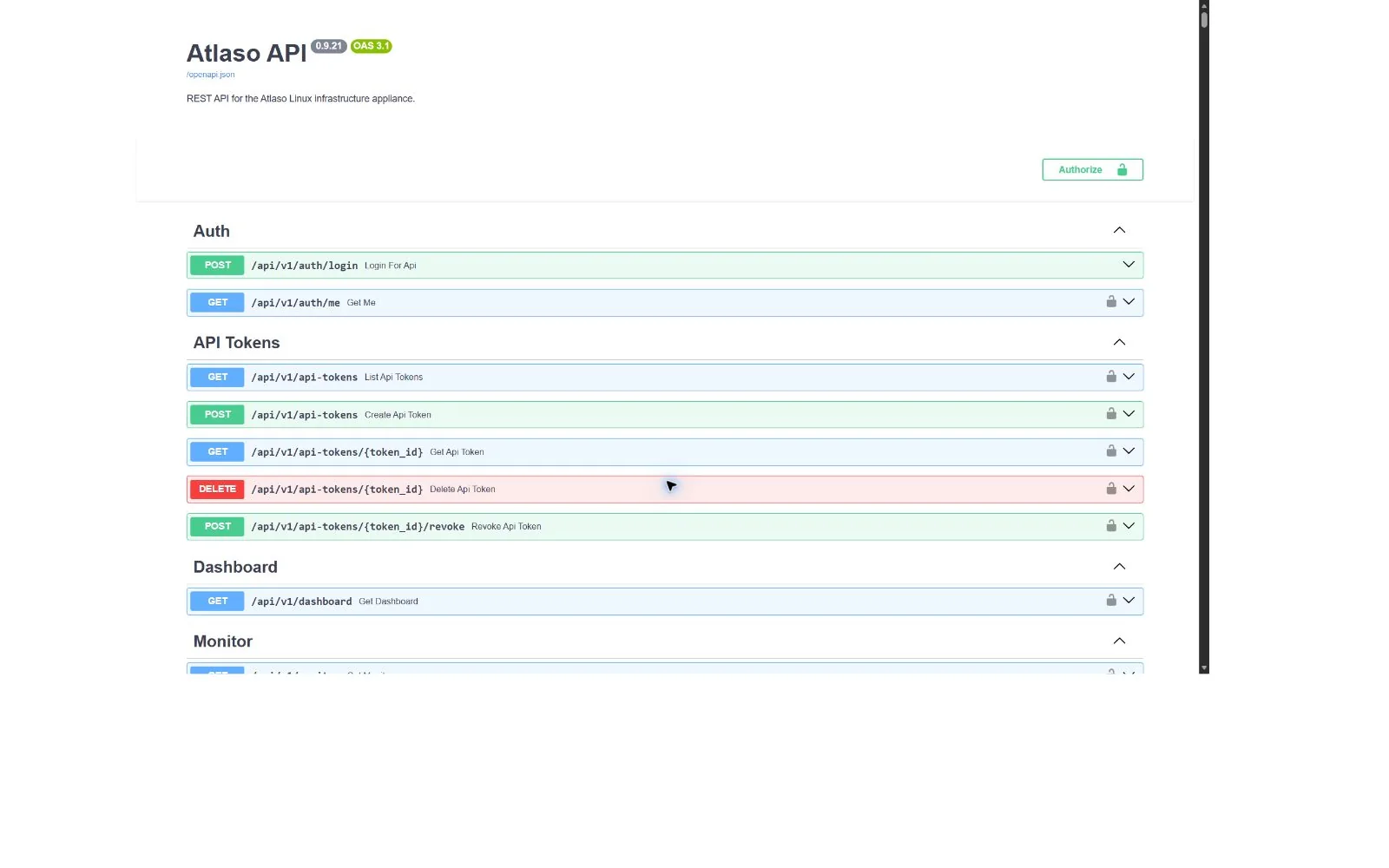
Figure: Swagger API reference in the verified clean-appliance desktop state.
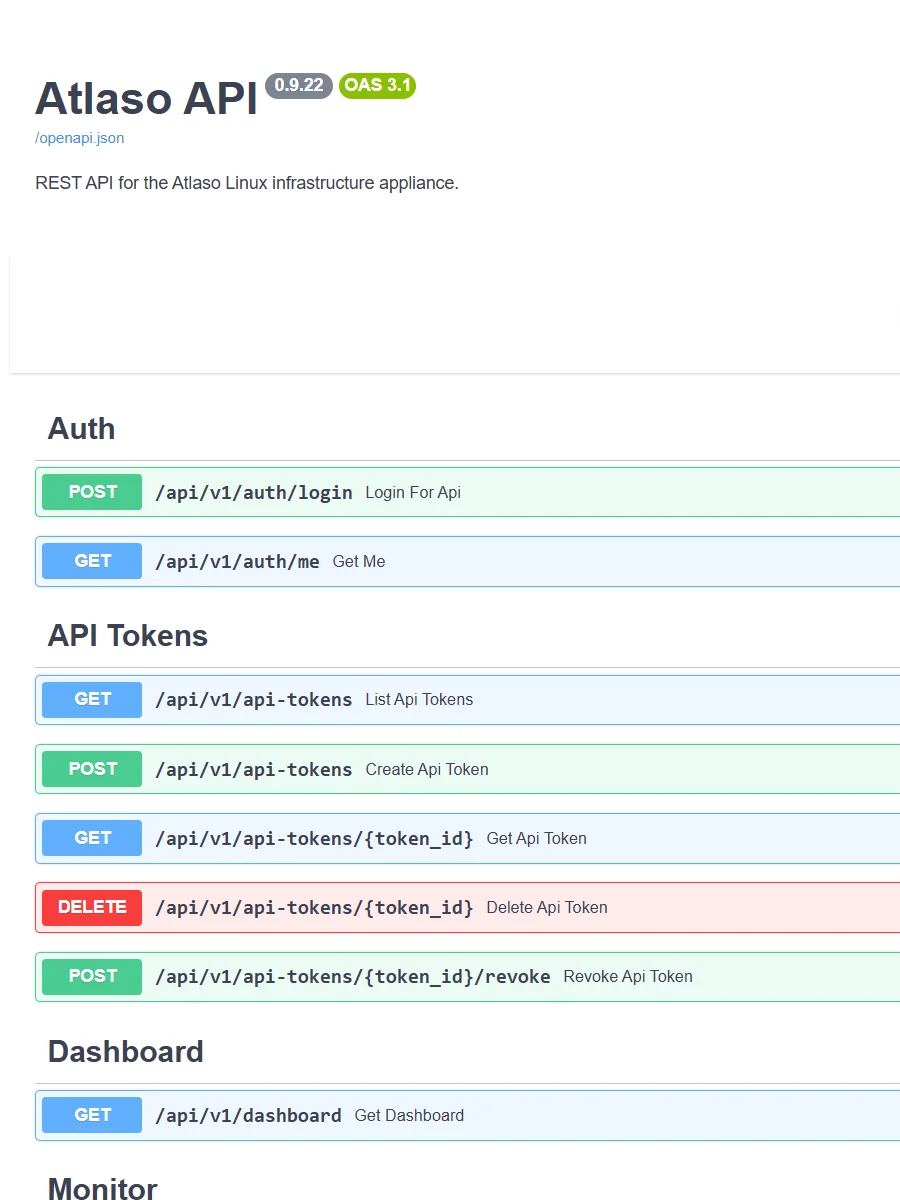
Figure: Swagger API reference in the verified clean-appliance responsive state.
Appliance Update
Route: /ui/management/appliance-update
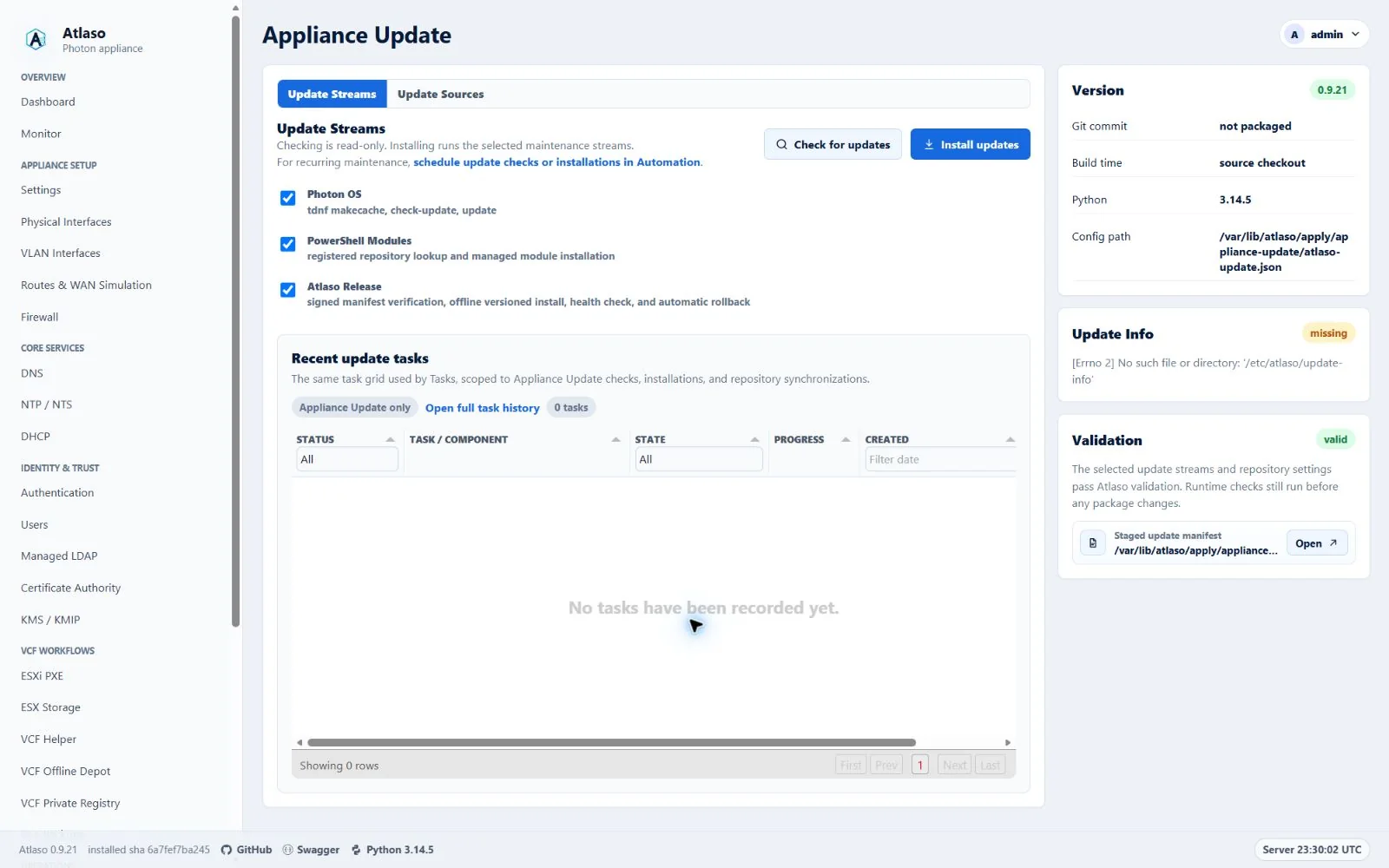
Figure: Appliance Update in the verified clean-appliance desktop state.
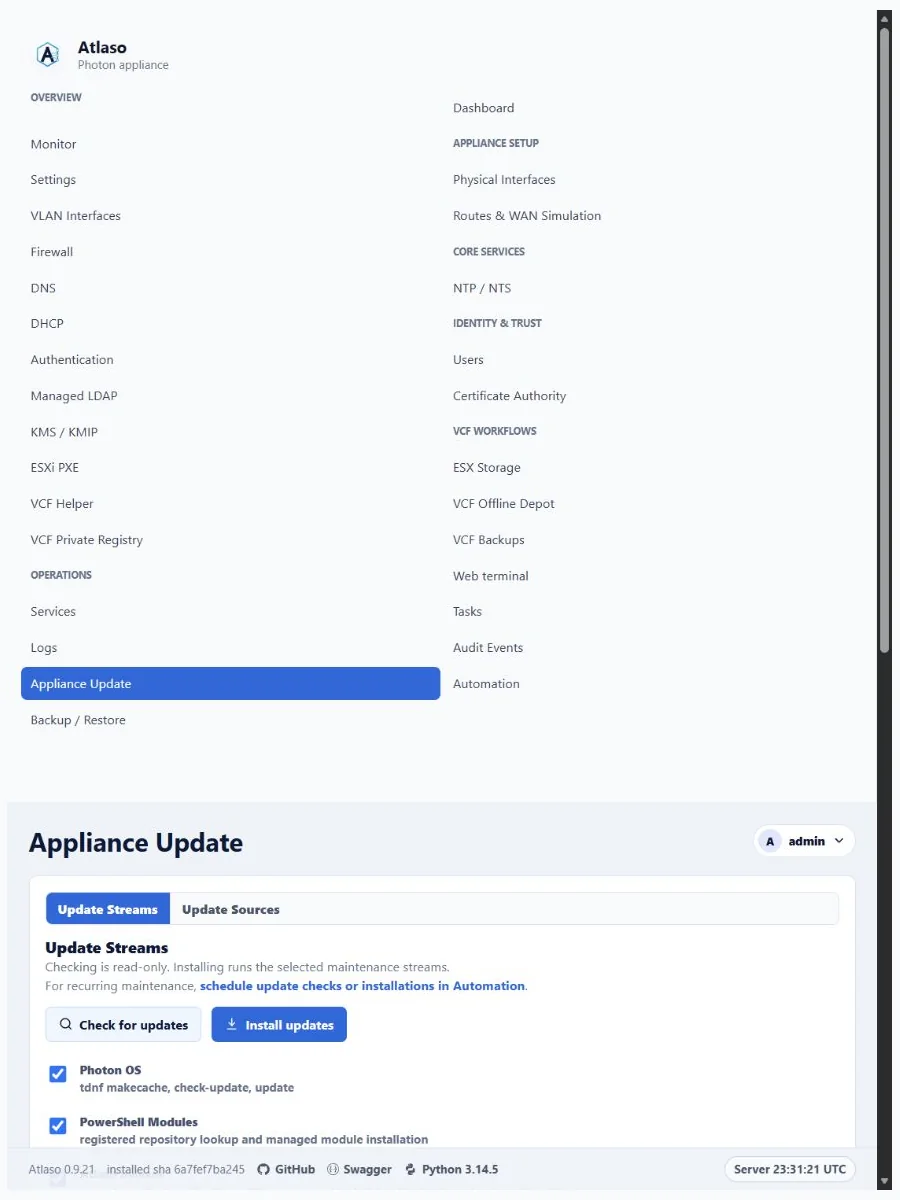
Figure: Appliance Update in the verified clean-appliance responsive state.
Appliance Update: Appliance Update Streams
Route: /ui/management/appliance-update#appliance-update-streams
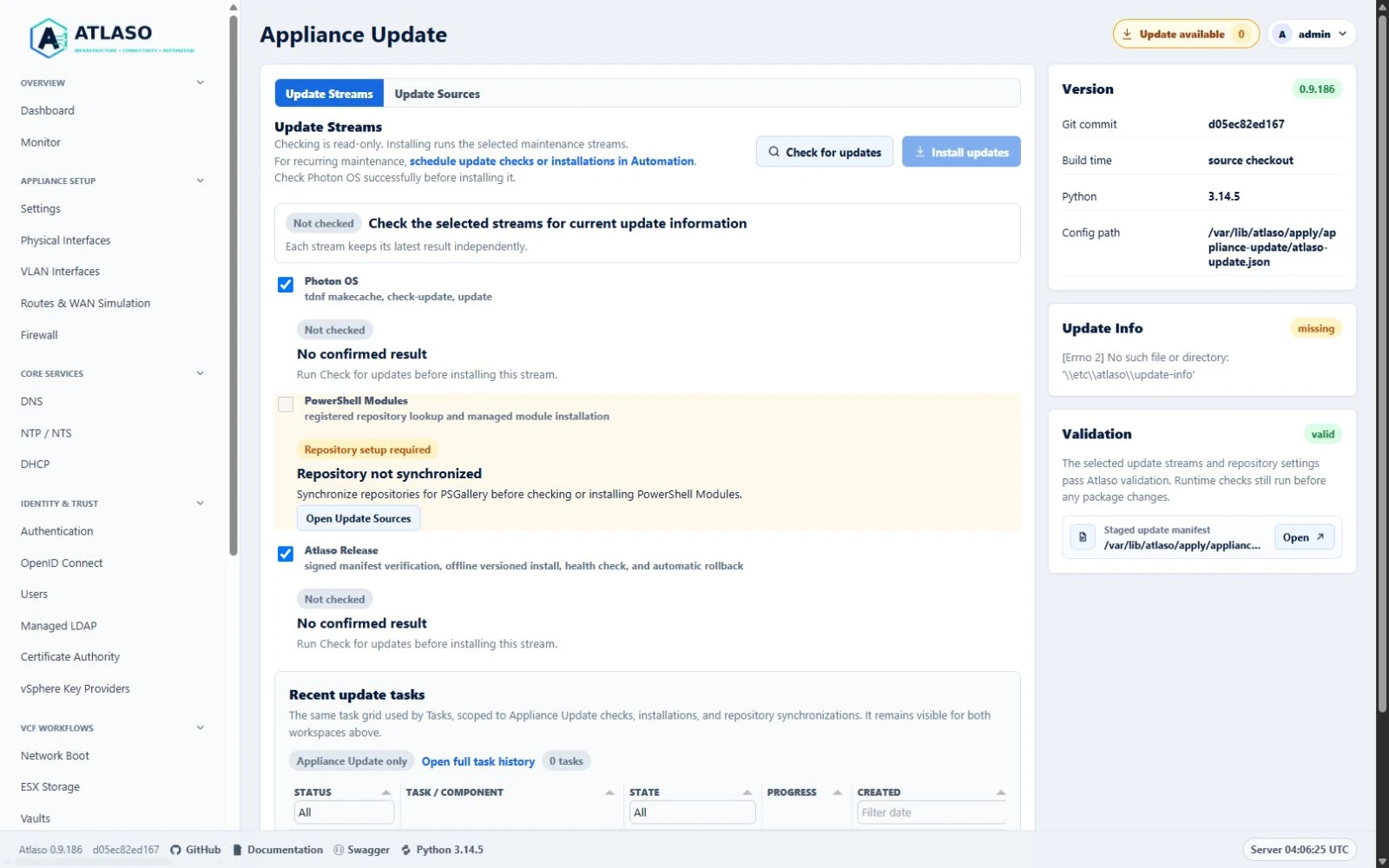
Figure: Appliance Update with a repository-backed stream blocked until synchronization.
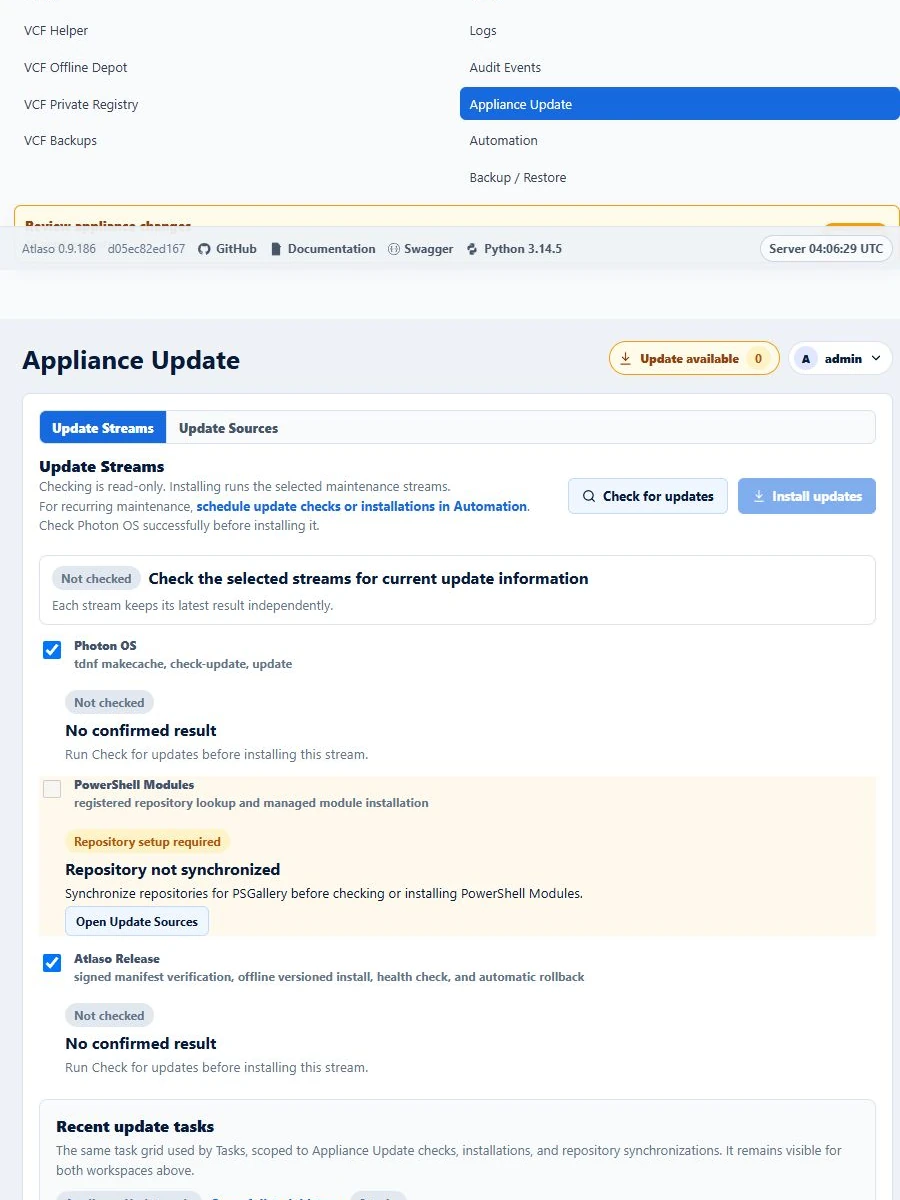
Figure: Appliance Update repository readiness at the responsive viewport.
Audit Log
Route: /ui/management/audit-log
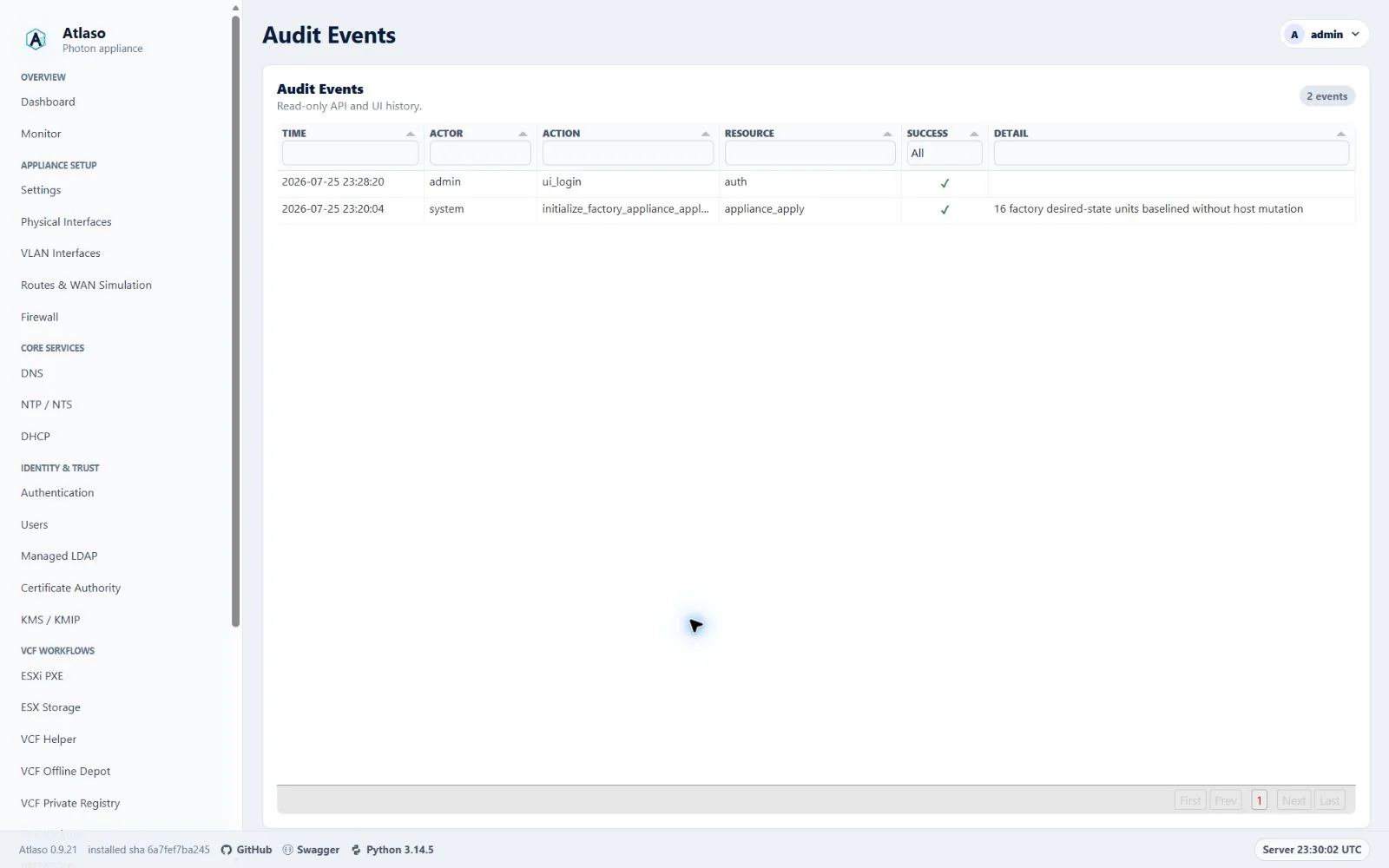
Figure: Audit Events history controls in the desktop layout with synthetic test data.
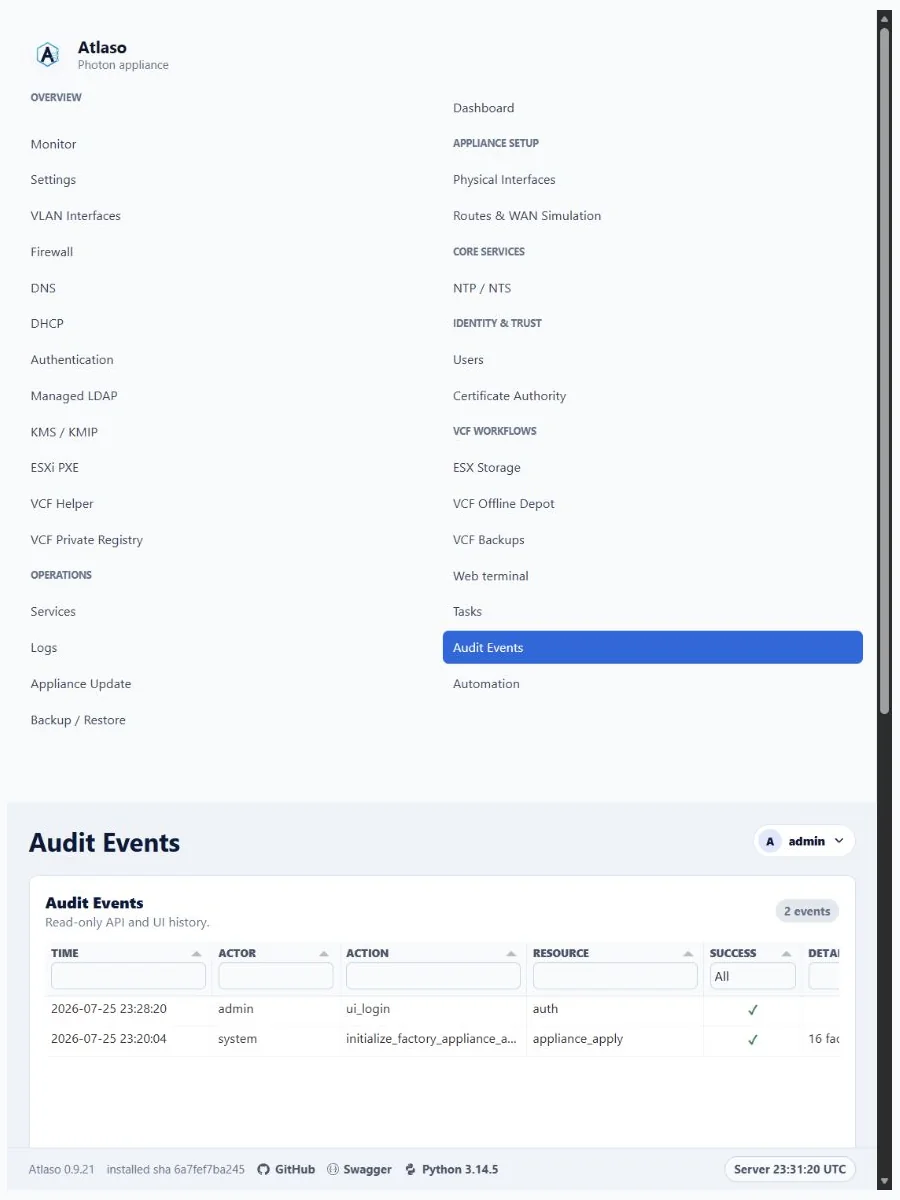
Figure: Audit Events history controls in the responsive layout with synthetic test data.
Automation
Route: /ui/management/automation
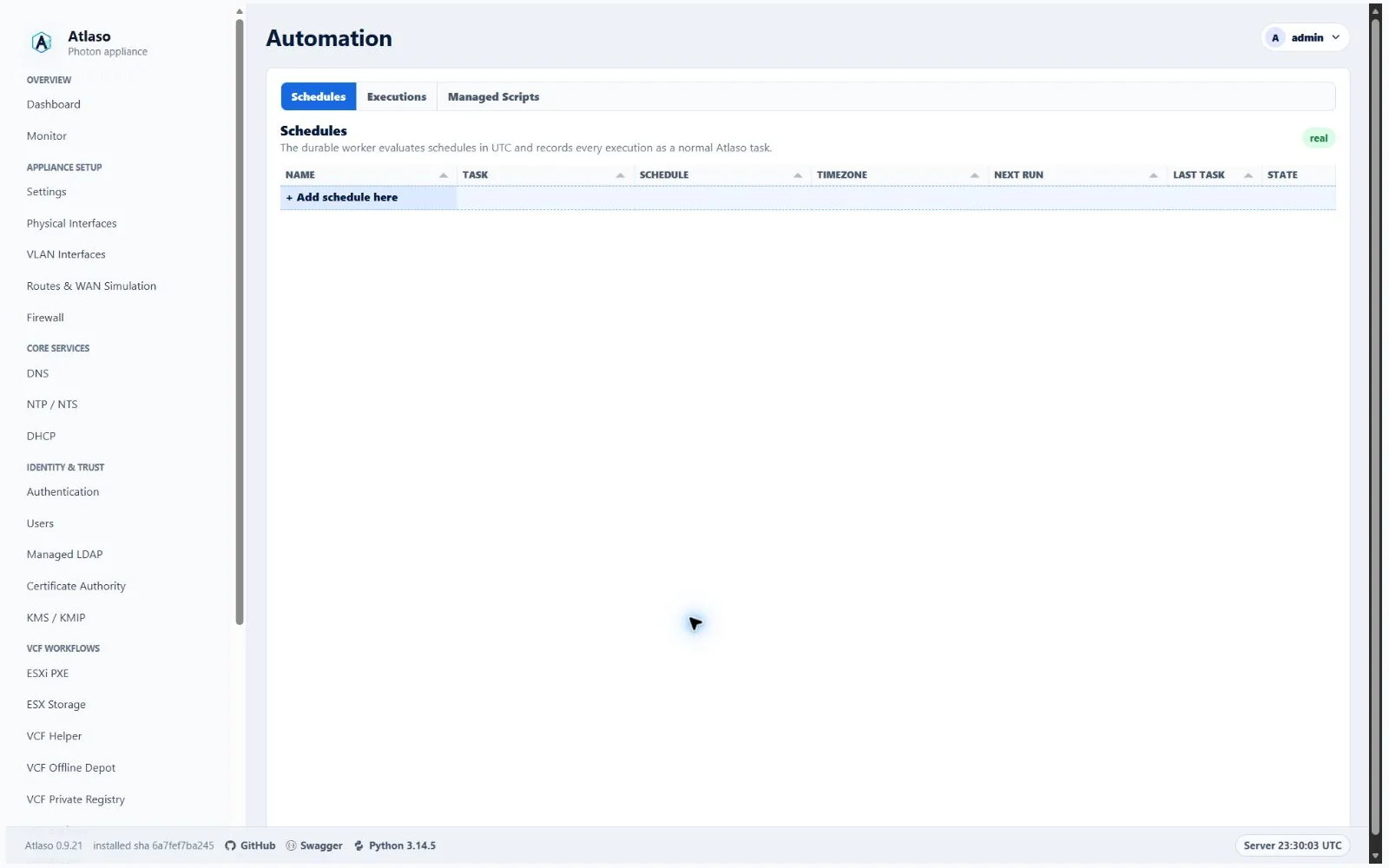
Figure: Automation in the verified clean-appliance desktop state.
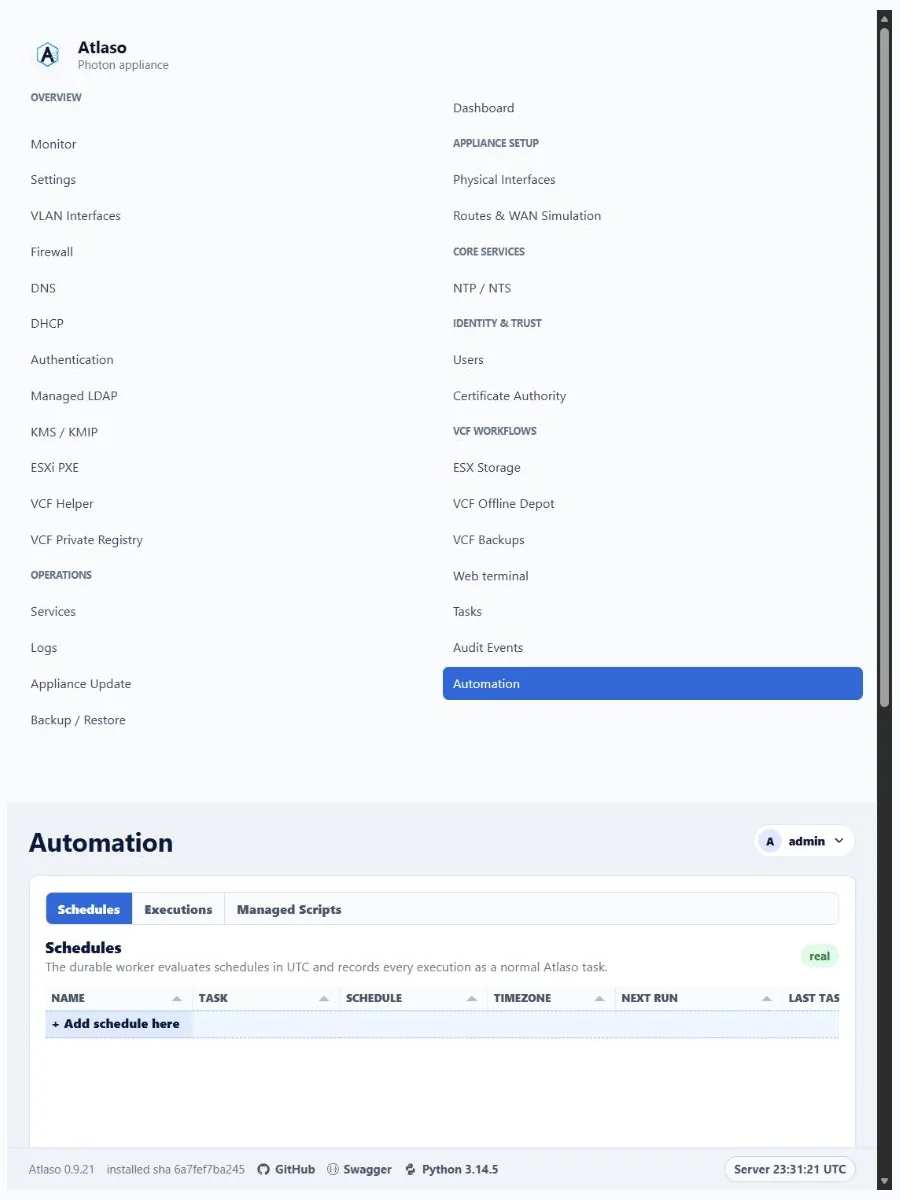
Figure: Automation in the verified clean-appliance responsive state.
Automation: Schedules
Route: /ui/management/automation#schedules
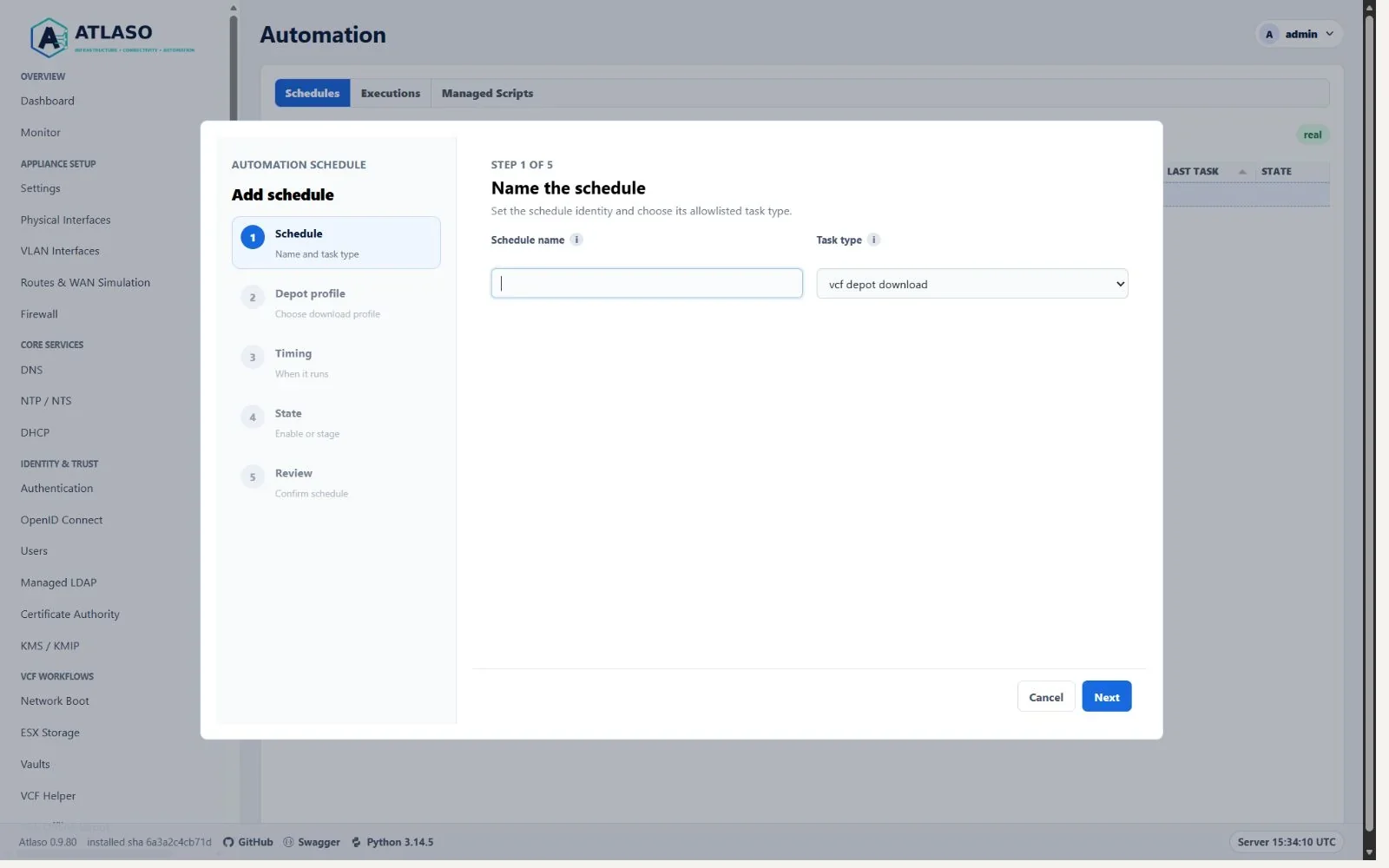
Figure: VCF Offline Depot profile scheduling in the shared Automation wizard.
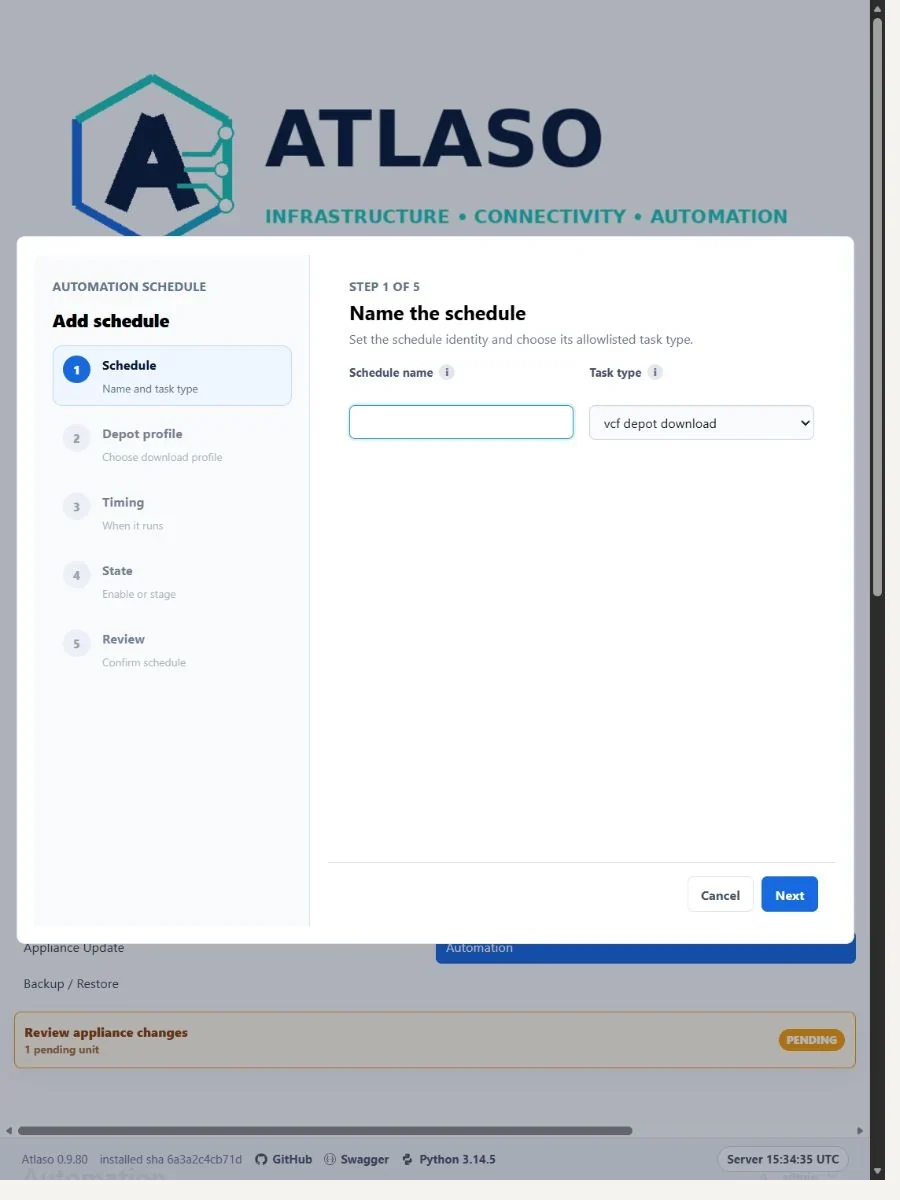
Figure: VCF Offline Depot profile scheduling in the shared Automation wizard at the responsive viewport.
Backup Restore
Route: /ui/management/backup-restore
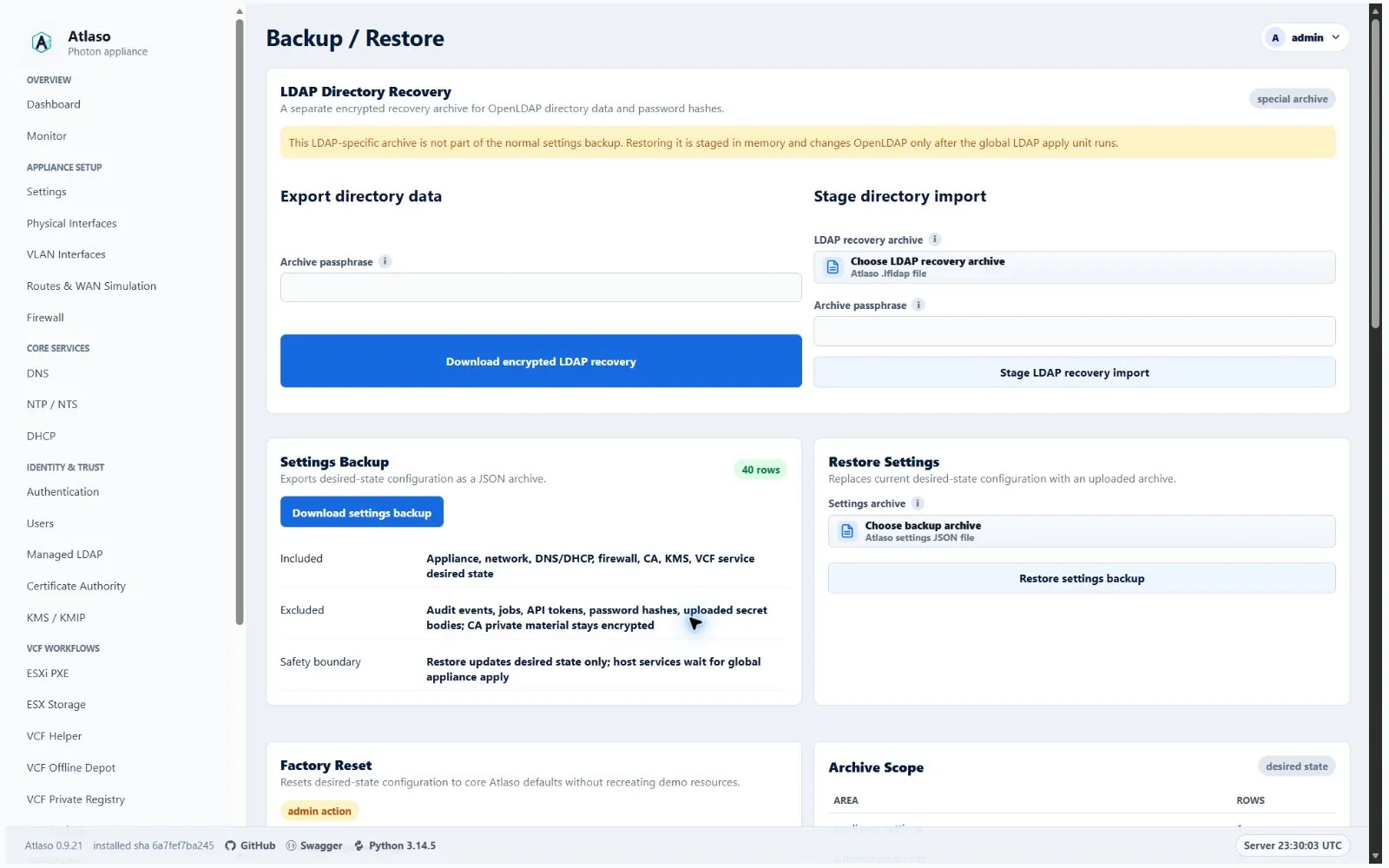
Figure: Backup and Restore in the verified clean-appliance desktop state.
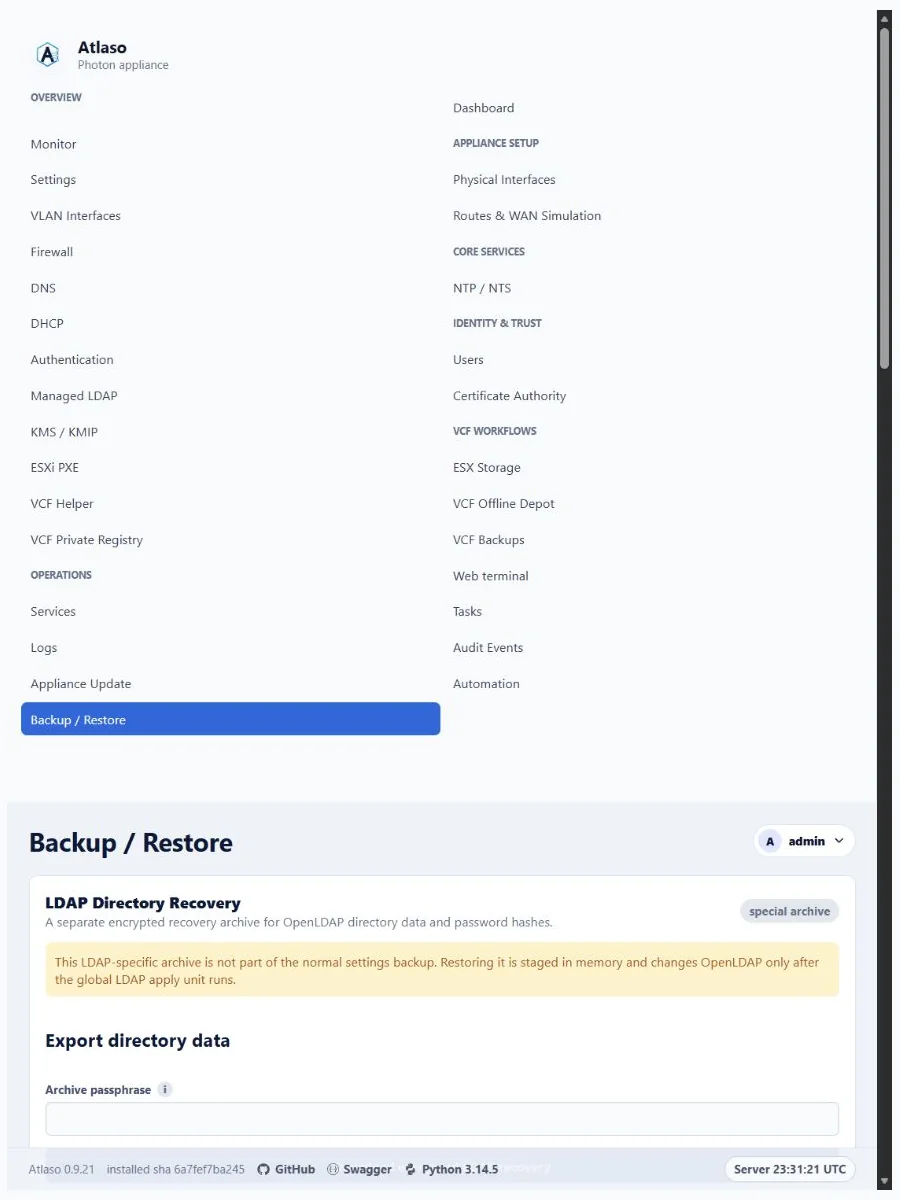
Figure: Backup and Restore in the verified clean-appliance responsive state.
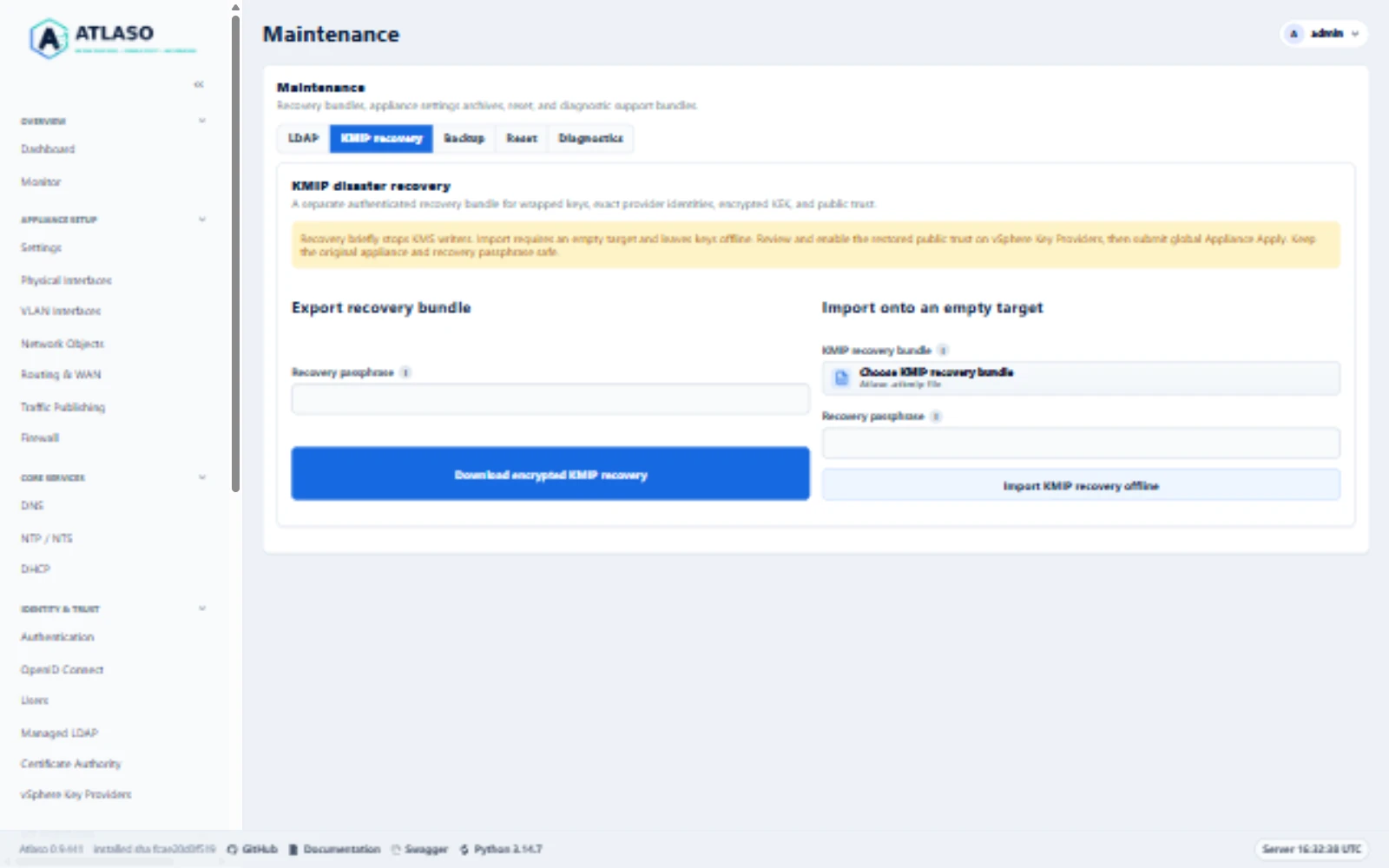
Figure: KMIP recovery forms and empty-target guidance on the documentation appliance in the desktop viewport.
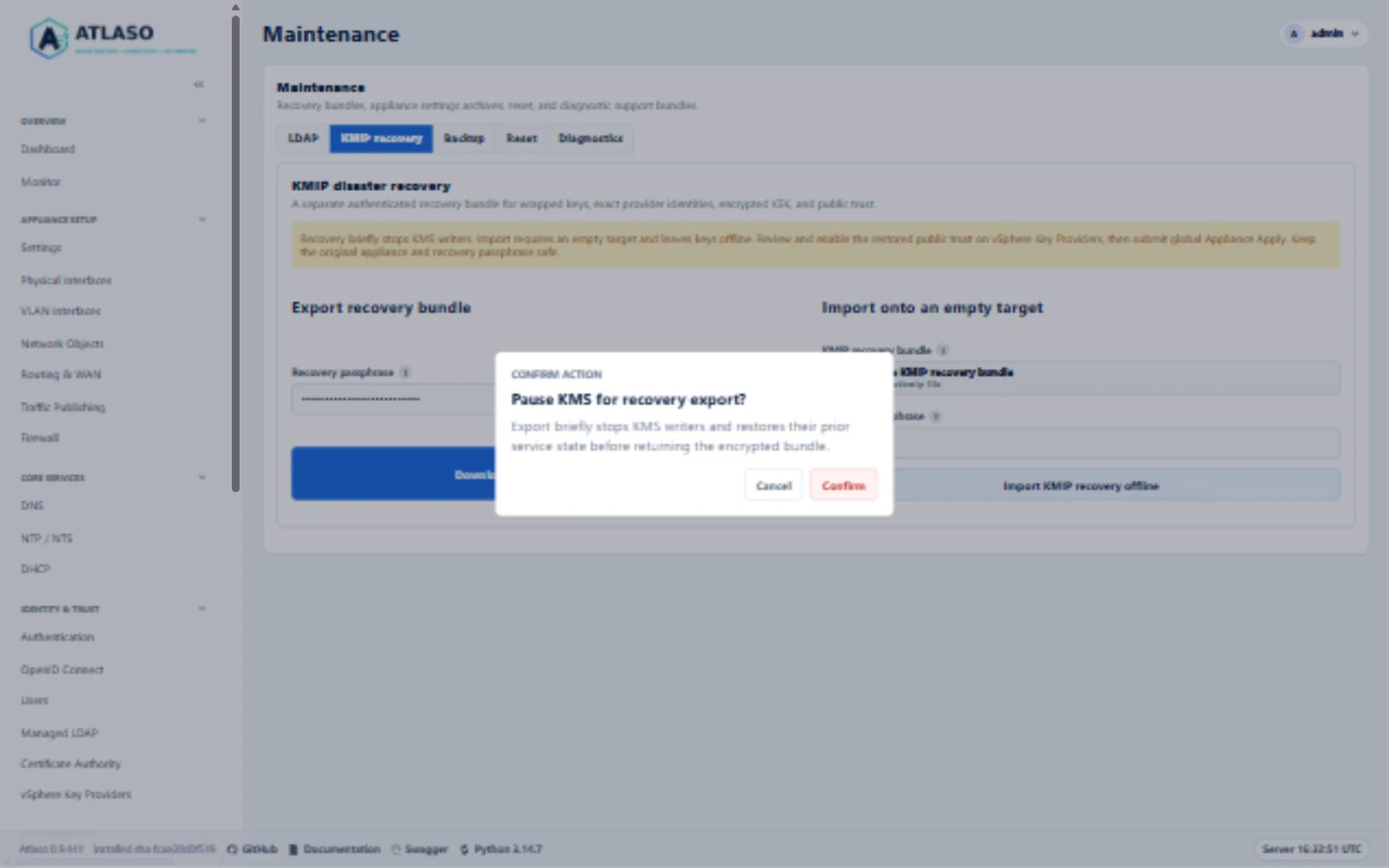
Figure: Review the brief KMS writer pause before export. This documentation preview was canceled without creating an archive.
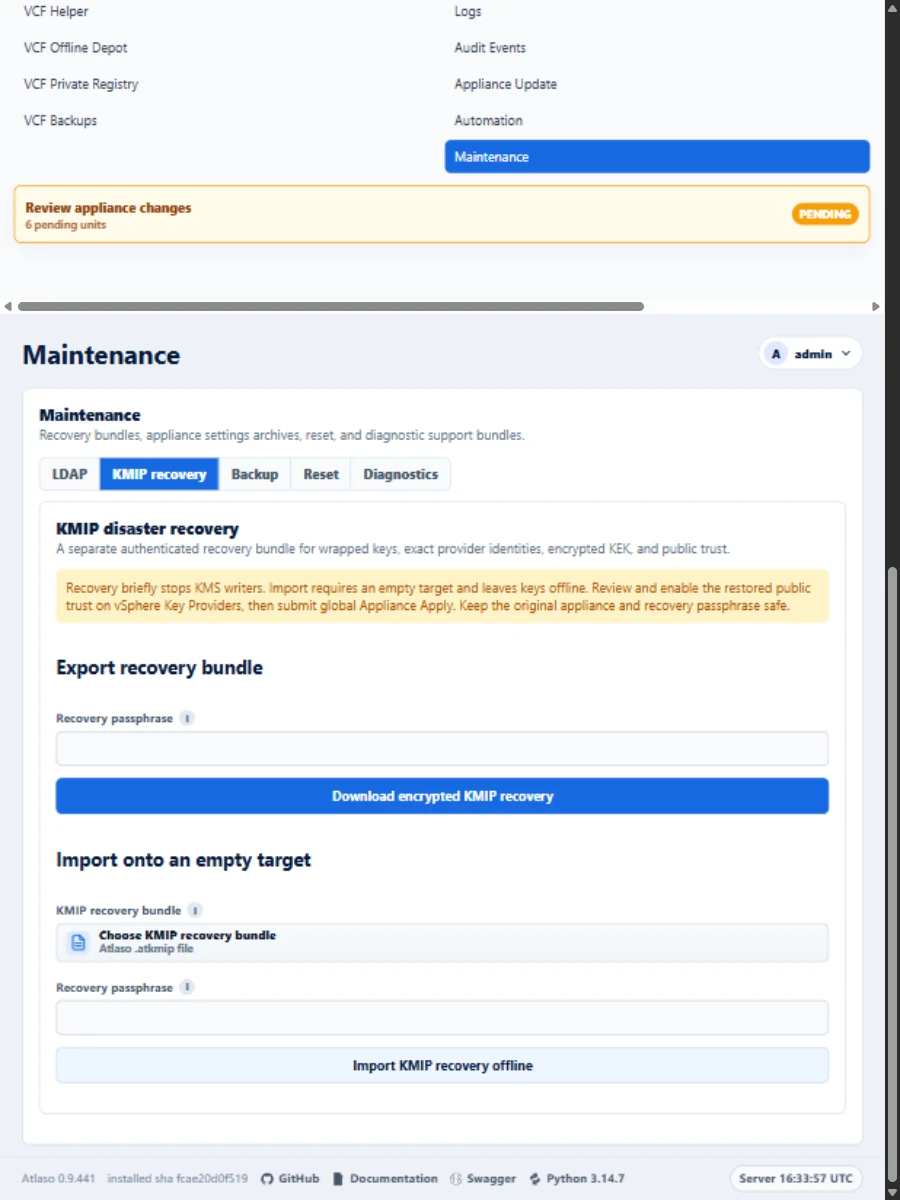
Figure: KMIP recovery forms and empty-target guidance on the documentation appliance in the responsive viewport.
Ca
Route: /ui/public/ca
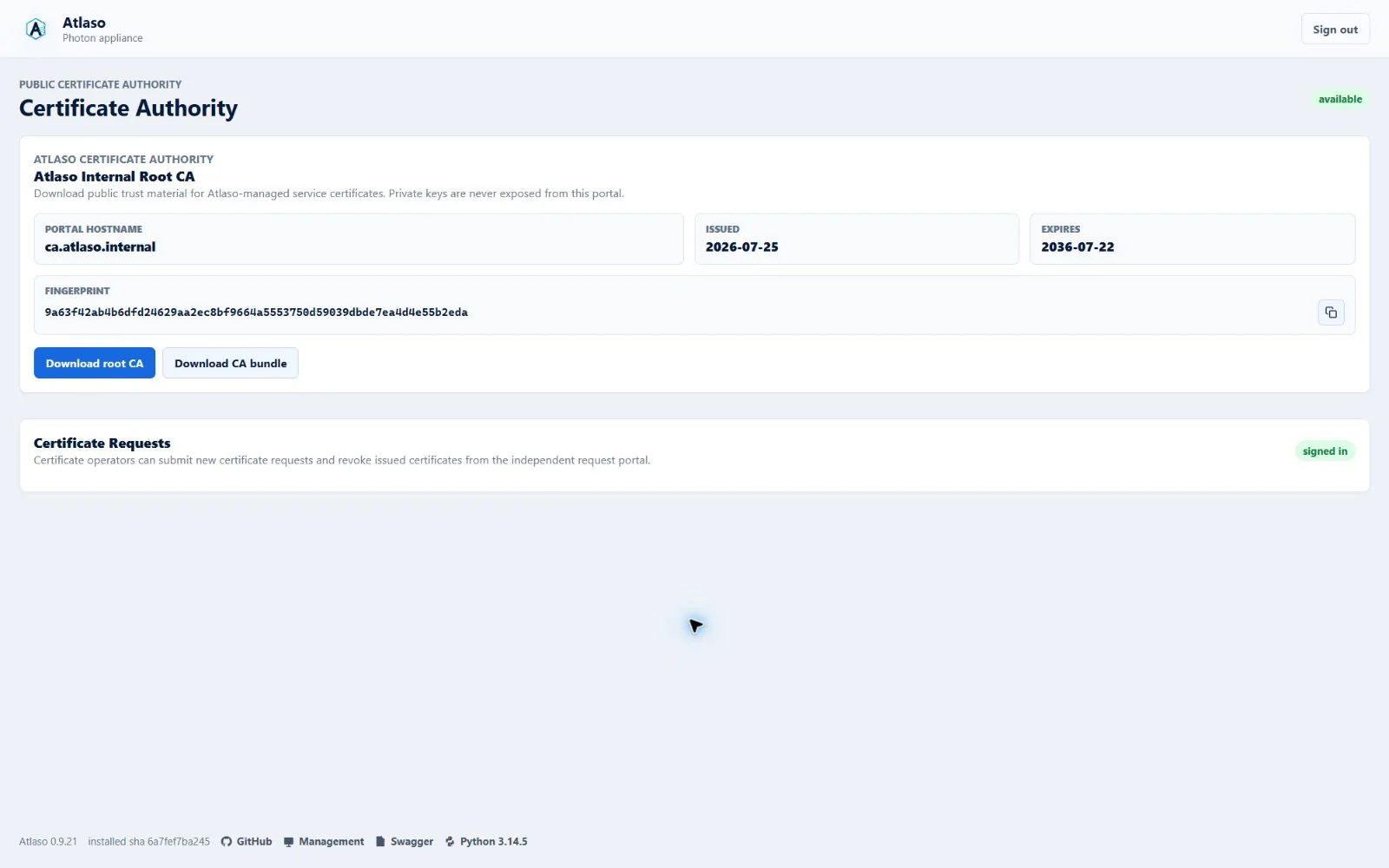
Figure: Public certificate portal in the verified clean-appliance desktop state.
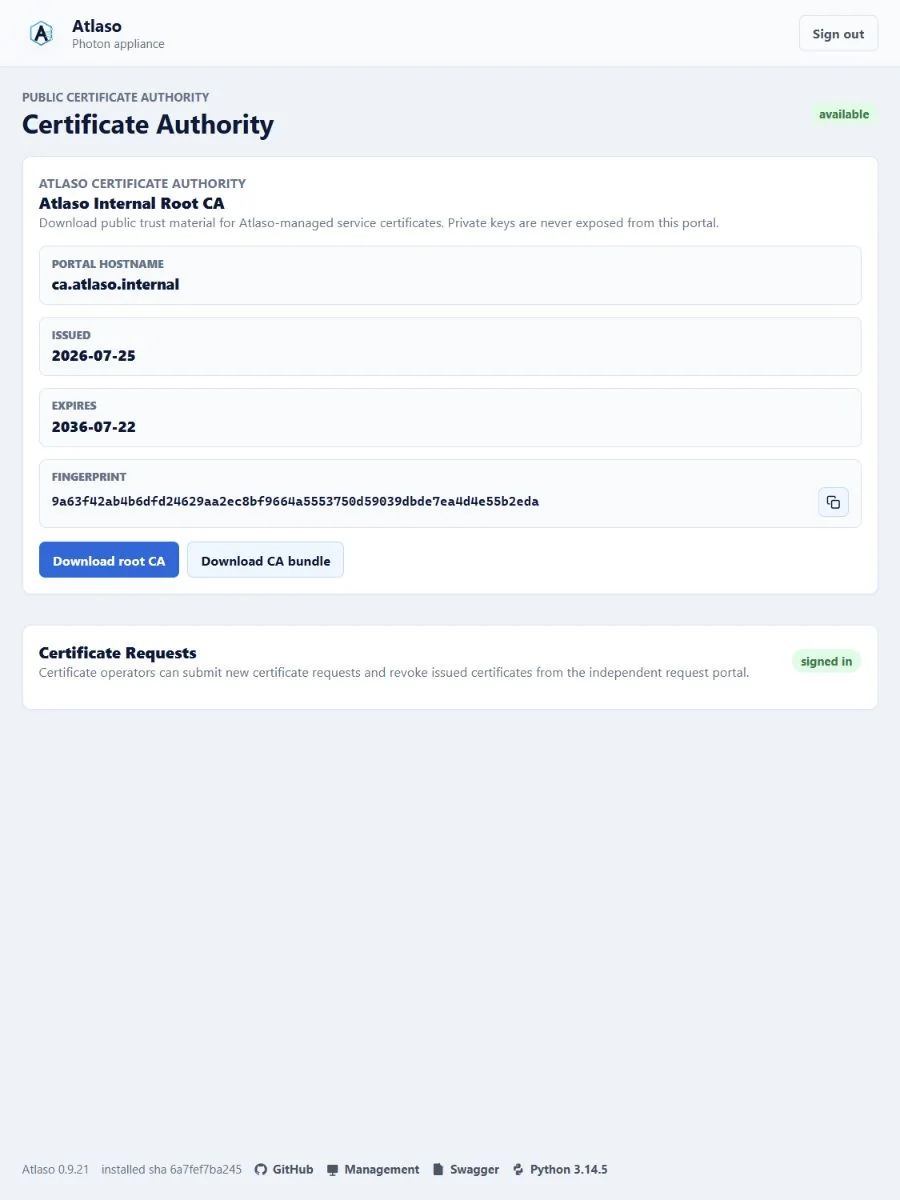
Figure: Public certificate portal in the verified clean-appliance responsive state.
Certificate Authority
Route: /ui/management/certificate-authority
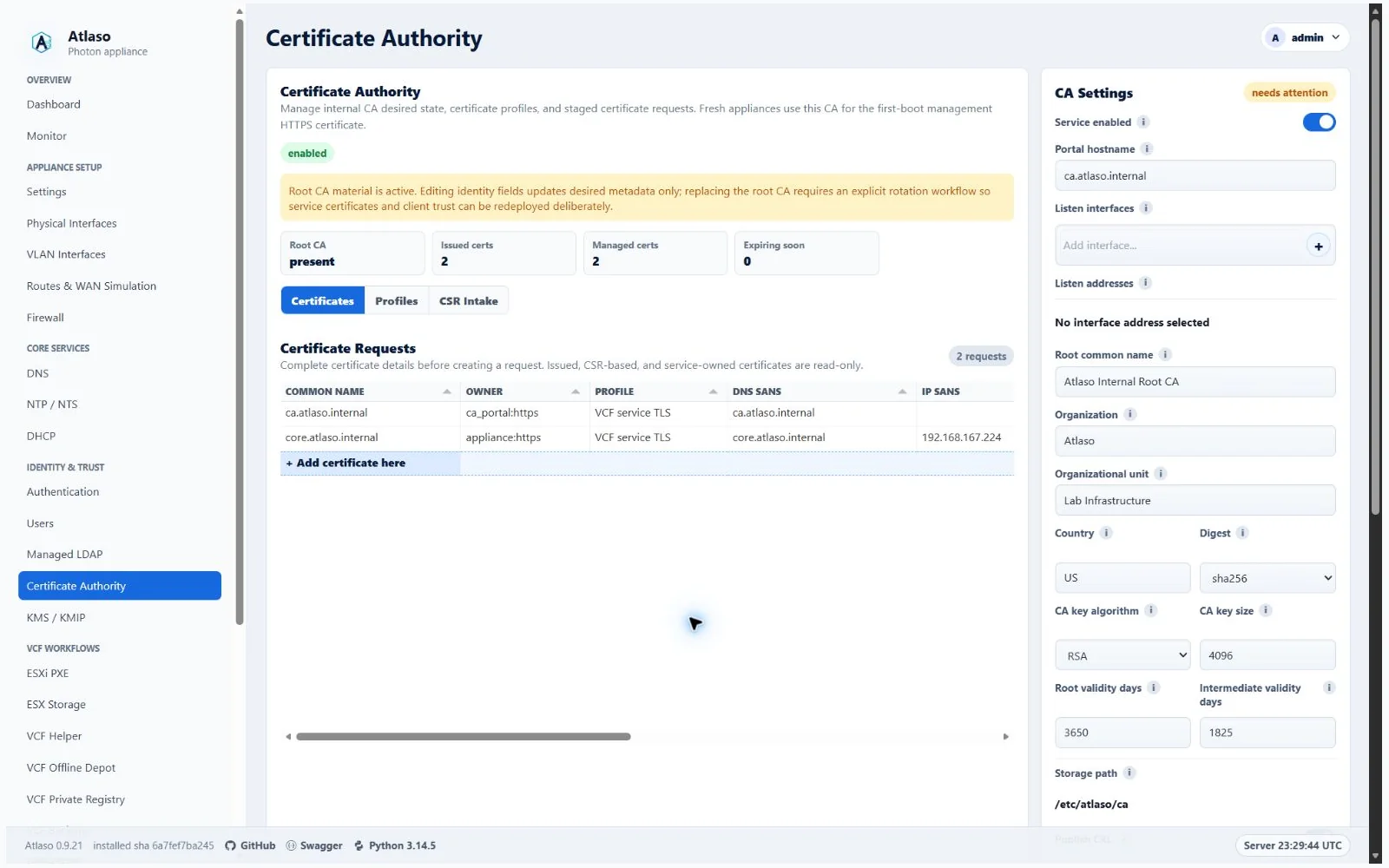
Figure: Certificate Authority in the verified clean-appliance desktop state.
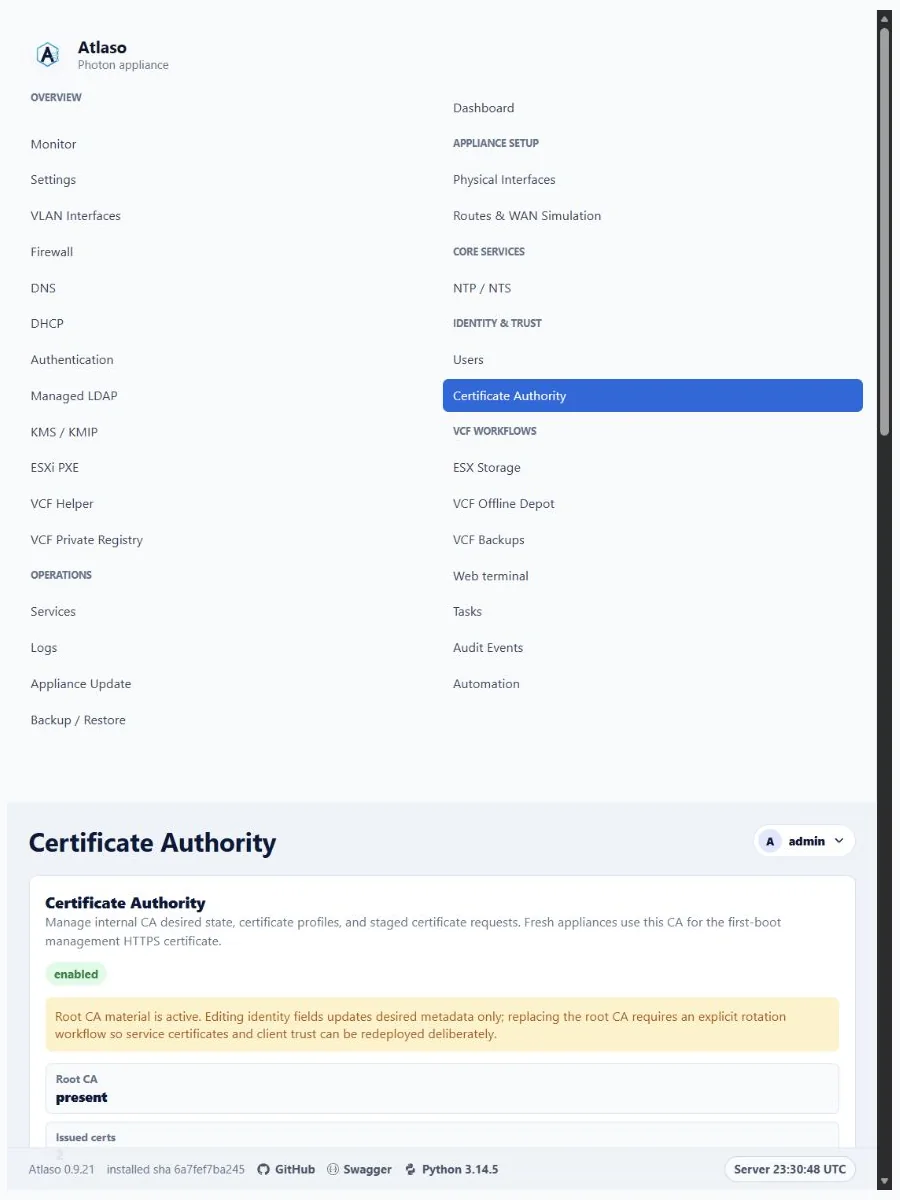
Figure: Certificate Authority in the verified clean-appliance responsive state.
Dashboard
Route: /ui/management/dashboard
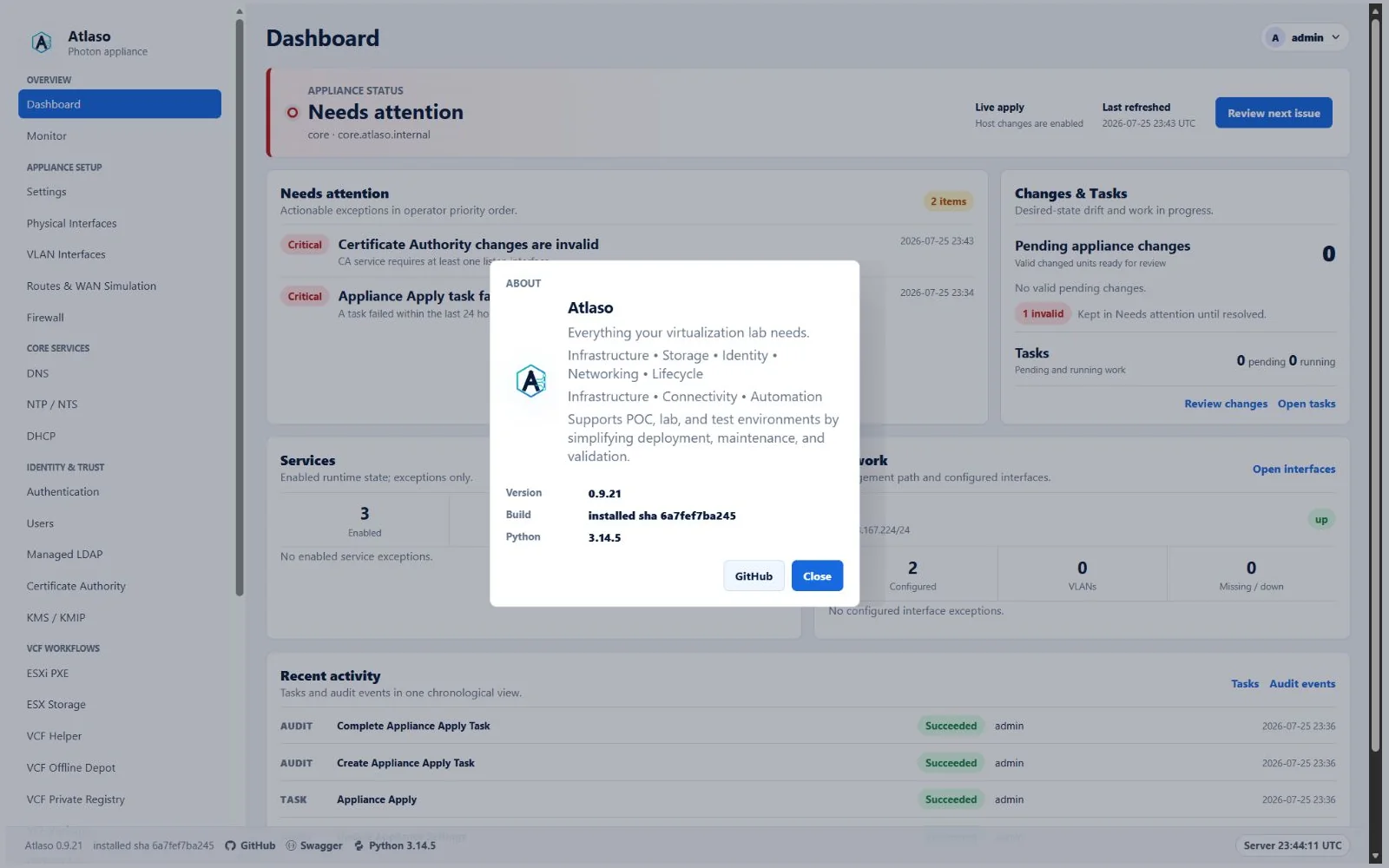
Figure: Atlaso About dialog with the deployed version and build identity.
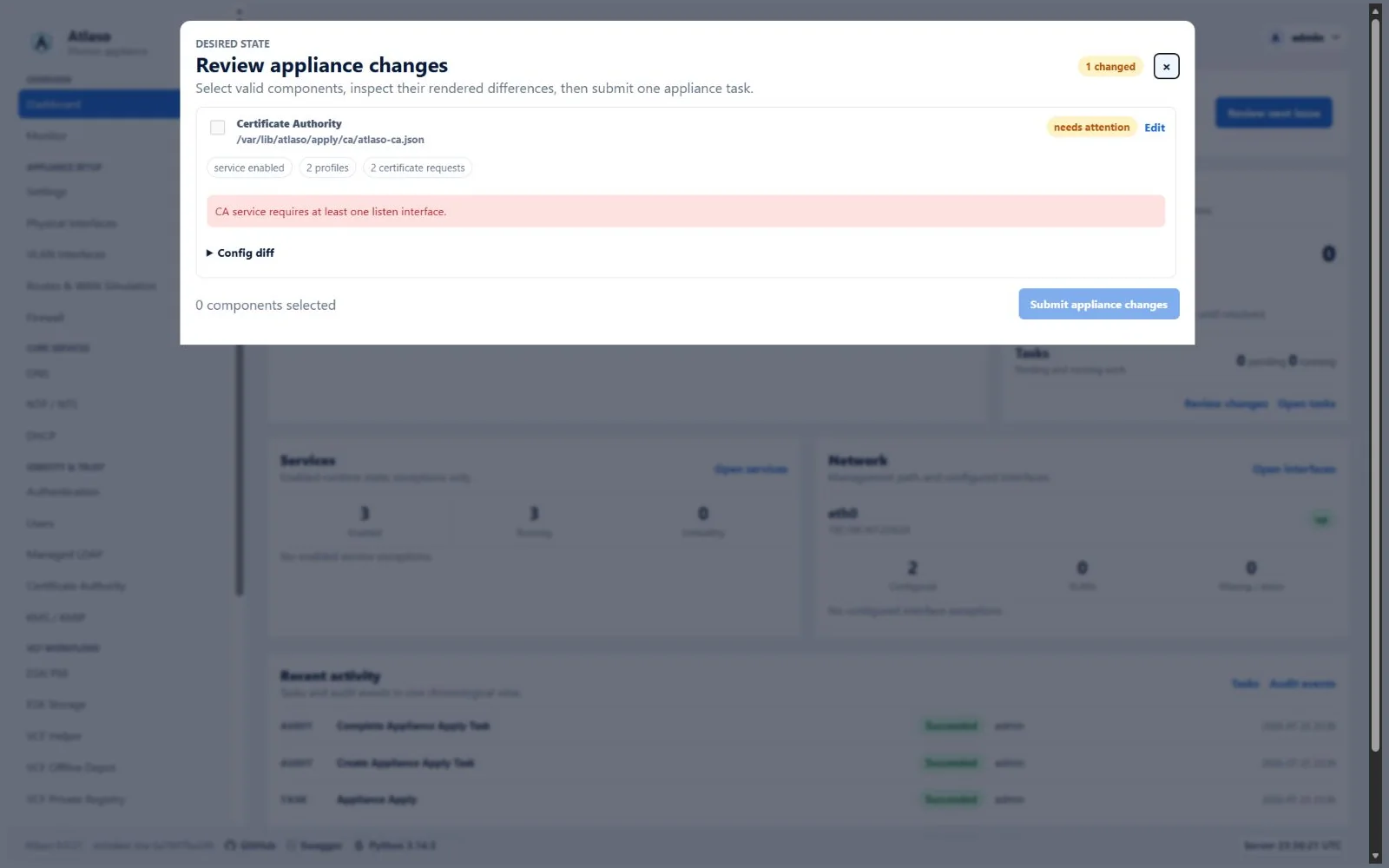
Figure: Dashboard after a successful DNS appliance apply.
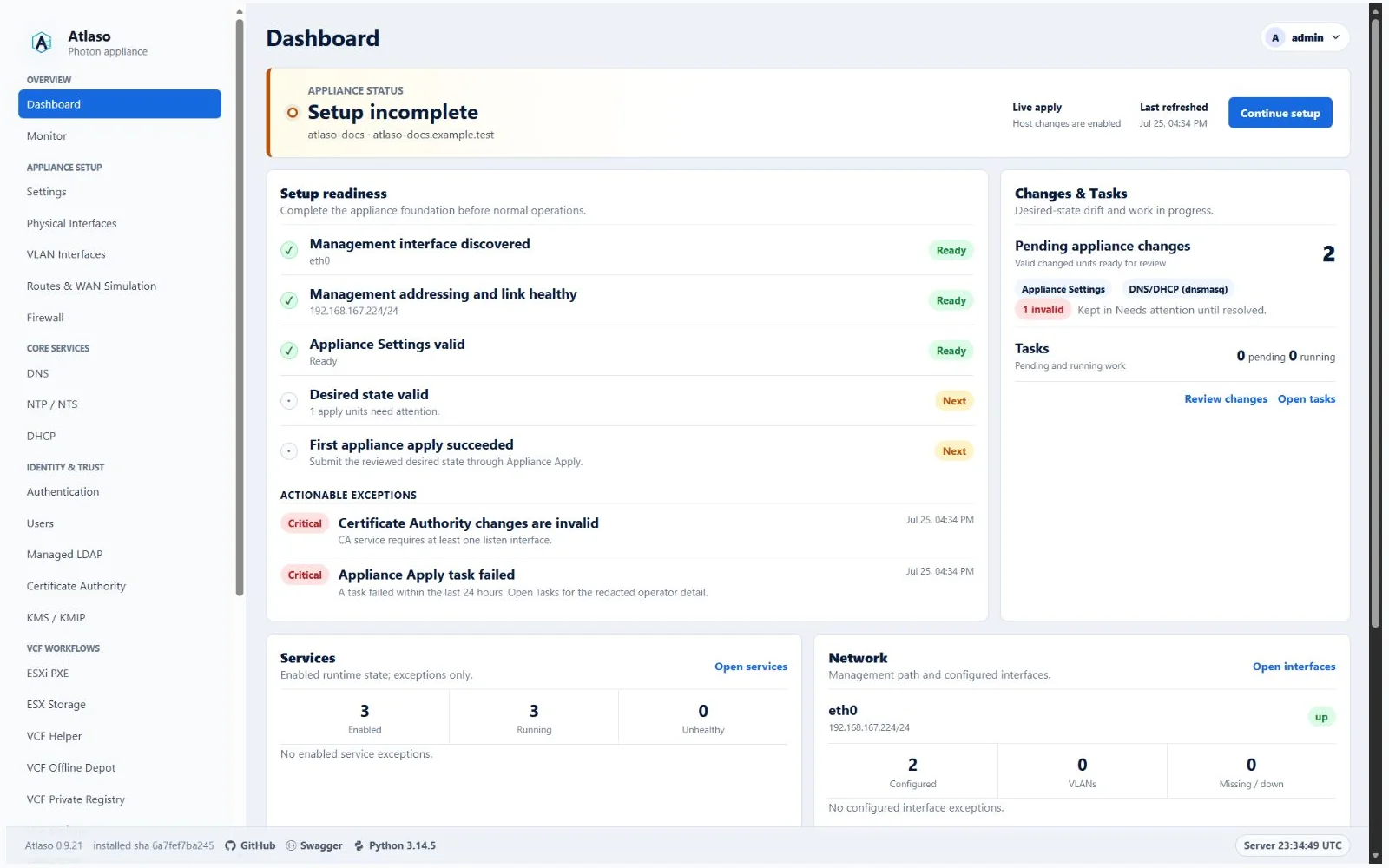
Figure: Dashboard reporting a failed appliance apply task.
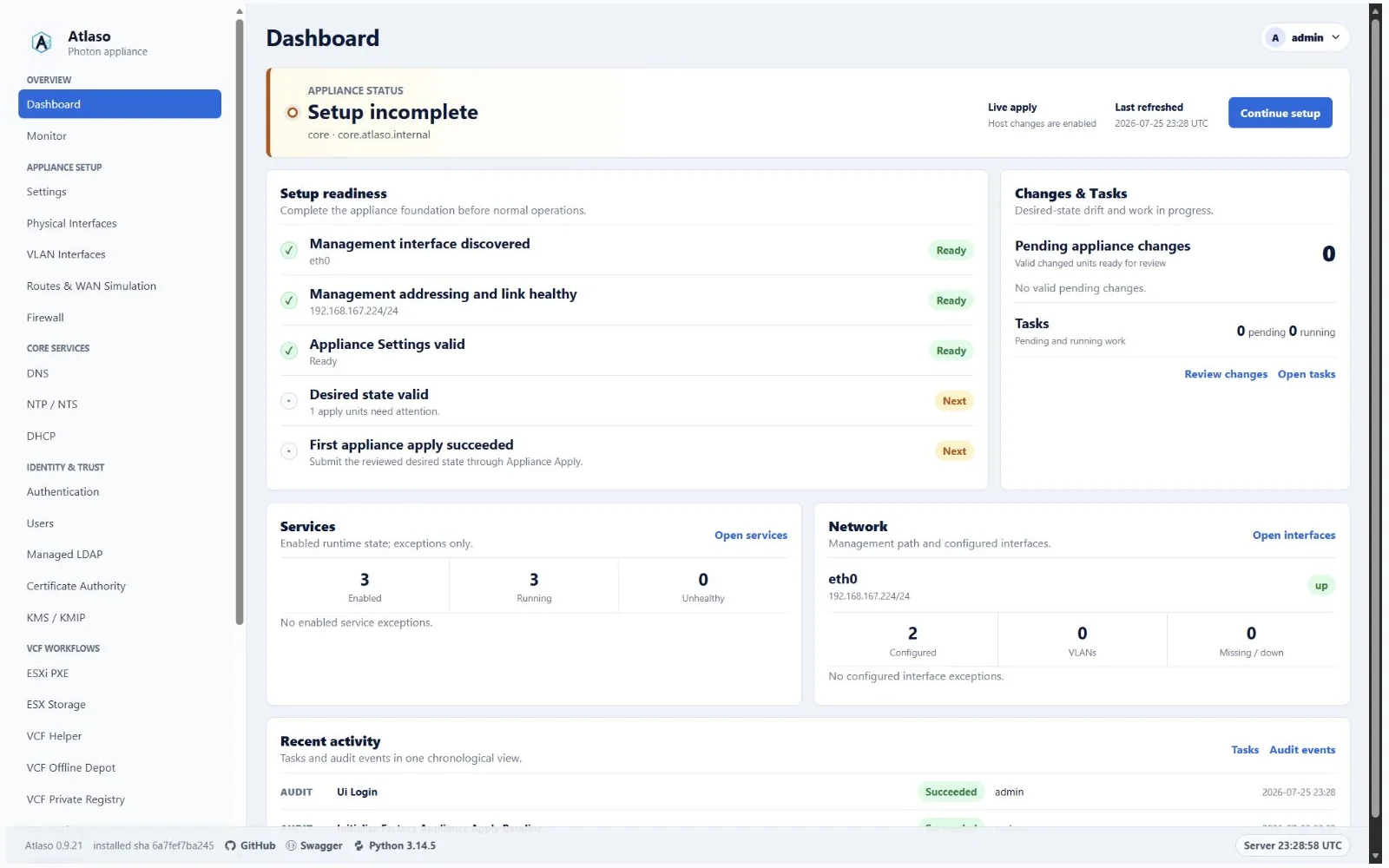
Figure: Dashboard in the verified clean-appliance desktop state.
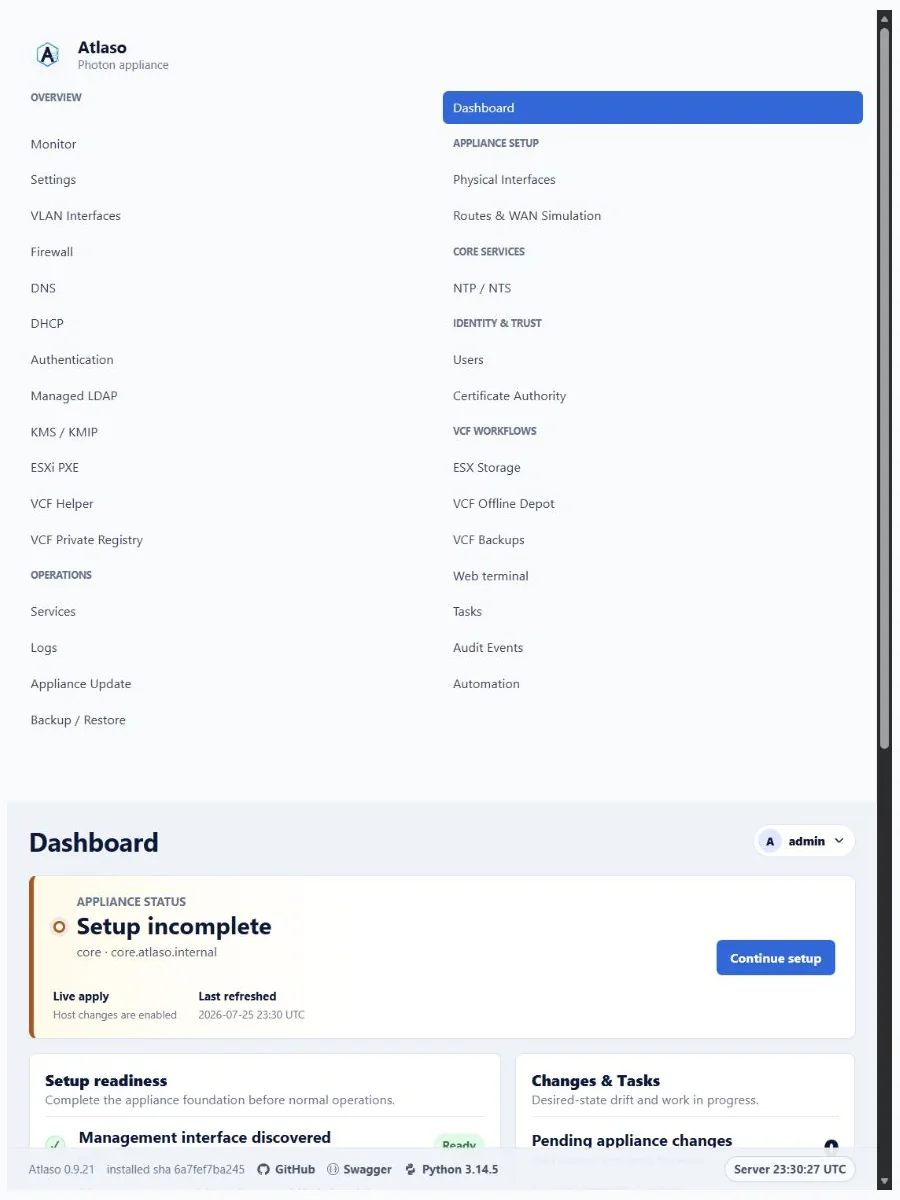
Figure: Dashboard in the verified clean-appliance responsive state.
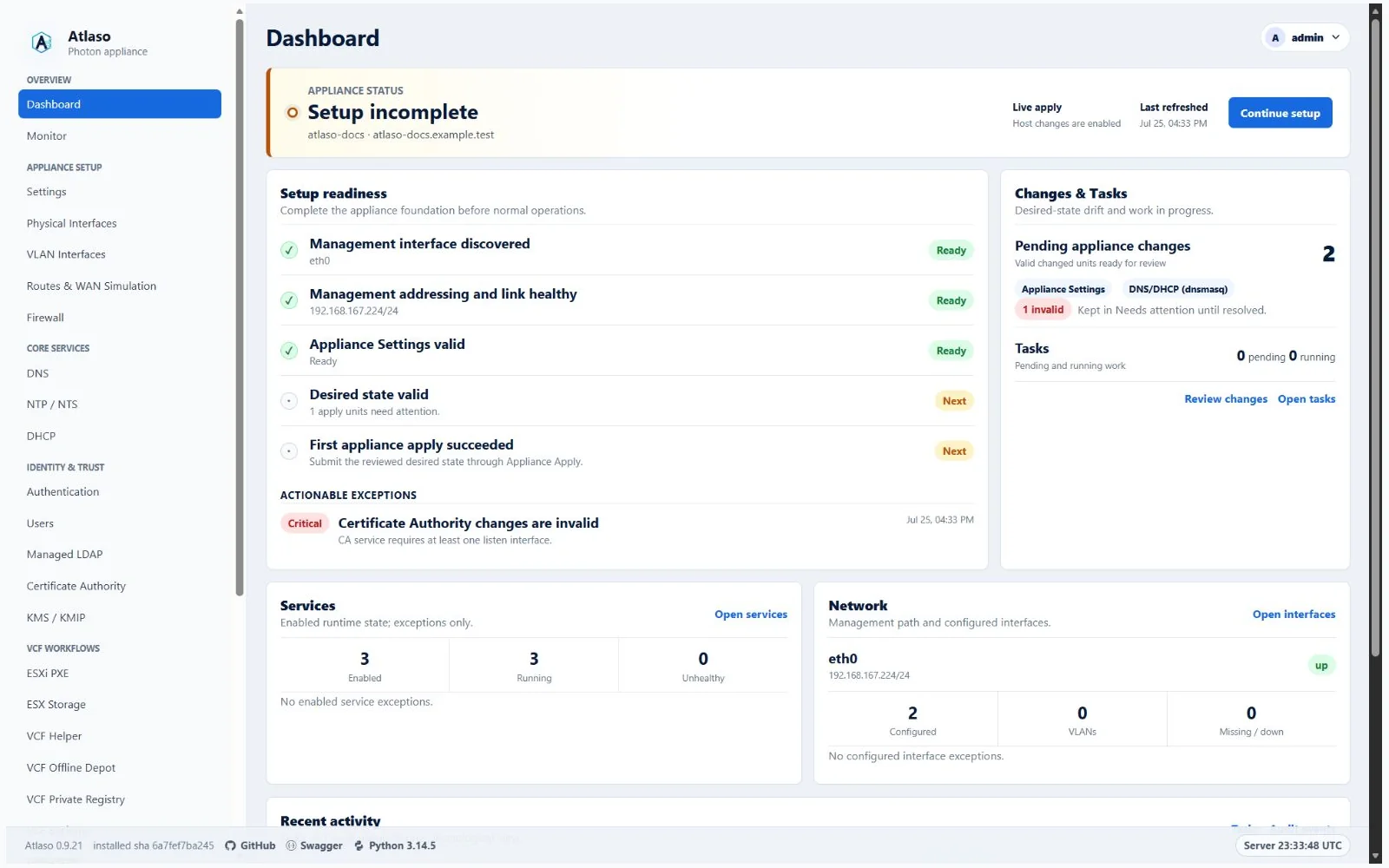
Figure: Dashboard with valid pending changes and a unit needing attention.
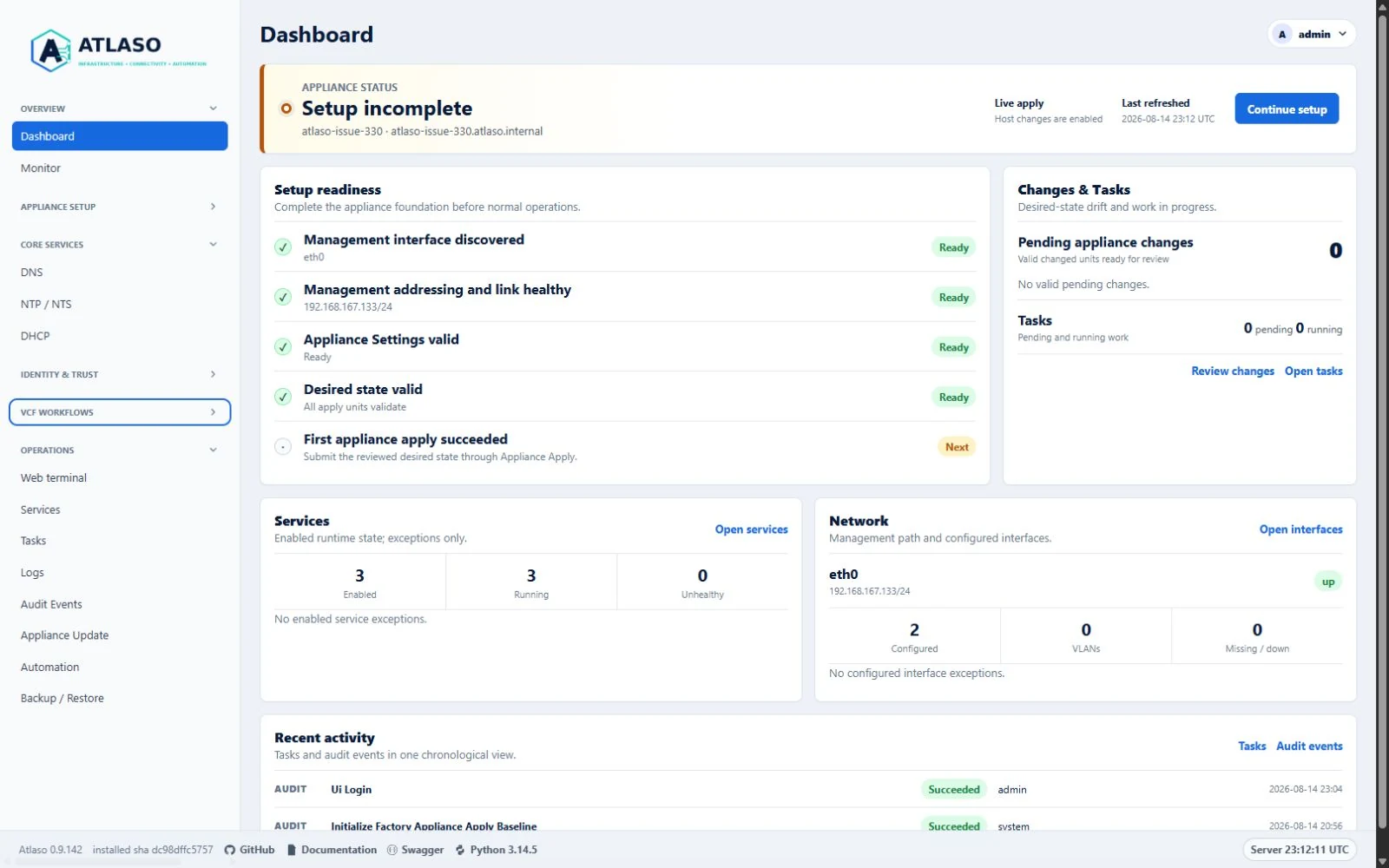
Figure: Authenticated primary navigation with every authorized section collapsed and the shared bulk control.
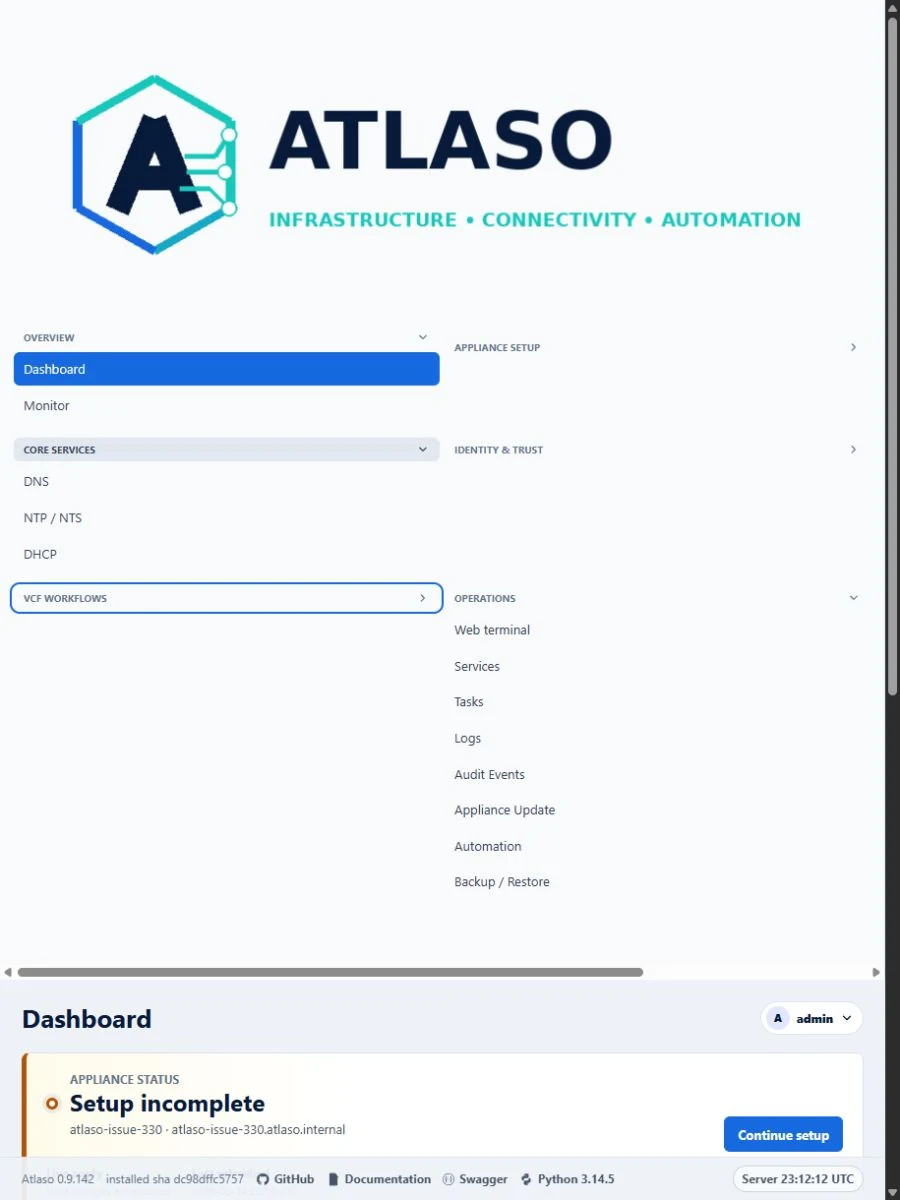
Figure: Responsive navigation with all sections collapsed and expand-all above both columns.
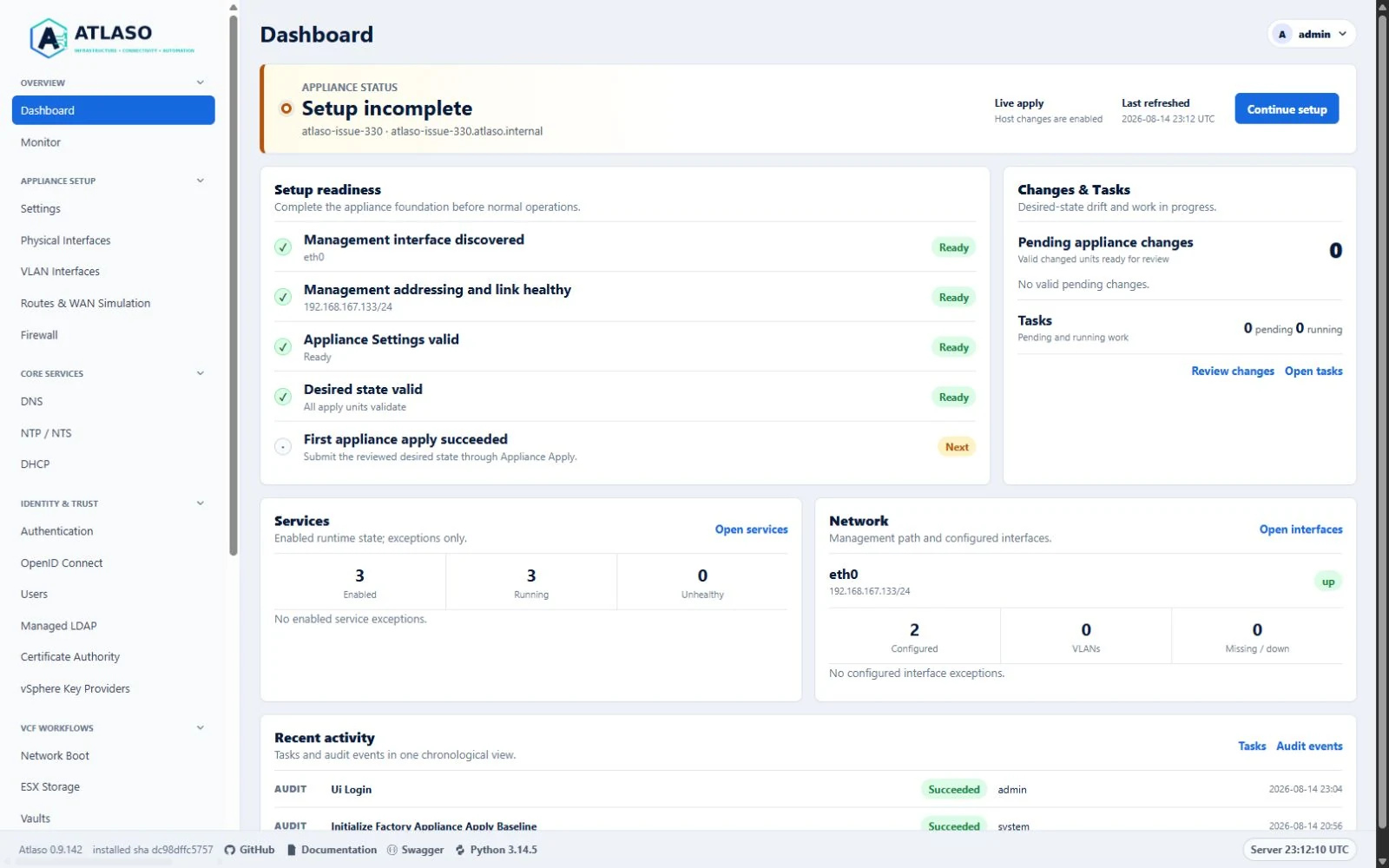
Figure: Authenticated primary navigation with every authorized section expanded and the shared bulk control.
Dashboard: Appliance Apply Review
Route: /ui/management/dashboard#appliance-apply-review
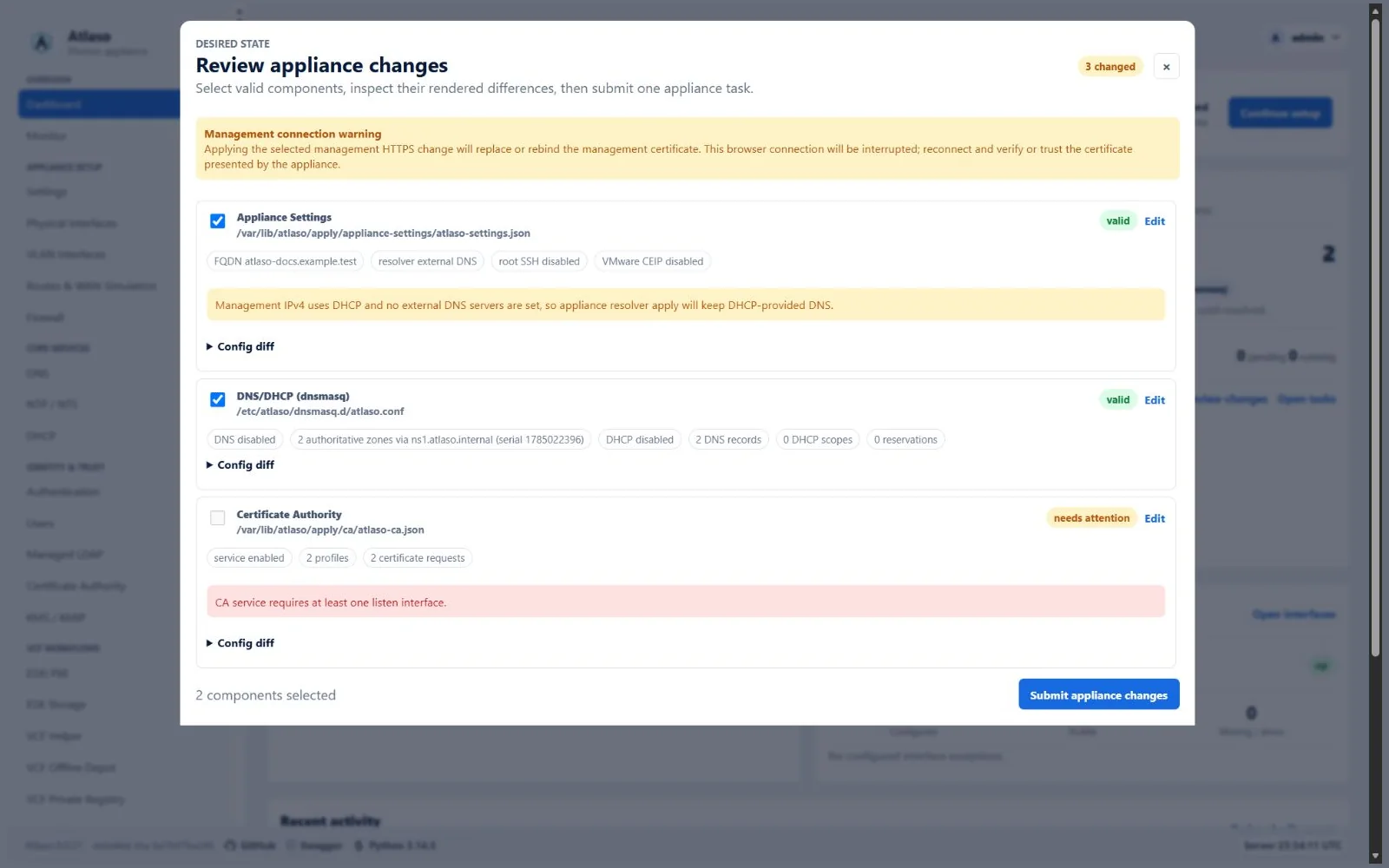
Figure: Appliance change review with valid and invalid desired-state units.
Dhcp
Route: /ui/management/dhcp
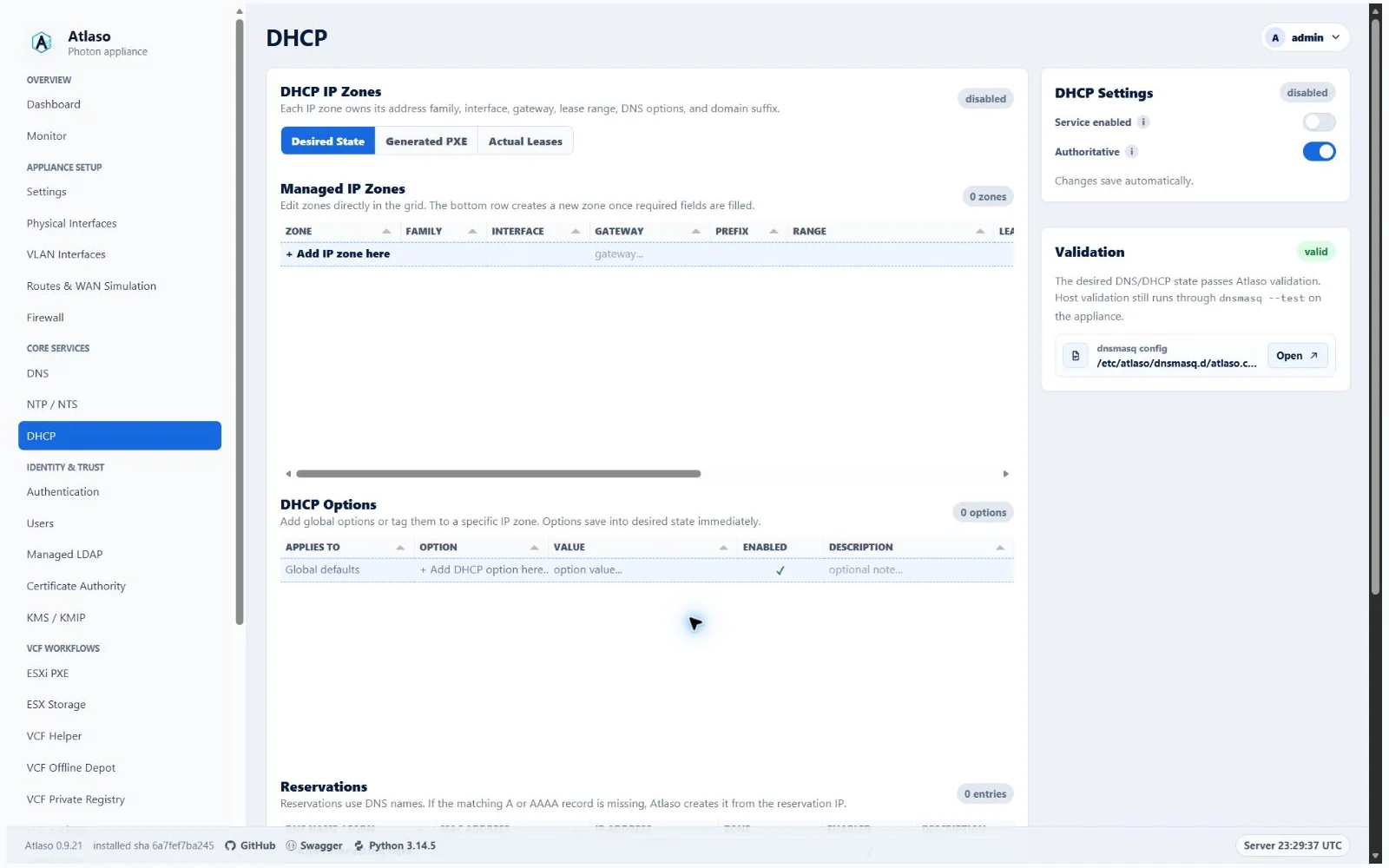
Figure: DHCP in the verified clean-appliance desktop state.
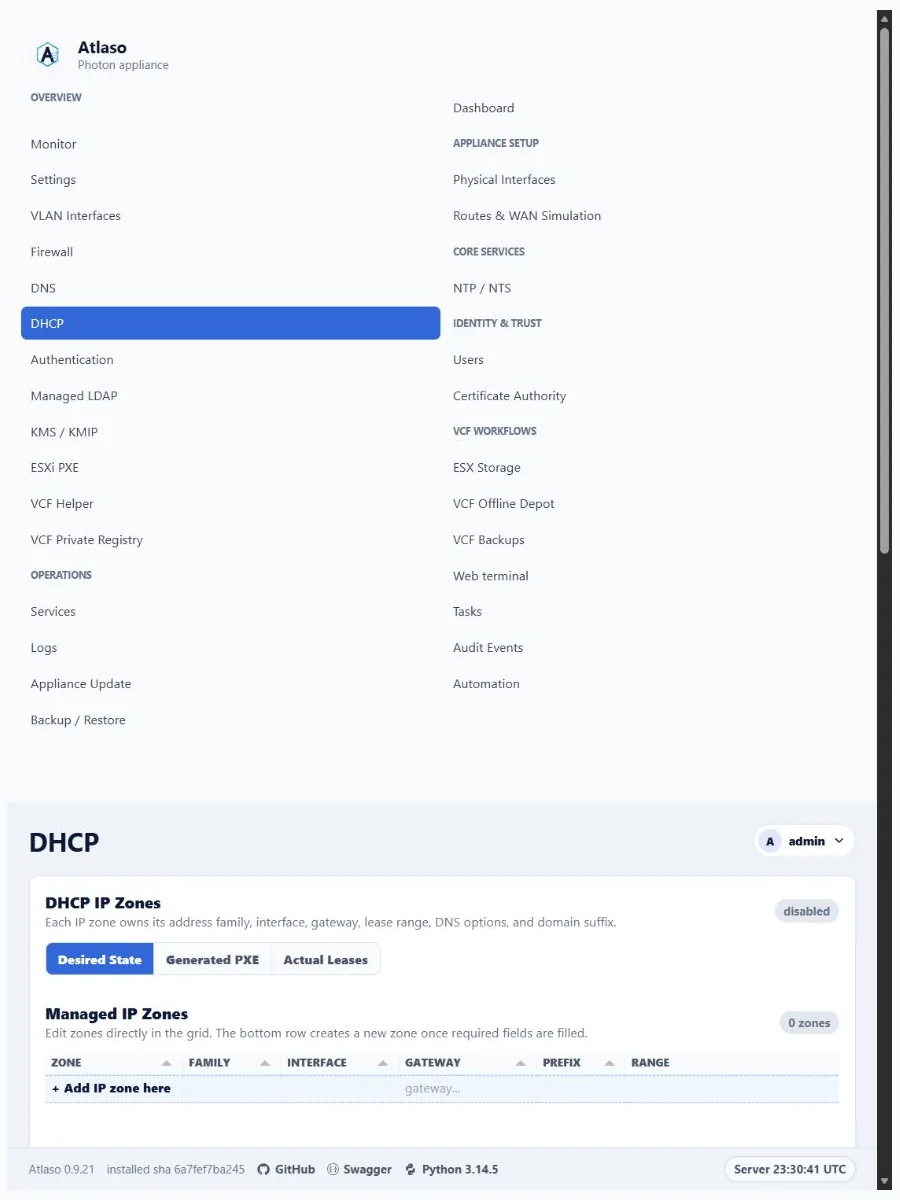
Figure: DHCP in the verified clean-appliance responsive state.
Dhcp: Ip Zone Services
Route: /ui/management/dhcp#ip-zone-services
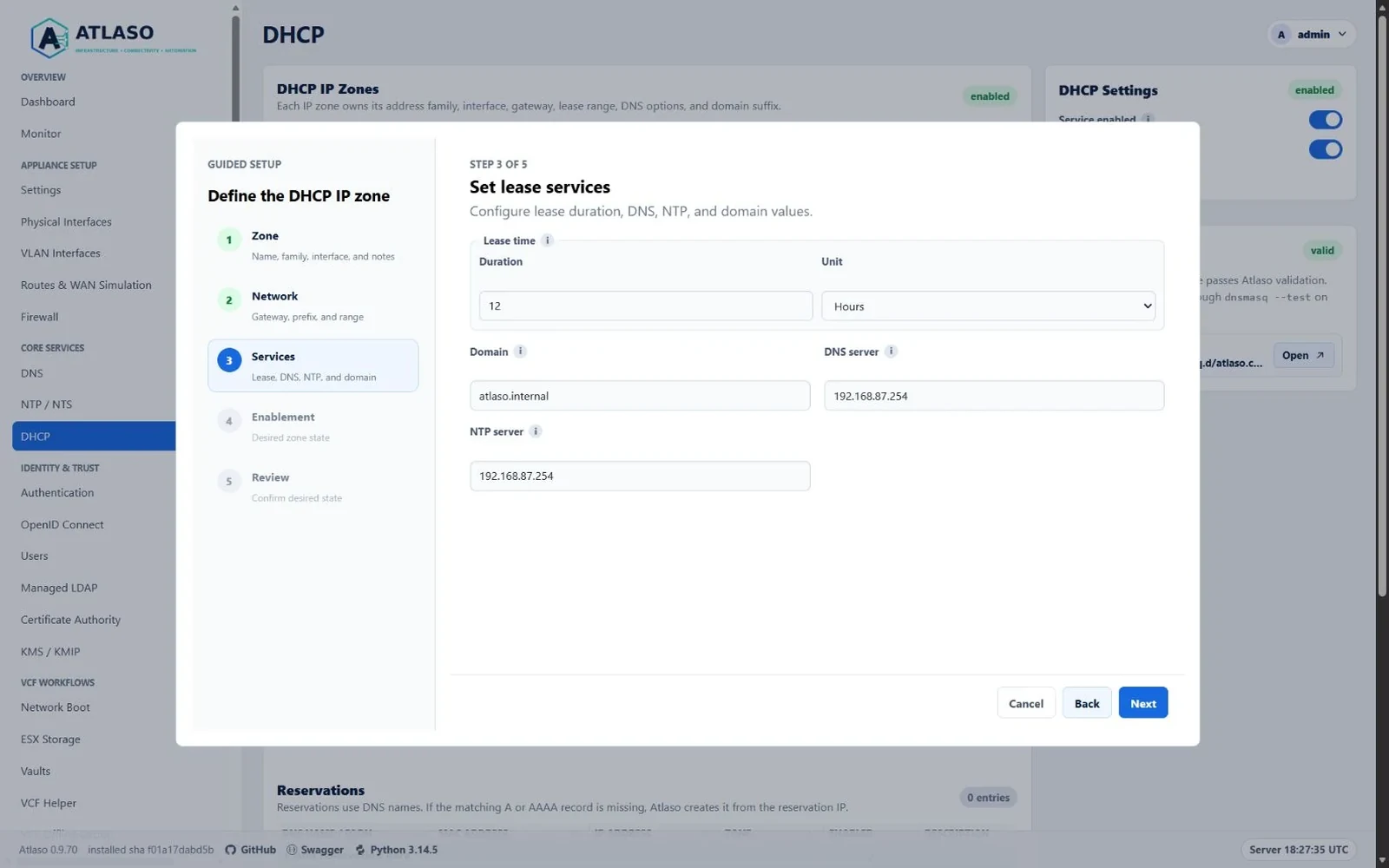
Figure: DHCP IP zone Services step with aligned service fields and a framed Lease time group.
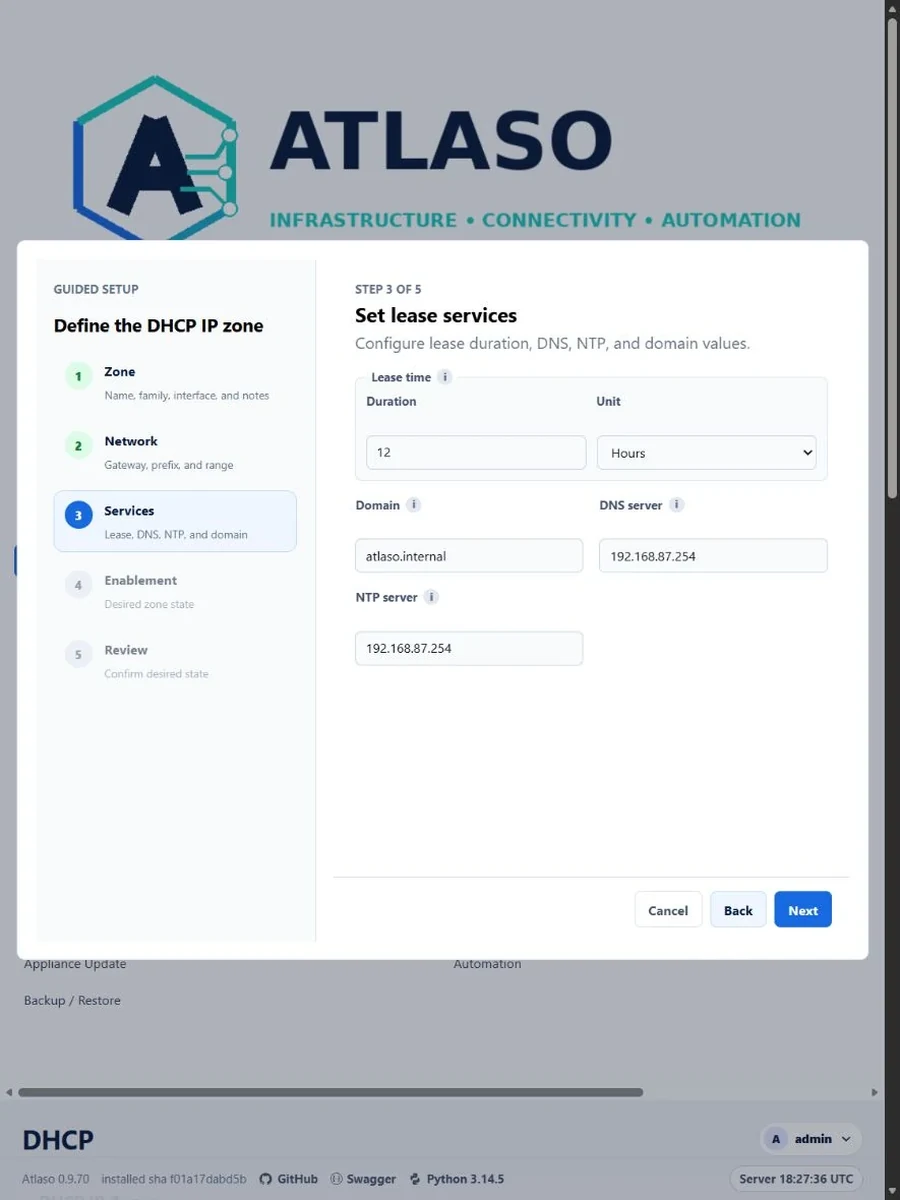
Figure: DHCP IP zone Services step in the verified narrow viewport.
Dns
Route: /ui/management/dns
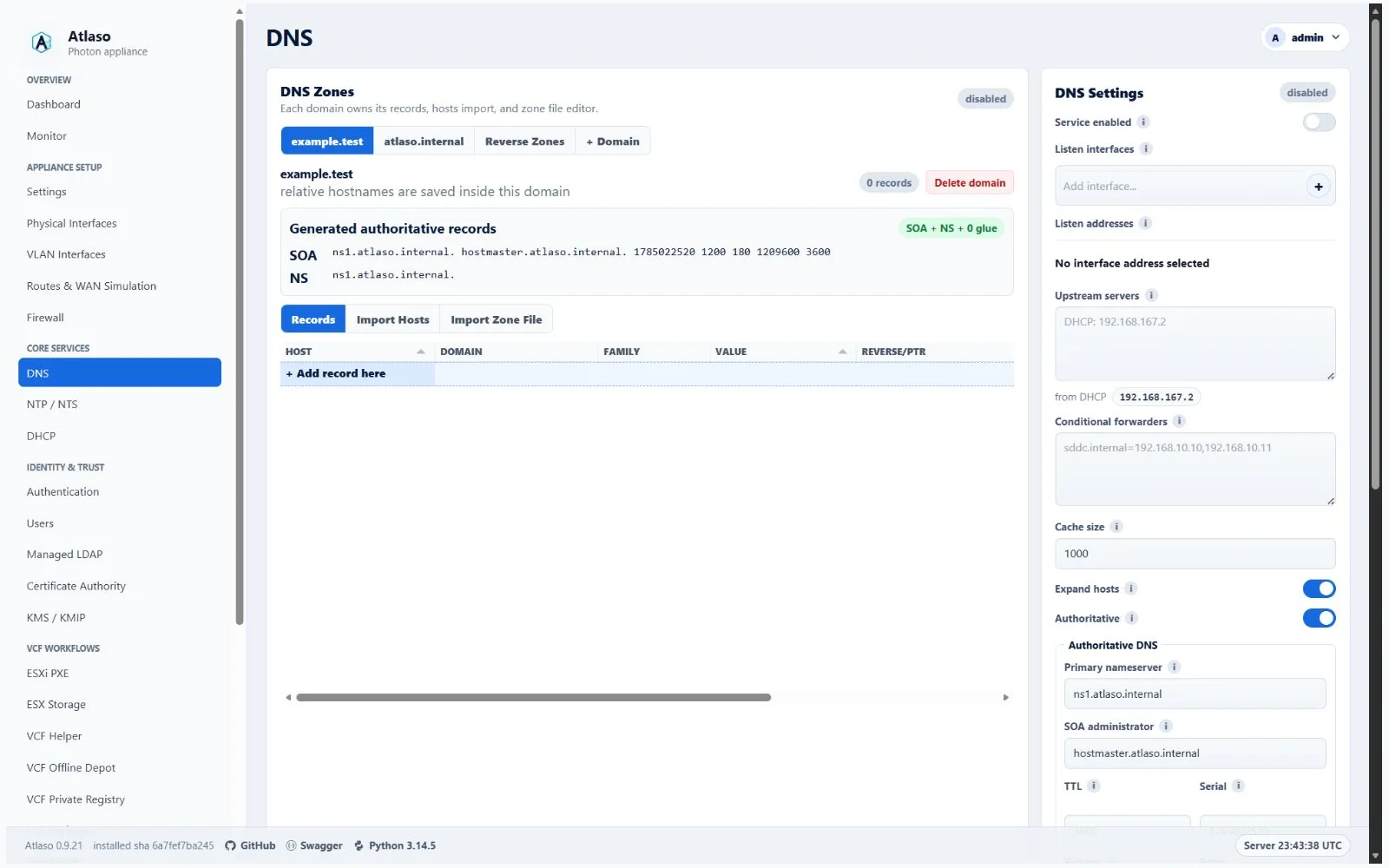
Figure: DNS desired state after a successful dnsmasq apply.
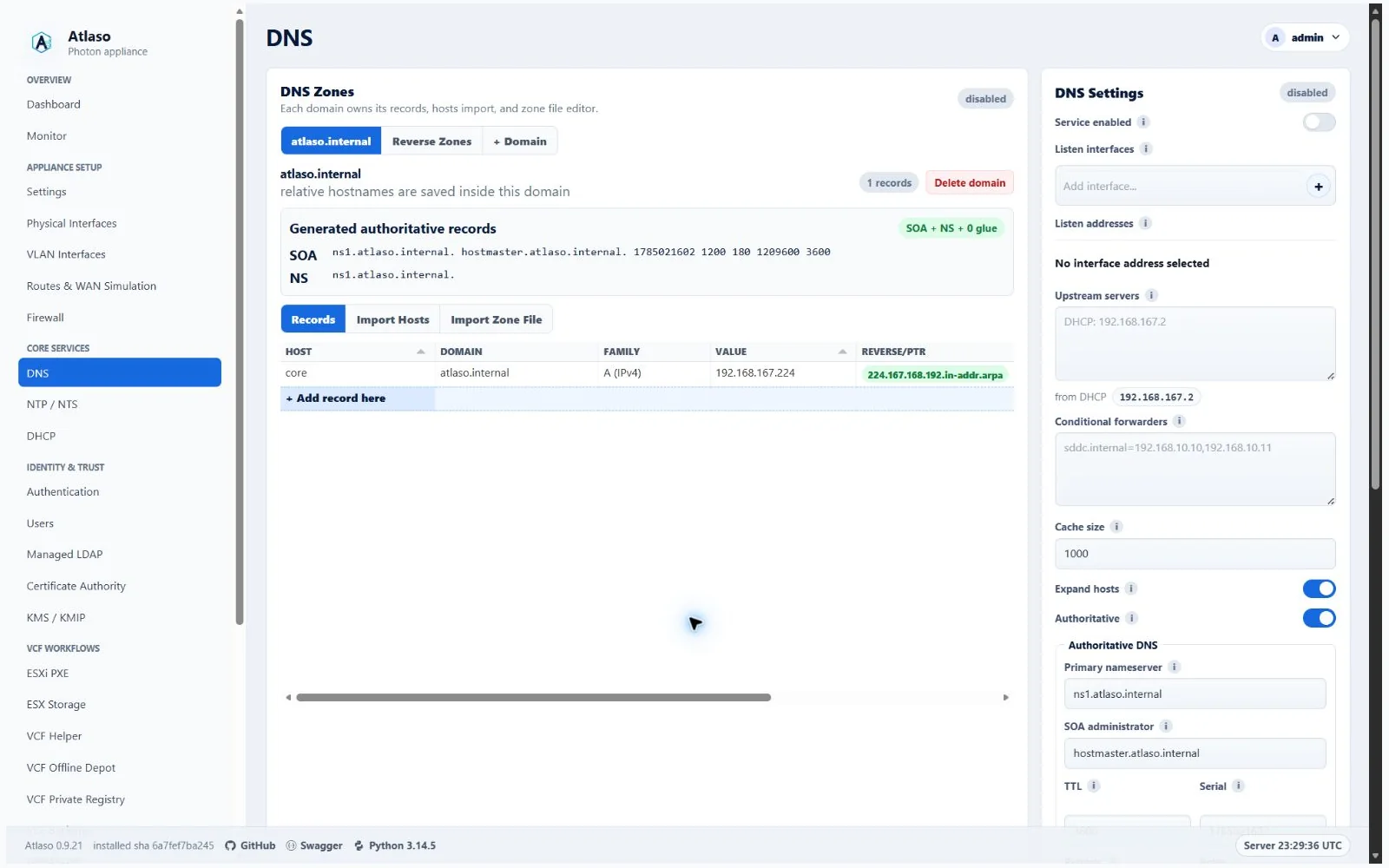
Figure: DNS in the verified clean-appliance desktop state.
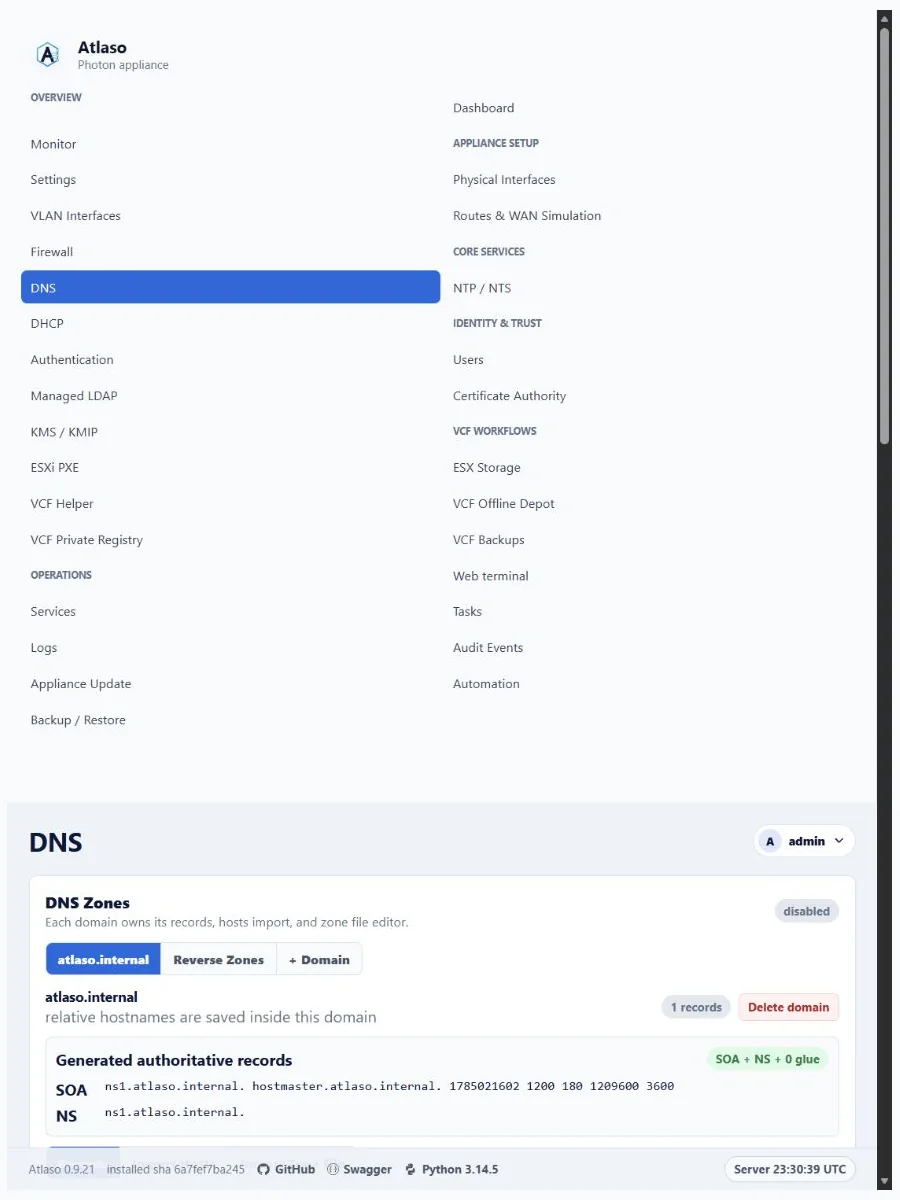
Figure: DNS in the verified clean-appliance responsive state.
Dns: Managed Domain
Route: /ui/management/dns#managed-domain
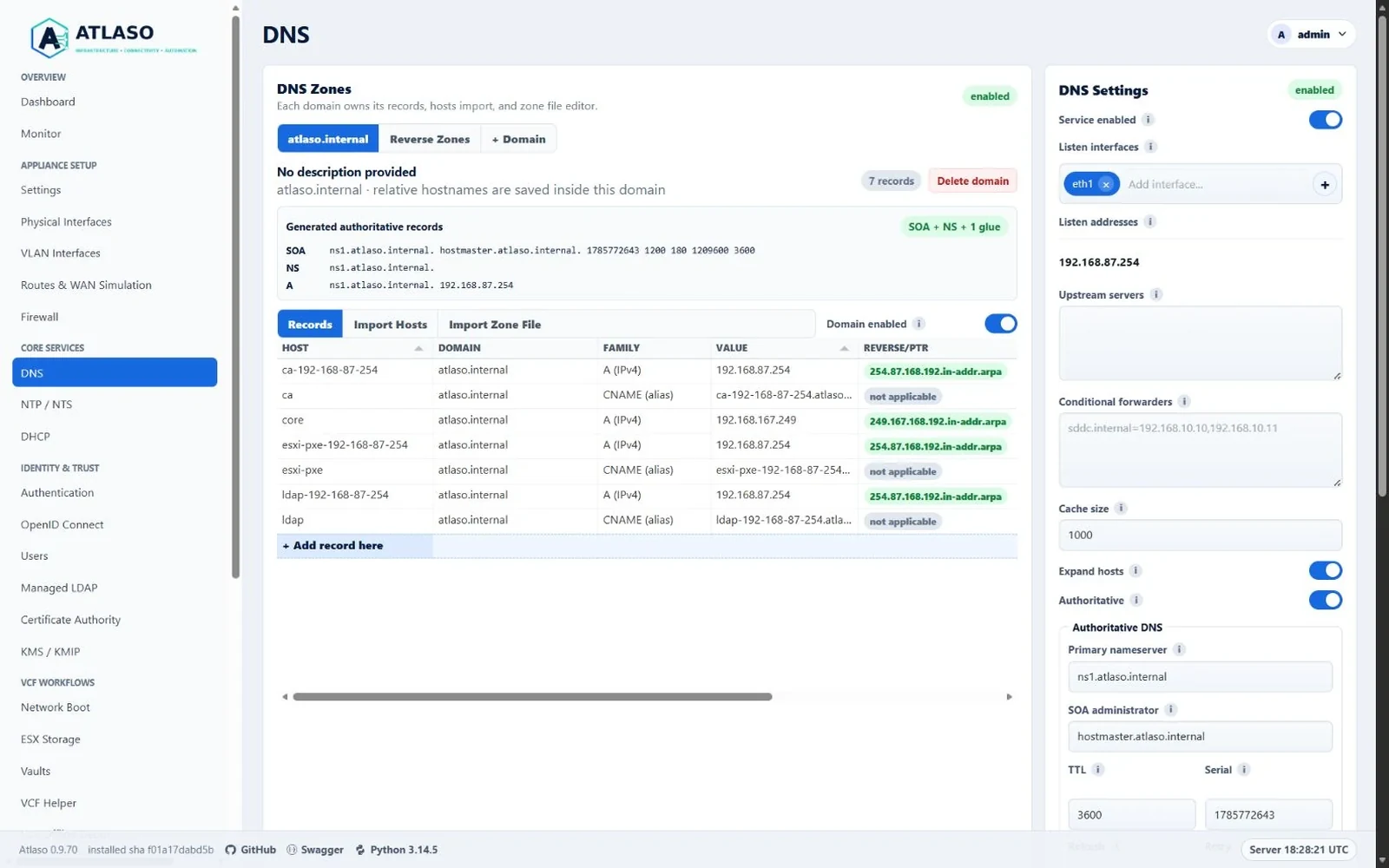
Figure: DNS domain tools with the Enabled switch beside the tabs and compact generated authoritative records.
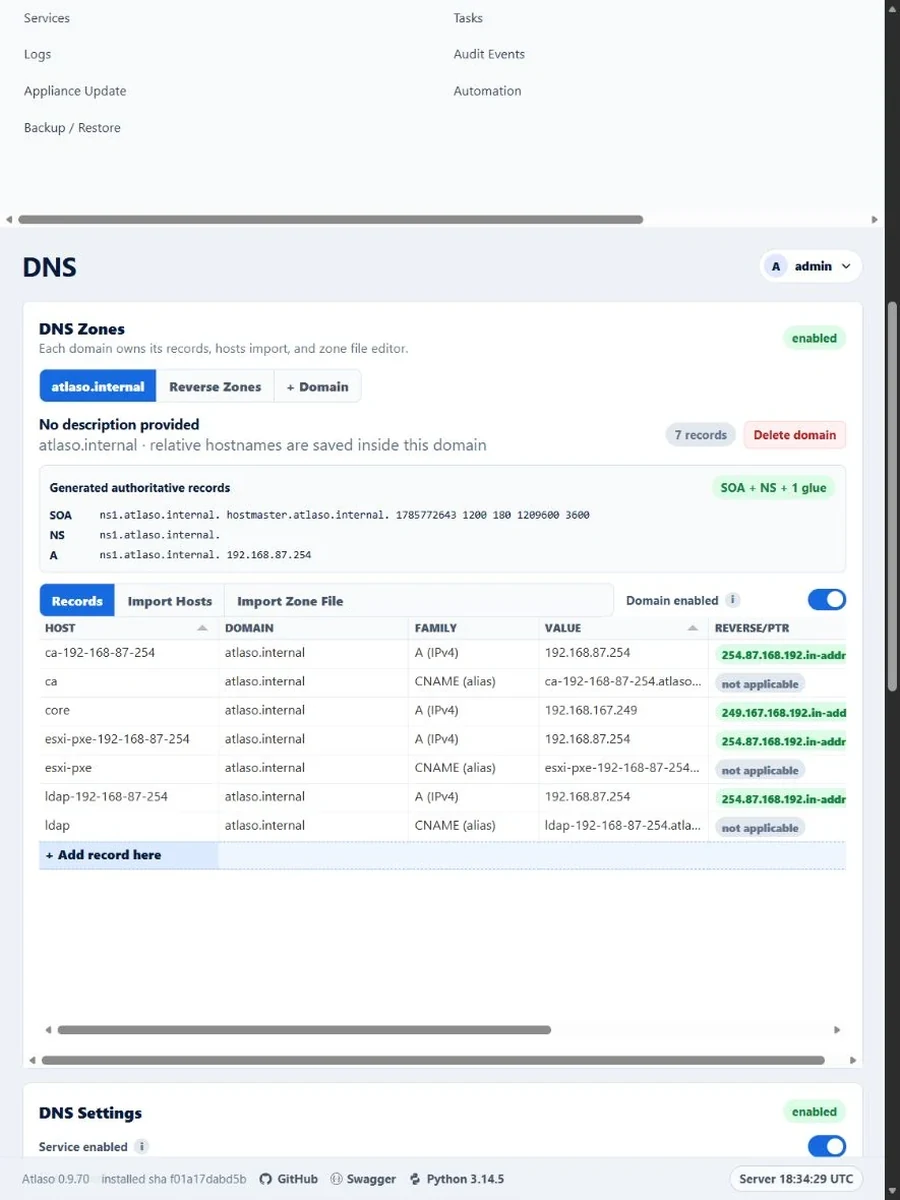
Figure: DNS domain tools in the verified narrow viewport.
Esx Storage
Route: /ui/management/esx-storage
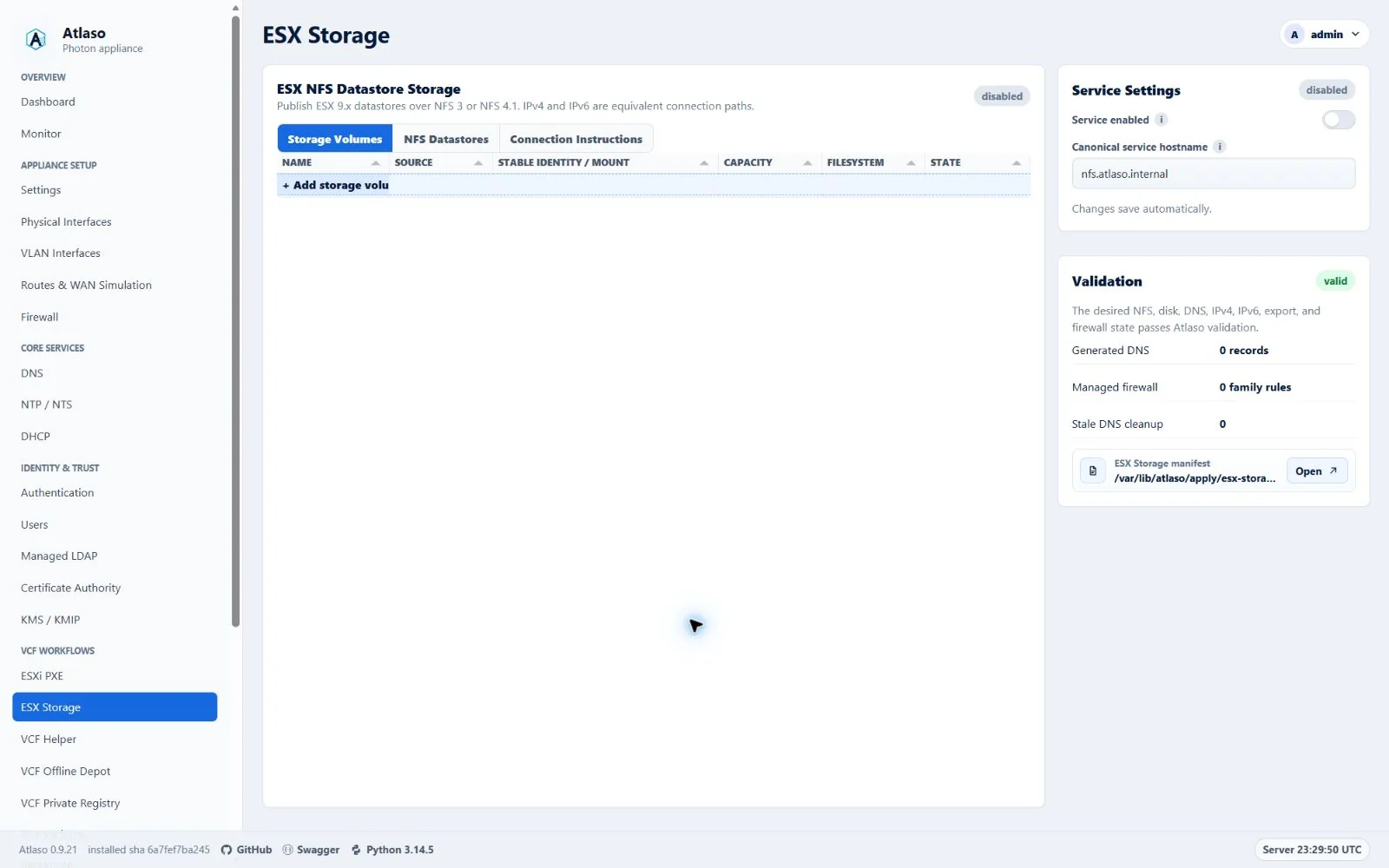
Figure: ESX Storage in the verified clean-appliance desktop state.
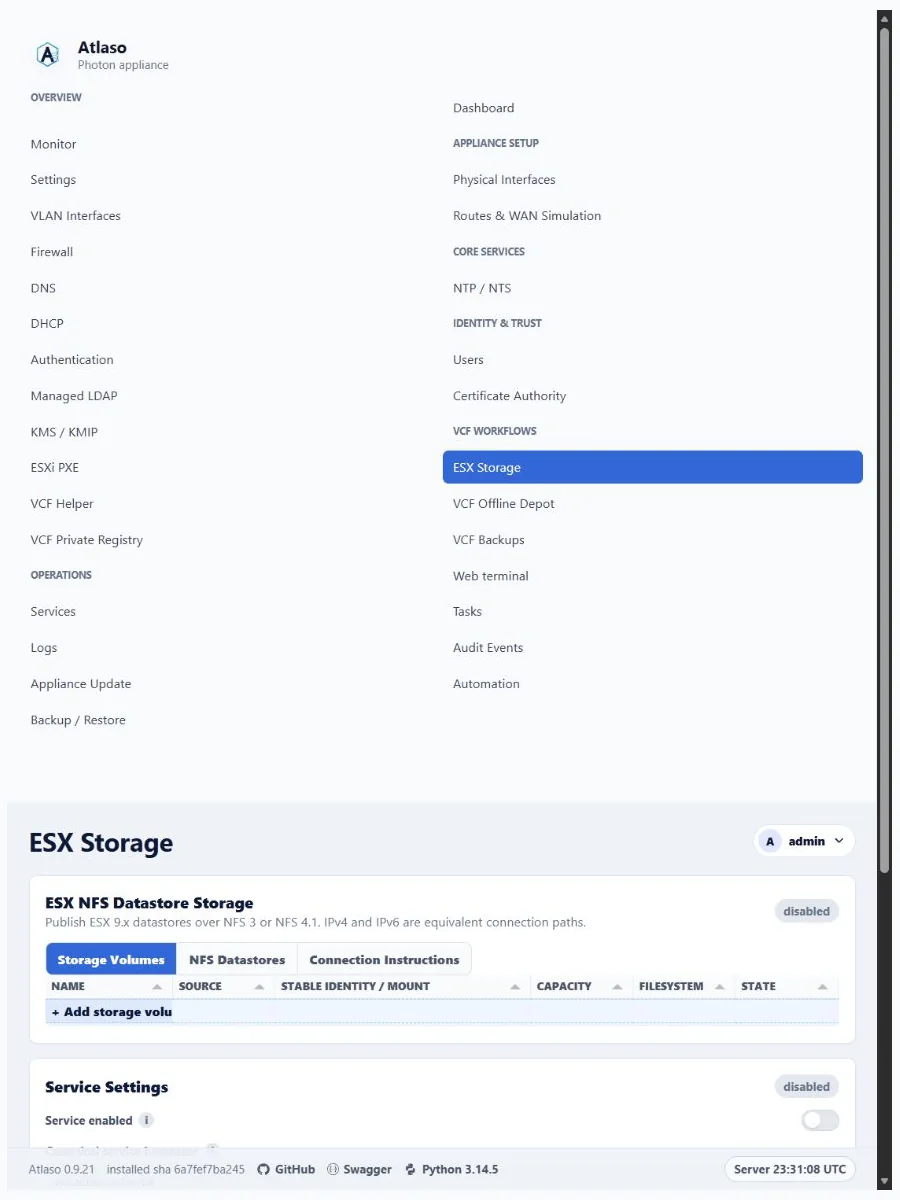
Figure: ESX Storage in the verified clean-appliance responsive state.
Firewall
Route: /ui/management/firewall
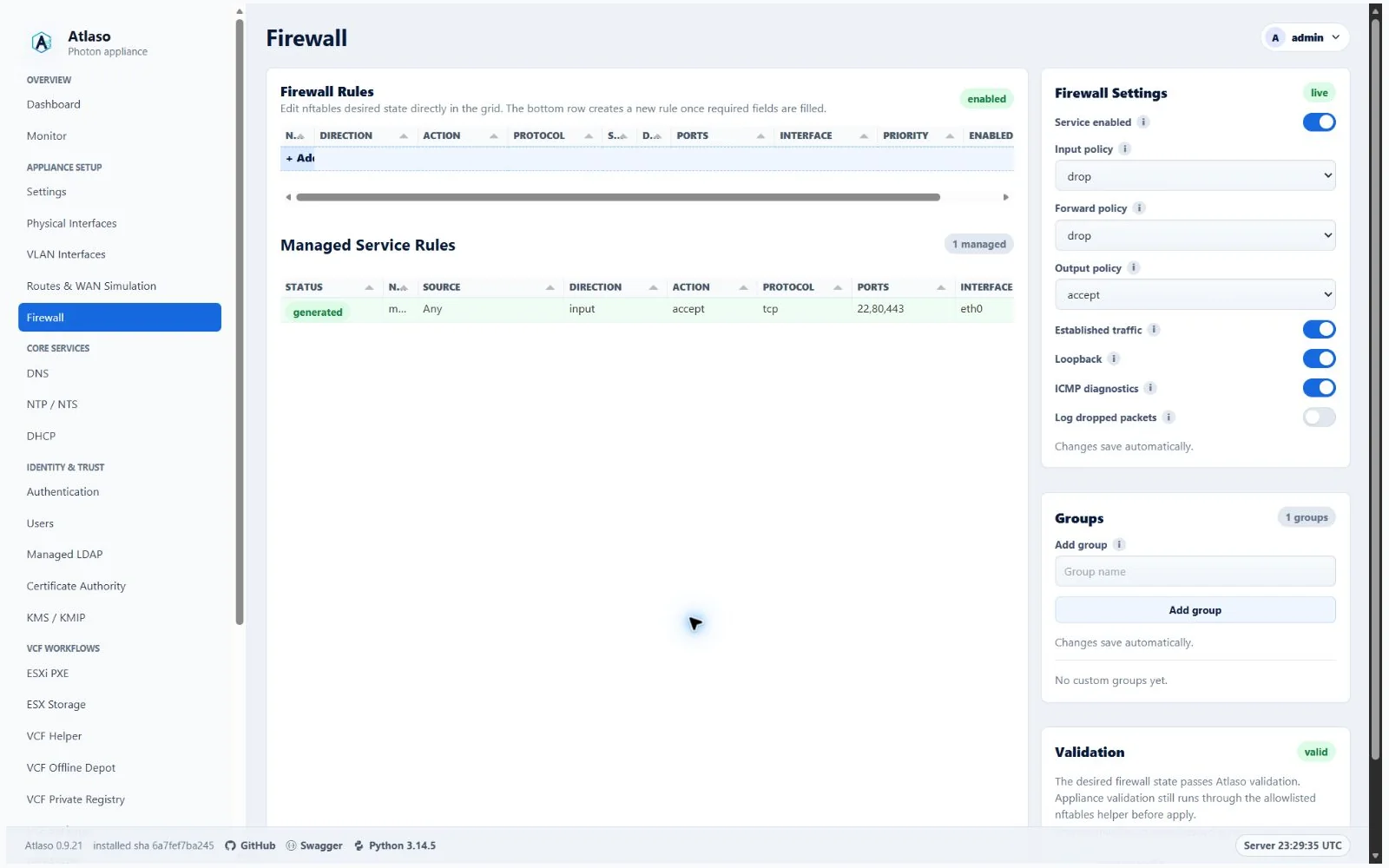
Figure: Firewall in the verified clean-appliance desktop state.
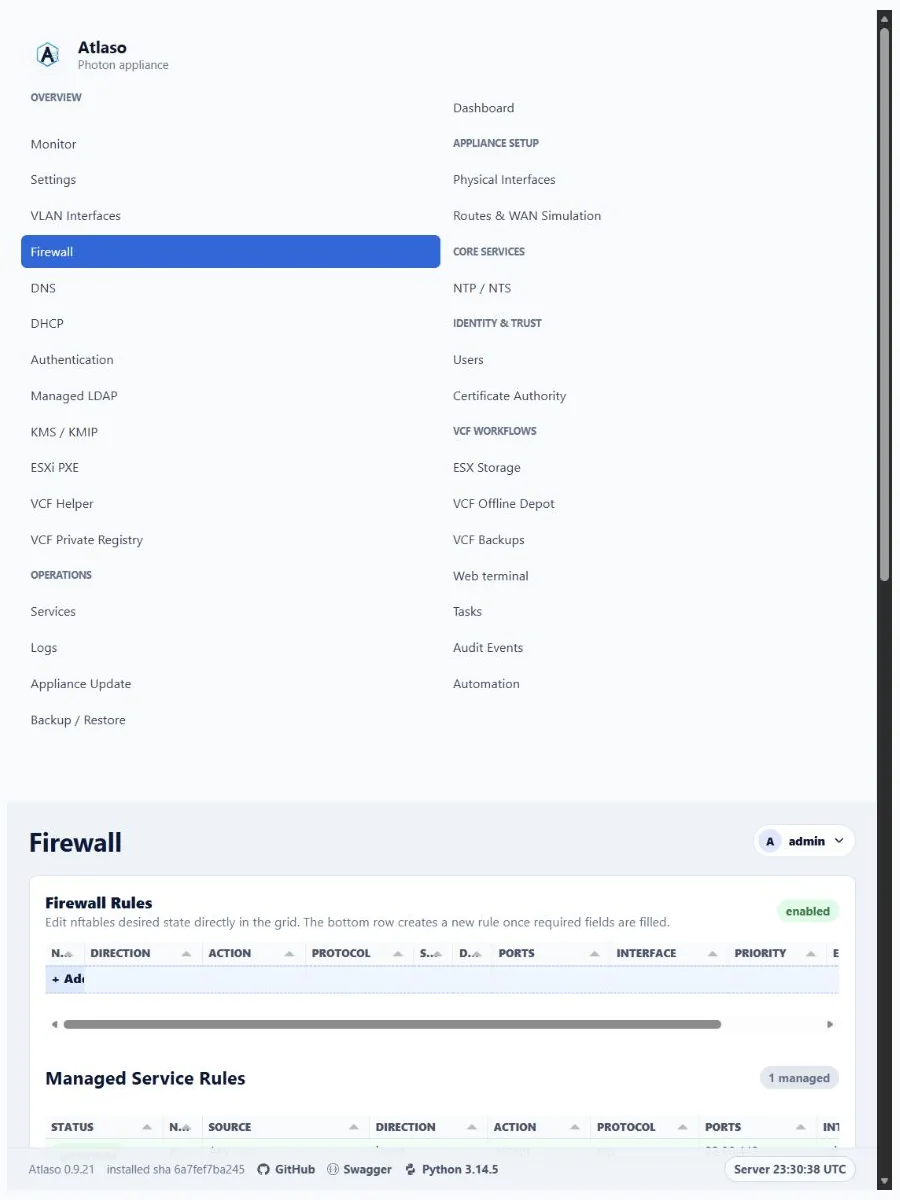
Figure: Firewall in the verified clean-appliance responsive state.
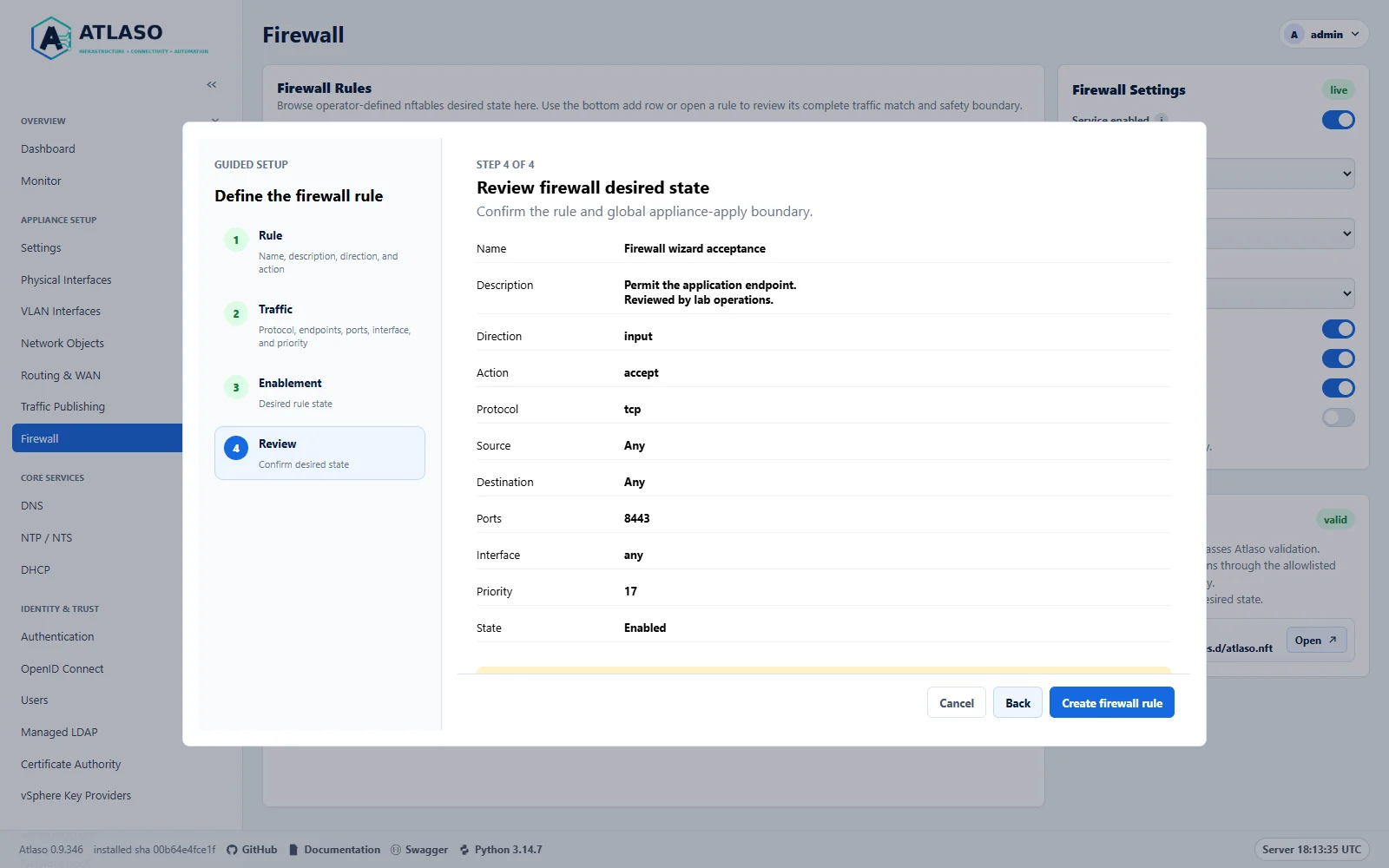
Figure: Review the multiline description, traffic fields, priority, and enabled state before saving desired state.
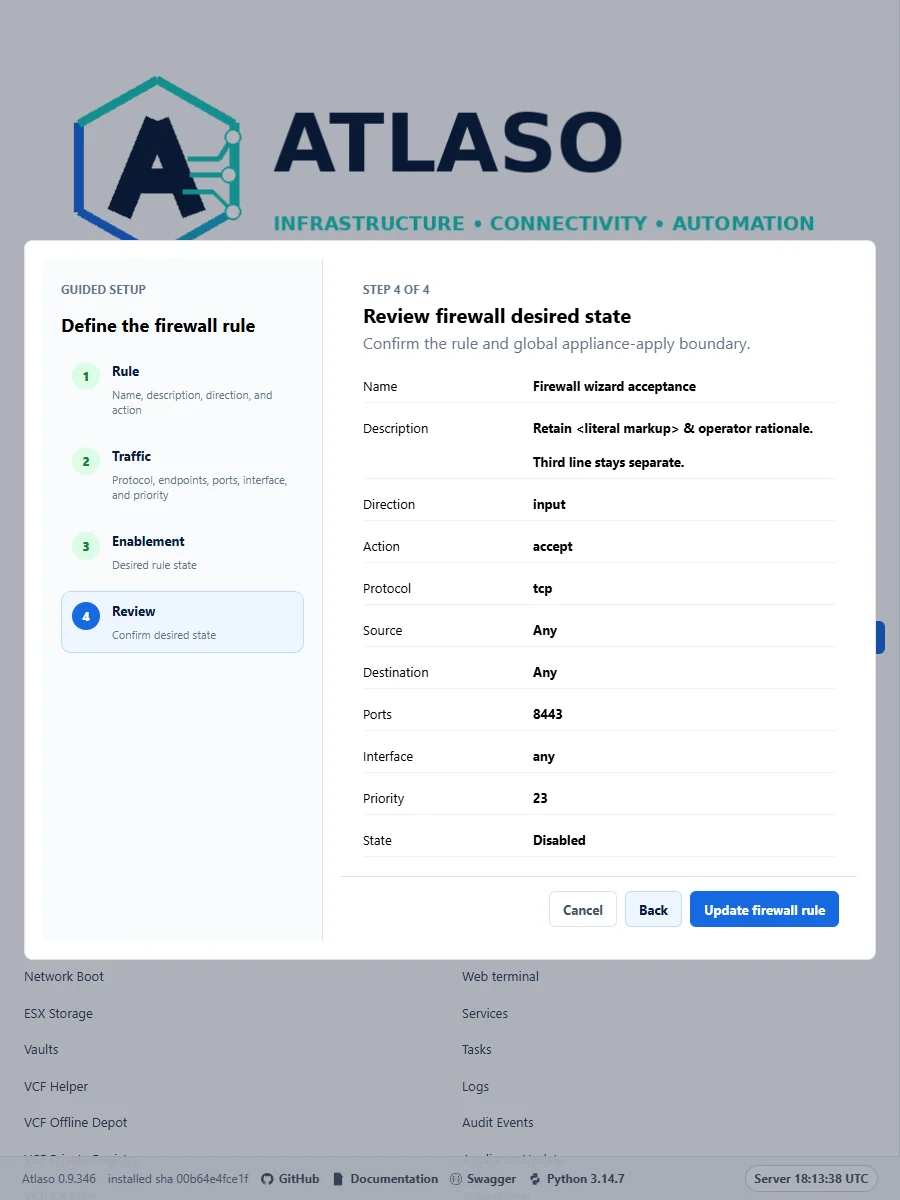
Figure: Review the multiline description, traffic fields, priority, and enabled state before saving desired state.
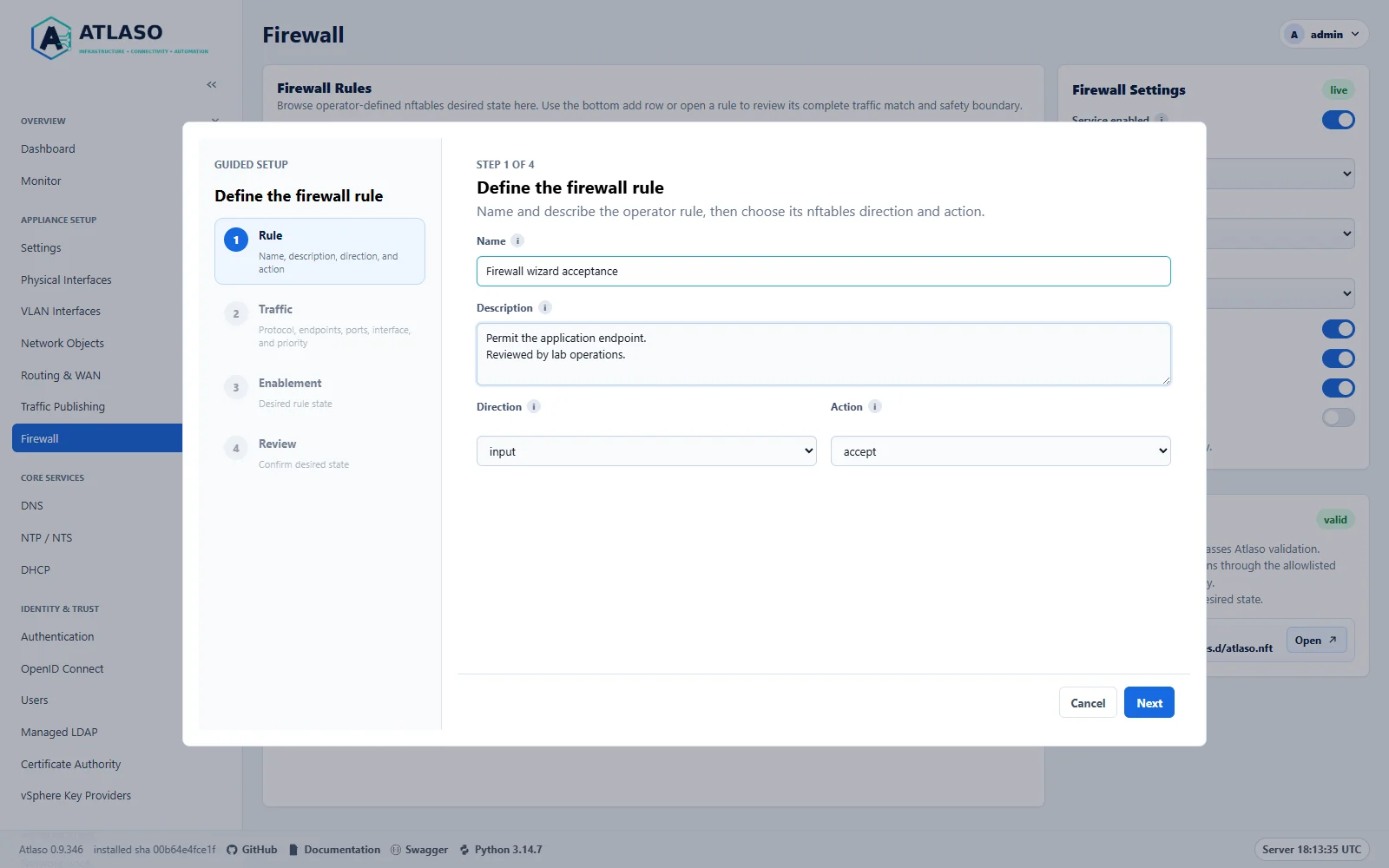
Figure: Start a rule with its identity and multiline description before choosing traffic and priority.
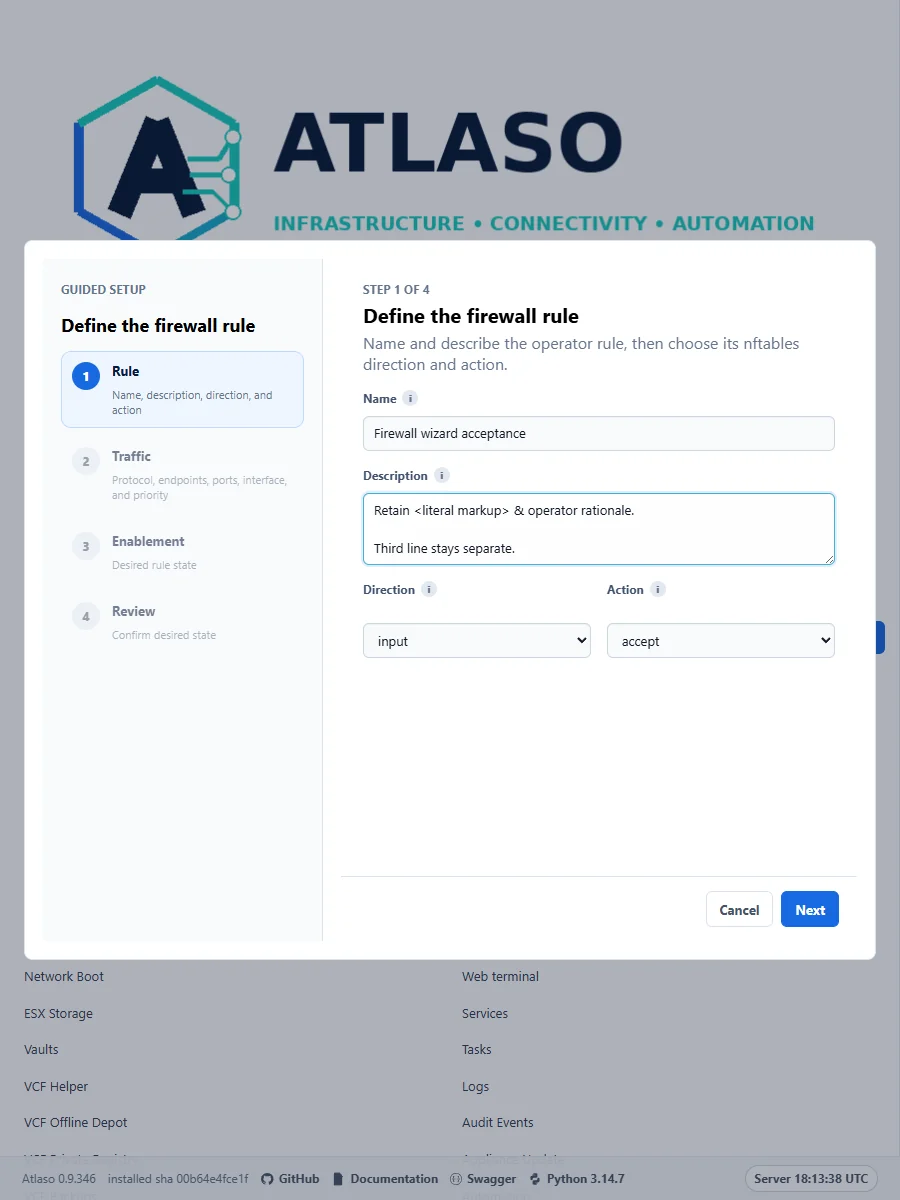
Figure: Start a rule with its identity and multiline description before choosing traffic and priority.
Ldap
Route: /ui/management/ldap
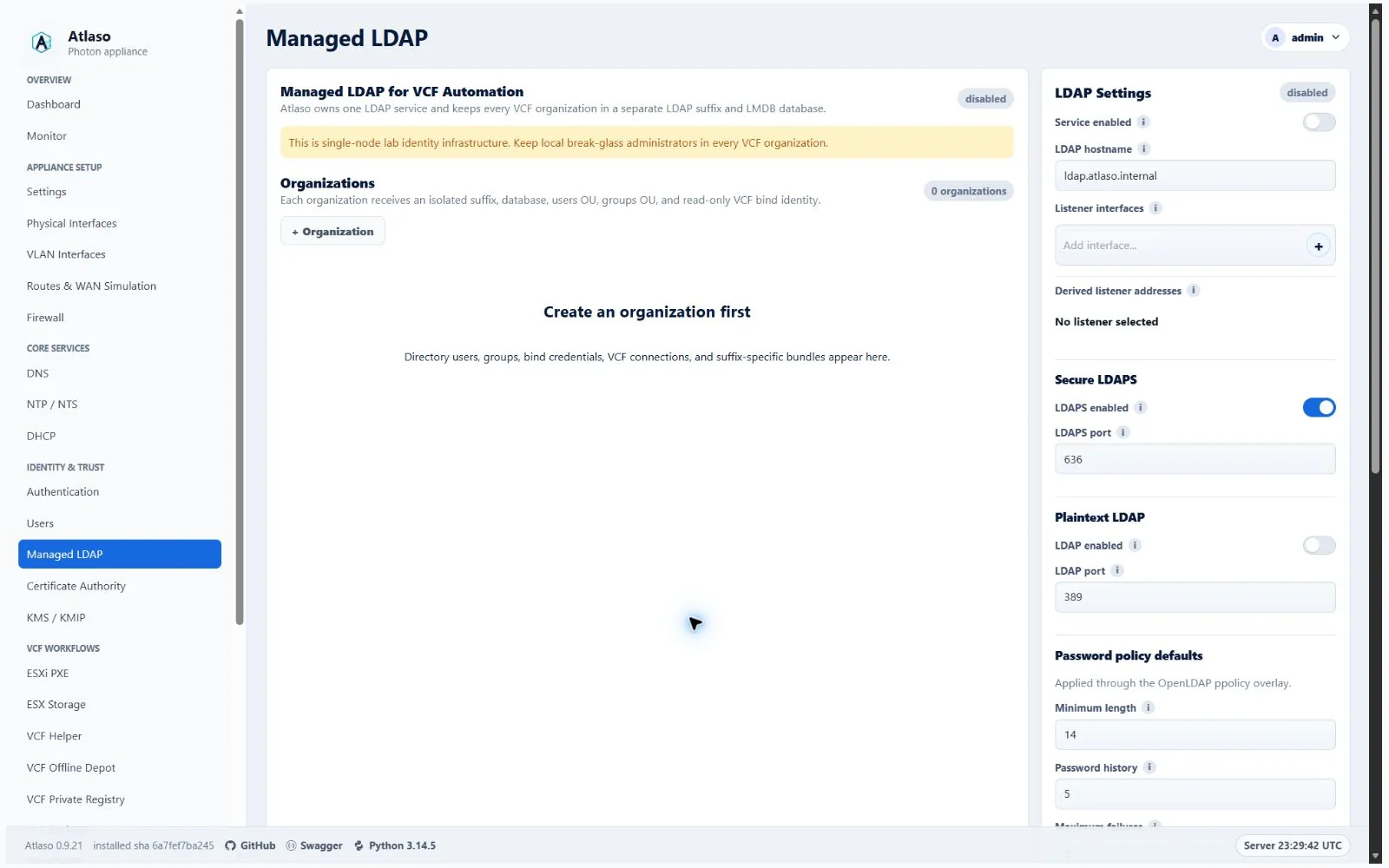
Figure: Managed LDAP in the verified clean-appliance desktop state.
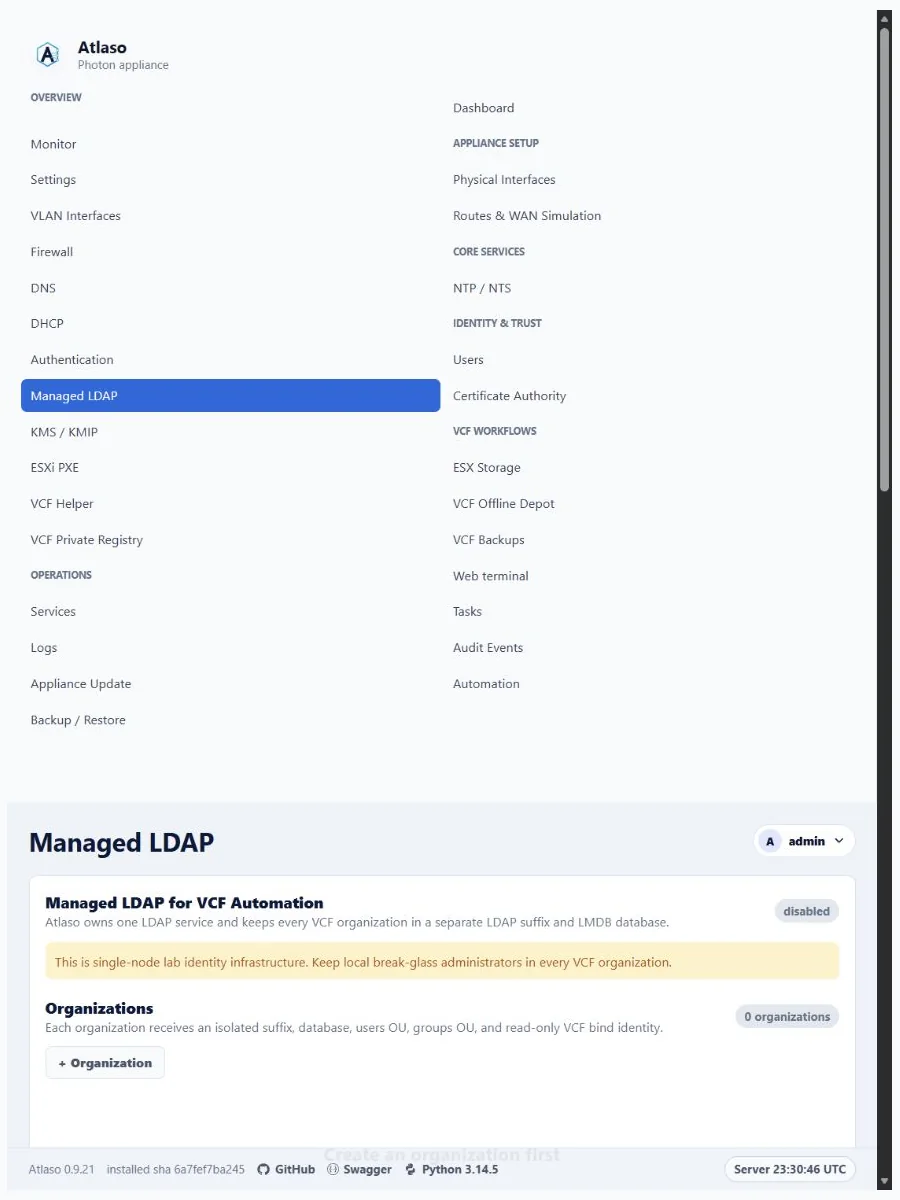
Figure: Managed LDAP in the verified clean-appliance responsive state.
Ldap: Groups
Route: /ui/management/ldap#groups
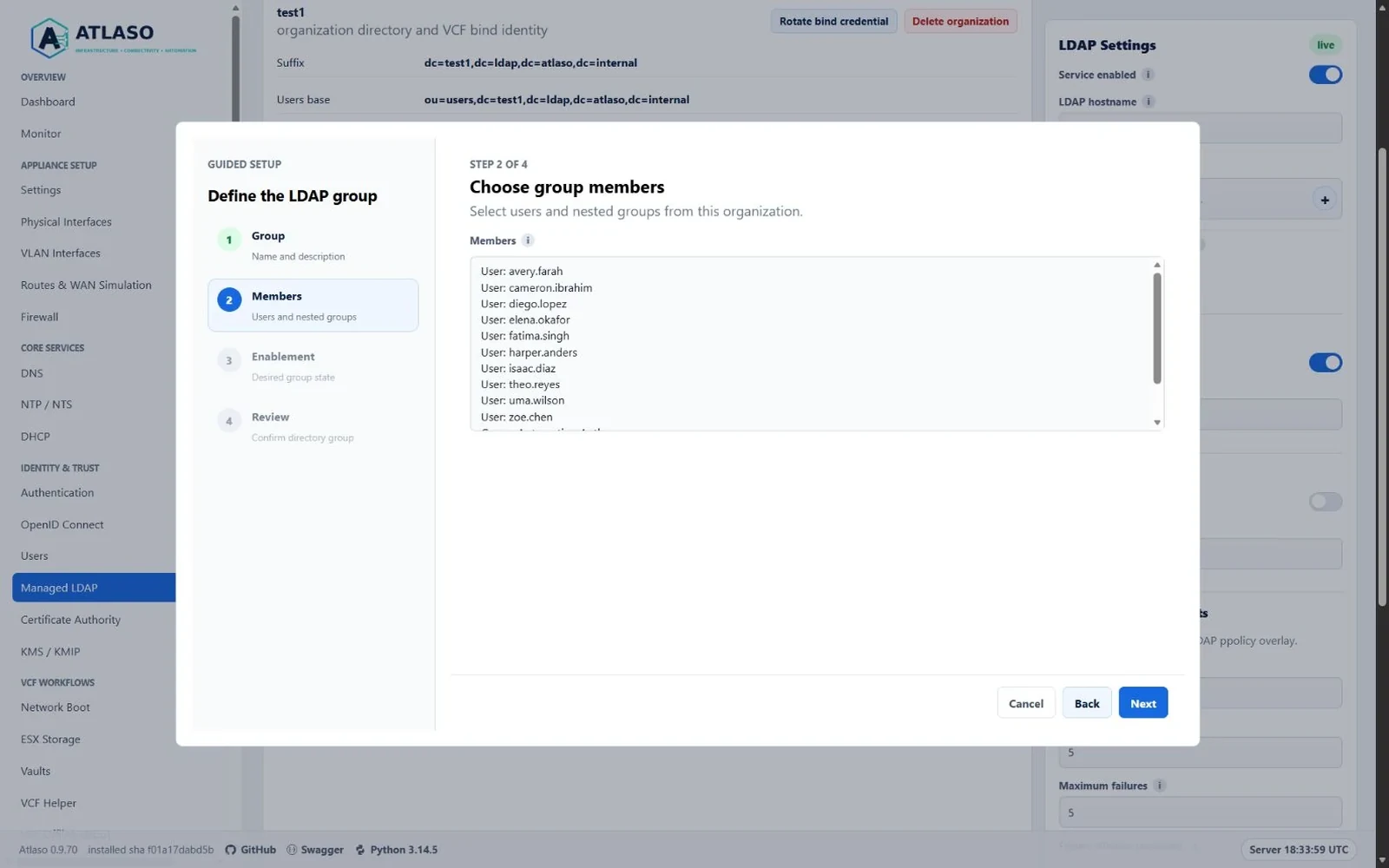
Figure: Managed LDAP group wizard populated with selectable users and nested groups.
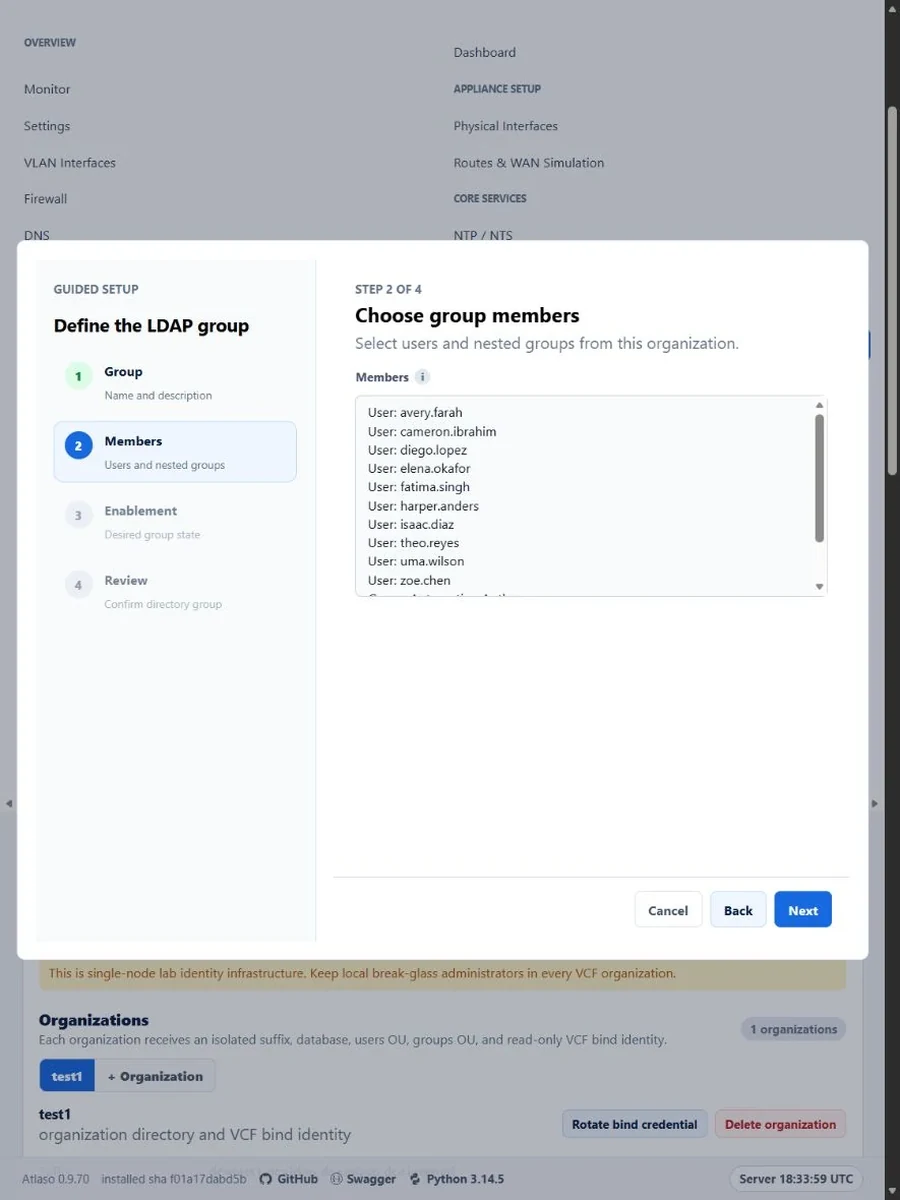
Figure: Managed LDAP group Members step in the verified narrow viewport.
Login
Route: /ui/management/login
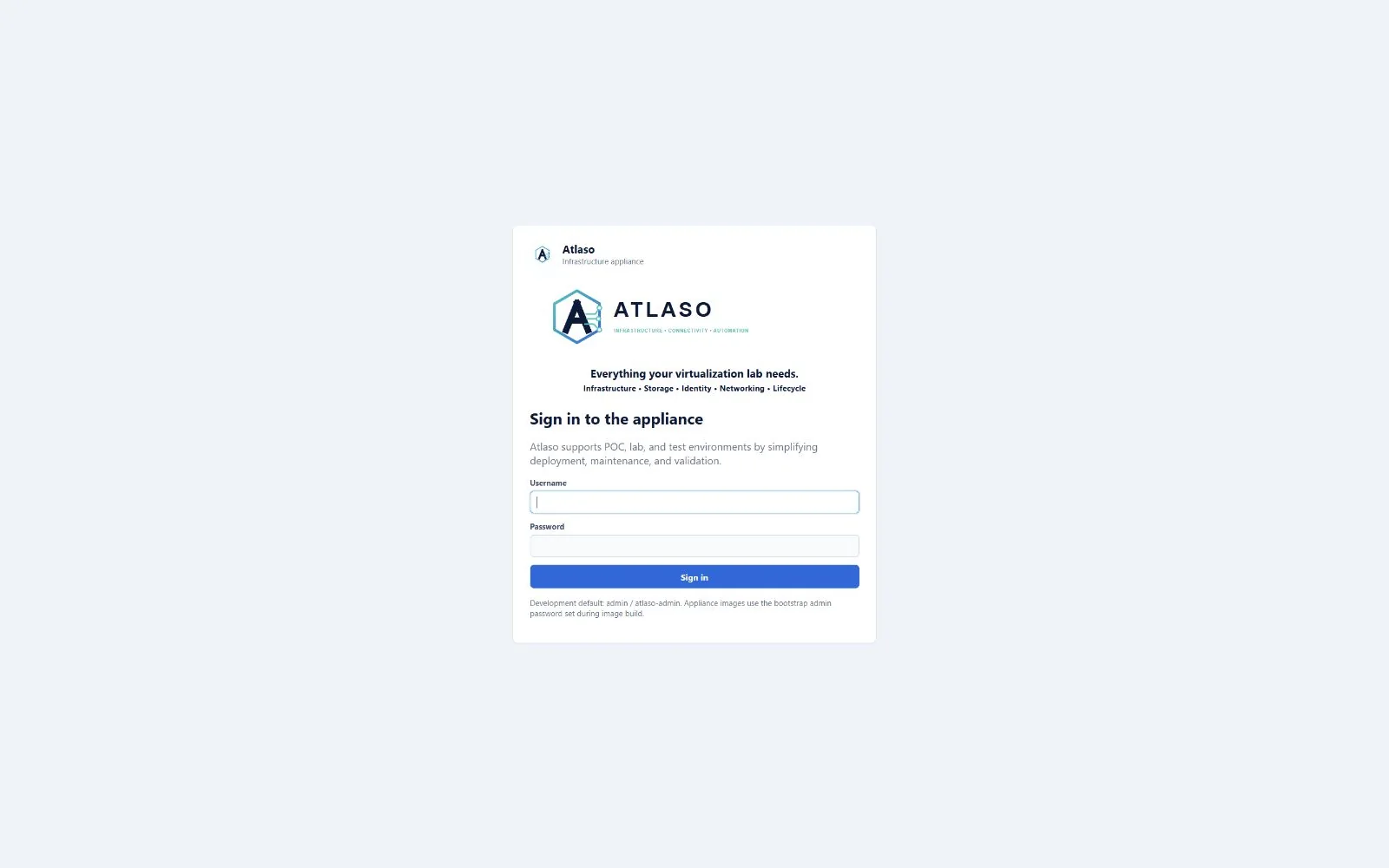
Figure: Appliance sign-in in the verified desktop viewport.
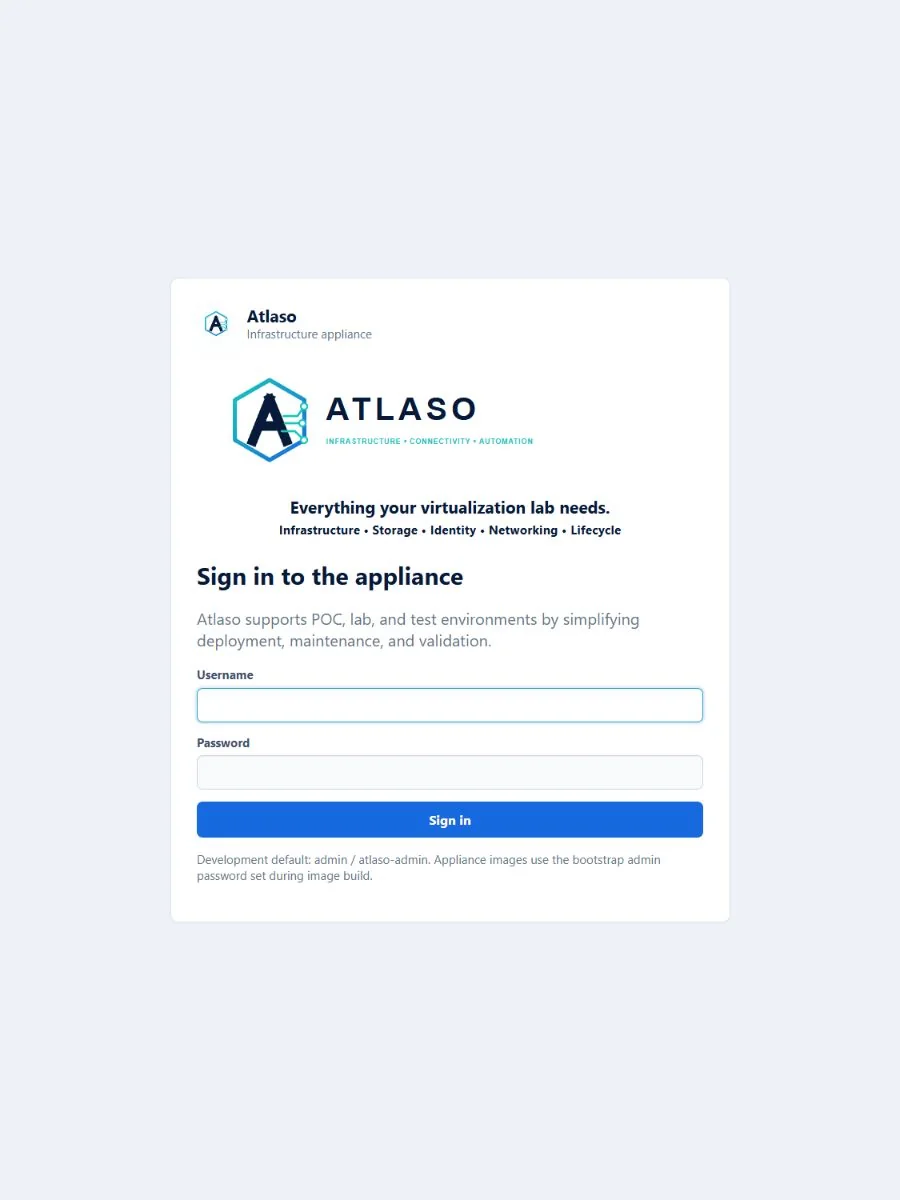
Figure: Appliance sign-in in the verified responsive viewport.
Logs
Route: /ui/management/logs
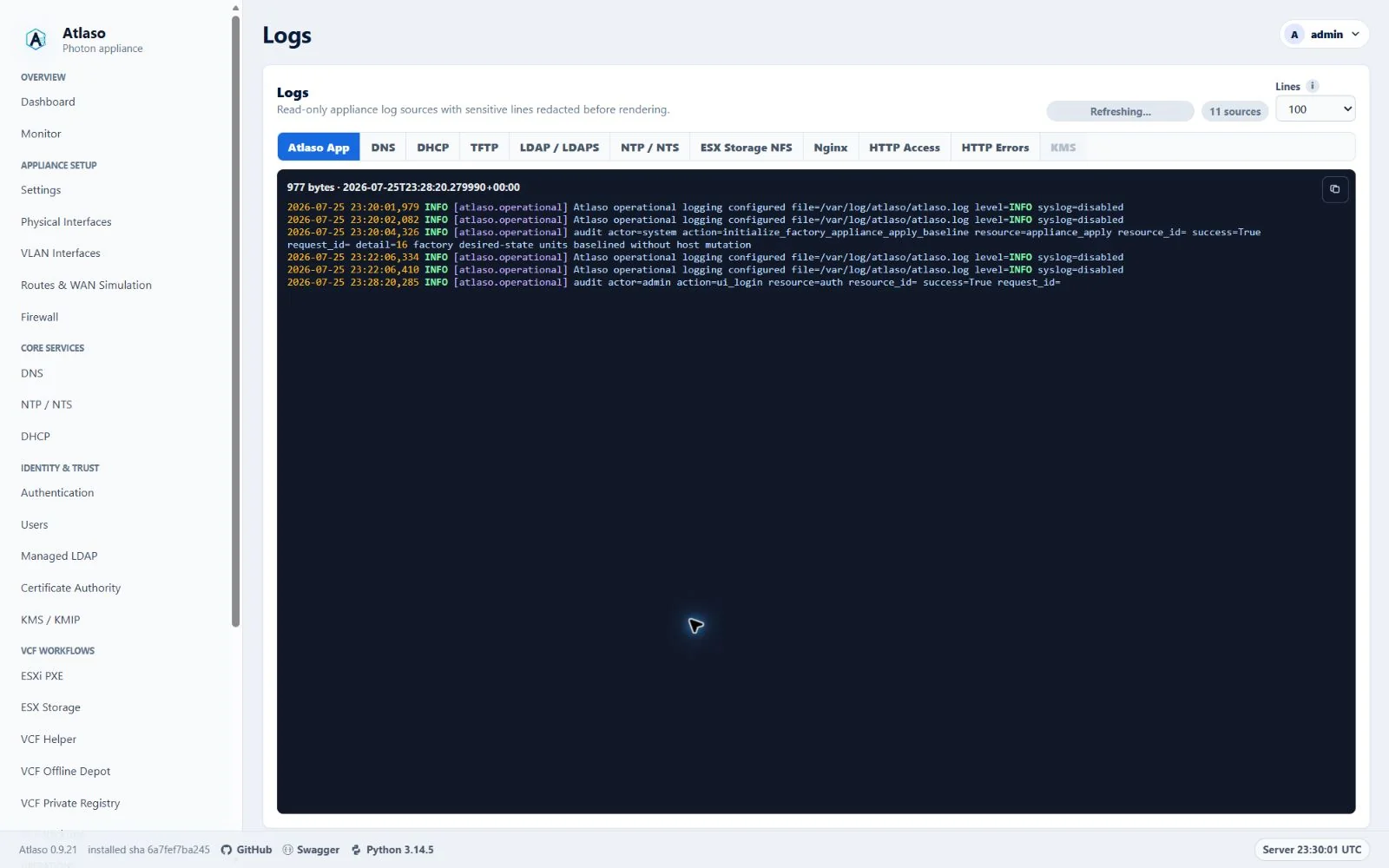
Figure: Logs history controls in the desktop layout with synthetic test data.
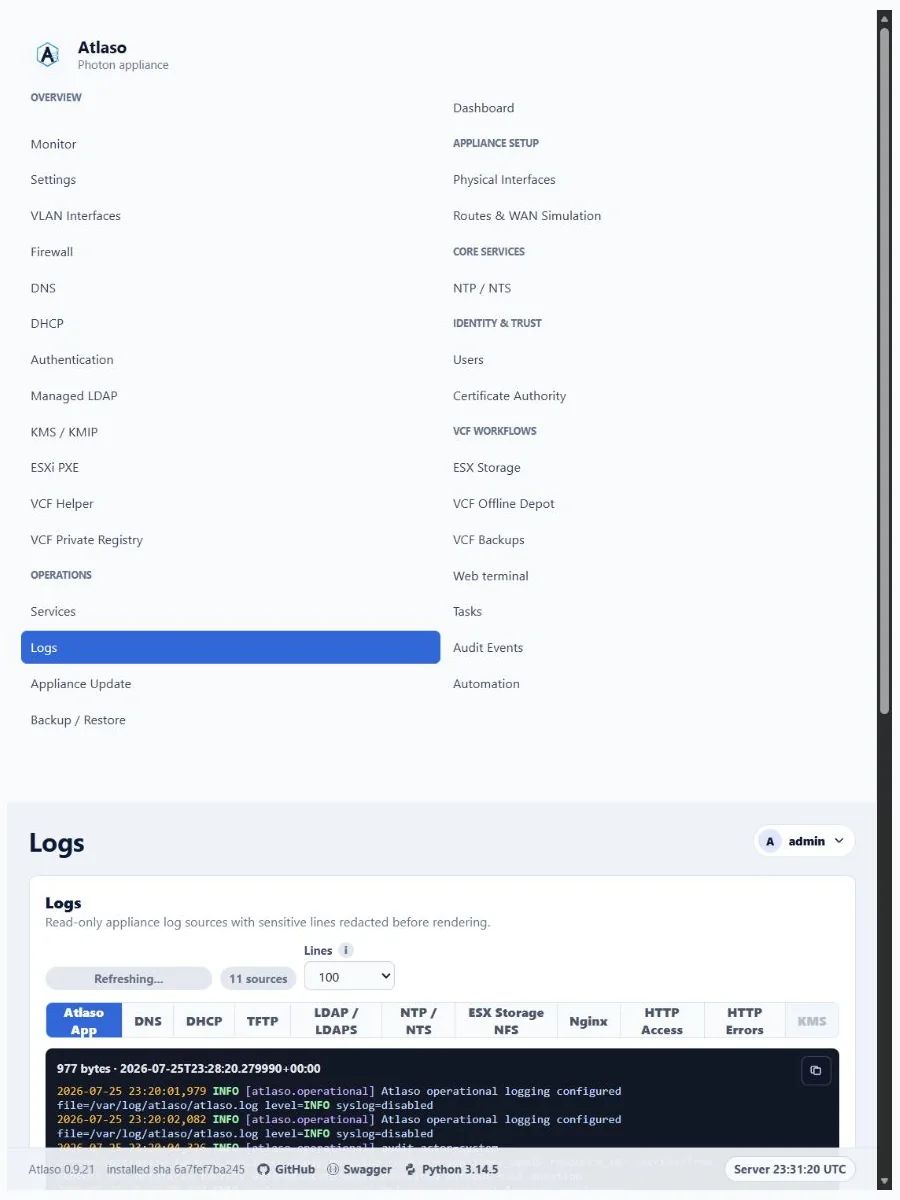
Figure: Logs history controls in the responsive layout with synthetic test data.
Management CA / Requests
Route: /ui/management/ca/requests
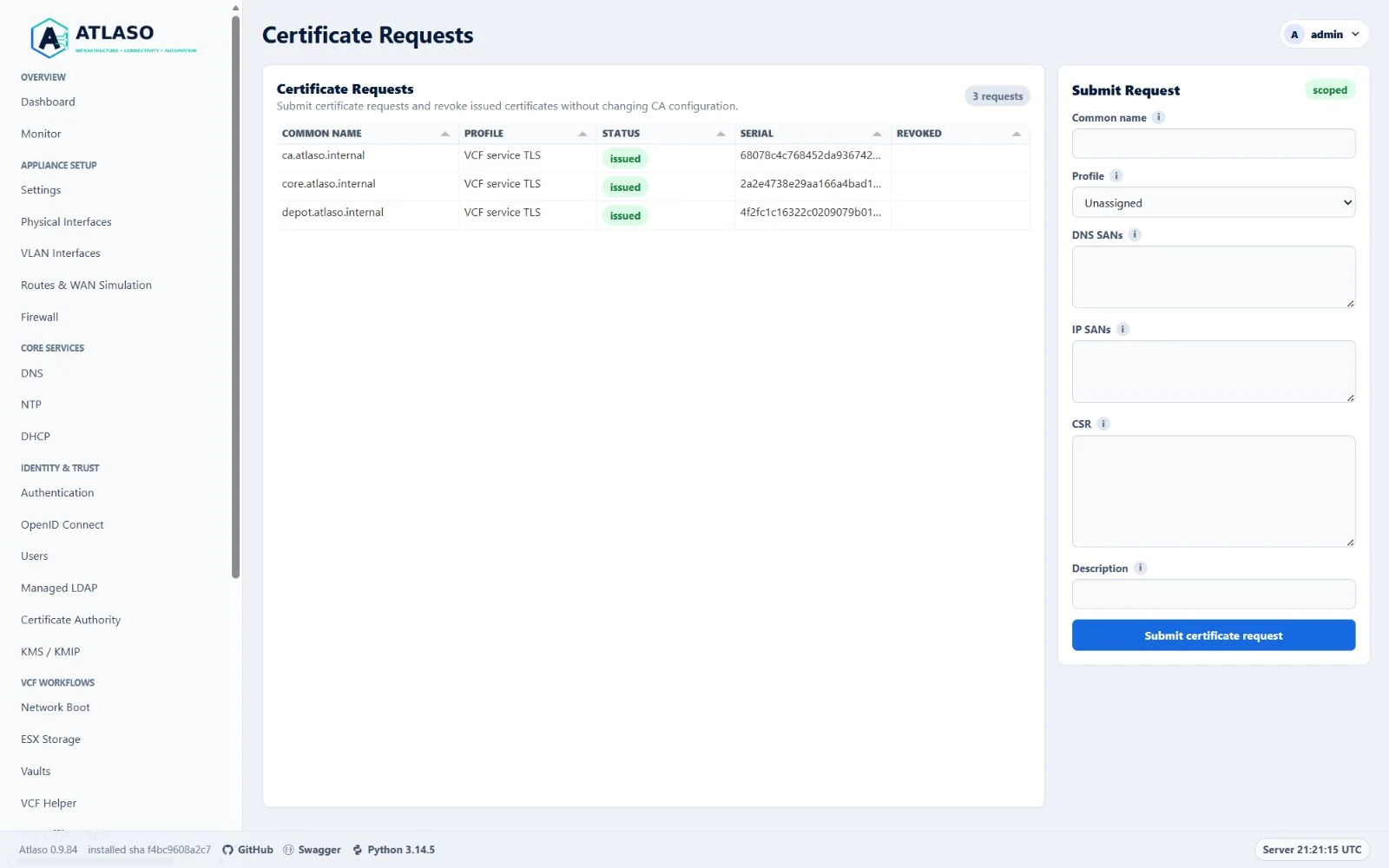
Figure: Management certificate requests rendered through the shared read-only grid in the desktop viewport.
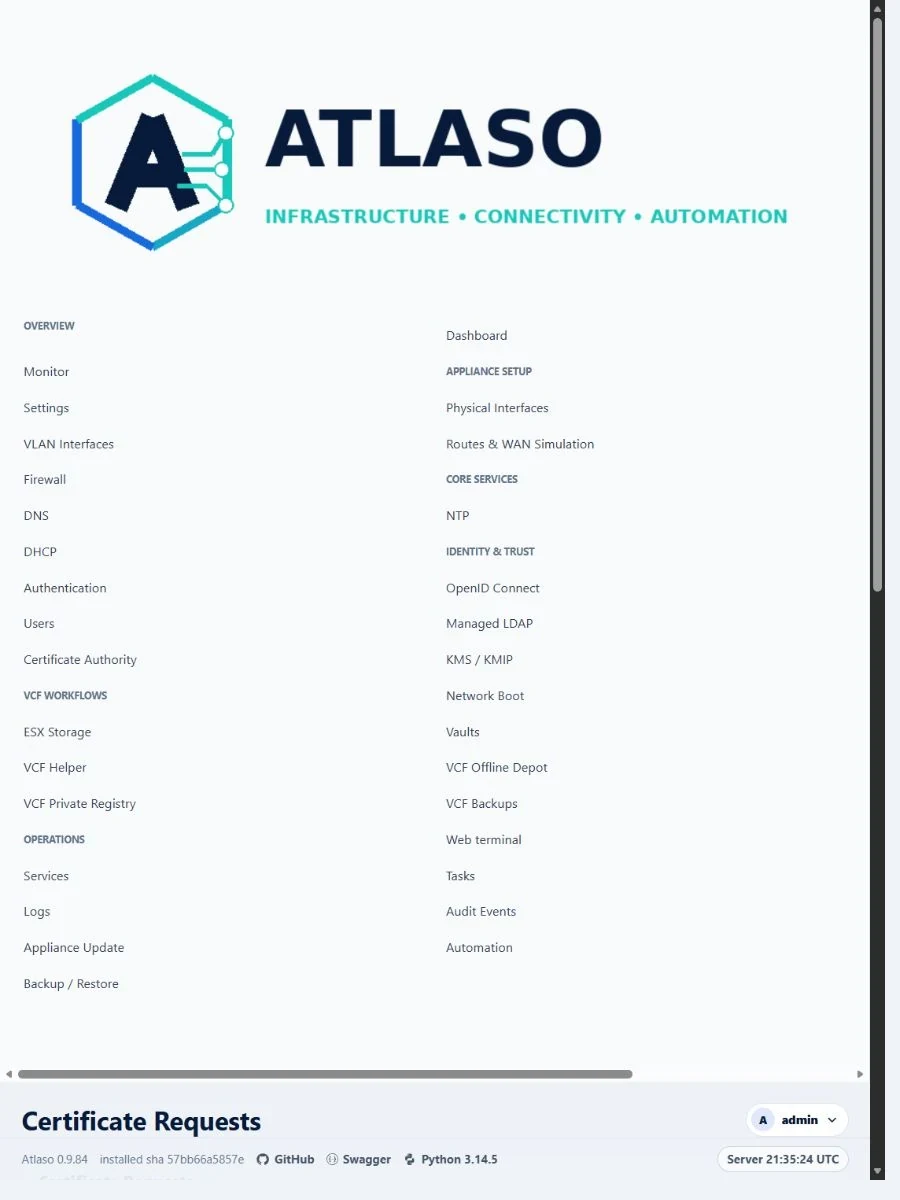
Figure: Management certificate requests remain contained in the narrow viewport.
Monitor
Route: /ui/management/monitor
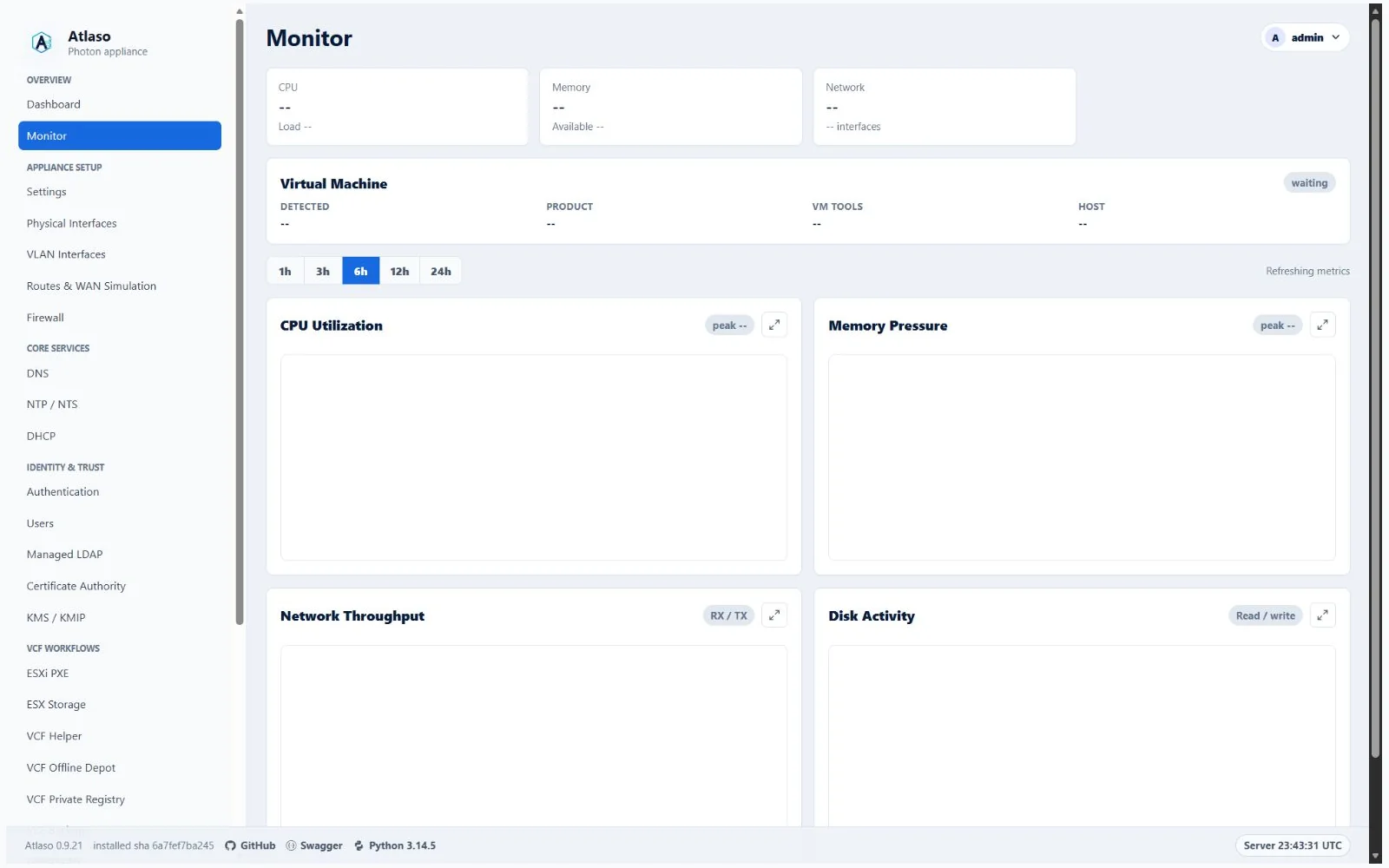
Figure: Runtime monitoring after a successful appliance apply.
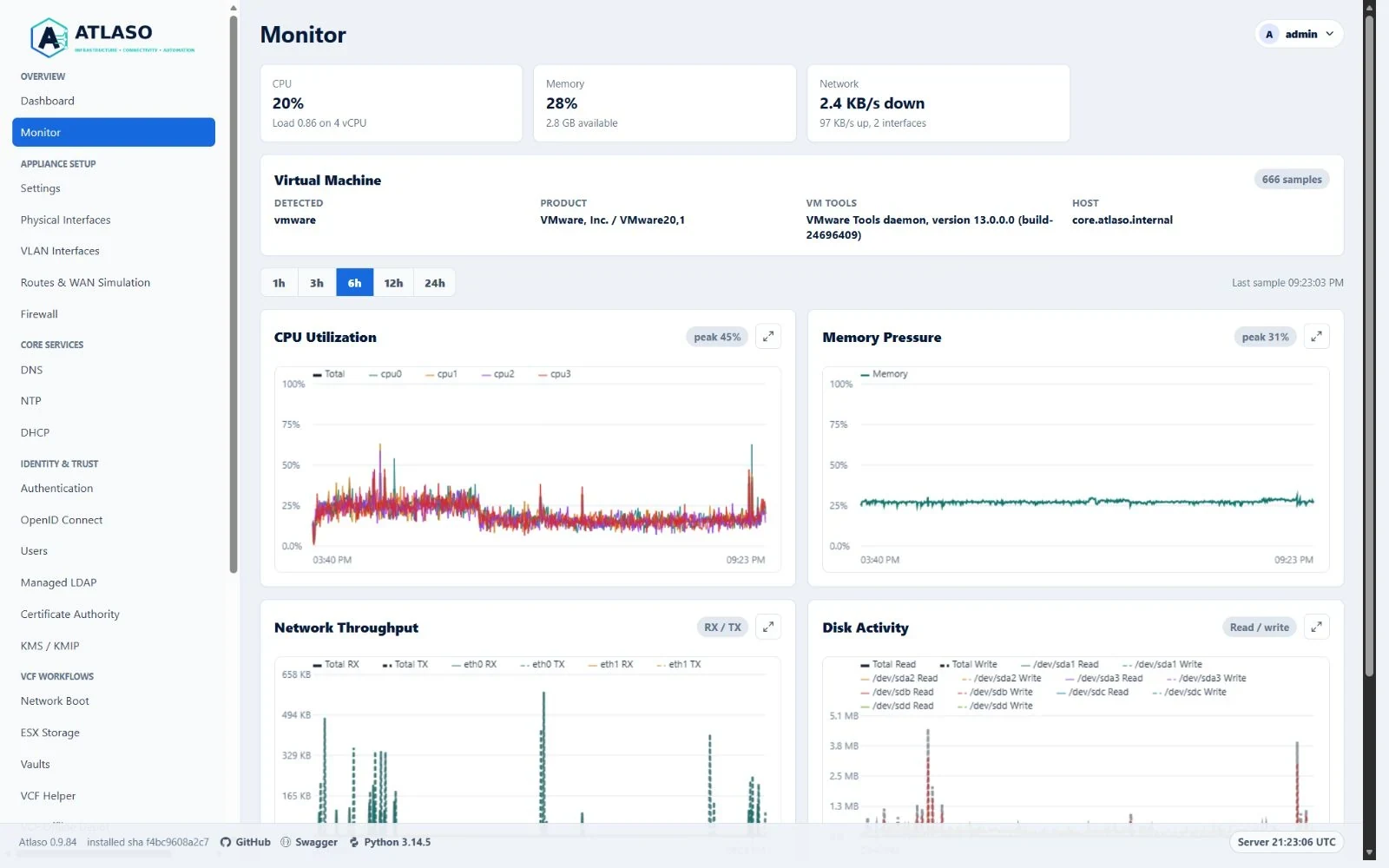
Figure: Monitor summary and live charts in the verified desktop state.
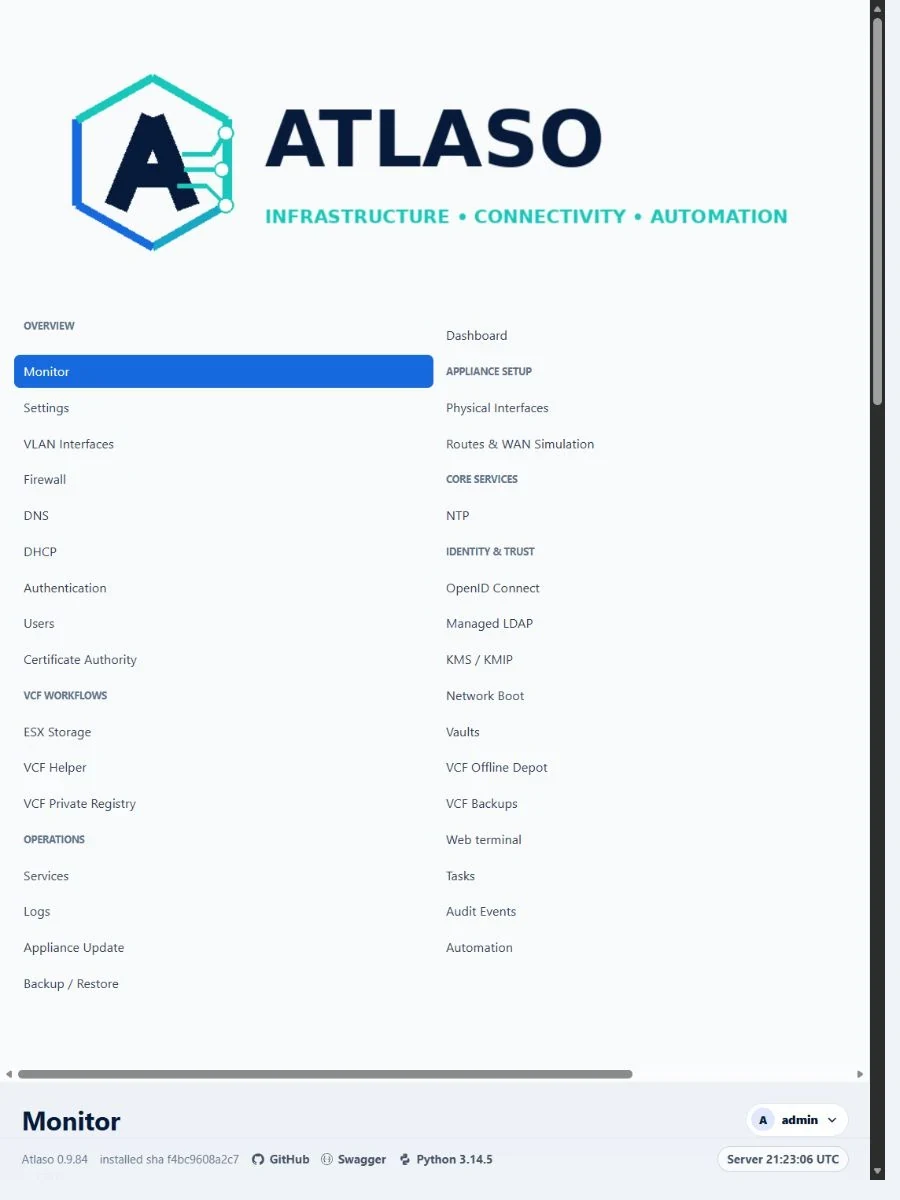
Figure: Monitor summary and live charts in the verified narrow state.
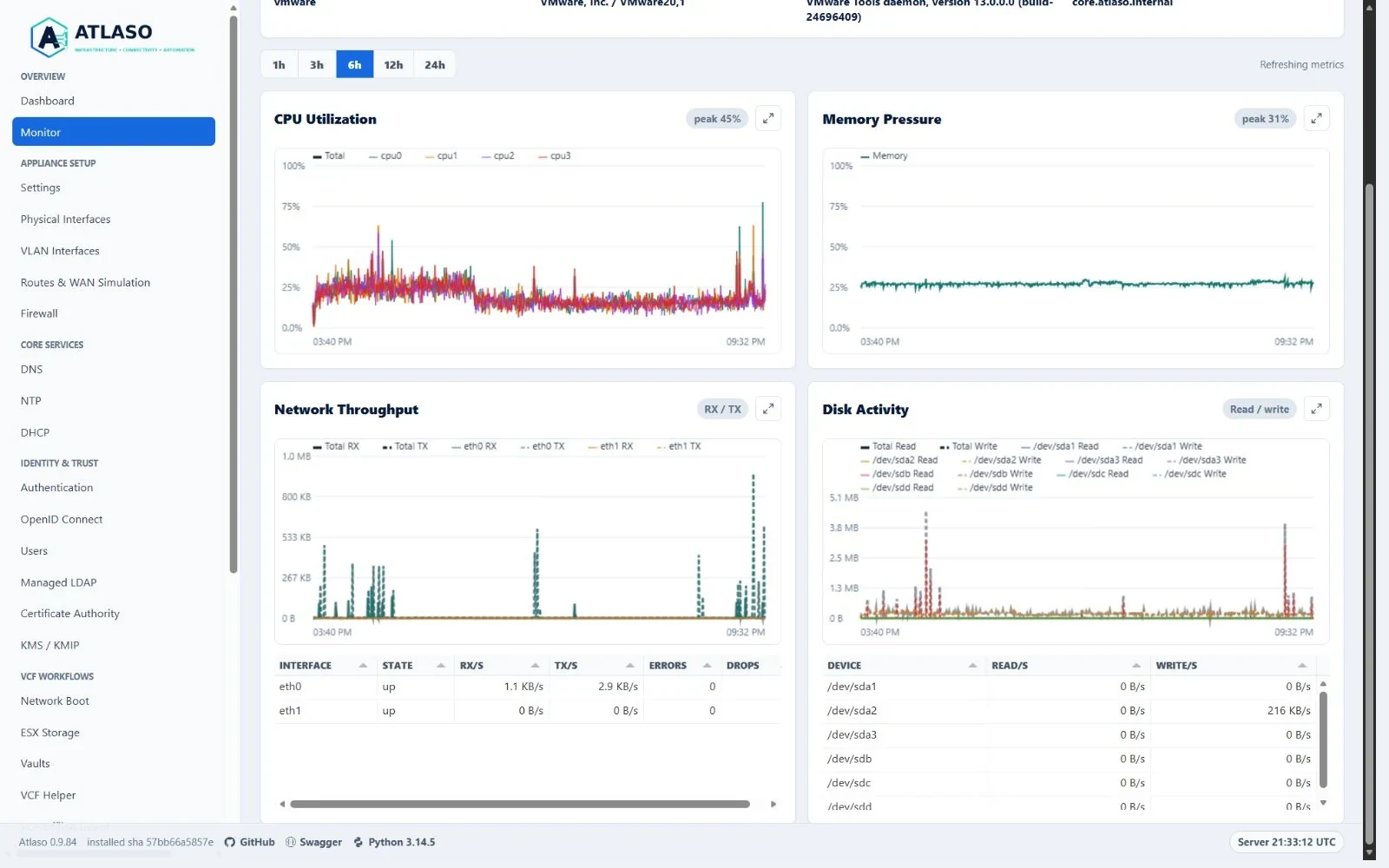
Figure: Network-interface and disk-device activity use read-only grids beneath their live charts.
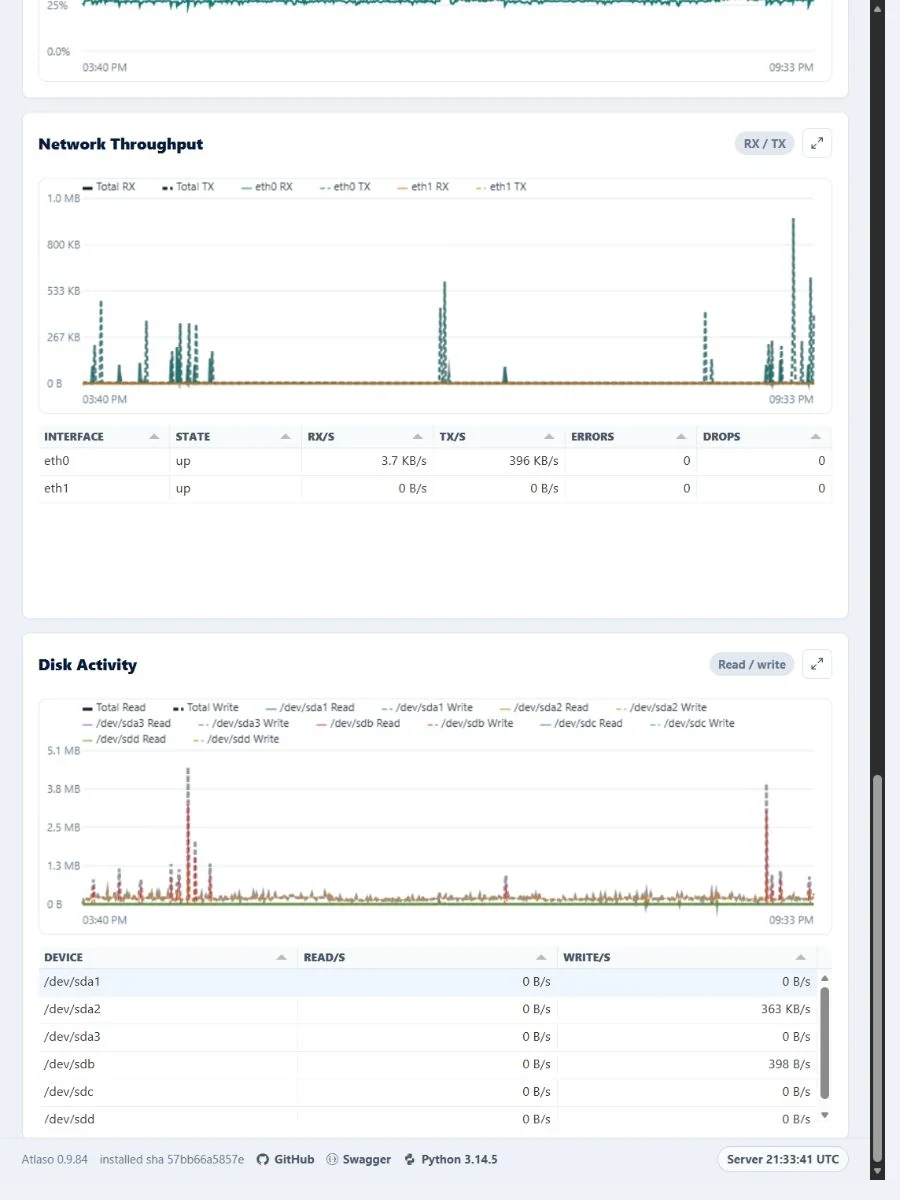
Figure: Network-interface and disk-device grids remain readable without page overflow in the narrow viewport.
Network Boot
Route: /ui/management/network-boot
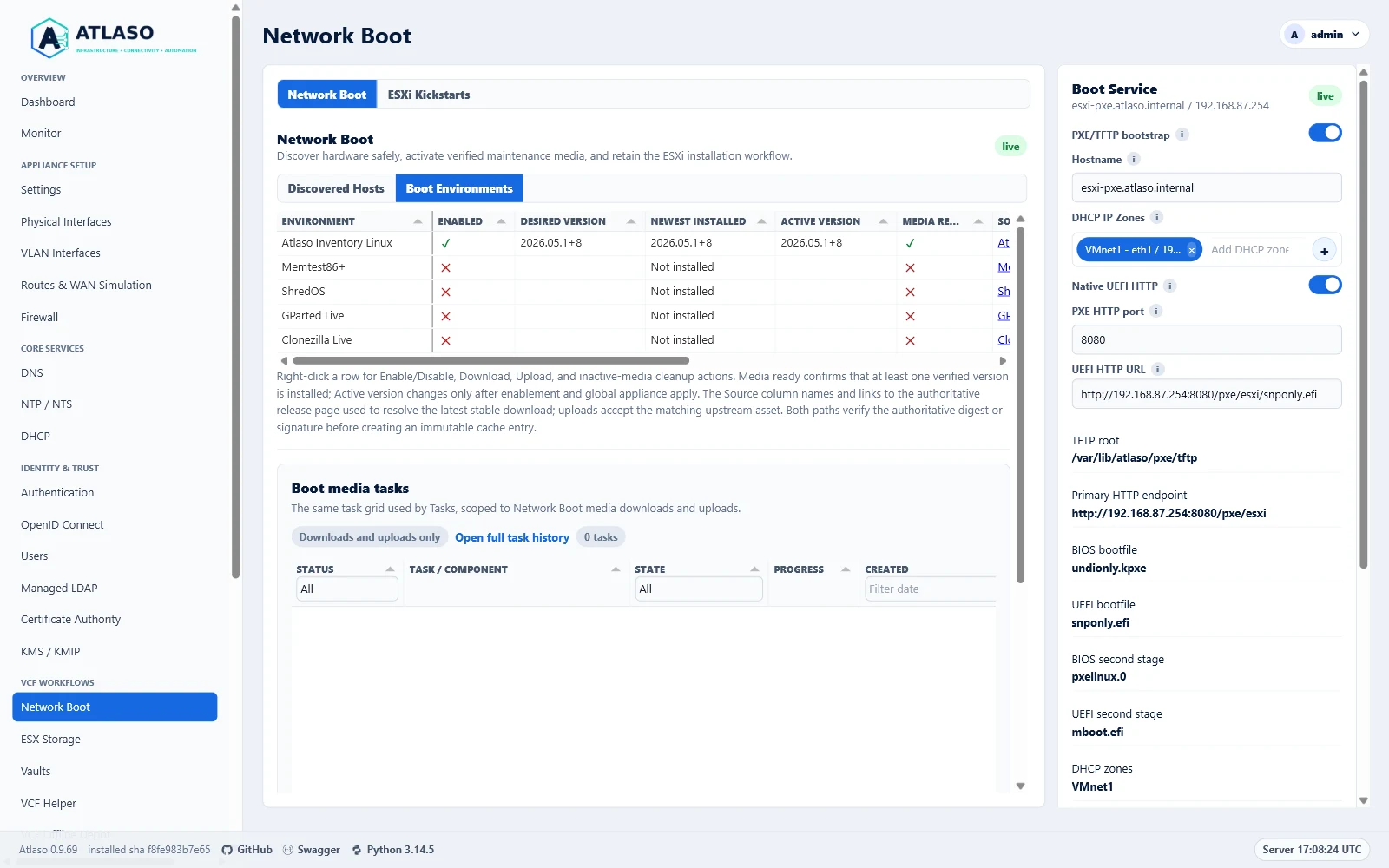
Figure: Network Boot in the verified clean-appliance desktop state.
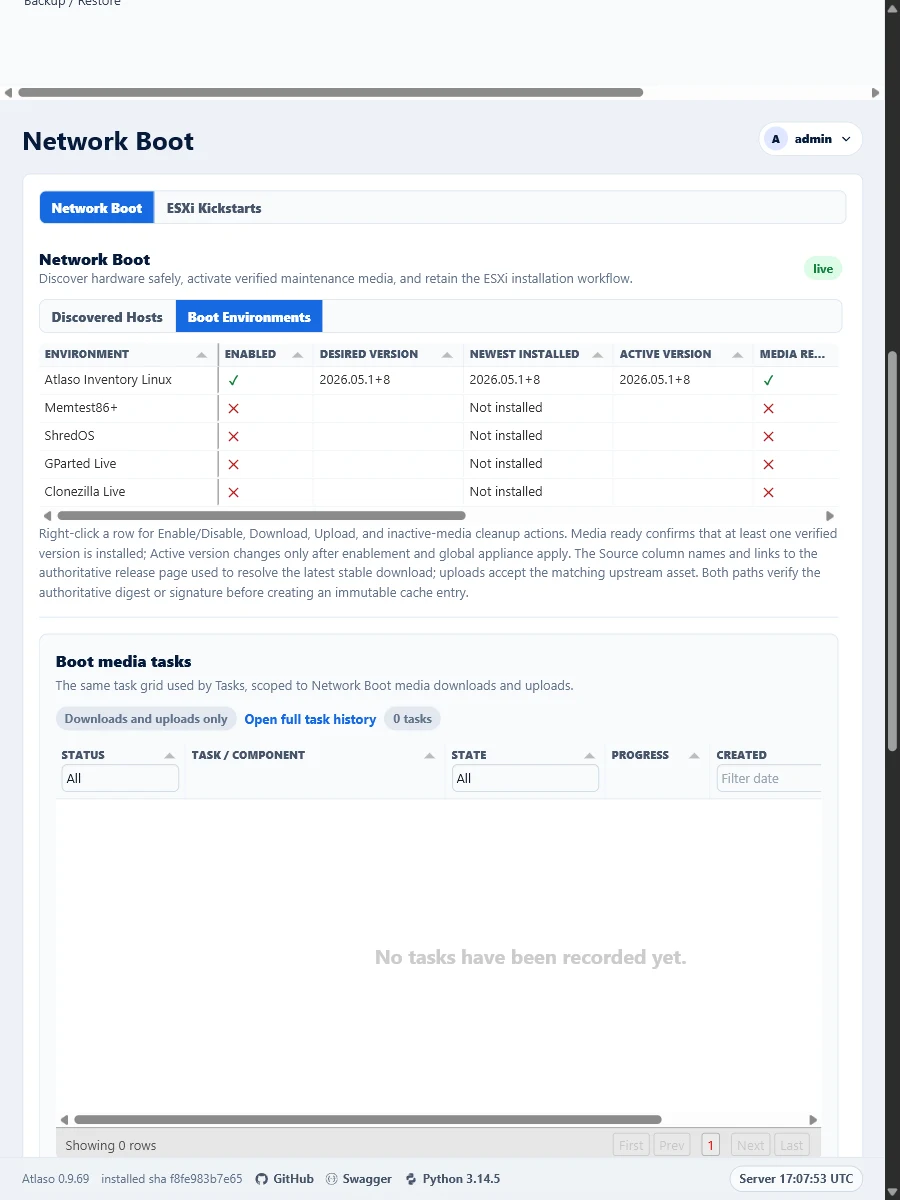
Figure: Network Boot in the verified clean-appliance responsive state.
Network Boot: Custom Variables
Route: /ui/management/network-boot#custom-variables
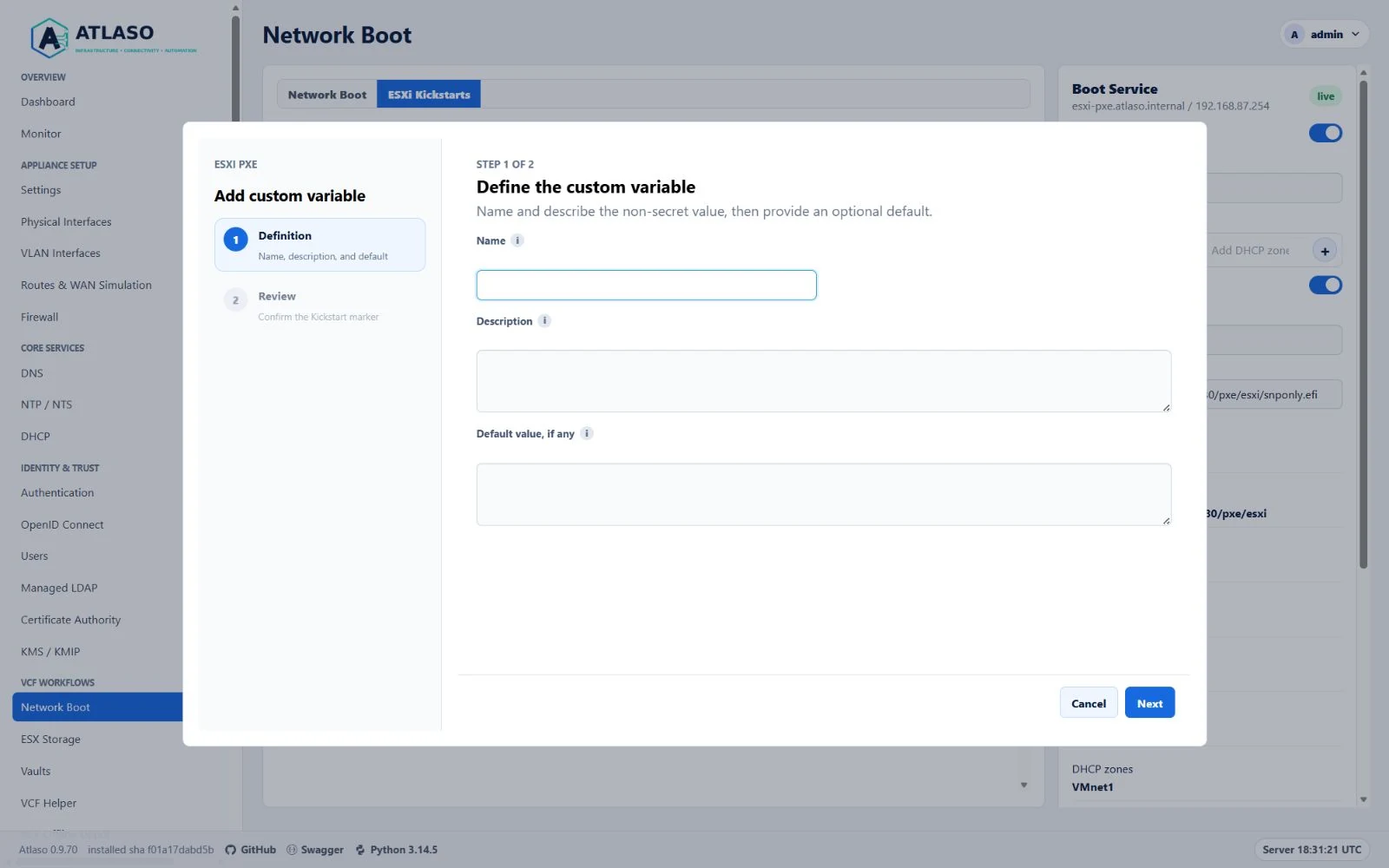
Figure: ESXi custom variable wizard with Description on its own full-width row.
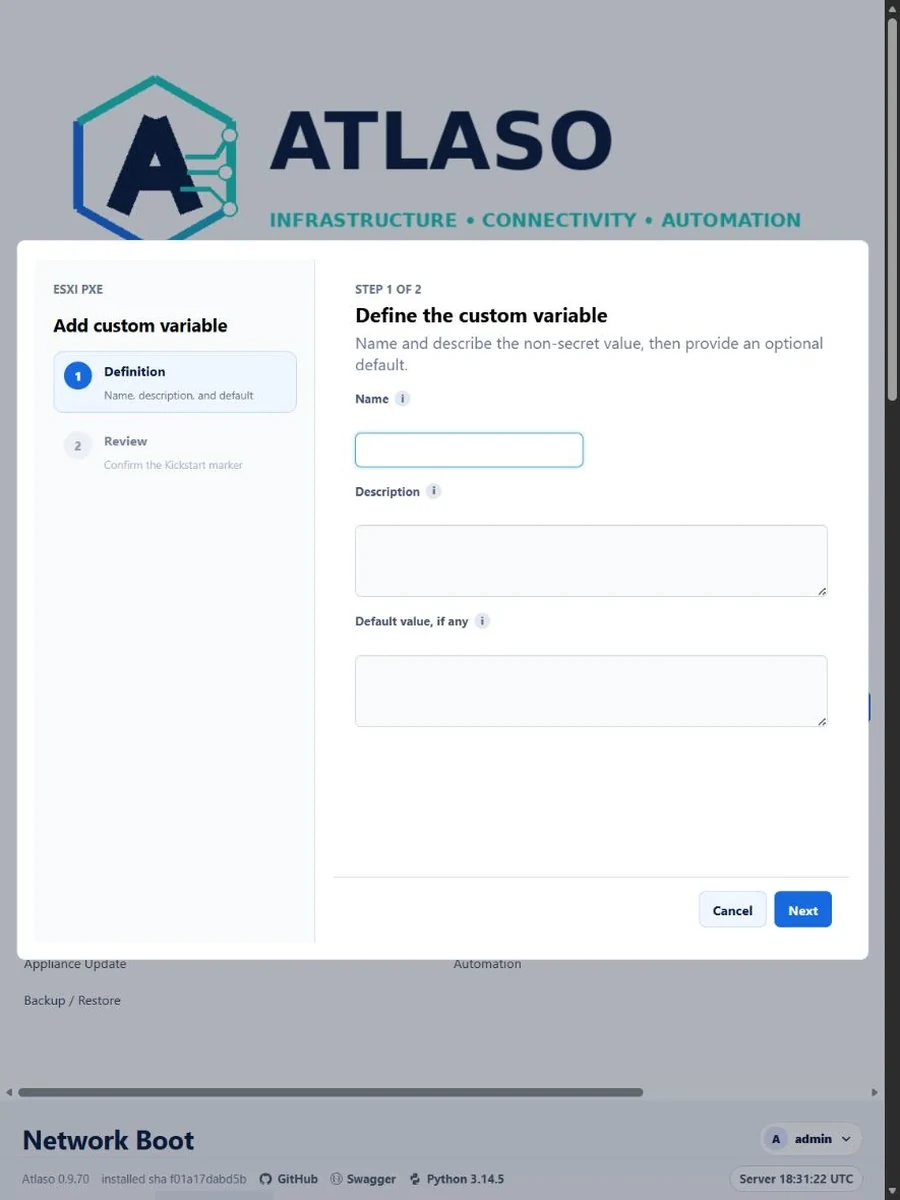
Figure: ESXi custom variable wizard in the verified narrow viewport.
Network Objects
Route: /ui/management/network-objects
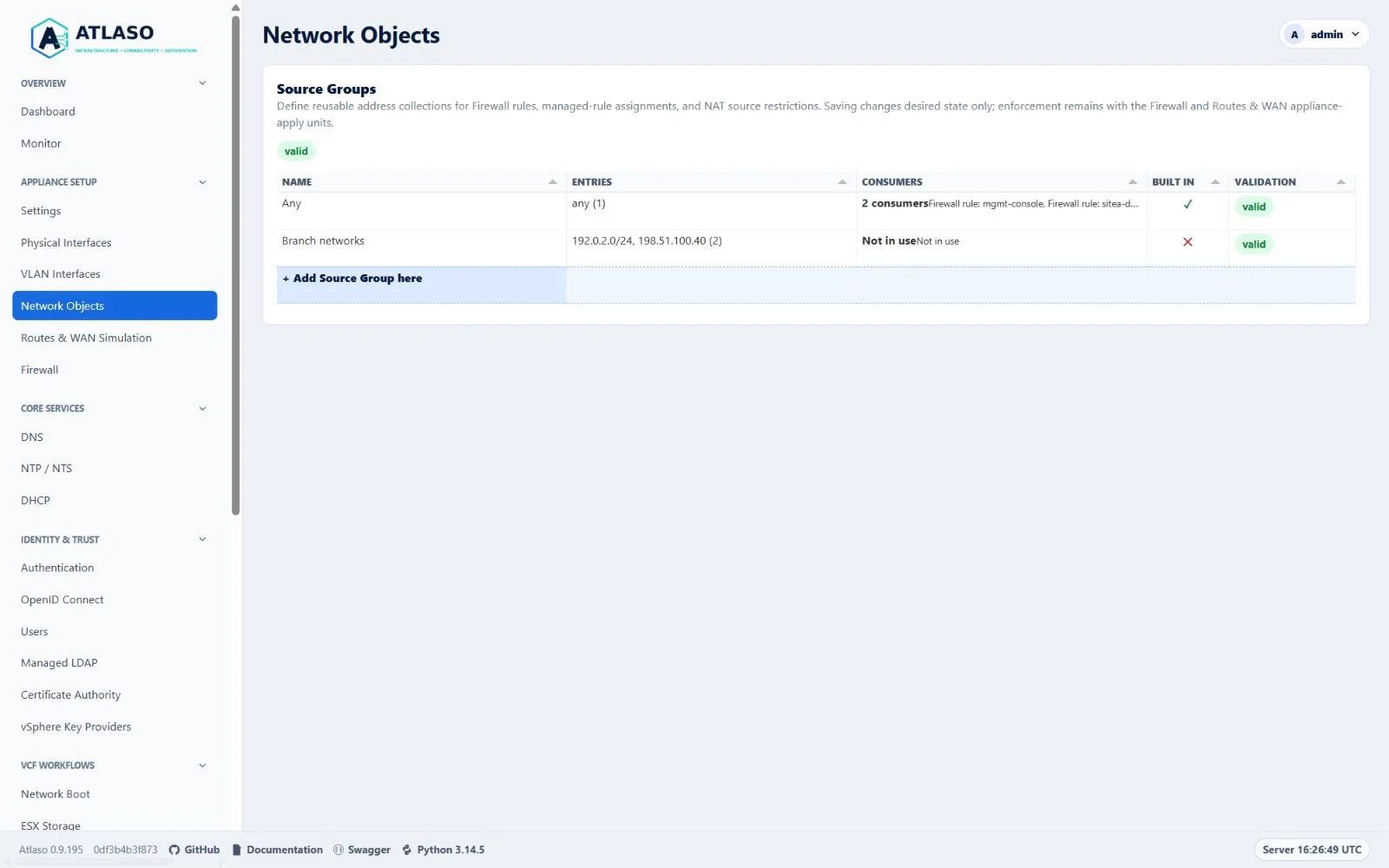
Figure: Network Objects in the verified clean-appliance desktop state.
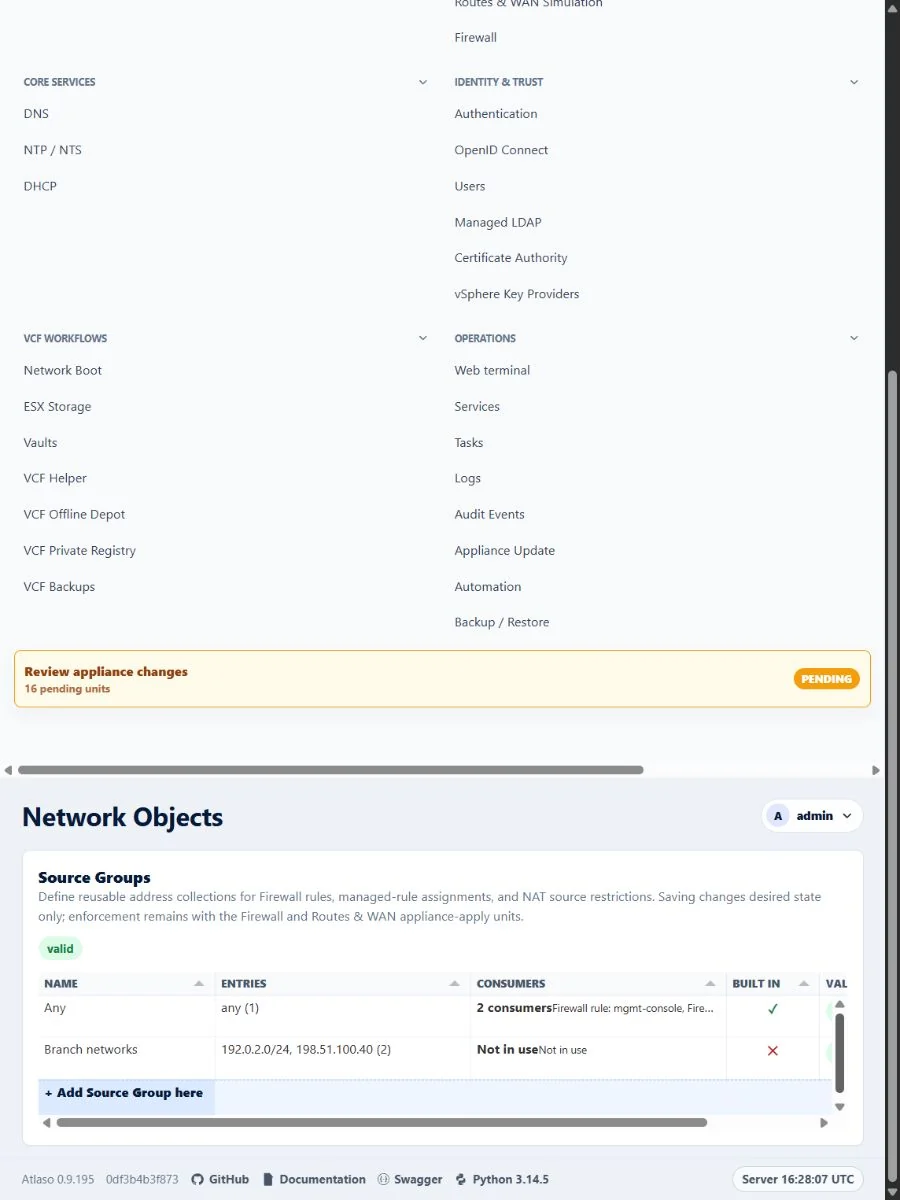
Figure: Network Objects in the verified clean-appliance responsive state.
Ntp
Route: /ui/management/ntp
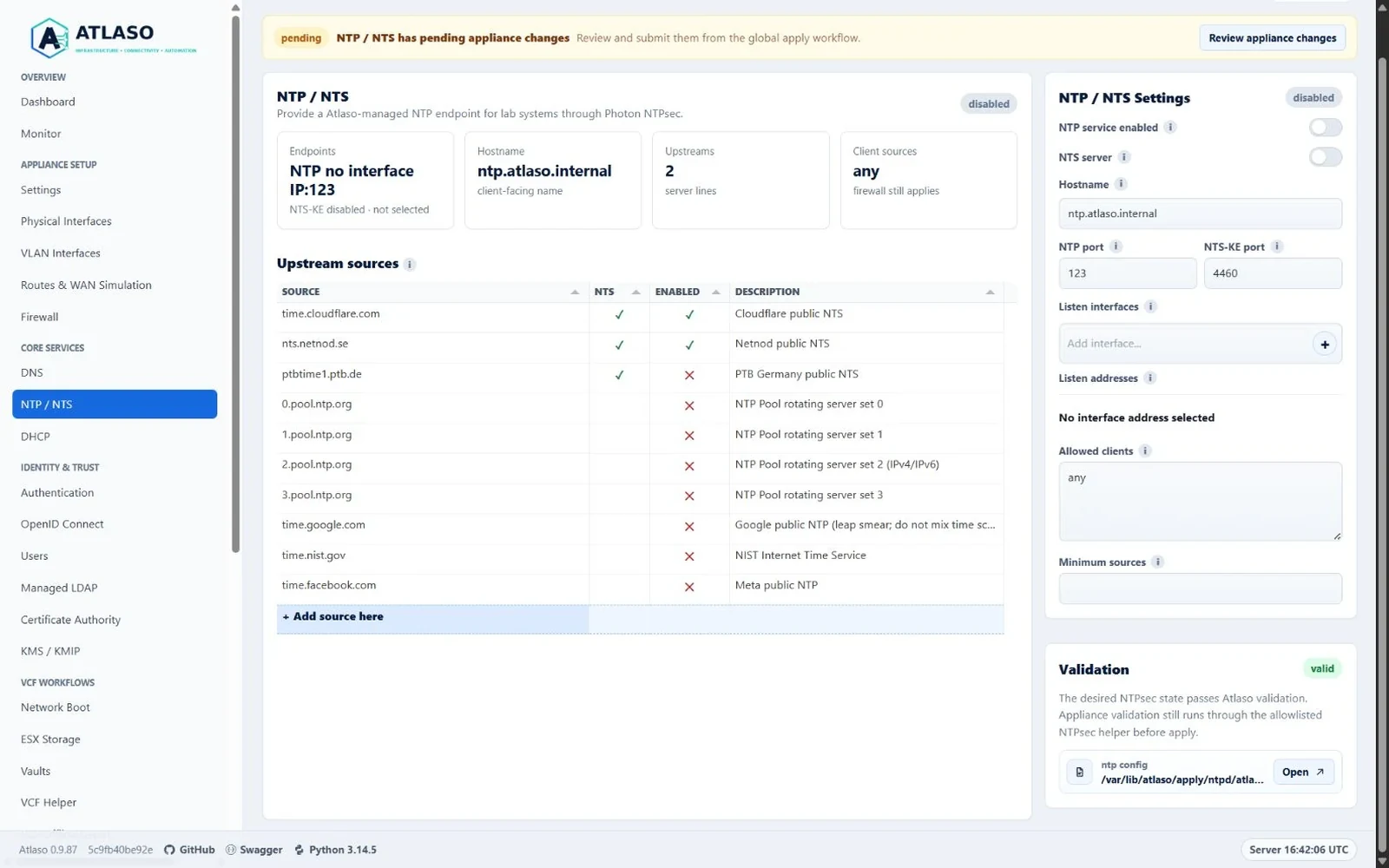
Figure: NTP and NTS in the verified clean-appliance desktop state.
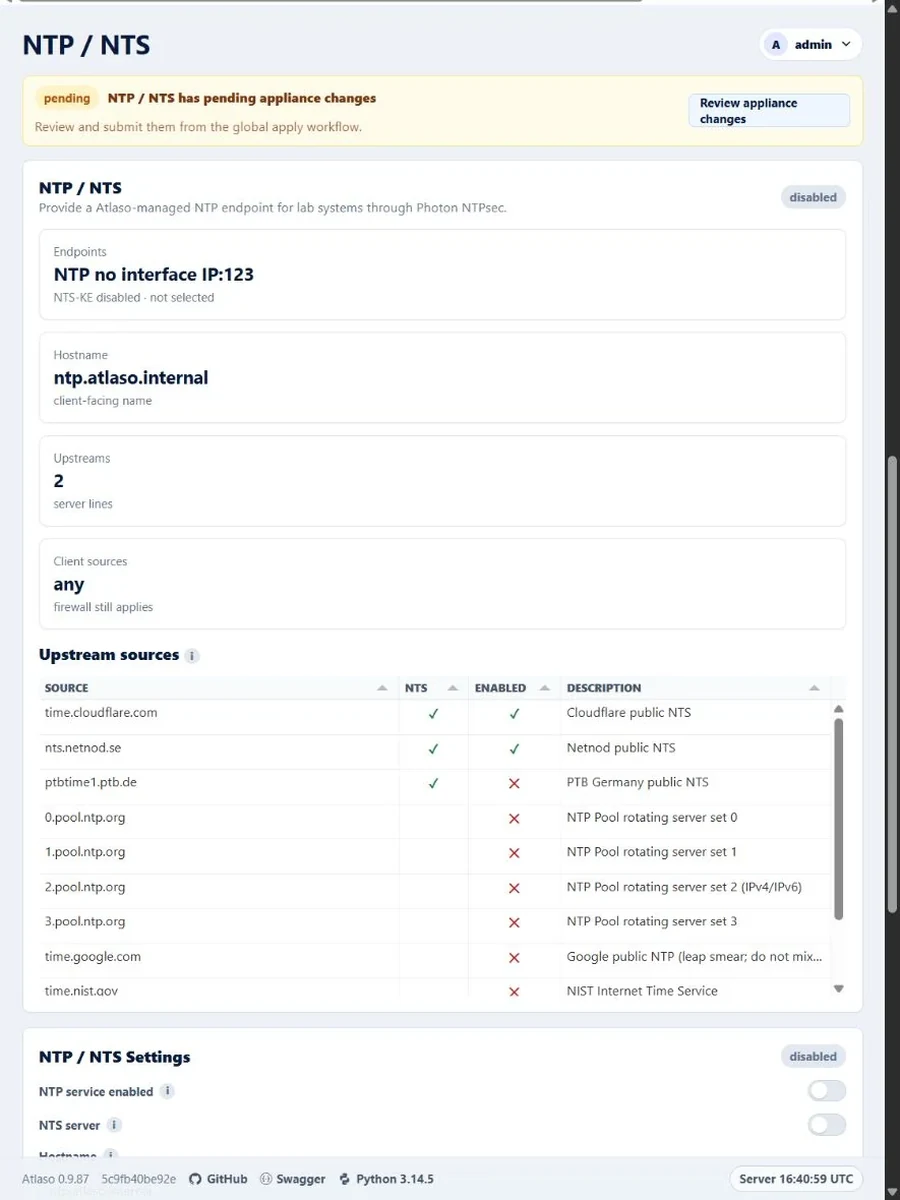
Figure: NTP and NTS in the verified clean-appliance responsive state.
Openid Connect: Oidc Group Mappings
Route: /ui/management/openid-connect#oidc-group-mappings
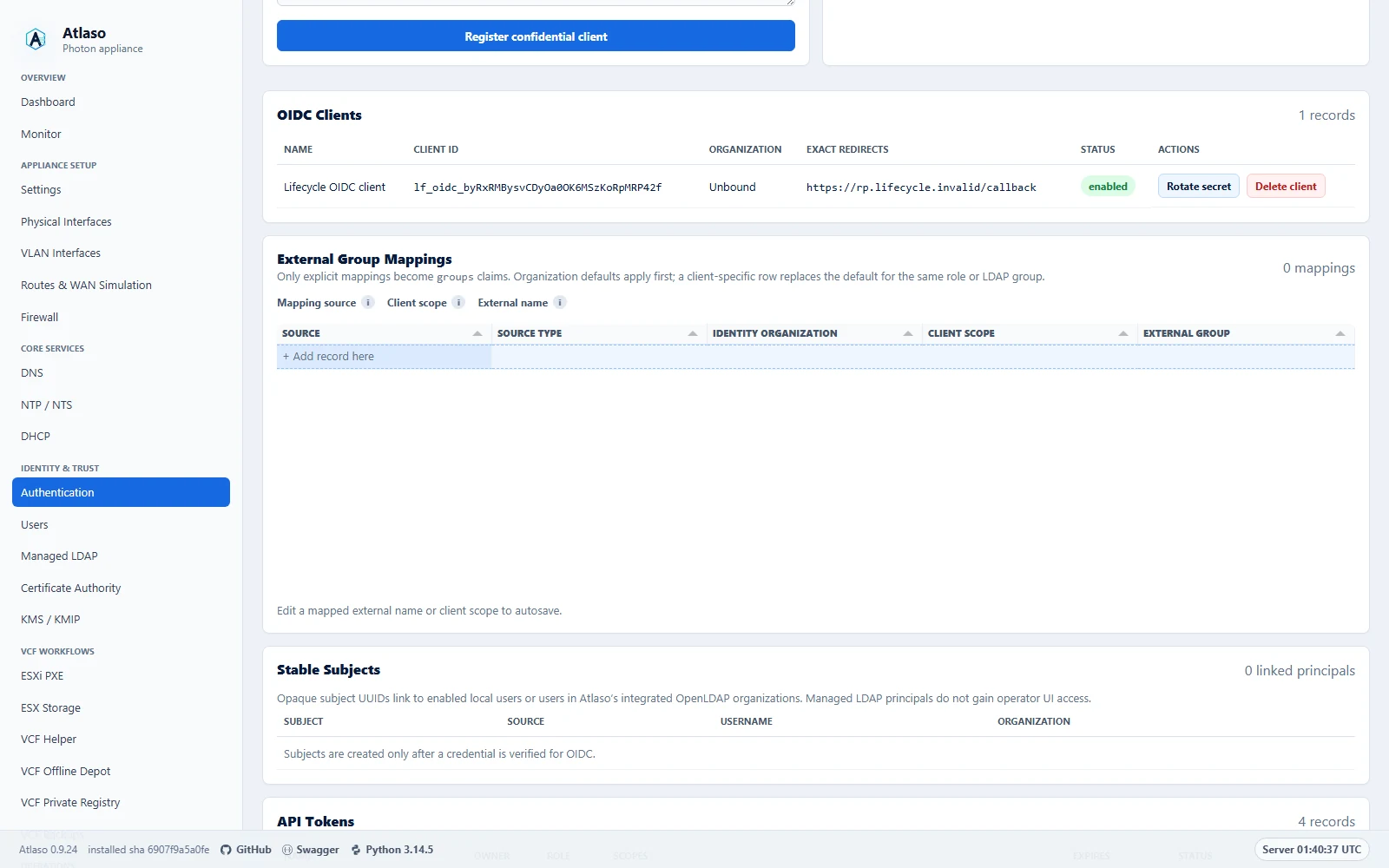
Figure: OIDC external group mappings in the desktop direct-edit collection.
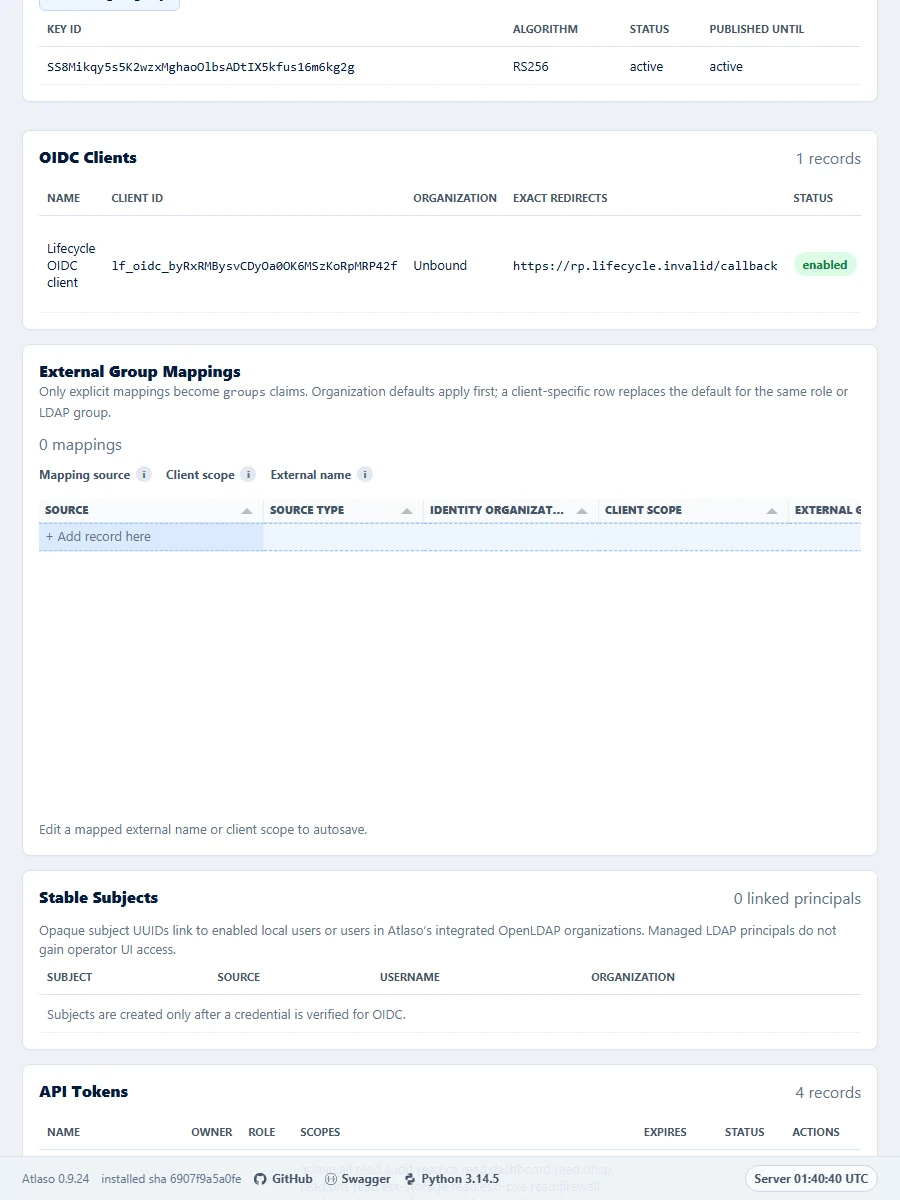
Figure: OIDC external group mappings in the responsive direct-edit collection.
Openid Connect: Oidc Provider
Route: /ui/management/openid-connect#oidc-provider
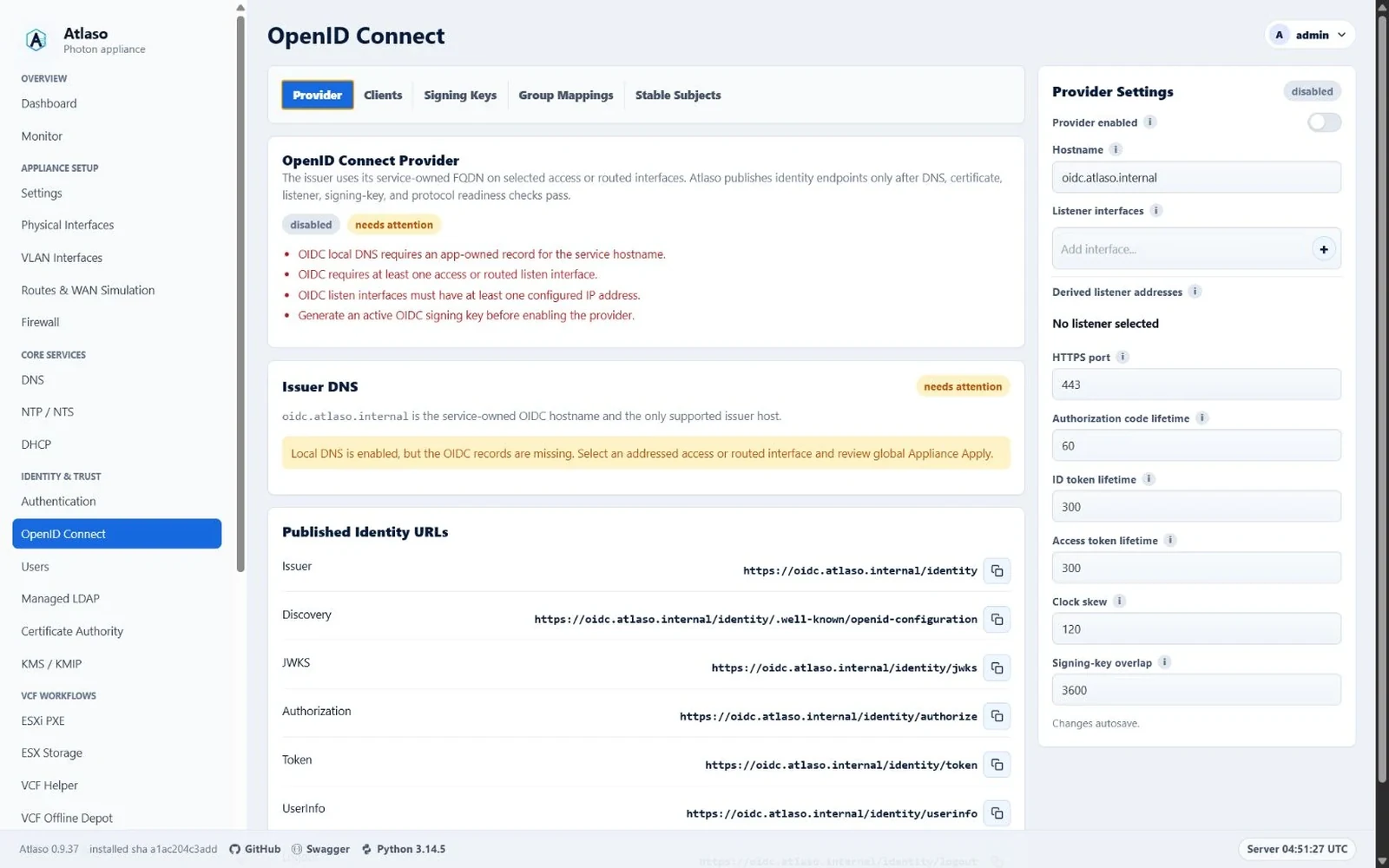
Figure: OIDC provider status and issuer information with service settings in the right column.
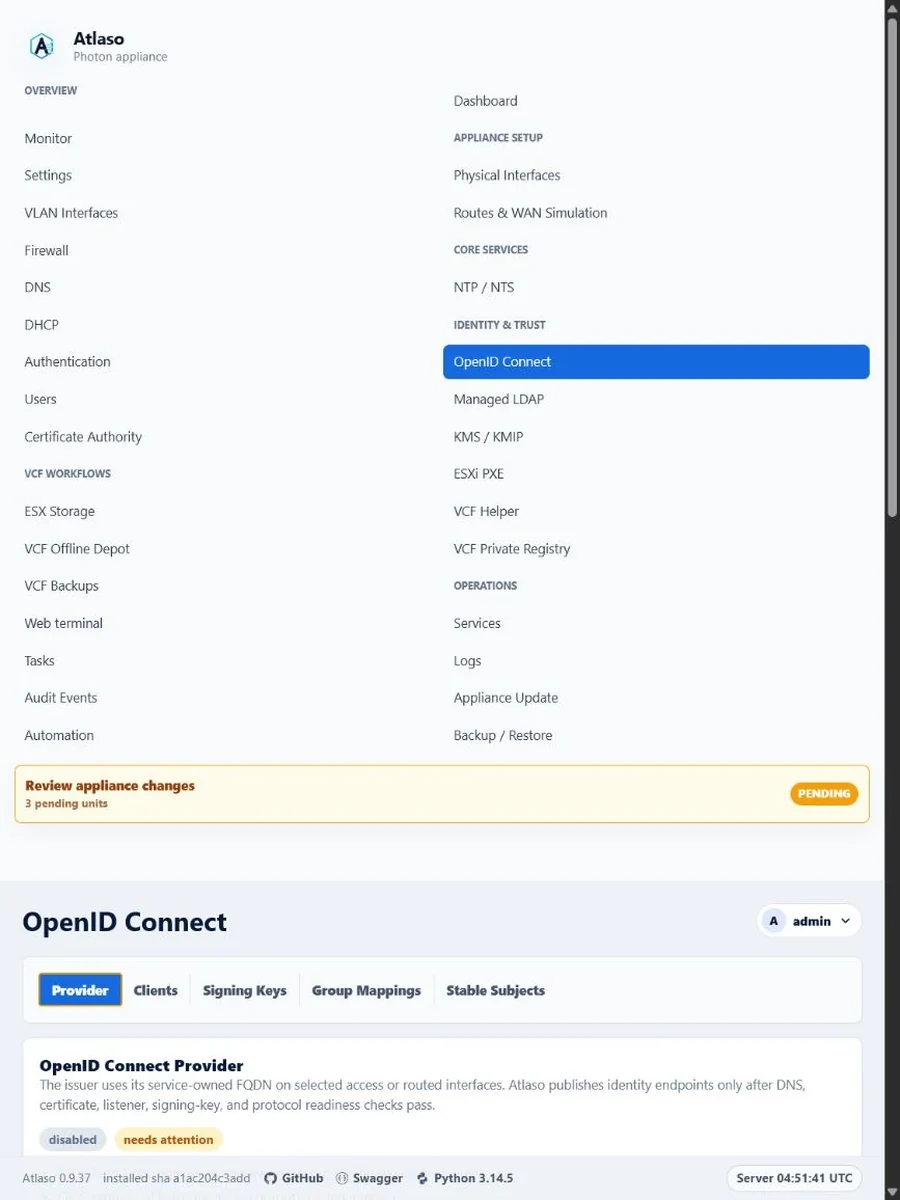
Figure: OIDC provider settings with status and issuer information stacked at the responsive viewport.
Physical Interfaces
Route: /ui/management/physical-interfaces
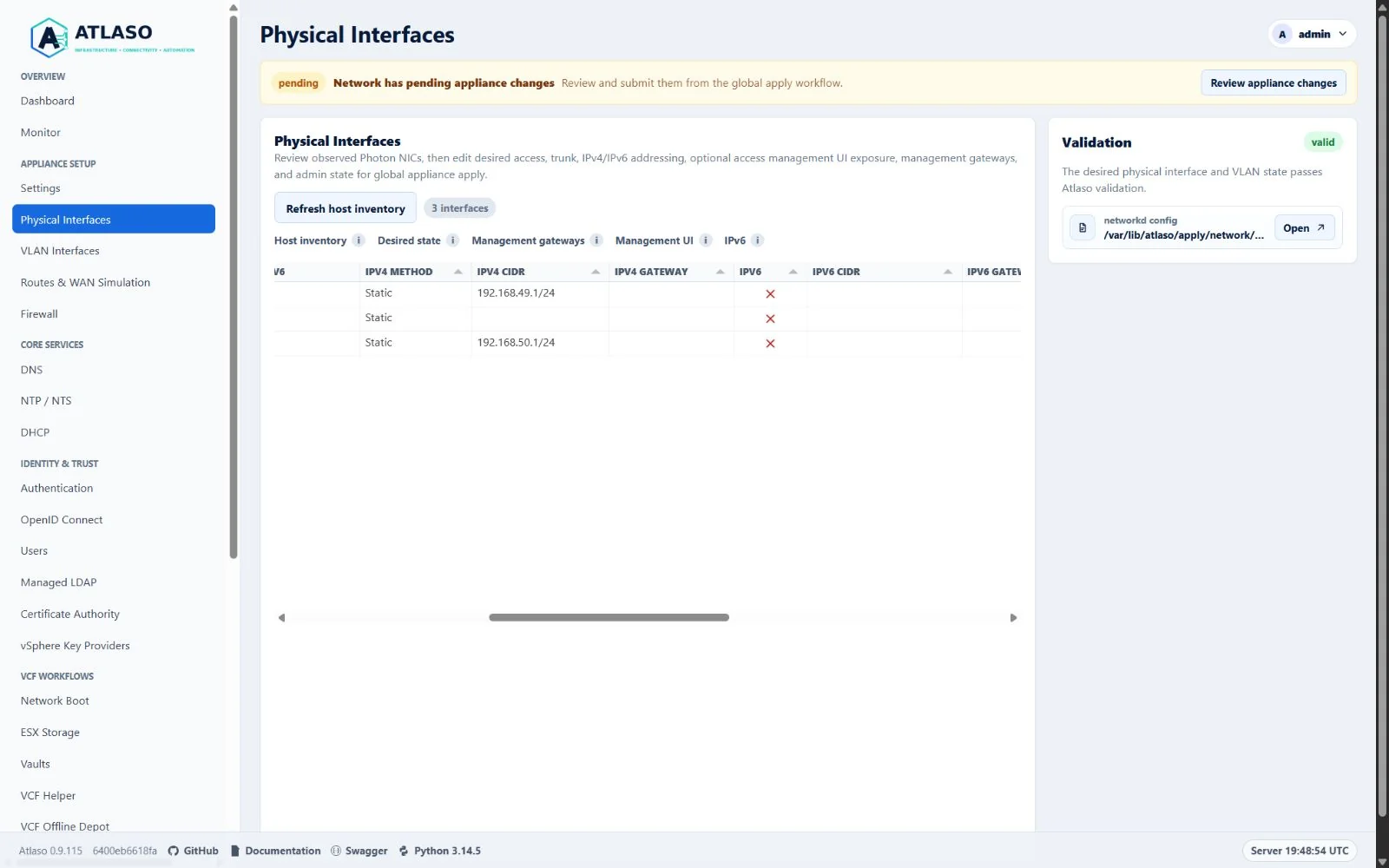
Figure: Physical Interfaces showing the standard Atlaso false glyph for disabled IPv6 and canonical network roles.
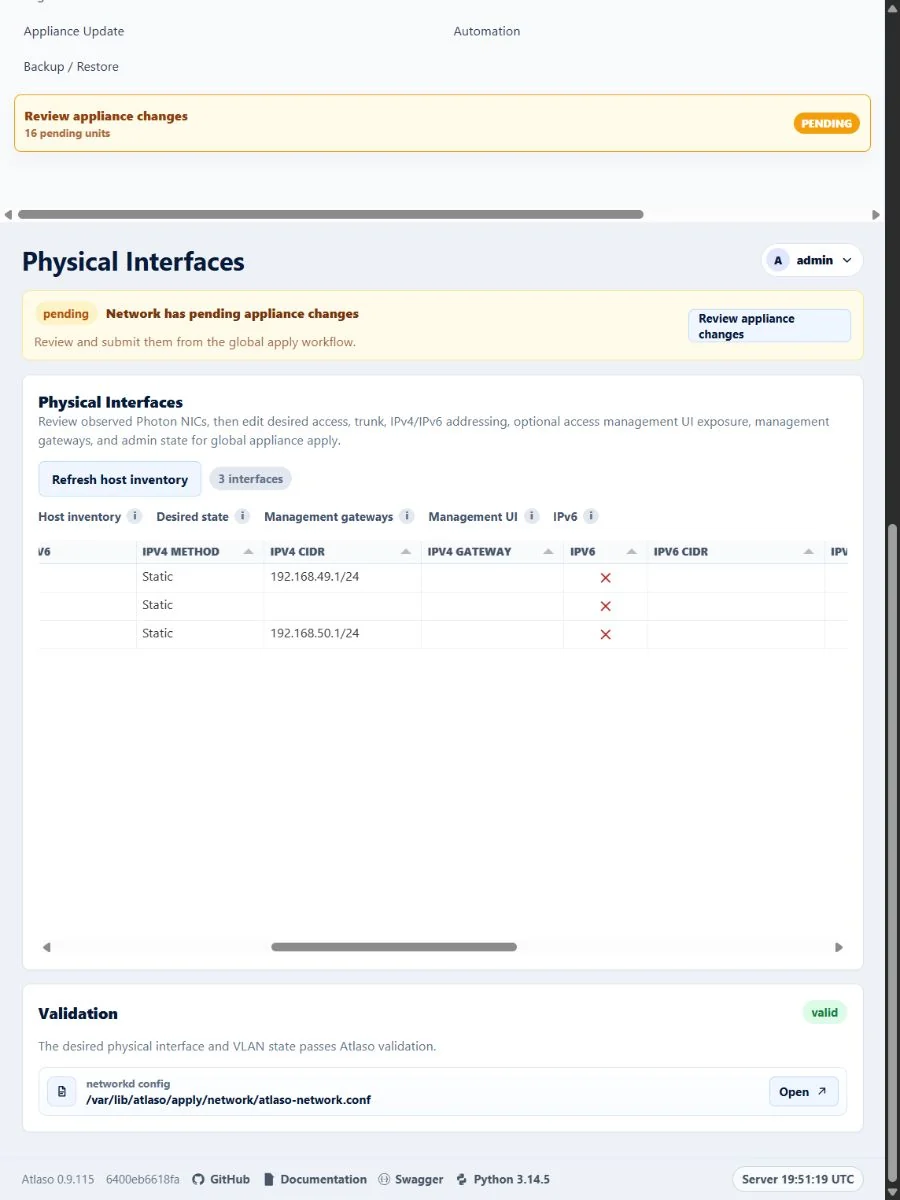
Figure: Physical Interfaces showing the standard Atlaso IPv6 glyphs at the responsive viewport.
Prod
Route: /PROD/
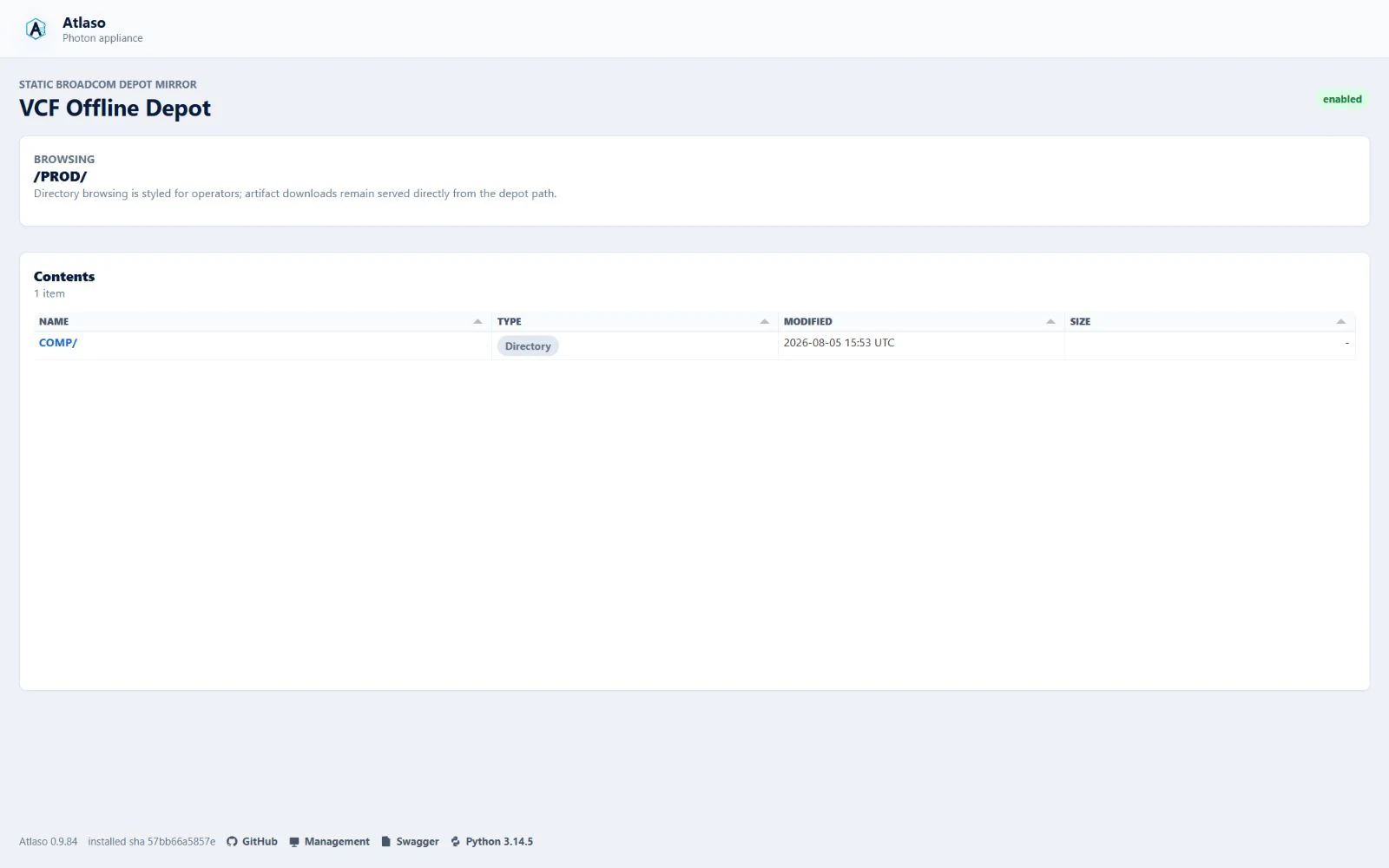
Figure: The public VCF Offline Depot directory renders exact artifact paths as safe native links in a read-only grid.
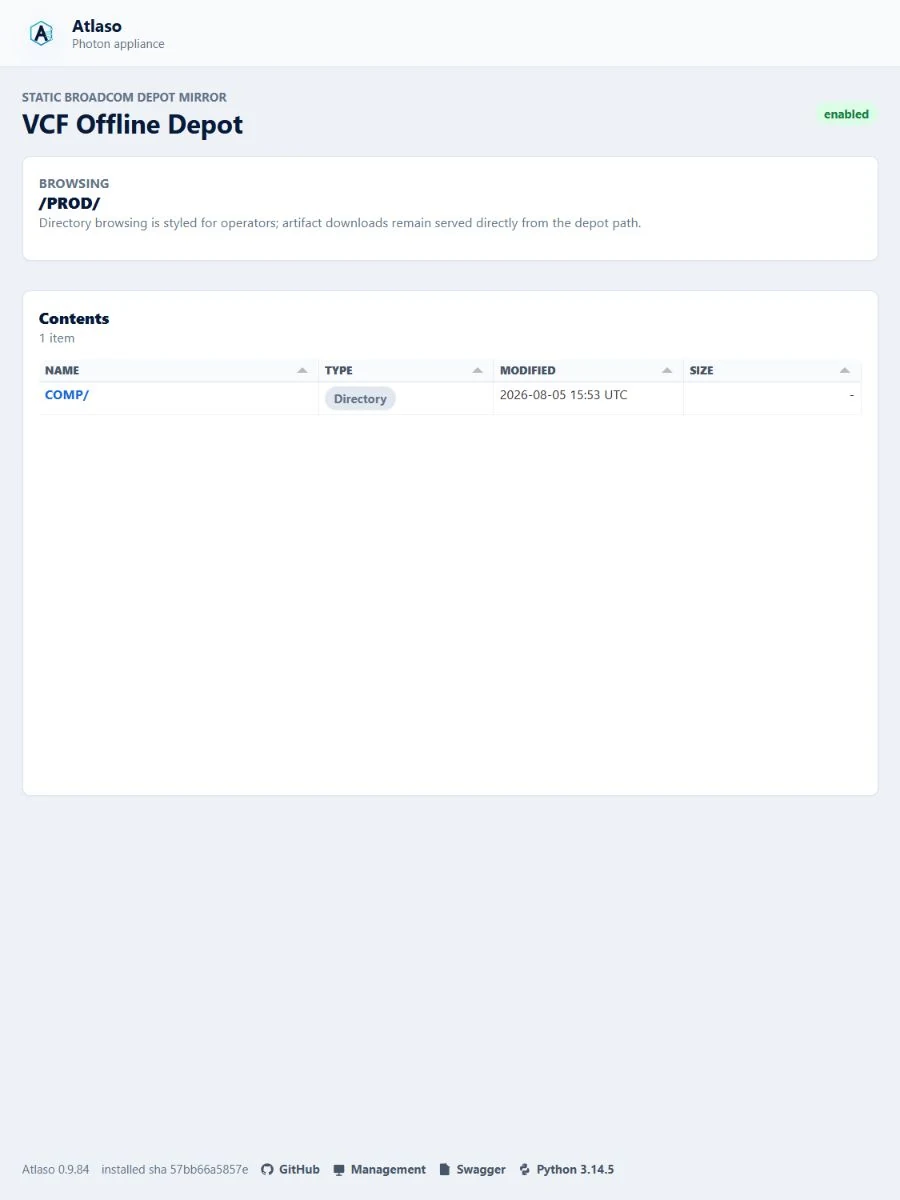
Figure: The public VCF Offline Depot browser remains contained in the narrow viewport.
Public CA / Requests
Route: /ui/public/ca/requests
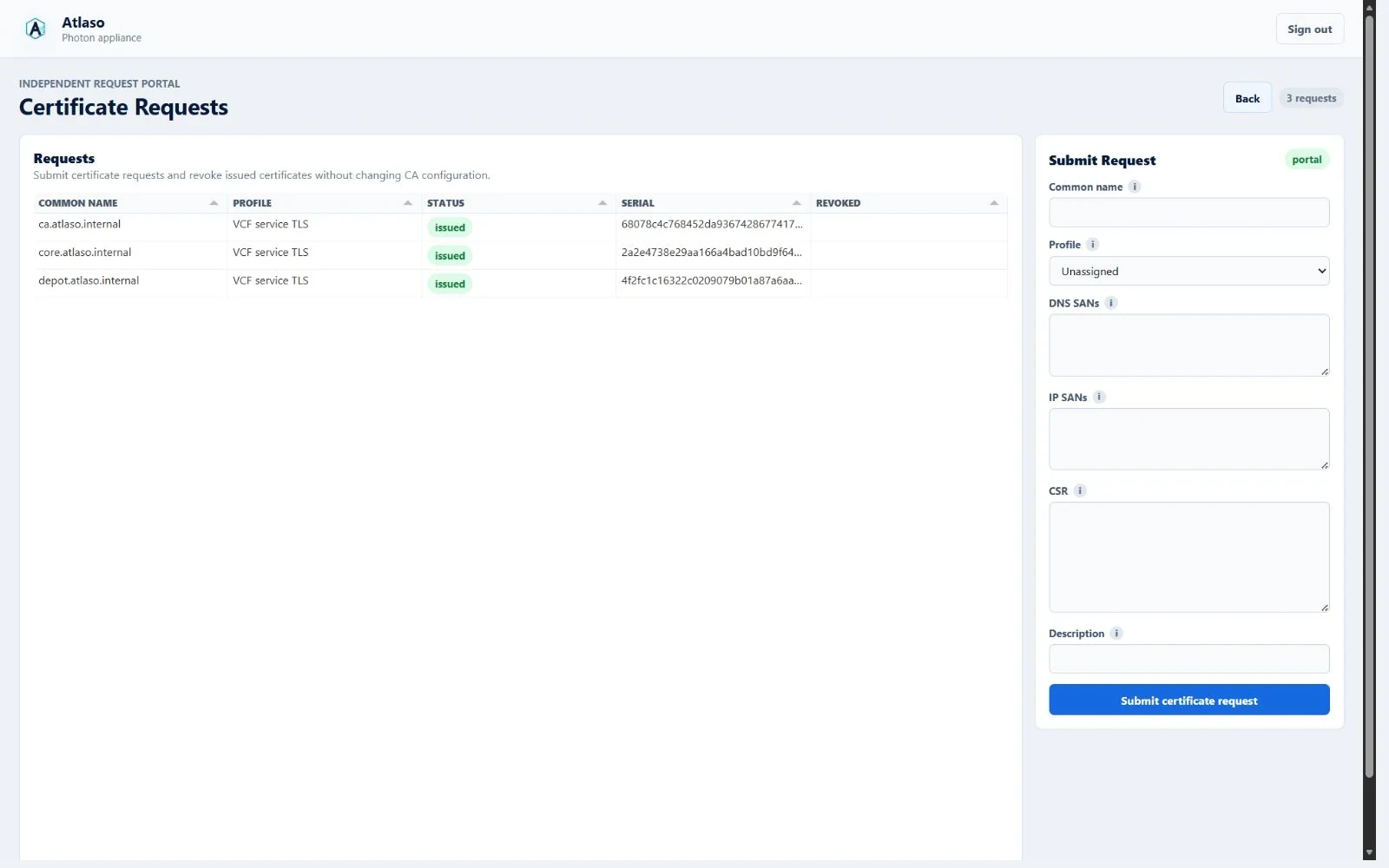
Figure: Public certificate requests rendered through the shared read-only grid in the desktop viewport.
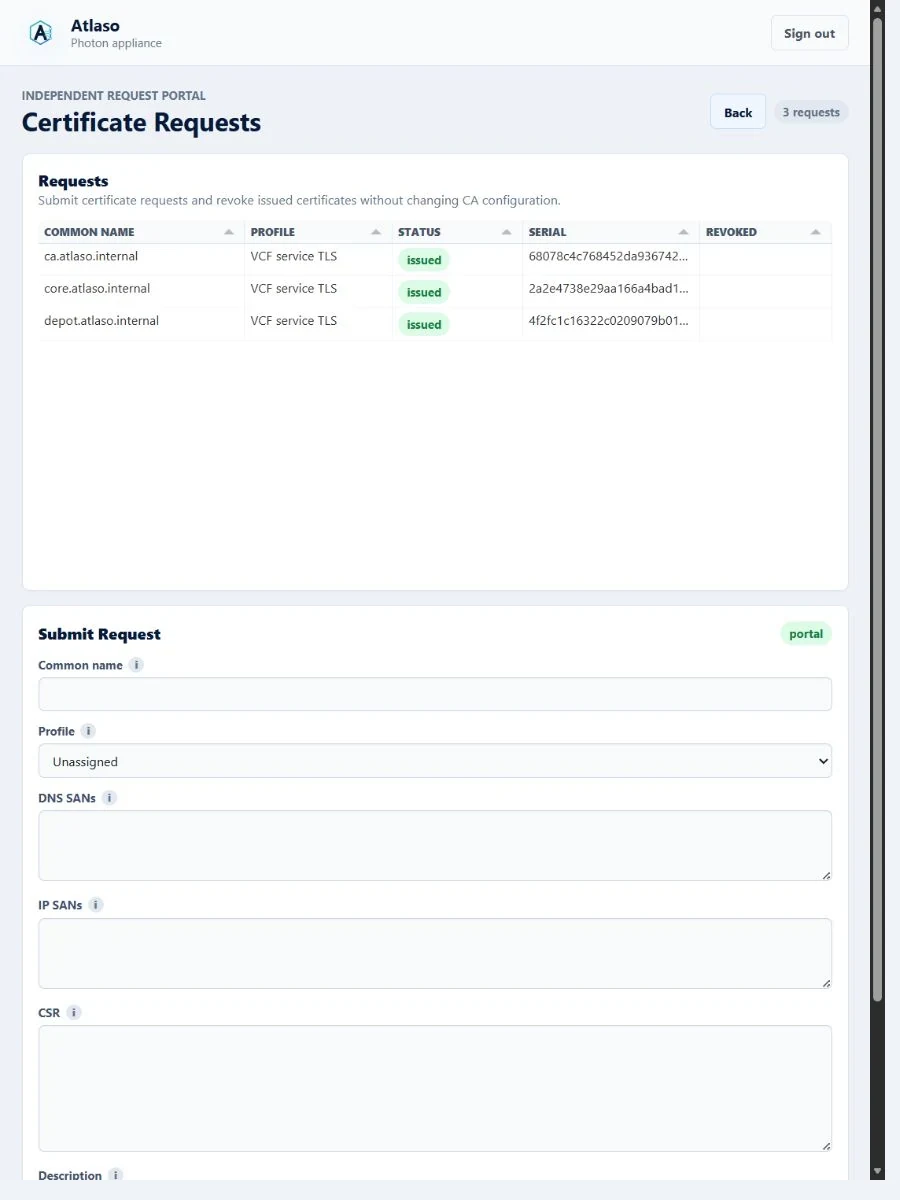
Figure: Public certificate requests remain contained in the narrow viewport.
Routes Wan
Route: /ui/management/routes-wan
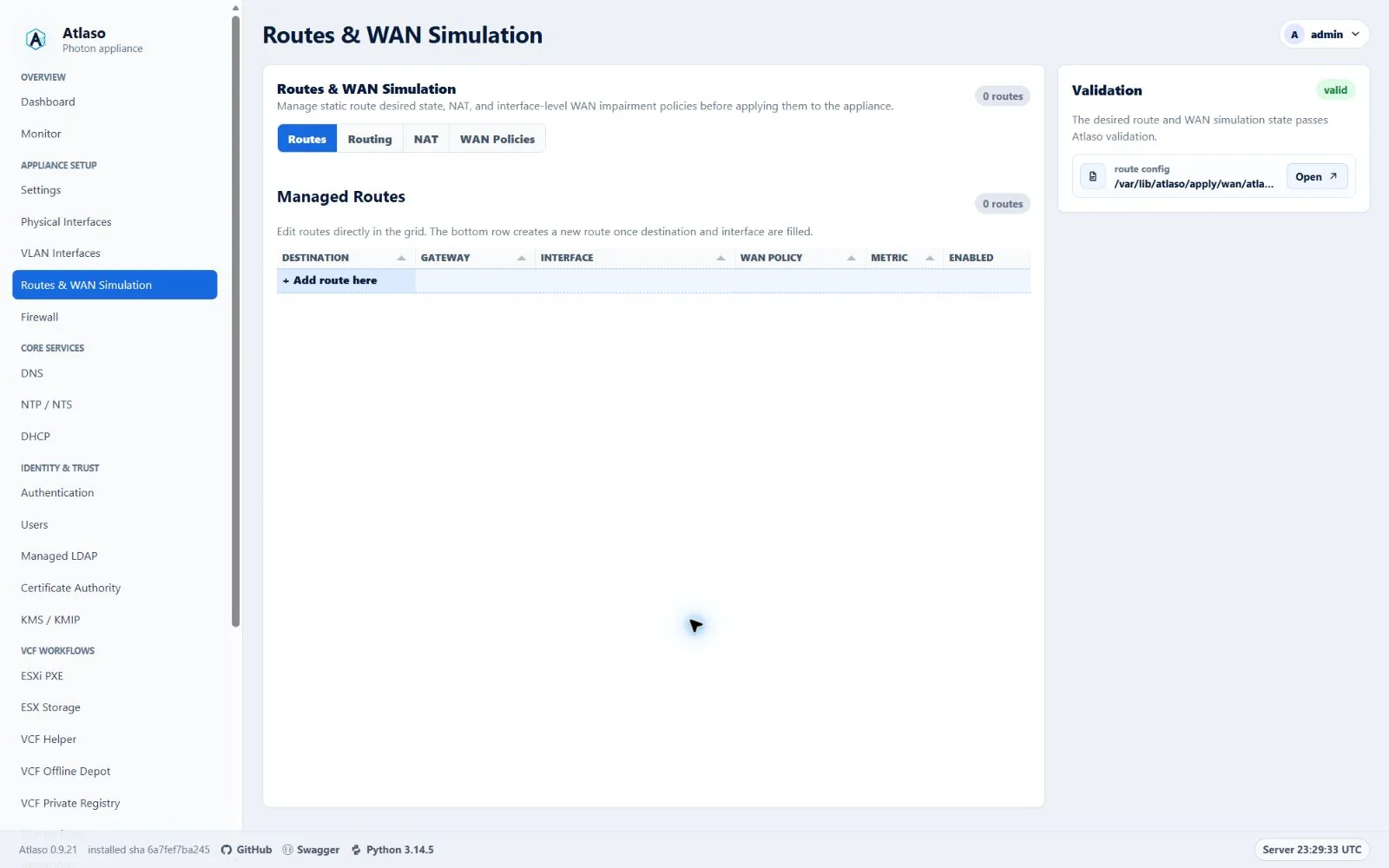
Figure: Routing & WAN owns forwarding and WAN simulation; source NAT is configured in Traffic Publishing.
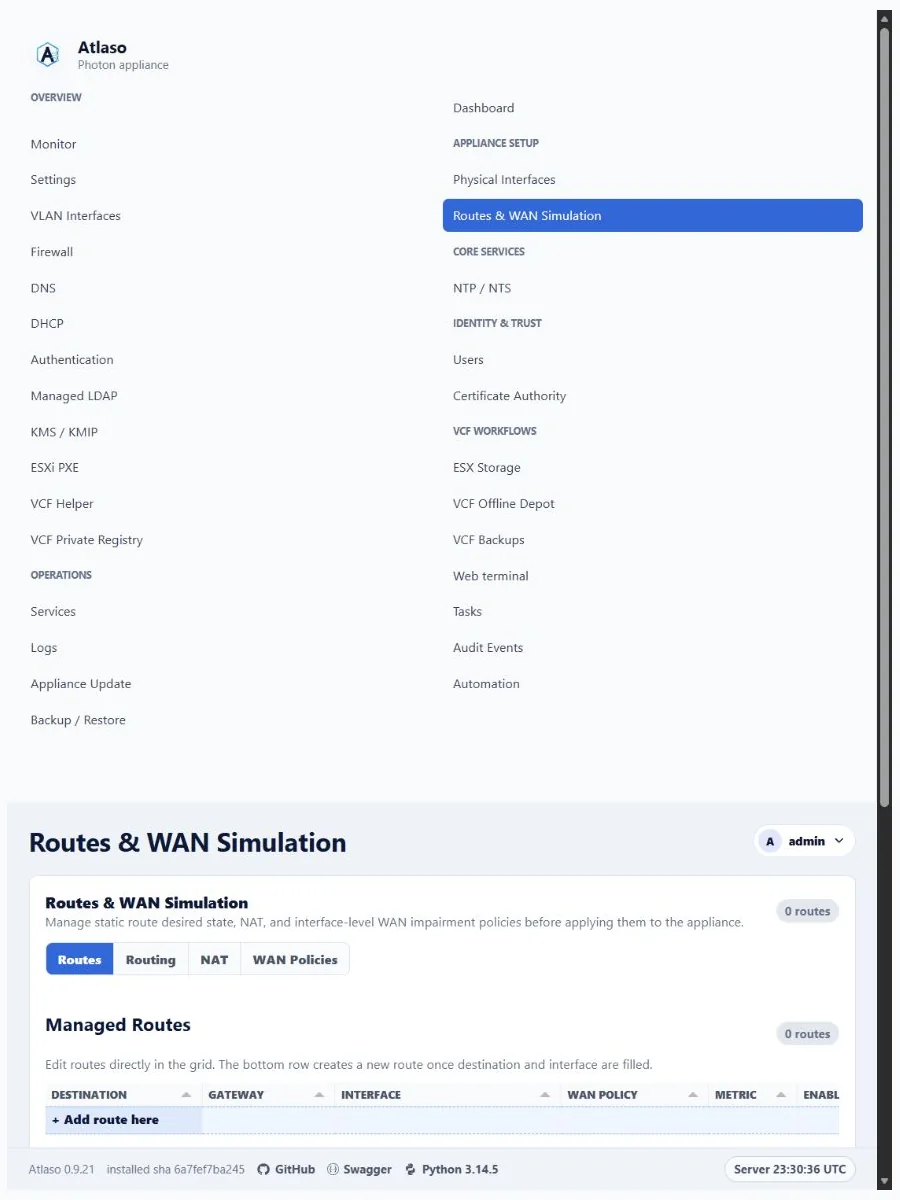
Figure: Routing & WAN owns forwarding and WAN simulation; source NAT is configured in Traffic Publishing.
Routes Wan: Policies
Route: /ui/management/routes-wan#policies
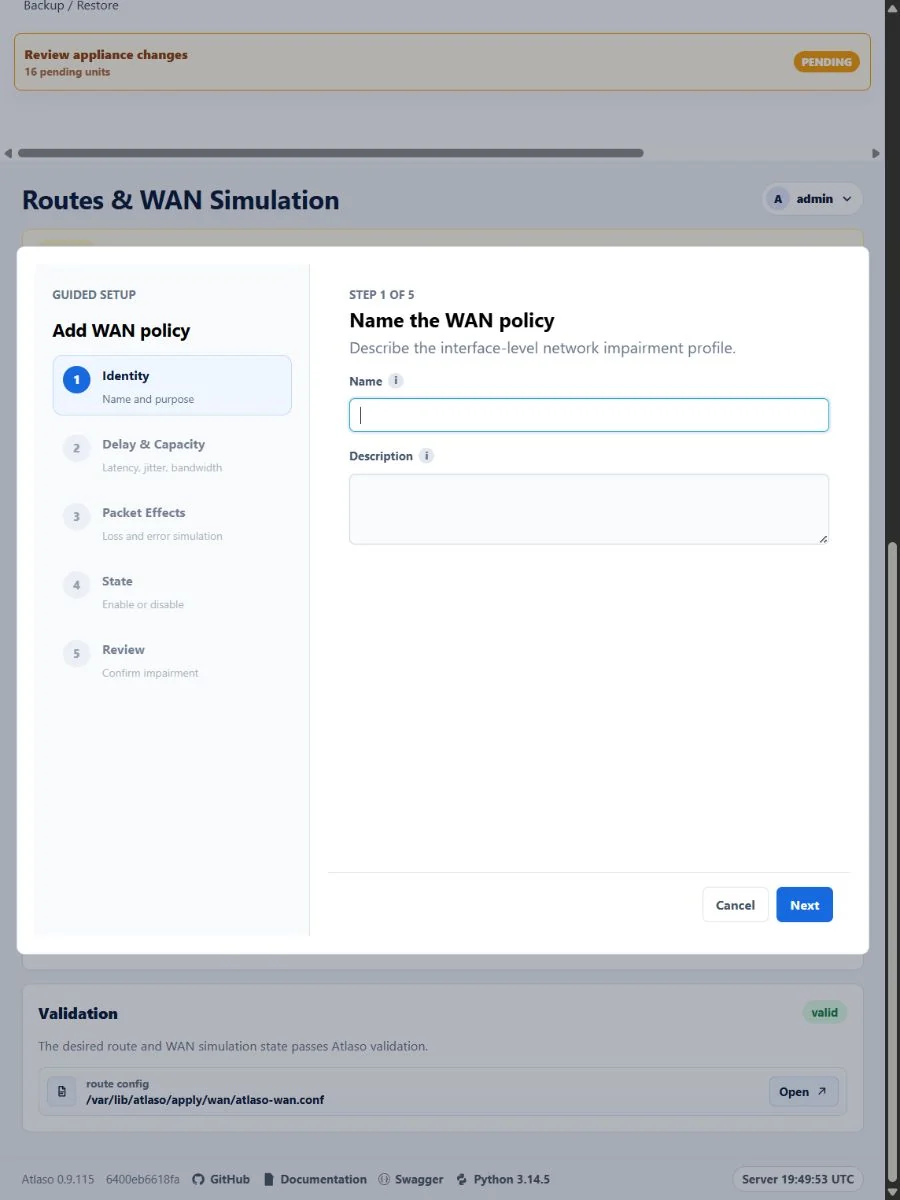
Figure: Shared WAN policy wizard in the verified responsive viewport.
Routes Wan: Routes
Route: /ui/management/routes-wan#routes
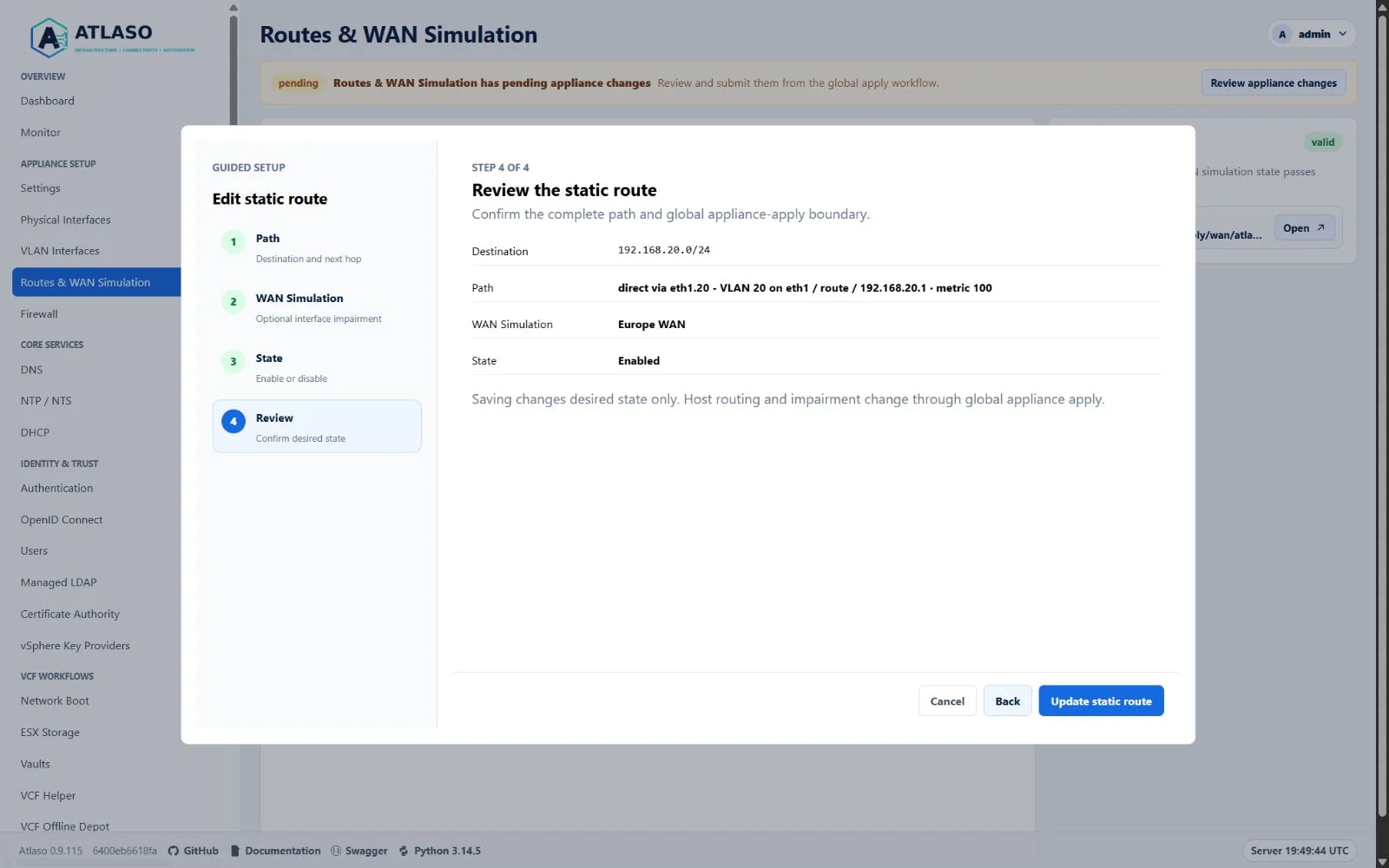
Figure: Shared static route wizard review with the complete path and appliance-apply boundary.
Services
Route: /ui/management/services
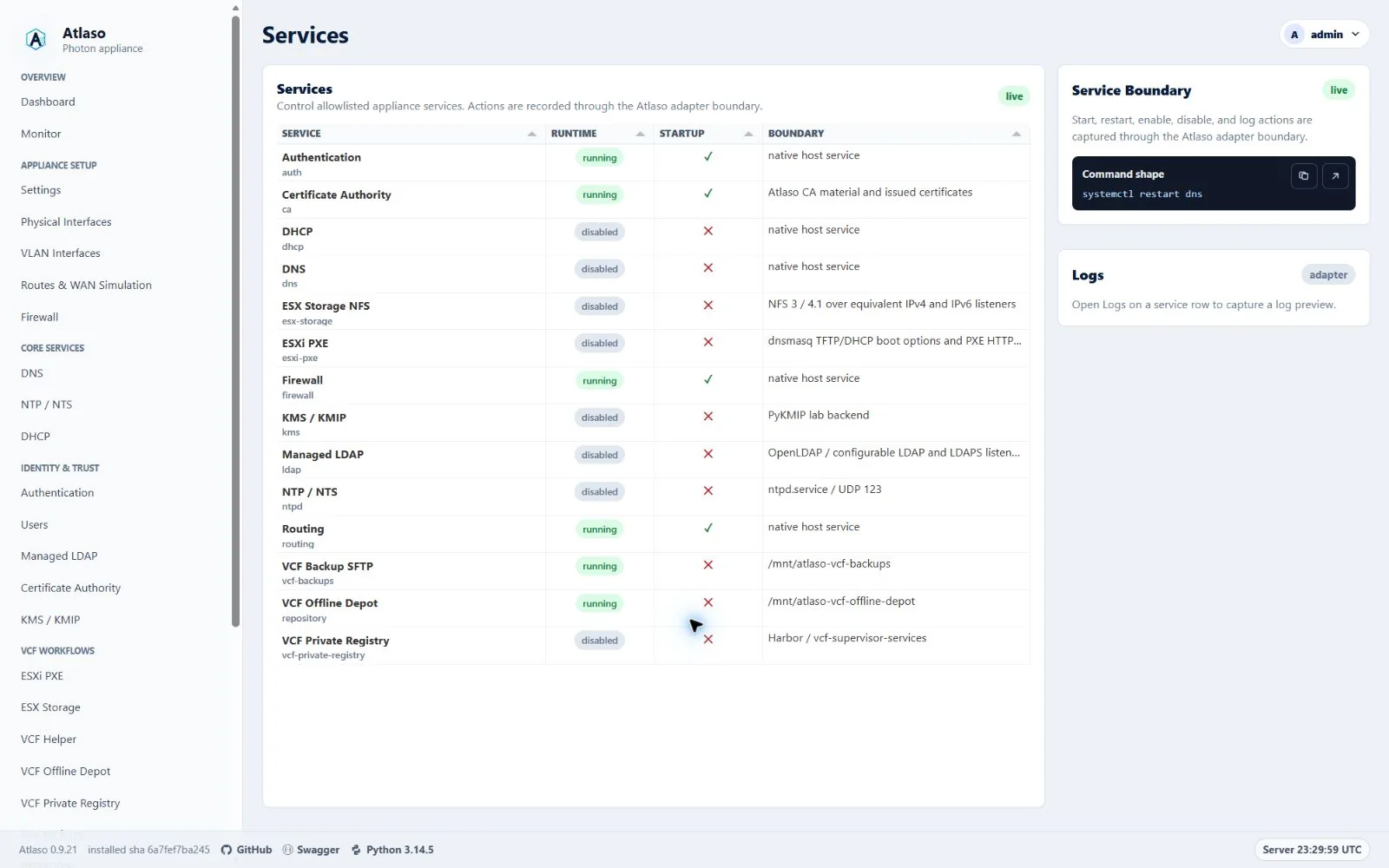
Figure: Services in the verified clean-appliance desktop state.
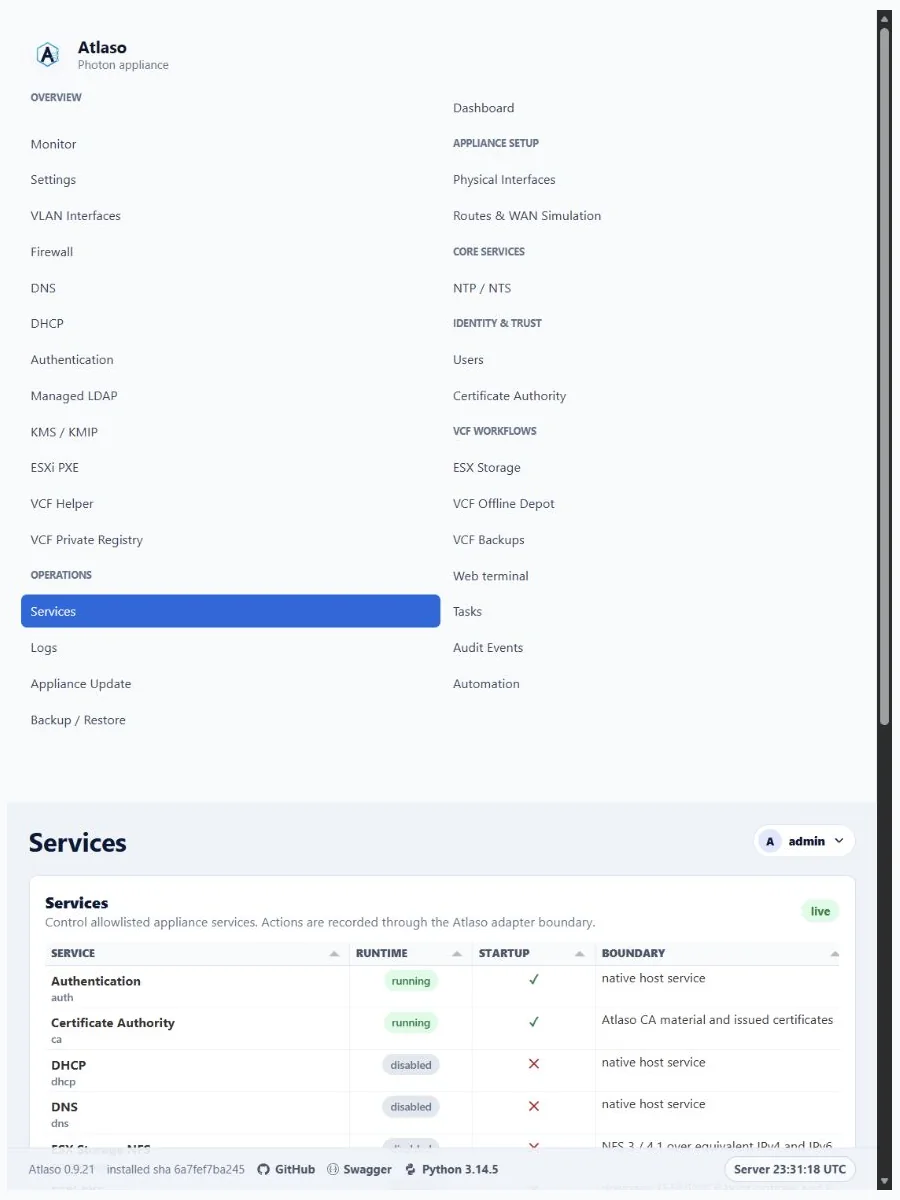
Figure: Services in the verified clean-appliance responsive state.
Settings
Route: /ui/management/settings
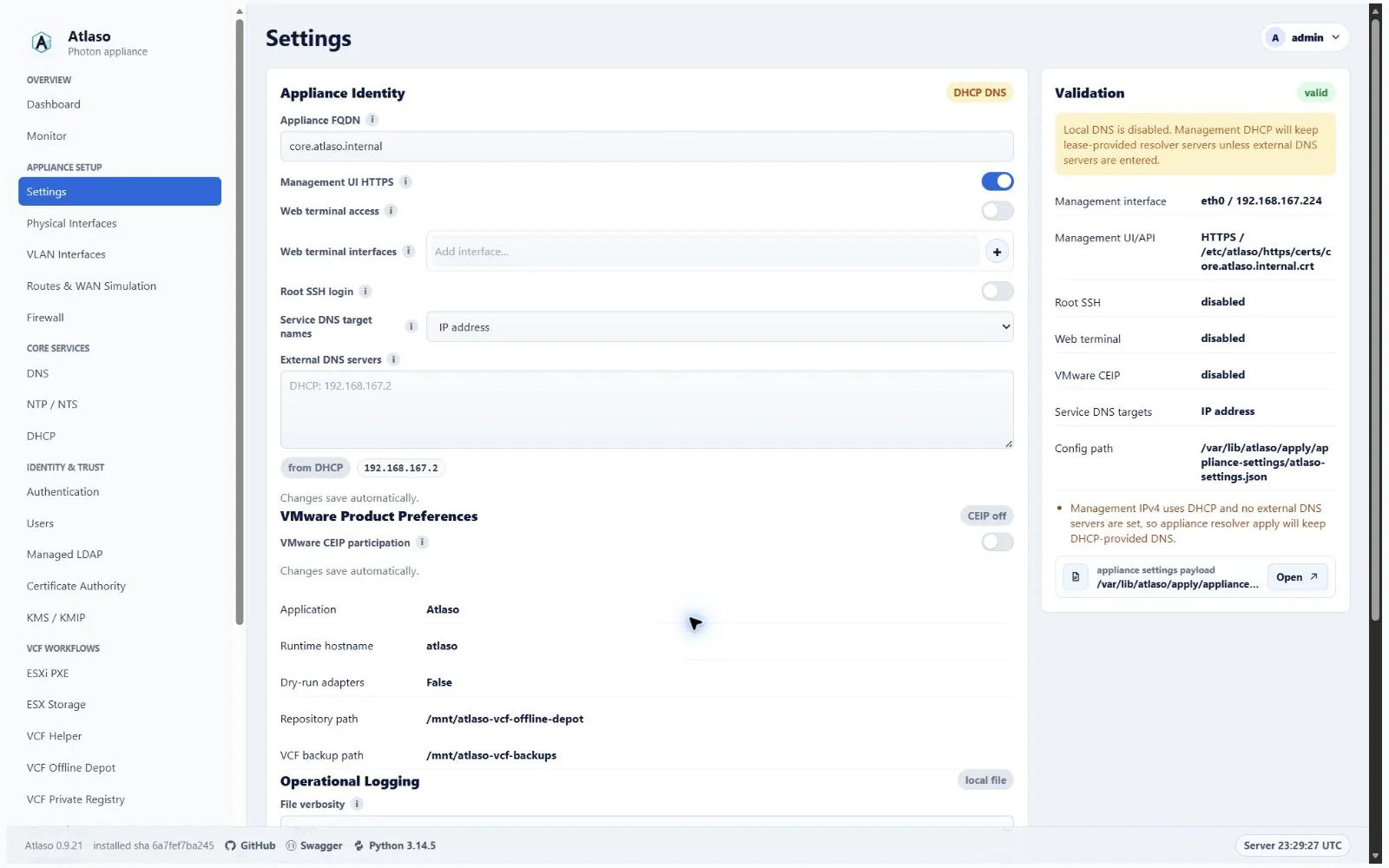
Figure: Settings in the verified clean-appliance desktop state.
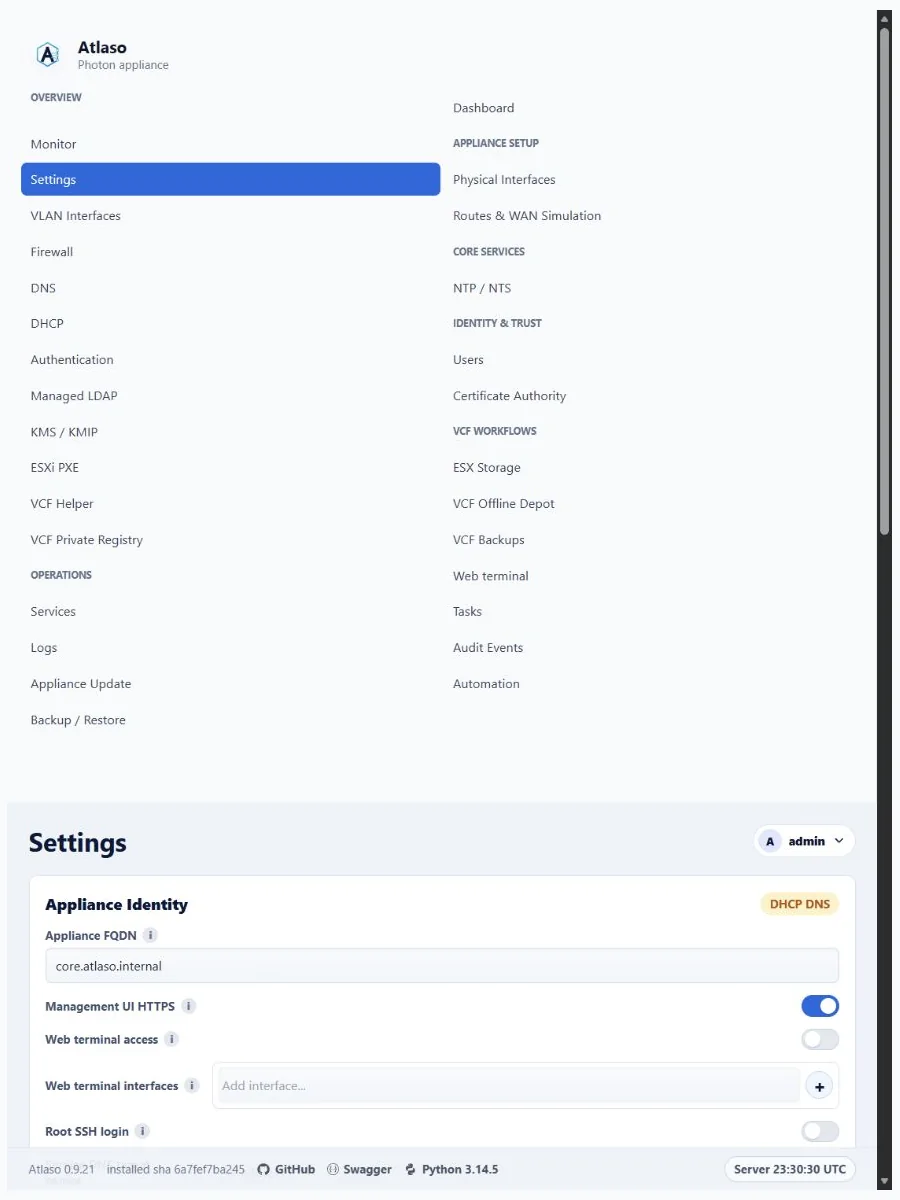
Figure: Settings in the verified clean-appliance responsive state.
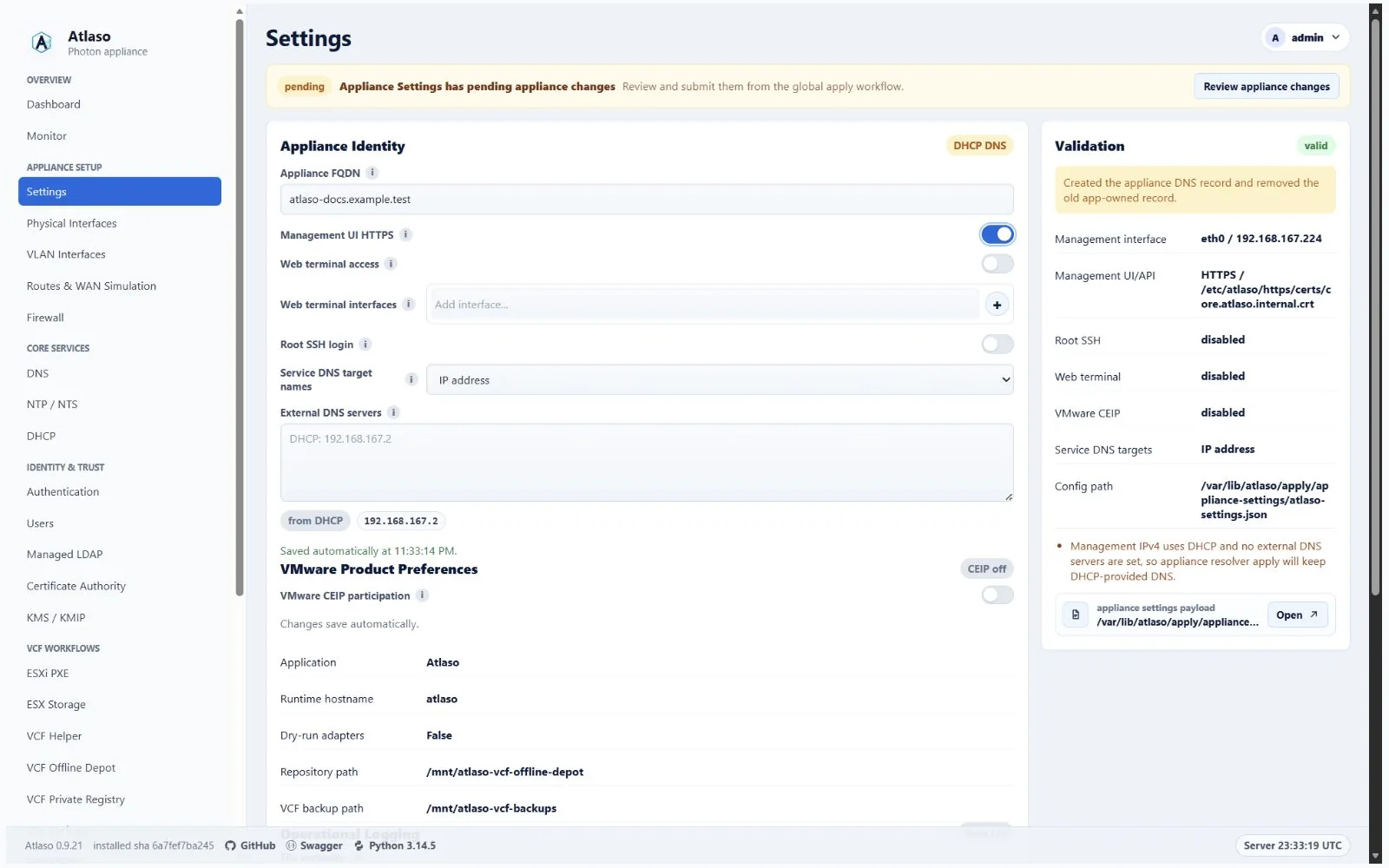
Figure: Valid Appliance Settings waiting for global appliance apply.
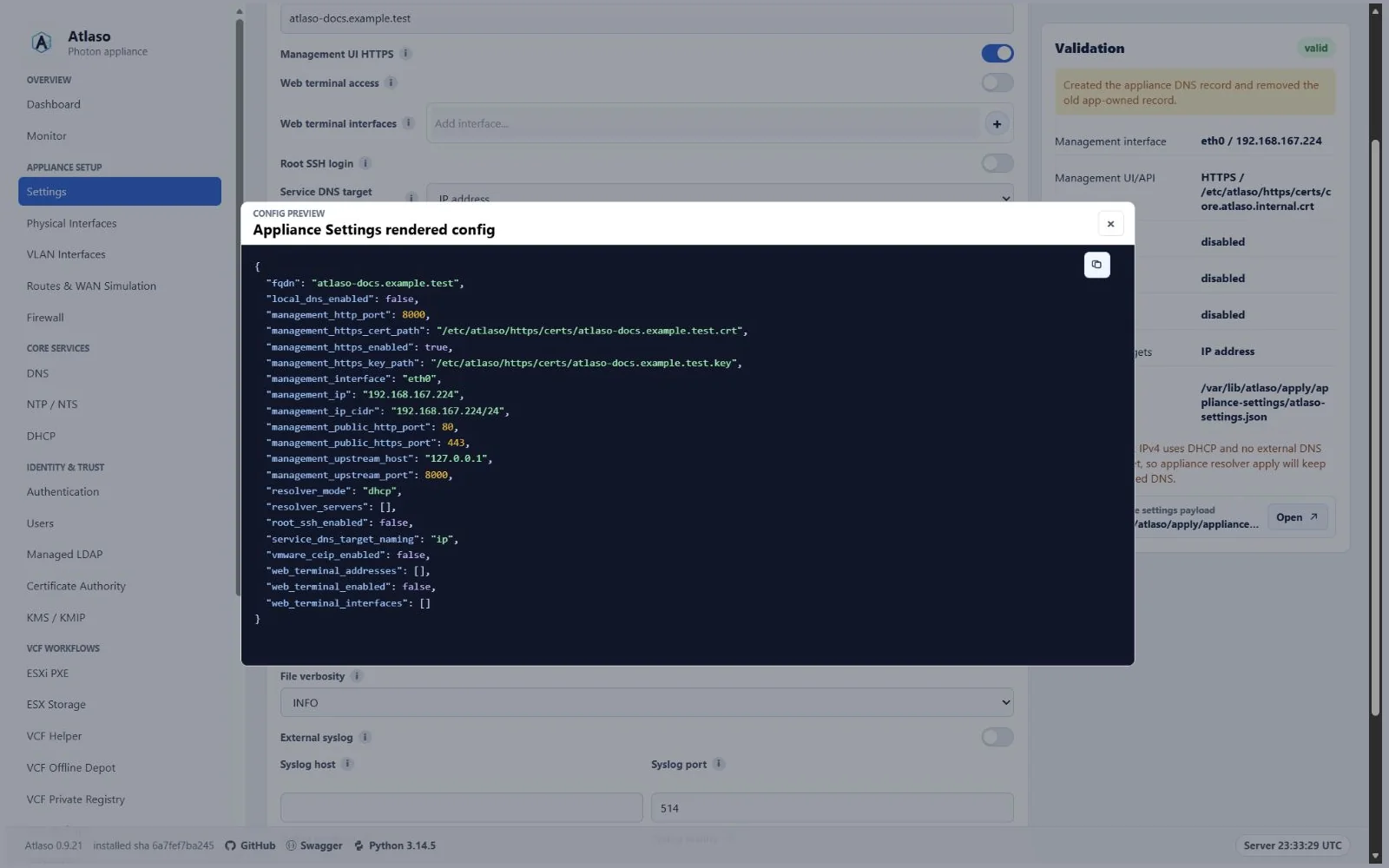
Figure: Rendered Appliance Settings configuration preview.
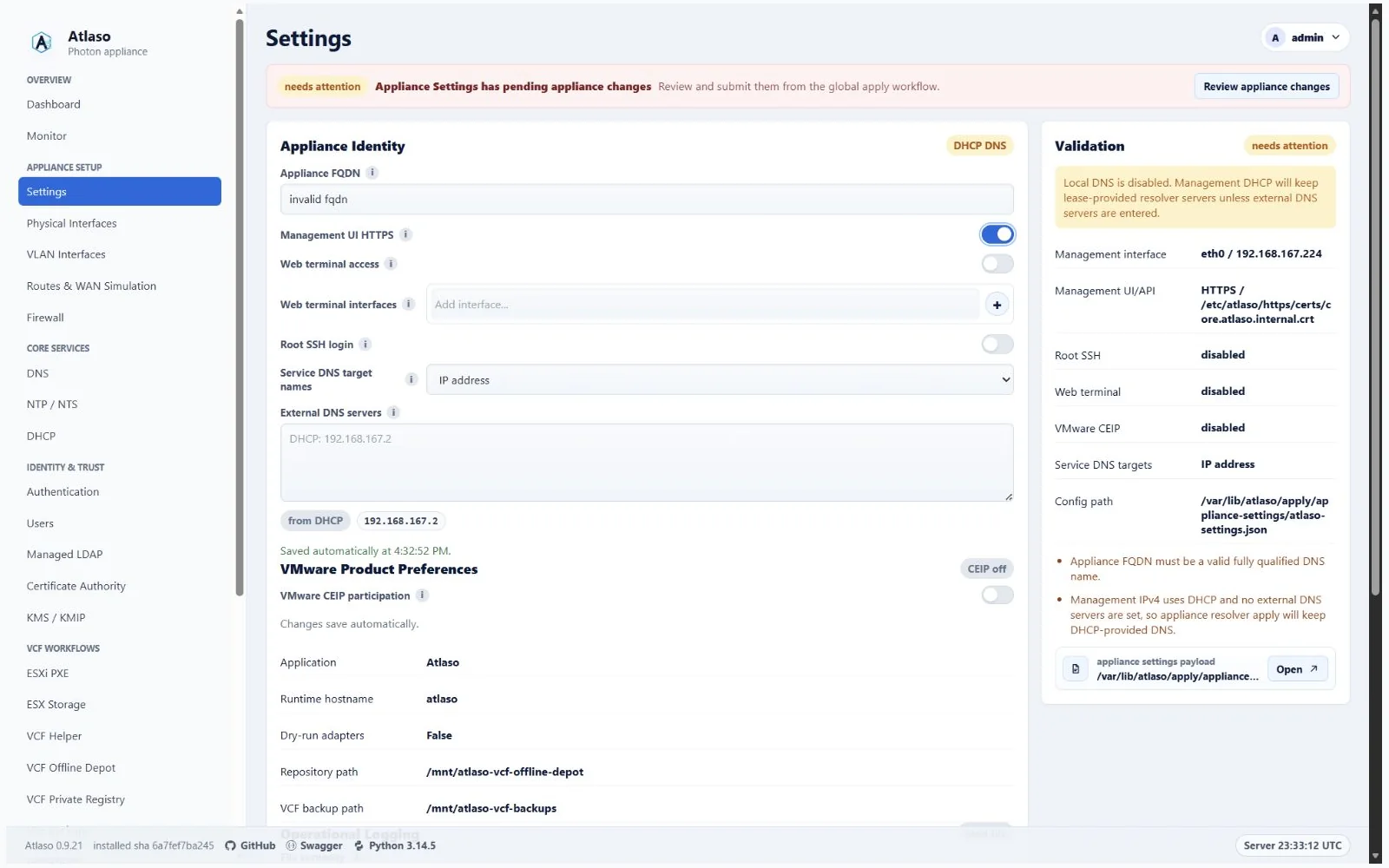
Figure: Appliance Settings validation error for an invalid FQDN.
Tasks
Route: /ui/management/tasks
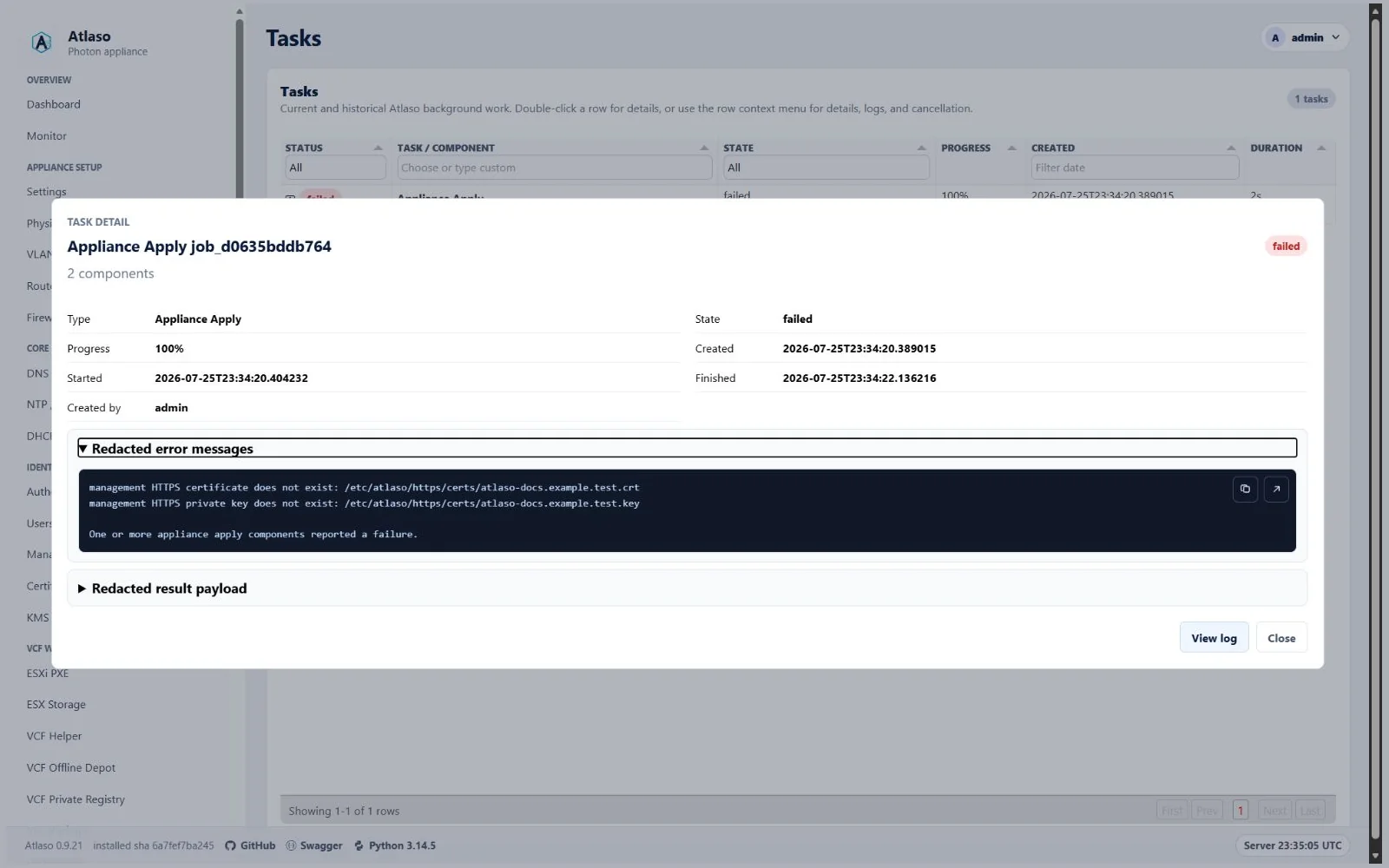
Figure: Failed appliance apply task with redacted operator detail.
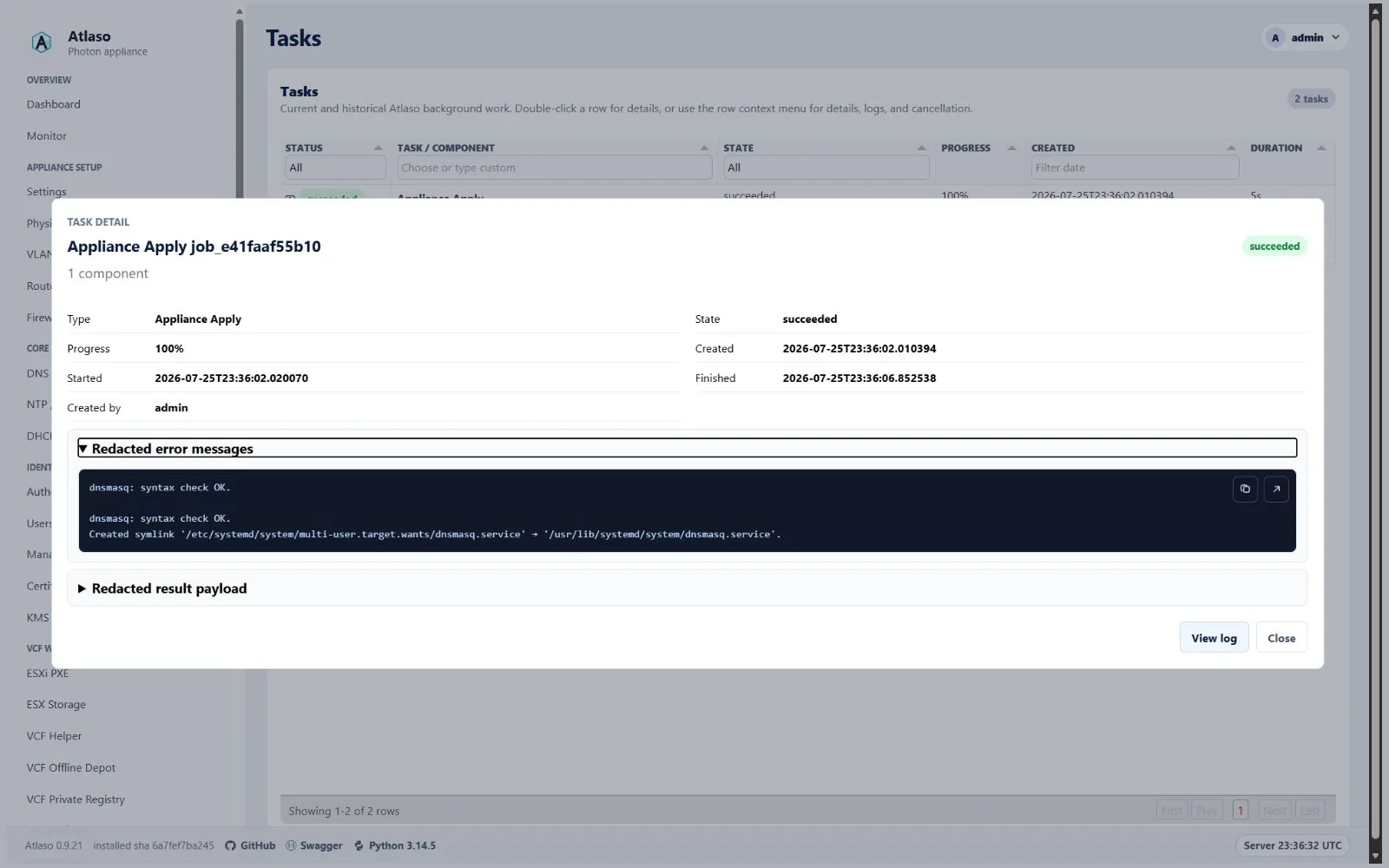
Figure: Successful appliance apply task with verified dnsmasq output.
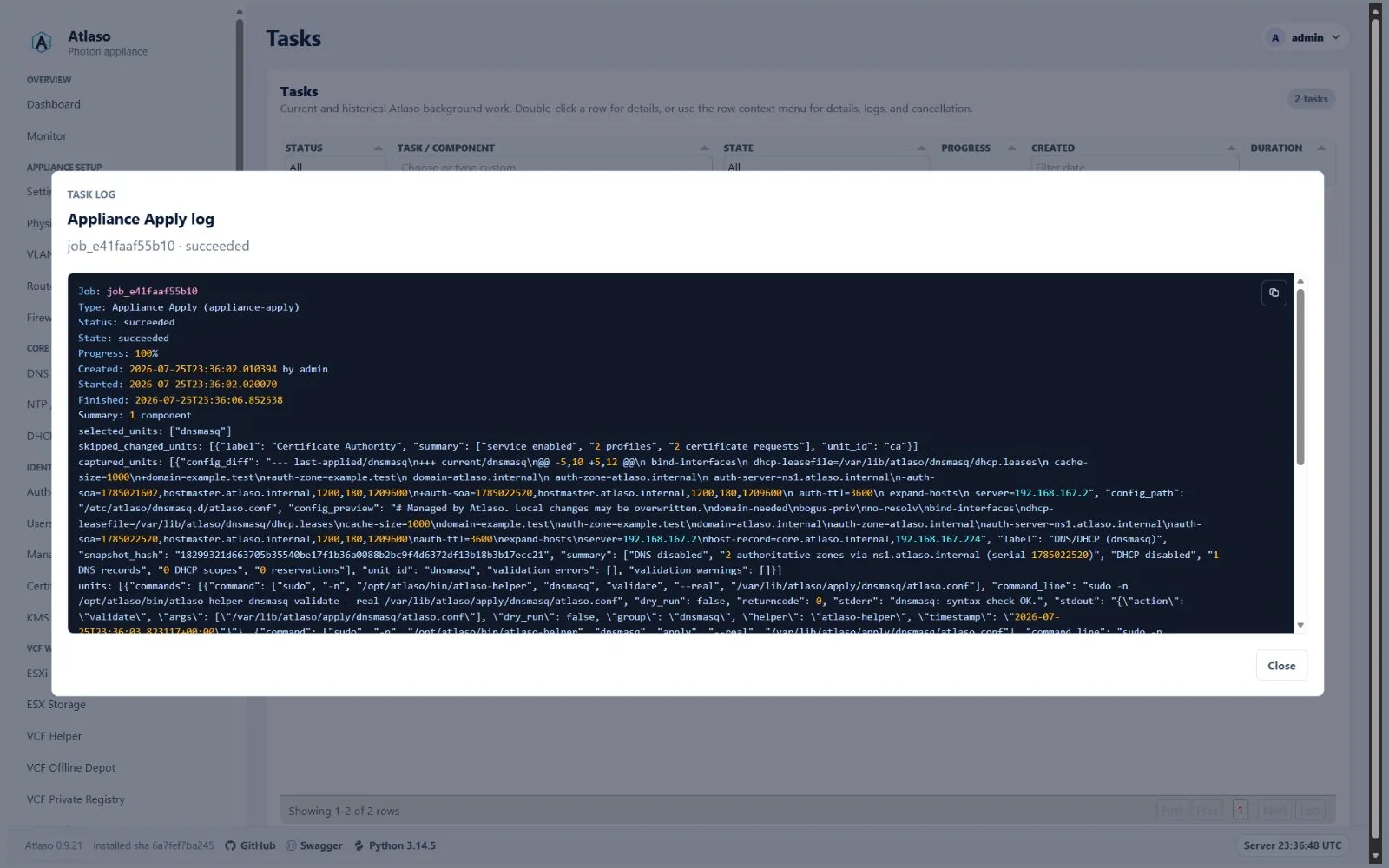
Figure: Successful appliance apply log with captured commands and audit events.
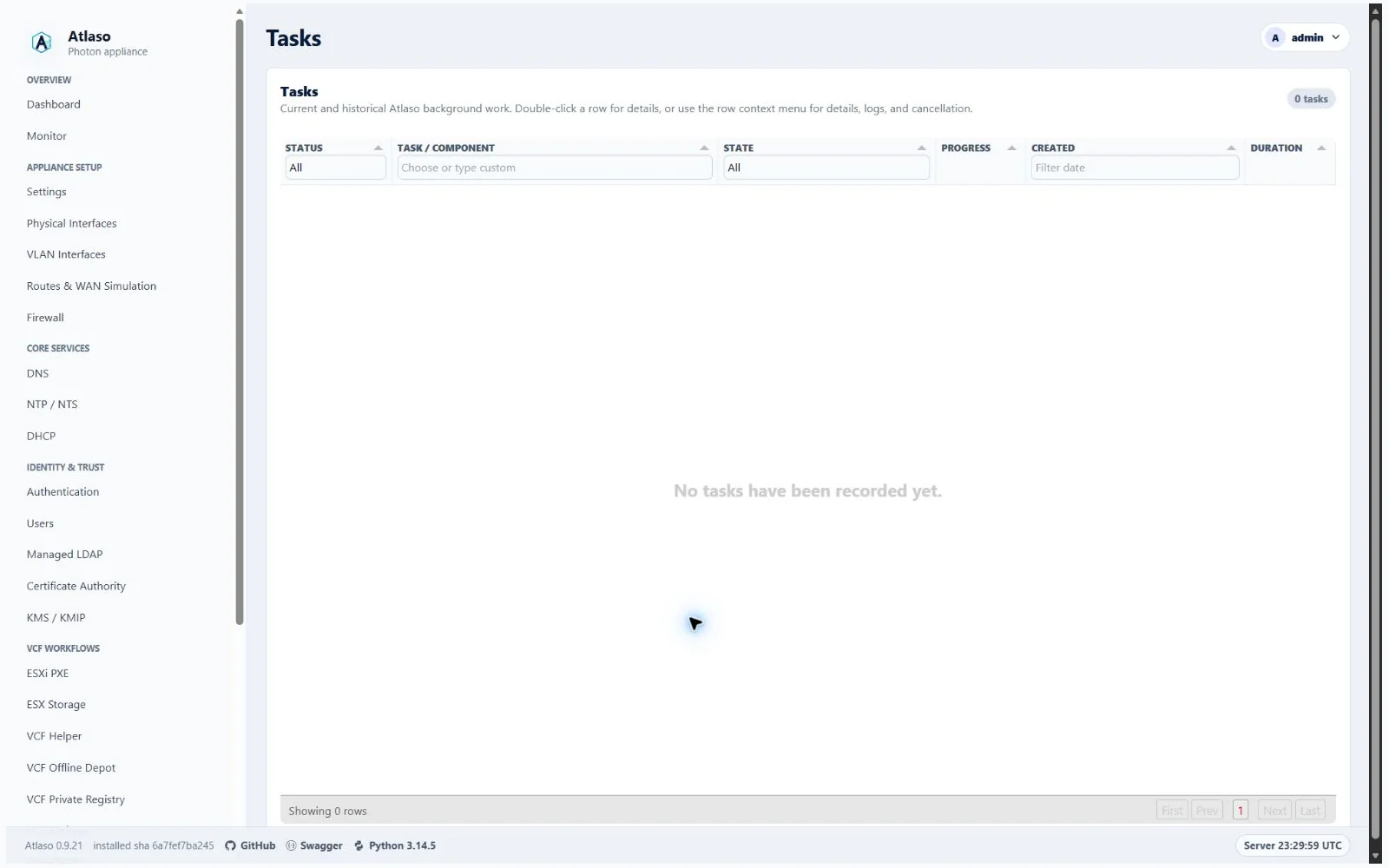
Figure: Tasks in the verified clean-appliance desktop state.
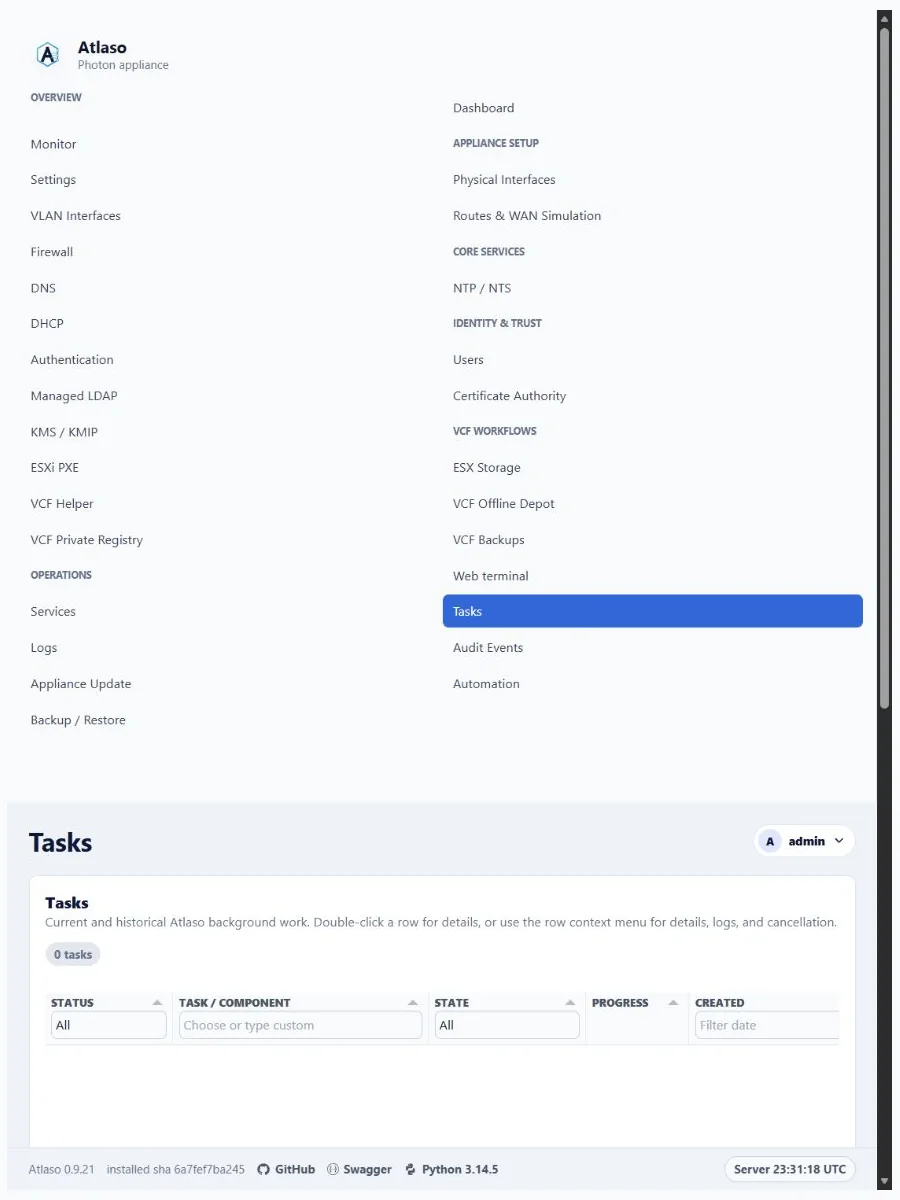
Figure: Tasks in the verified clean-appliance responsive state.
Terminal
Route: /ui/management/terminal
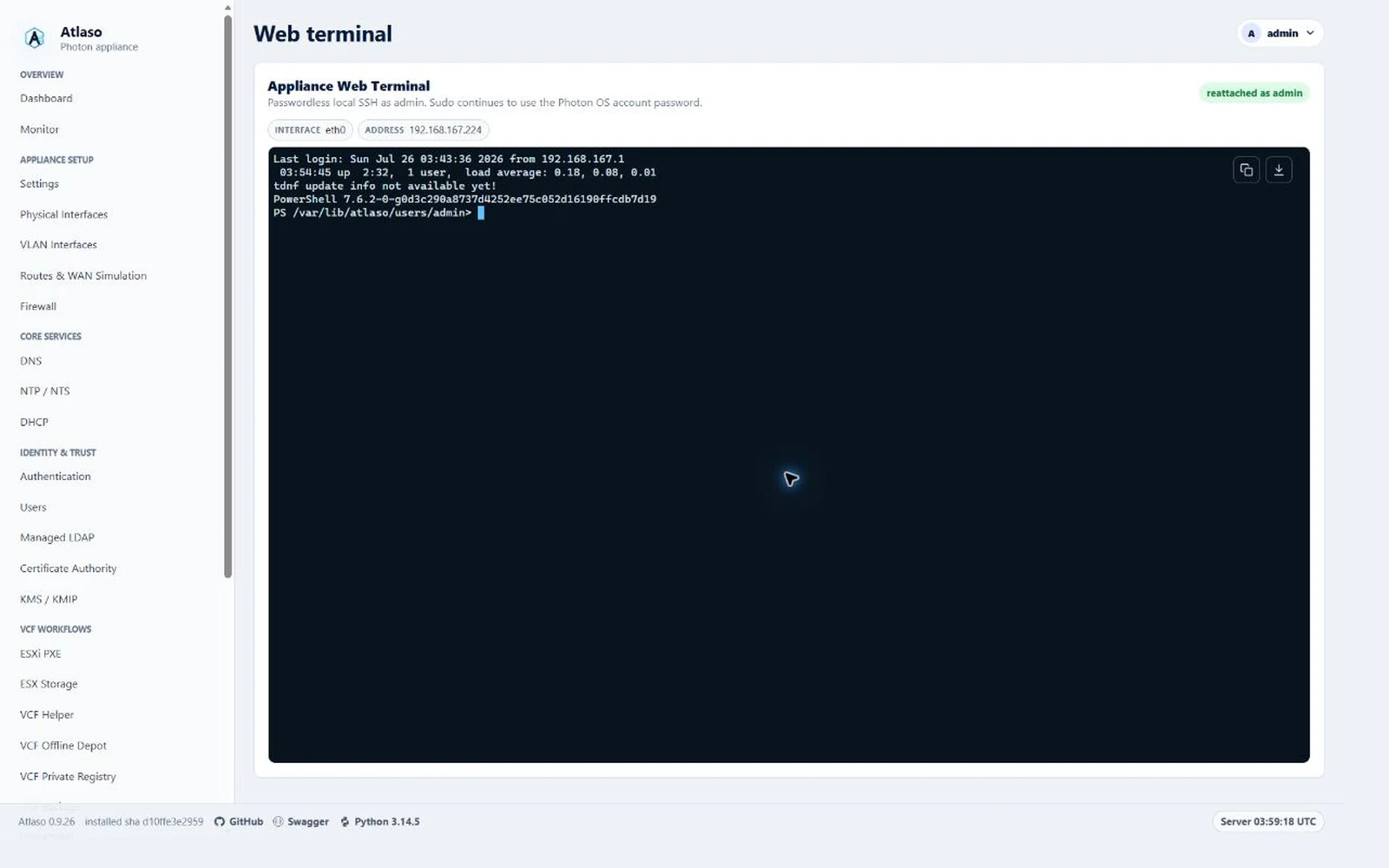
Figure: Web terminal connected to the verified Photon appliance in the desktop viewport.
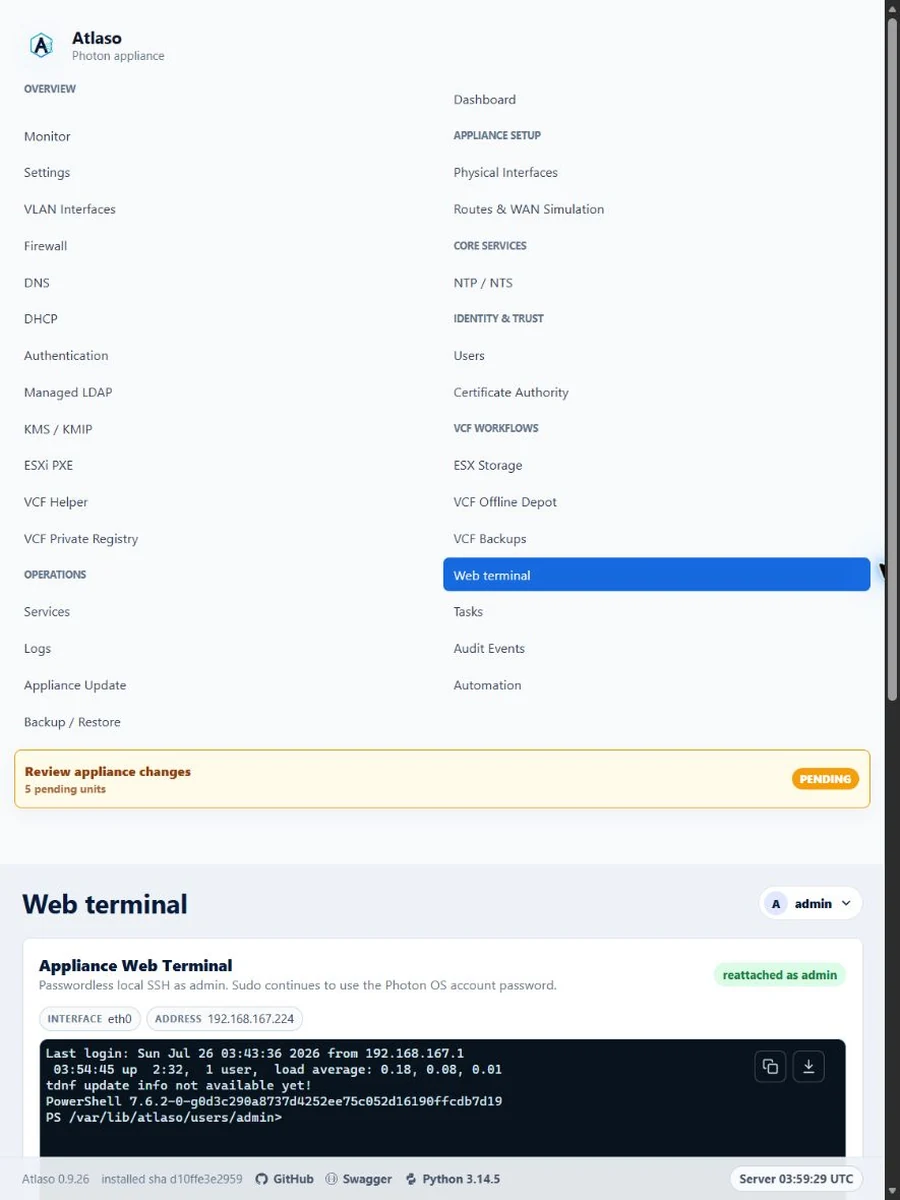
Figure: Web terminal connected to the verified Photon appliance in the responsive viewport.
Traffic Publishing
Route: /ui/management/traffic-publishing
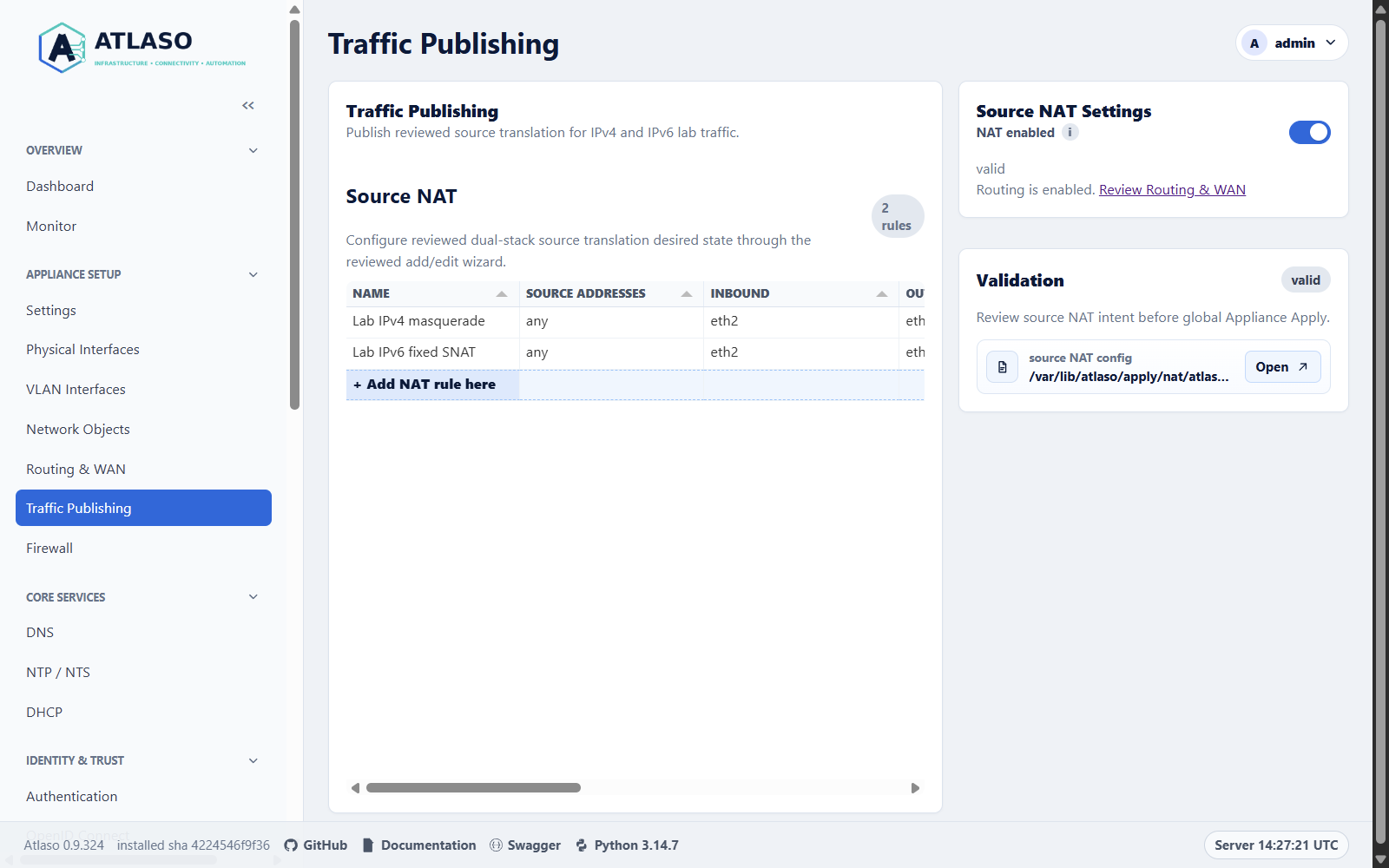
Figure: Traffic Publishing with reviewed IPv4 masquerade and the canonical NAT setting.
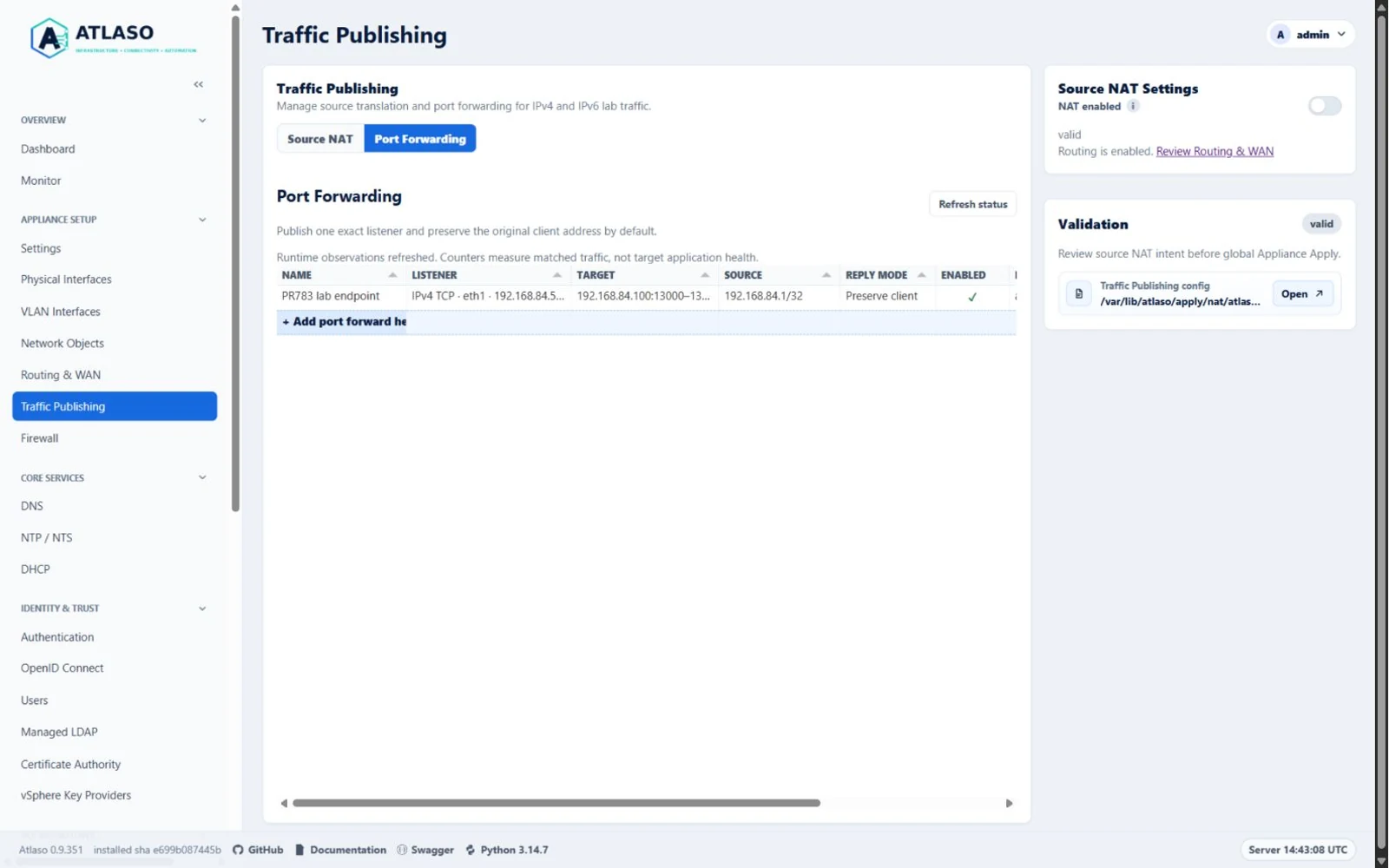
Figure: Port Forwarding is independent of source NAT; counters do not prove target health.
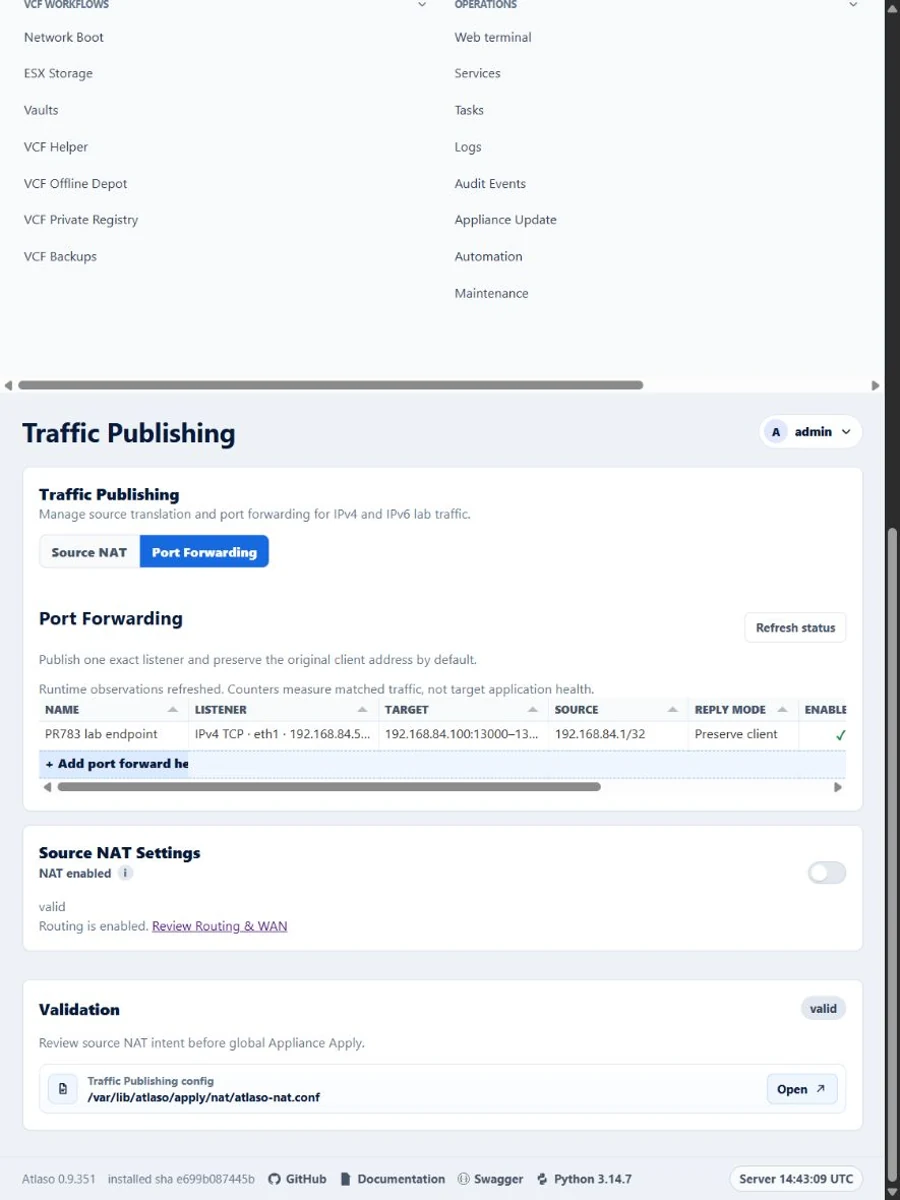
Figure: Port Forwarding is independent of source NAT; counters do not prove target health.
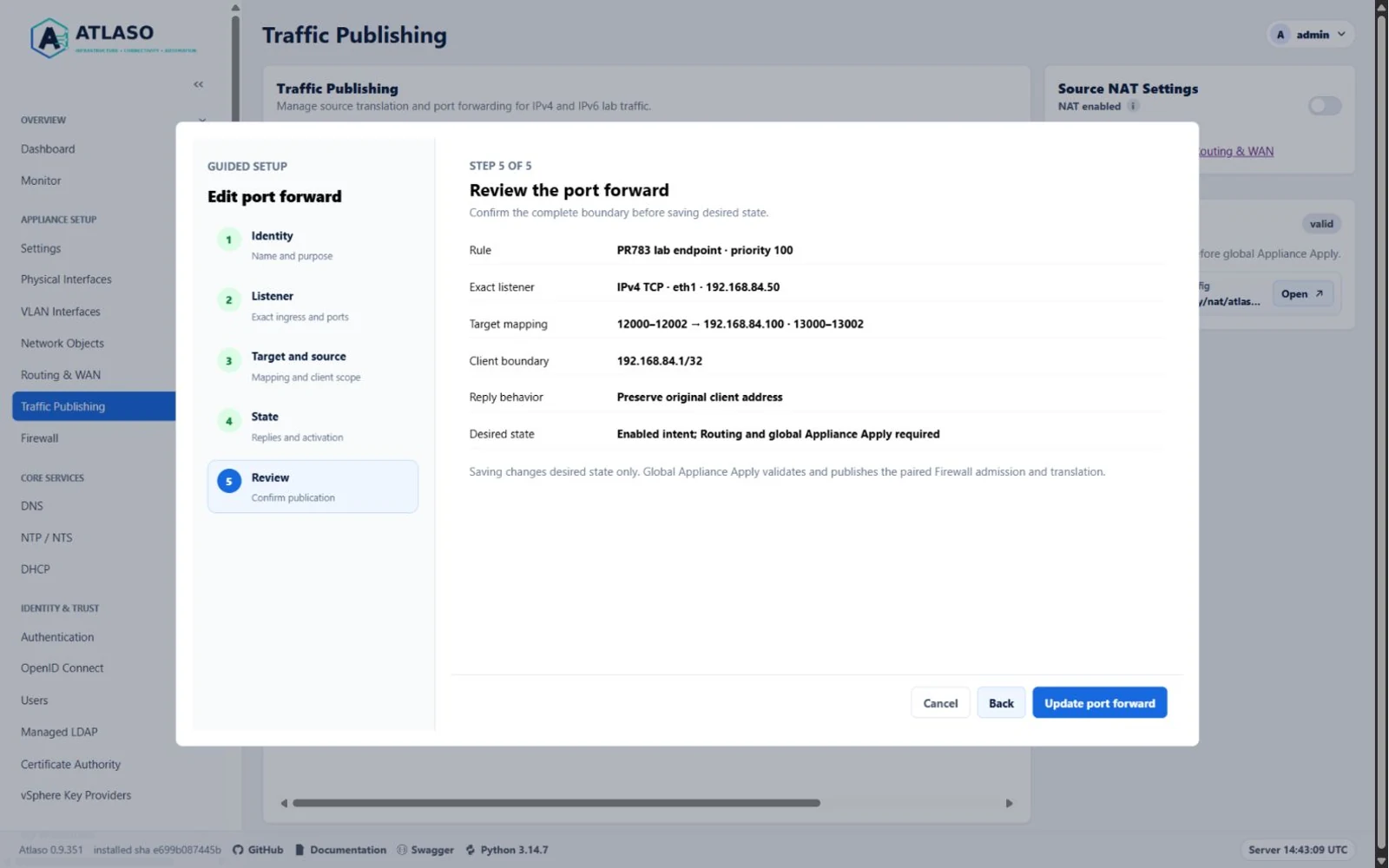
Figure: Review the listener, port mapping, client boundary, and replies before saving desired state.
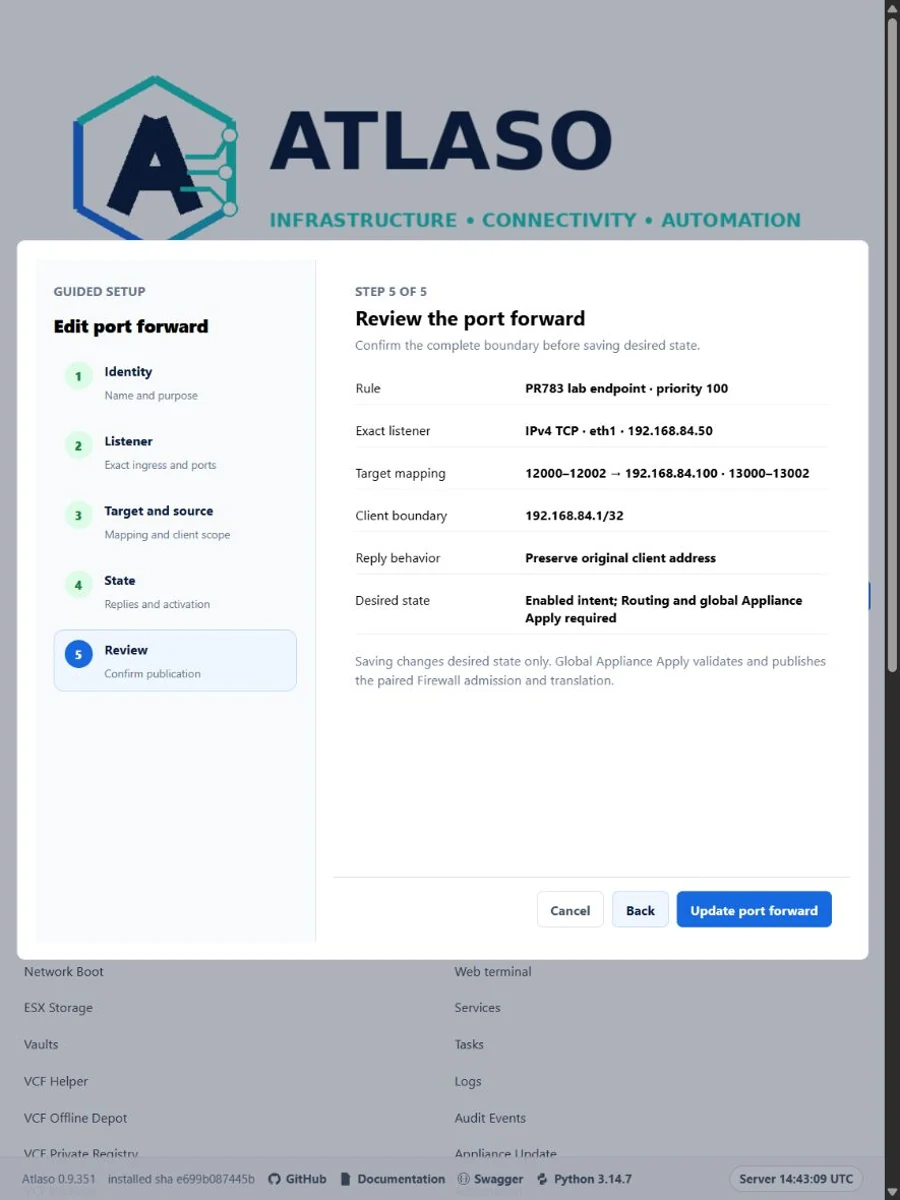
Figure: Review the listener, port mapping, client boundary, and replies before saving desired state.
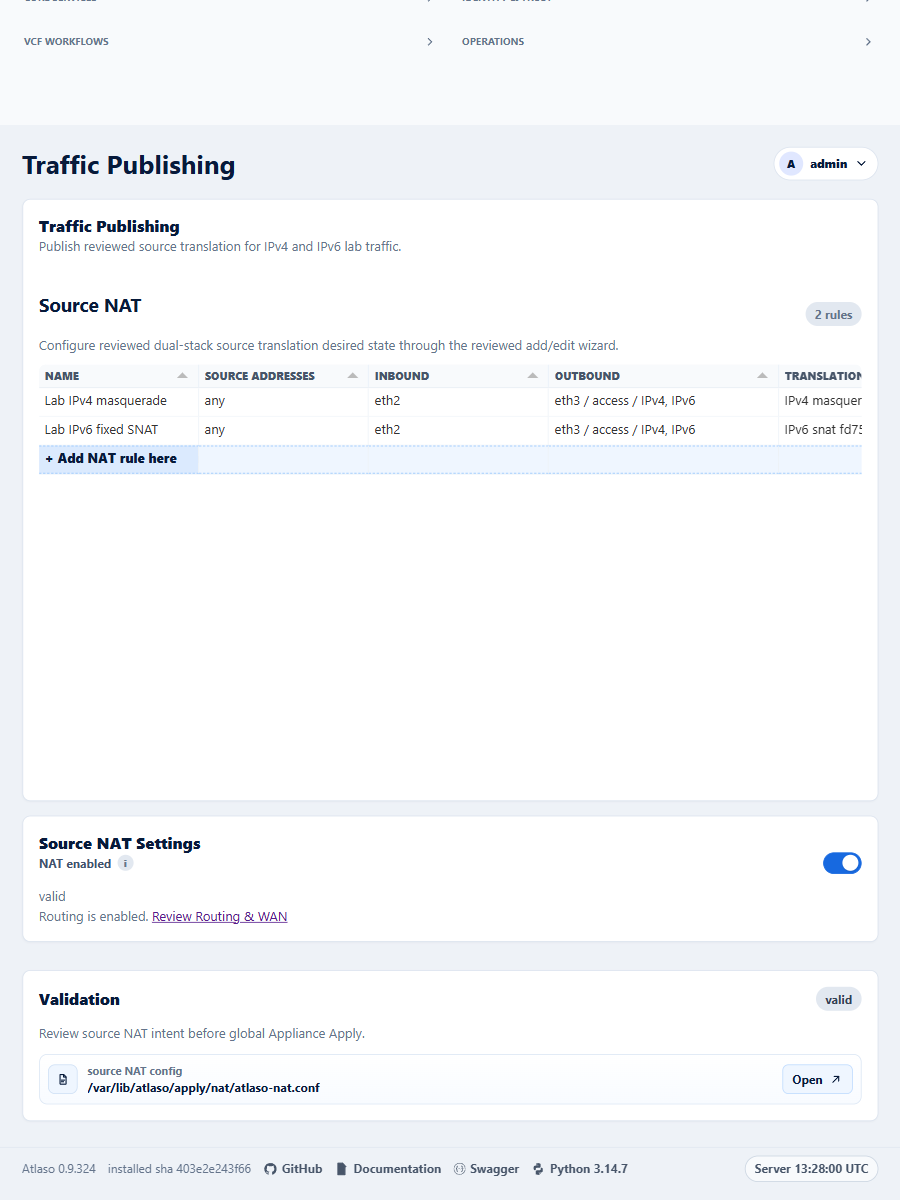
Figure: Traffic Publishing with reviewed IPv4 masquerade and the canonical NAT setting.
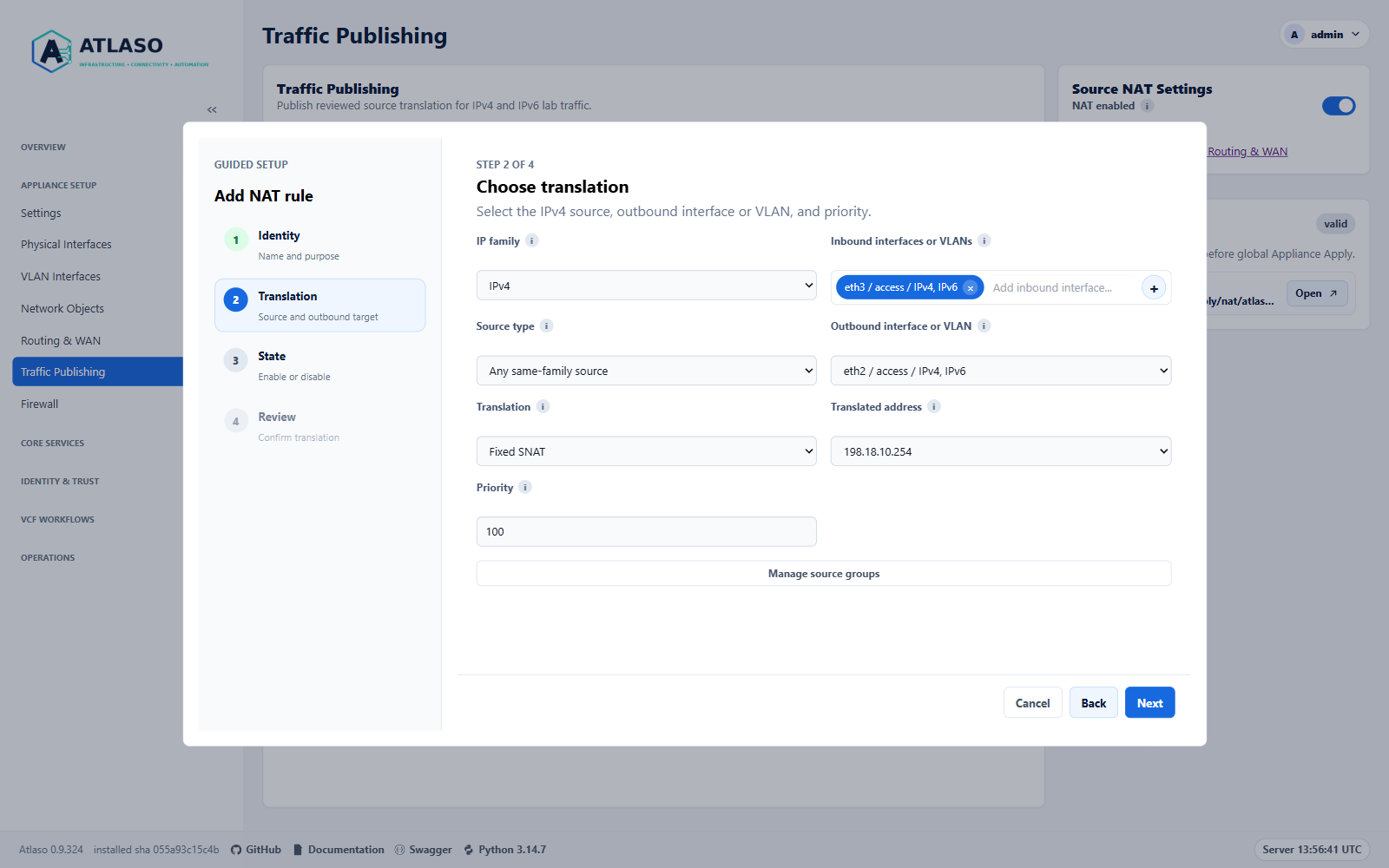
Figure: Choose an assigned translated address and open source groups in a separate tab without leaving the wizard.
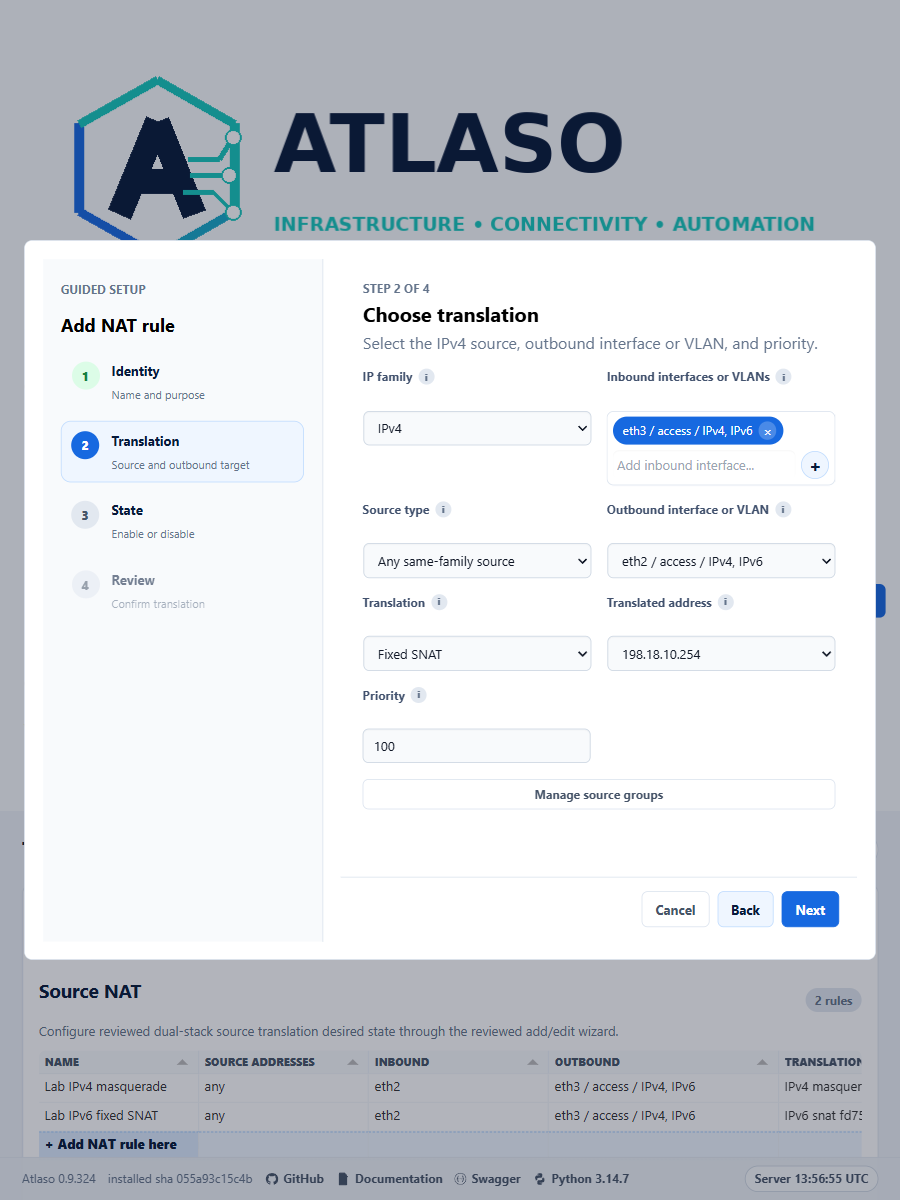
Figure: Choose an assigned translated address and open source groups in a separate tab without leaving the wizard.
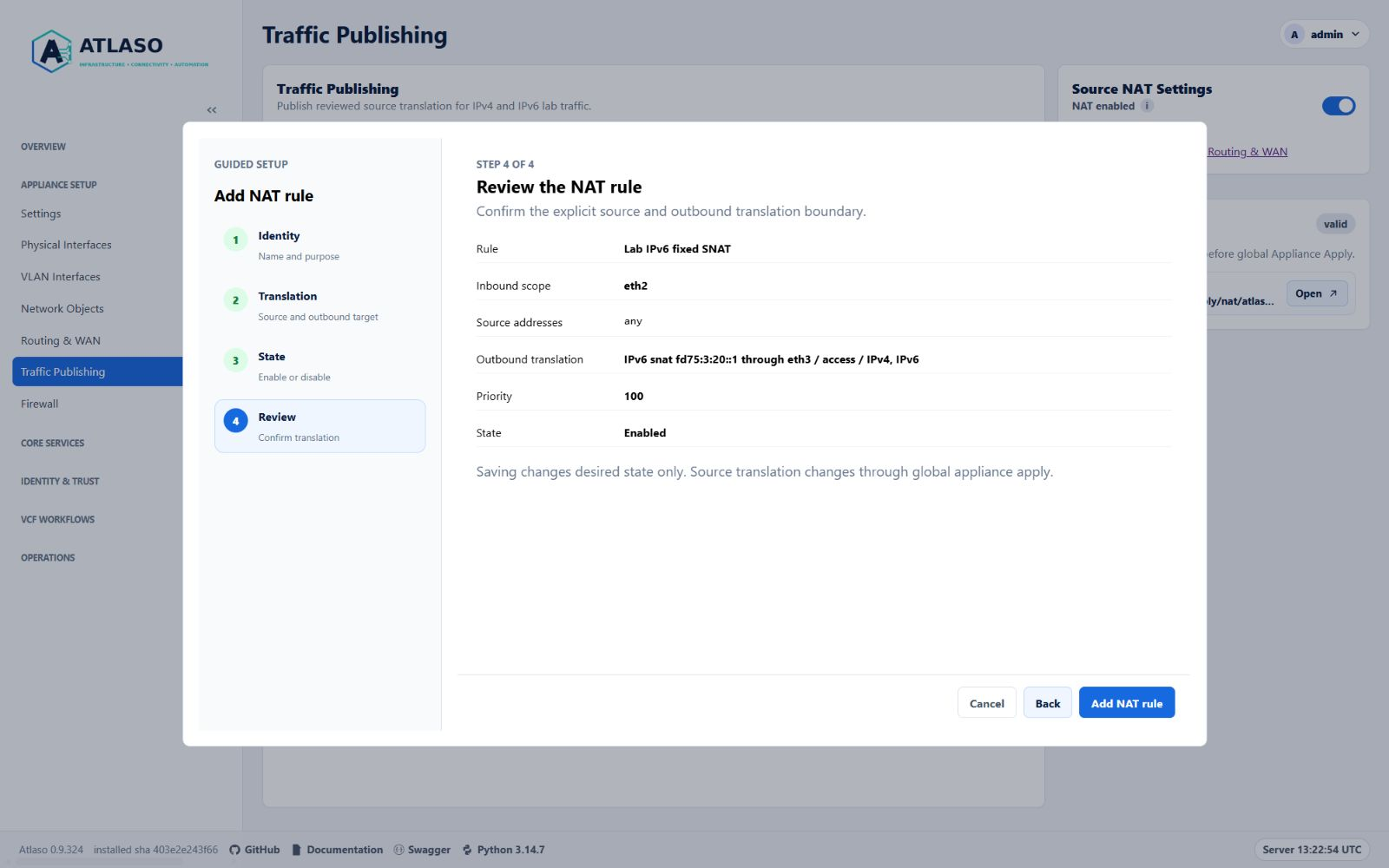
Figure: Review an IPv6 fixed-SNAT rule before saving desired state.
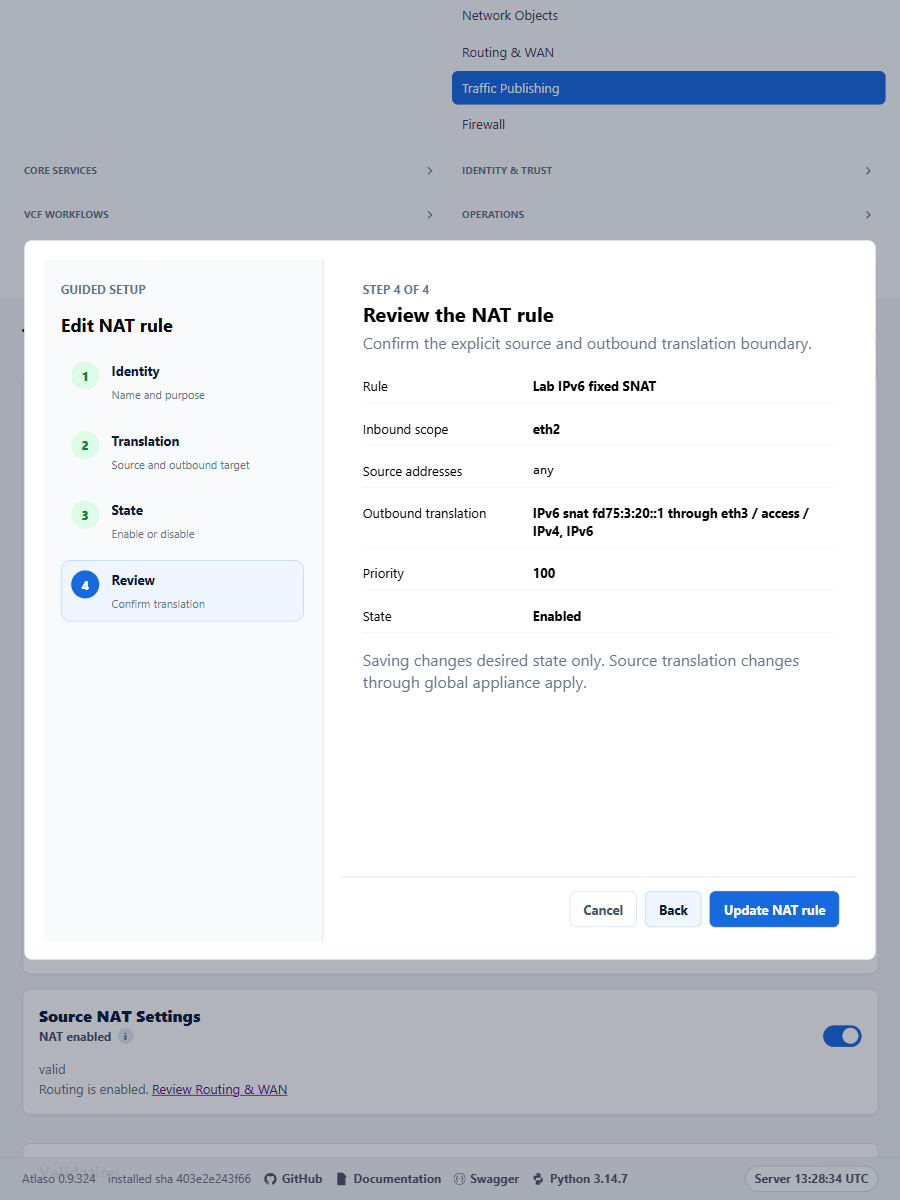
Figure: Review an IPv6 fixed-SNAT rule before saving desired state.
Users
Route: /ui/management/users
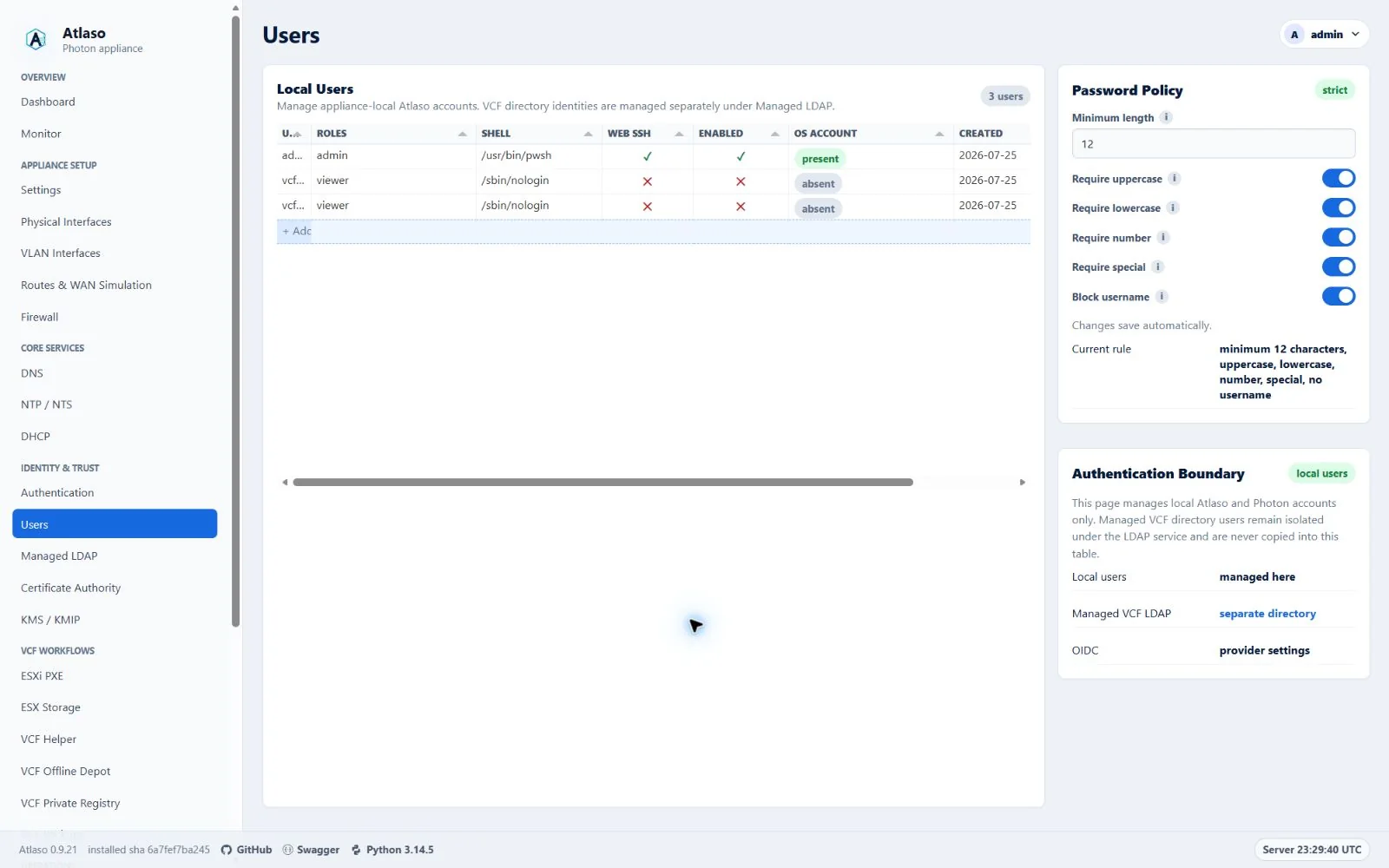
Figure: Users in the verified clean-appliance desktop state.
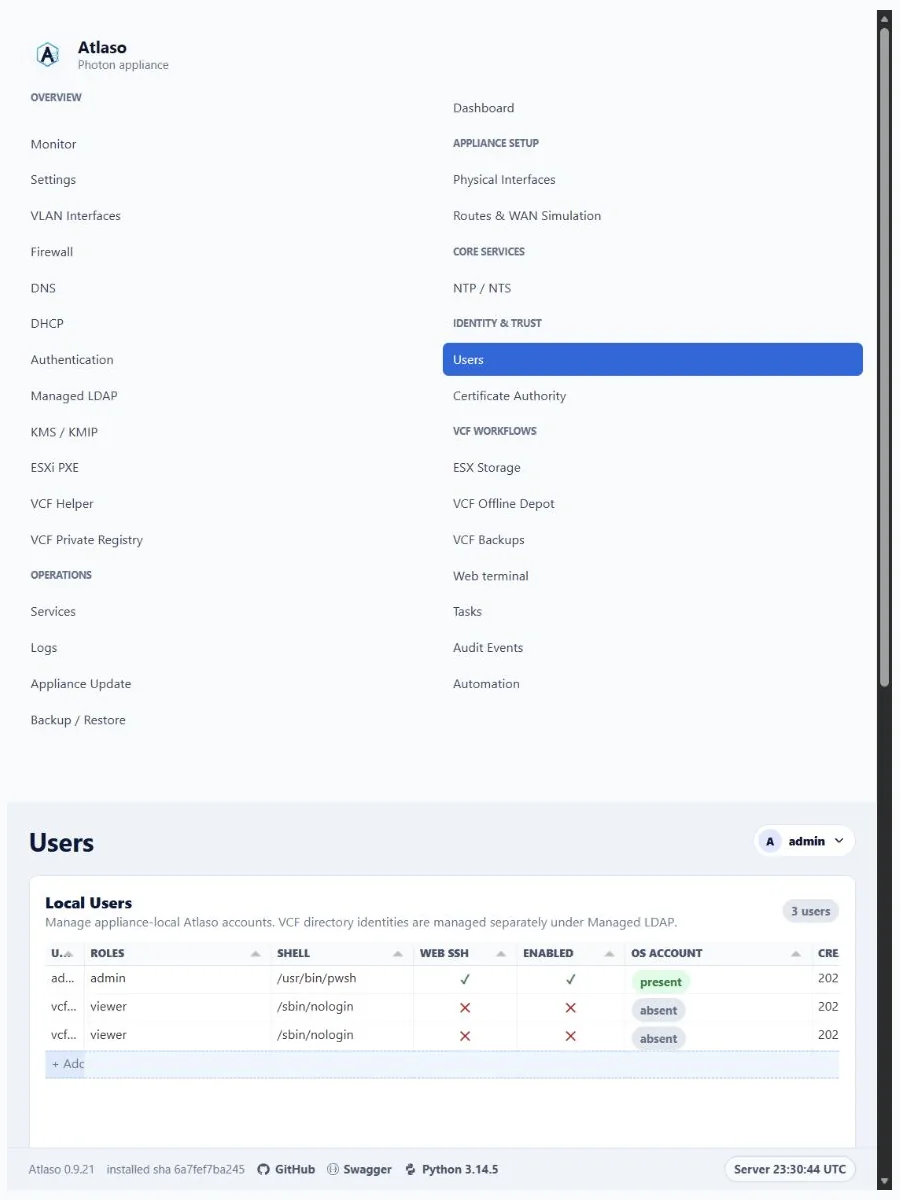
Figure: Users in the verified clean-appliance responsive state.
VMware console
Route: vmware-console
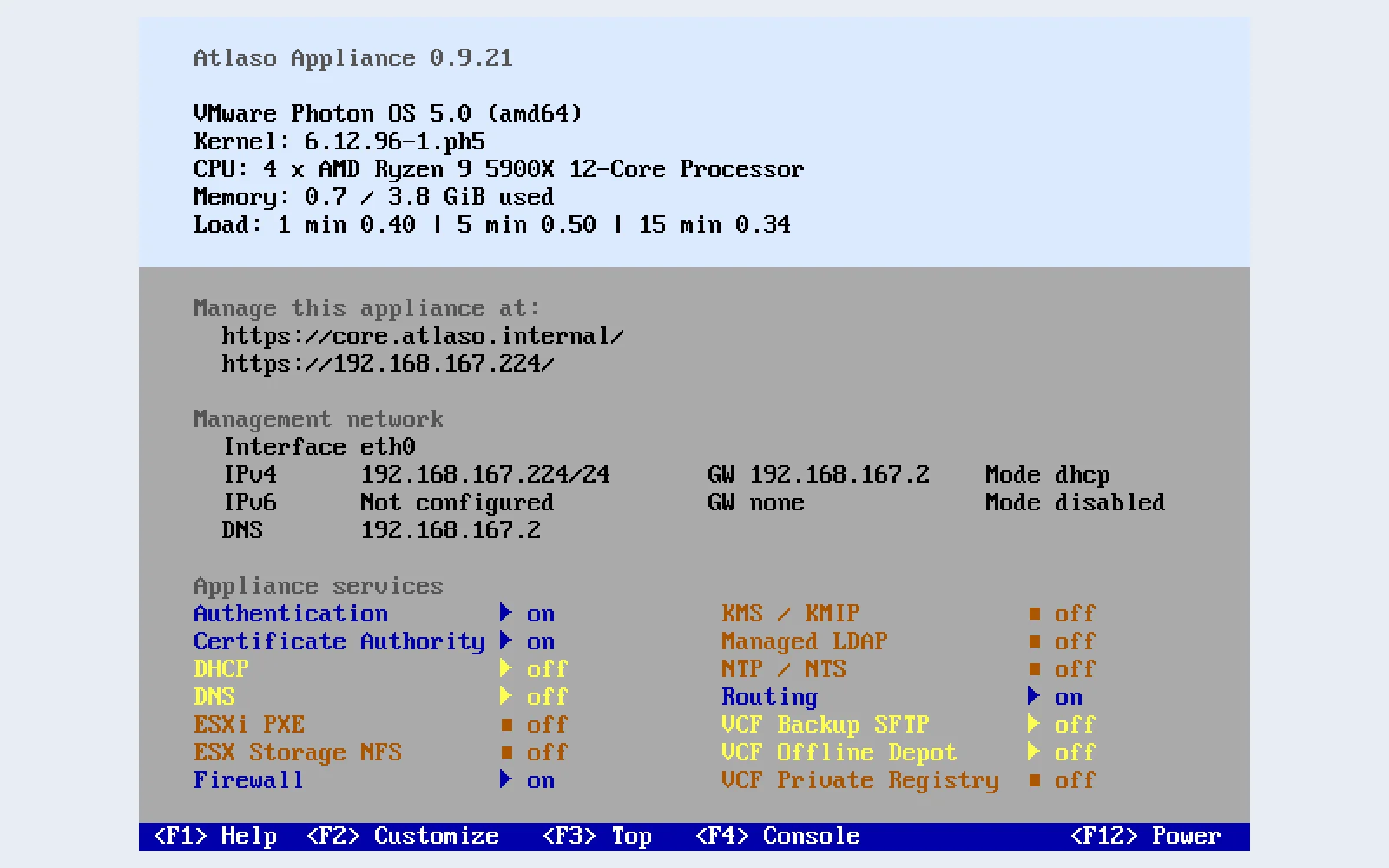
Figure: VMware console after a successful appliance apply.
Vcf Backups
Route: /ui/management/vcf-backups
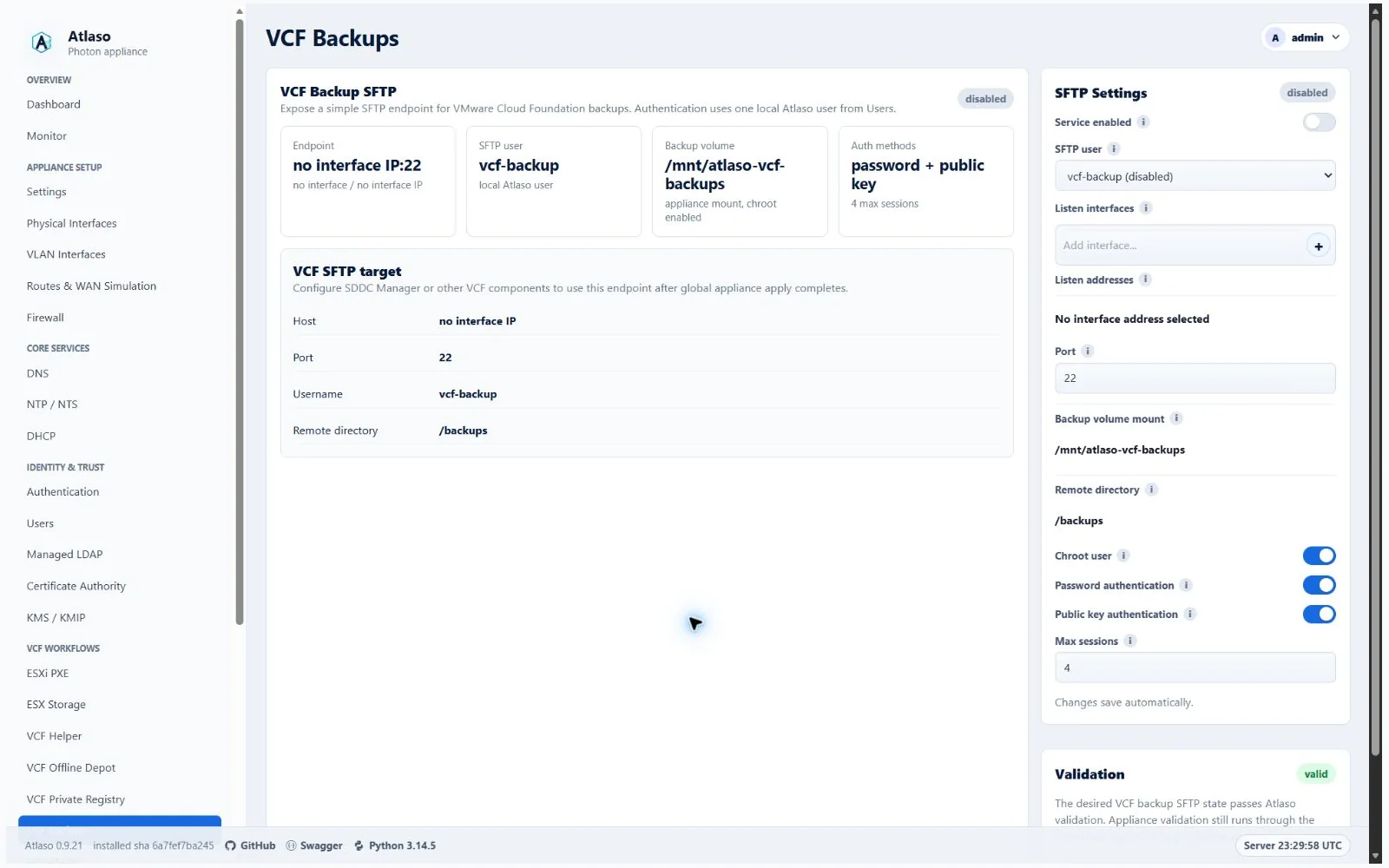
Figure: VCF Backups in the verified clean-appliance desktop state.
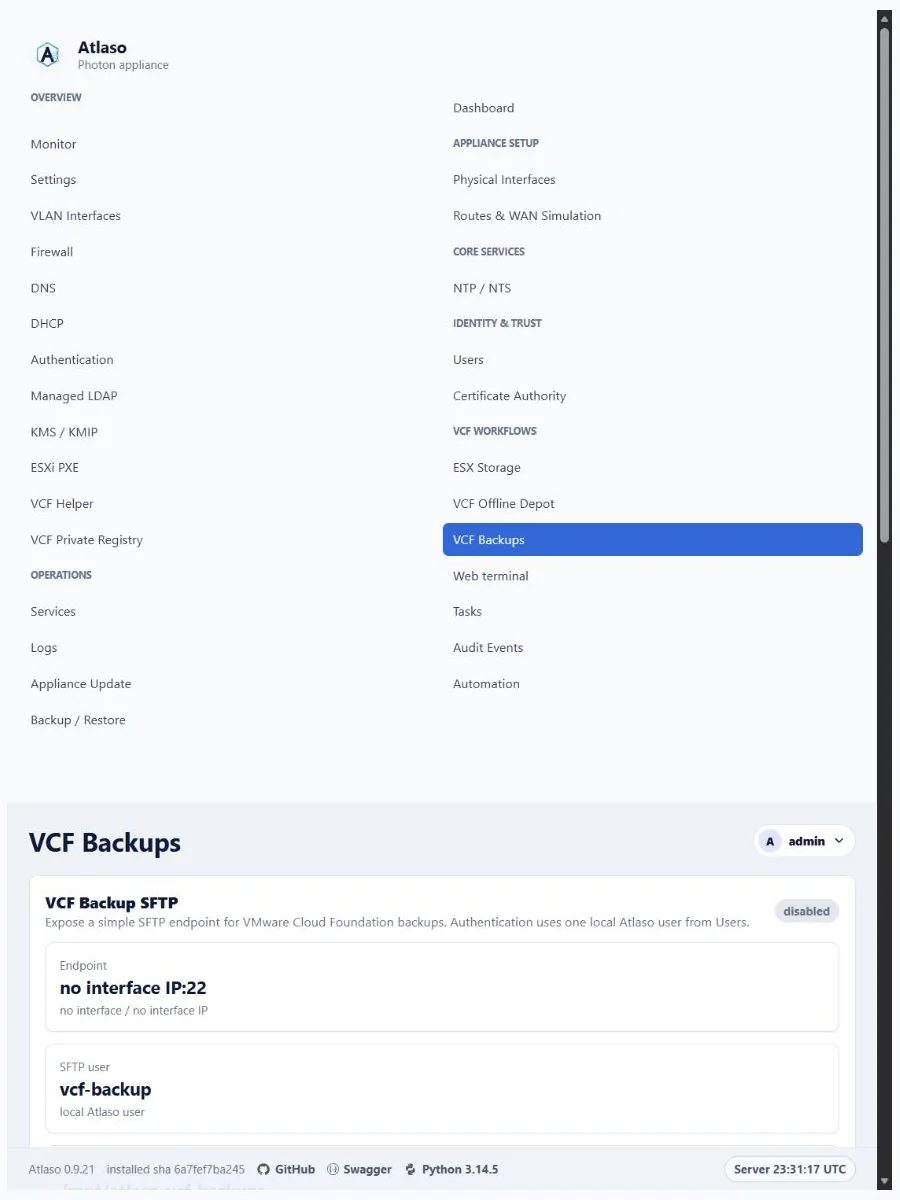
Figure: VCF Backups in the verified clean-appliance responsive state.
Vcf Helper
Route: /ui/management/vcf-helper
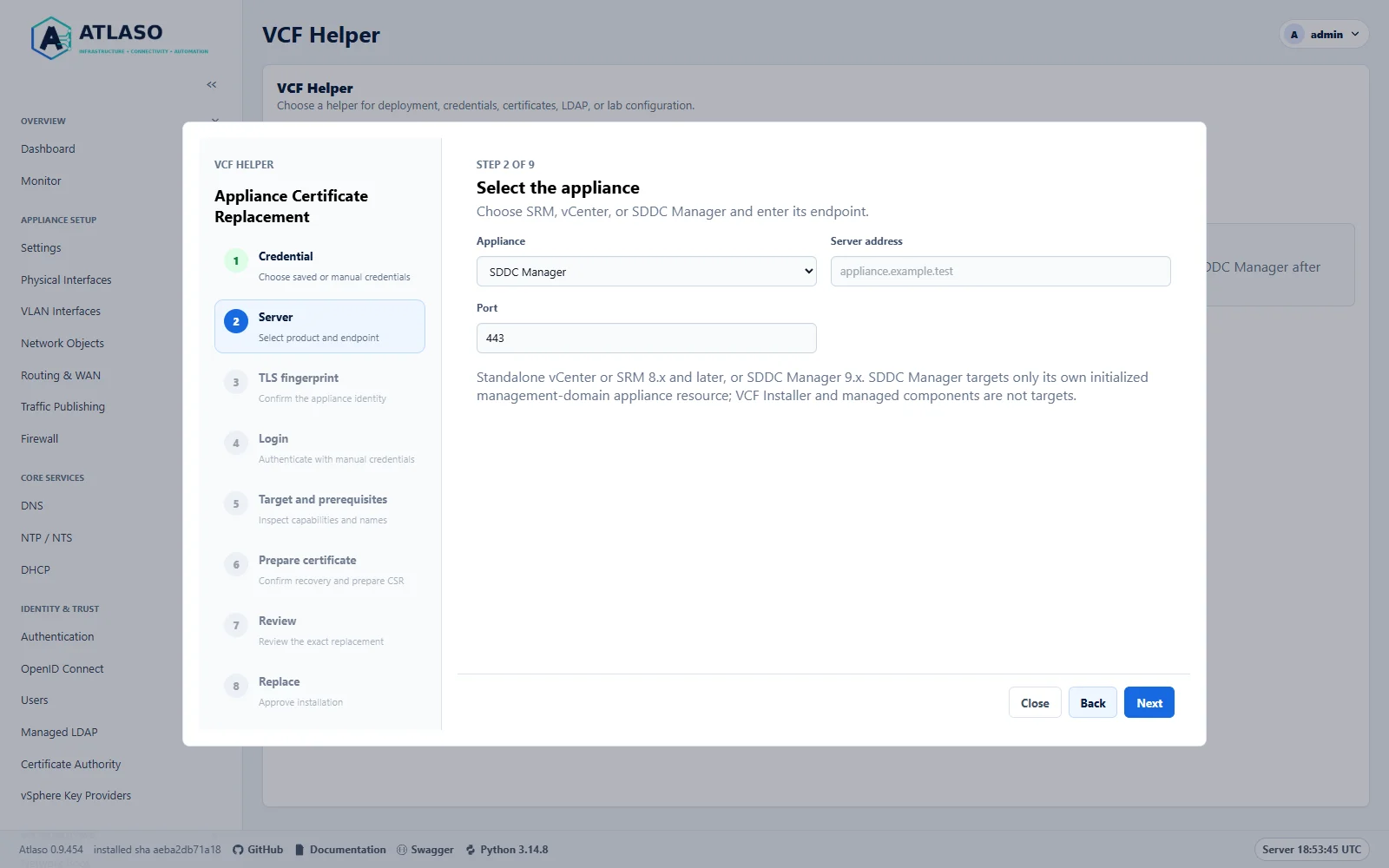
Figure: Select SDDC Manager 9.x for its own appliance resource. Native SDDC validation remains pending.
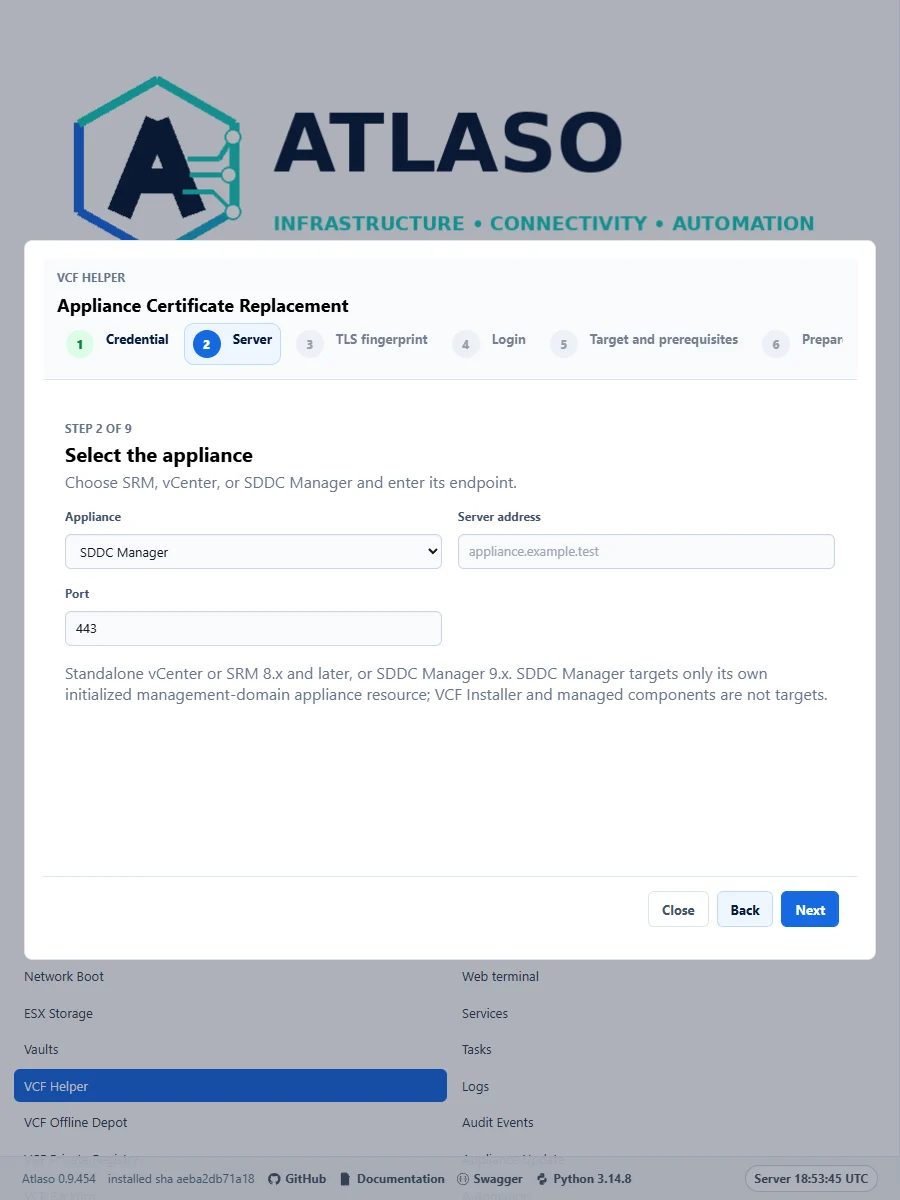
Figure: Select SDDC Manager 9.x for its own appliance resource. Native SDDC validation remains pending.
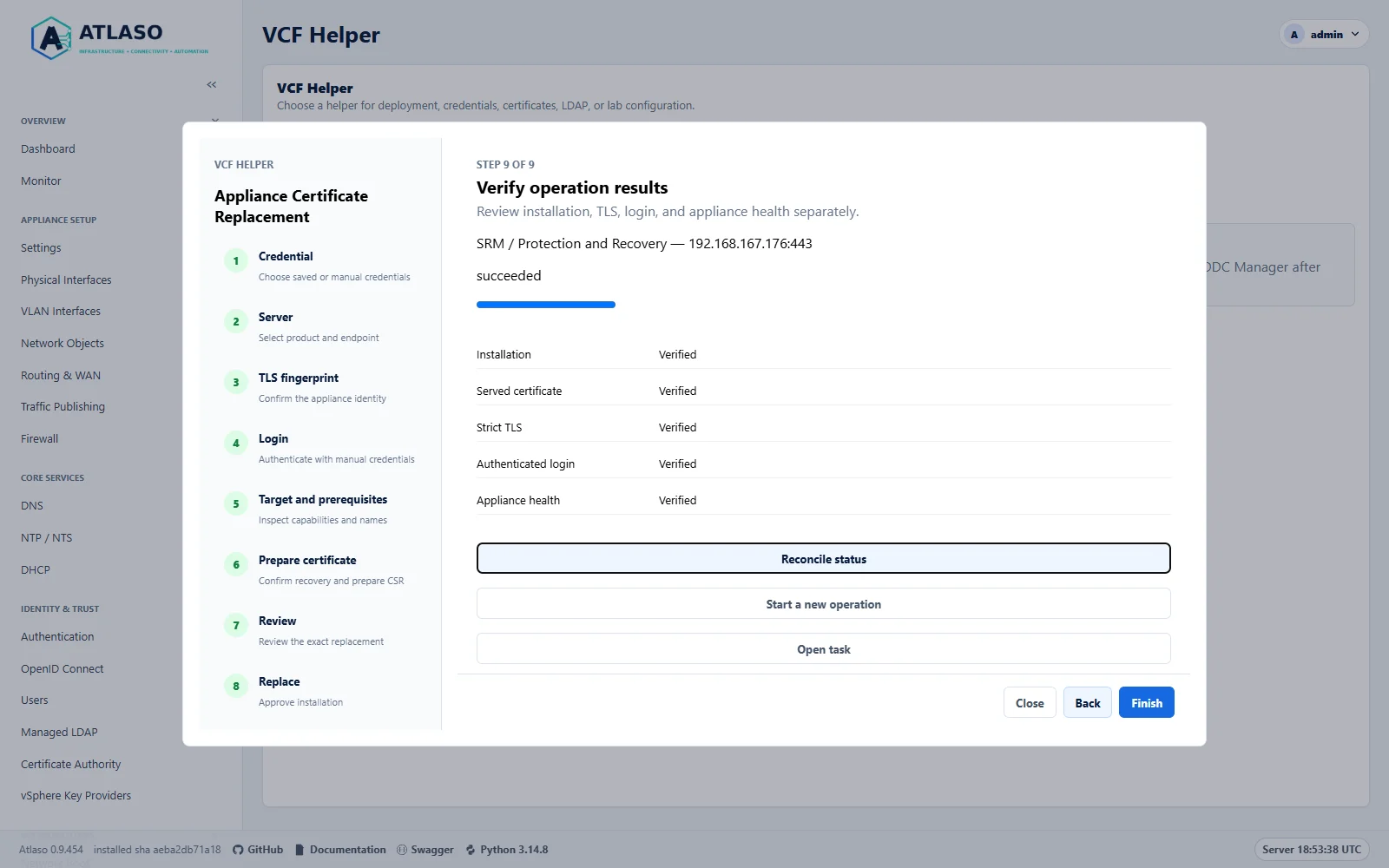
Figure: SRM 9.1.1 passed all five lab checks. Integration workflows remain untested.
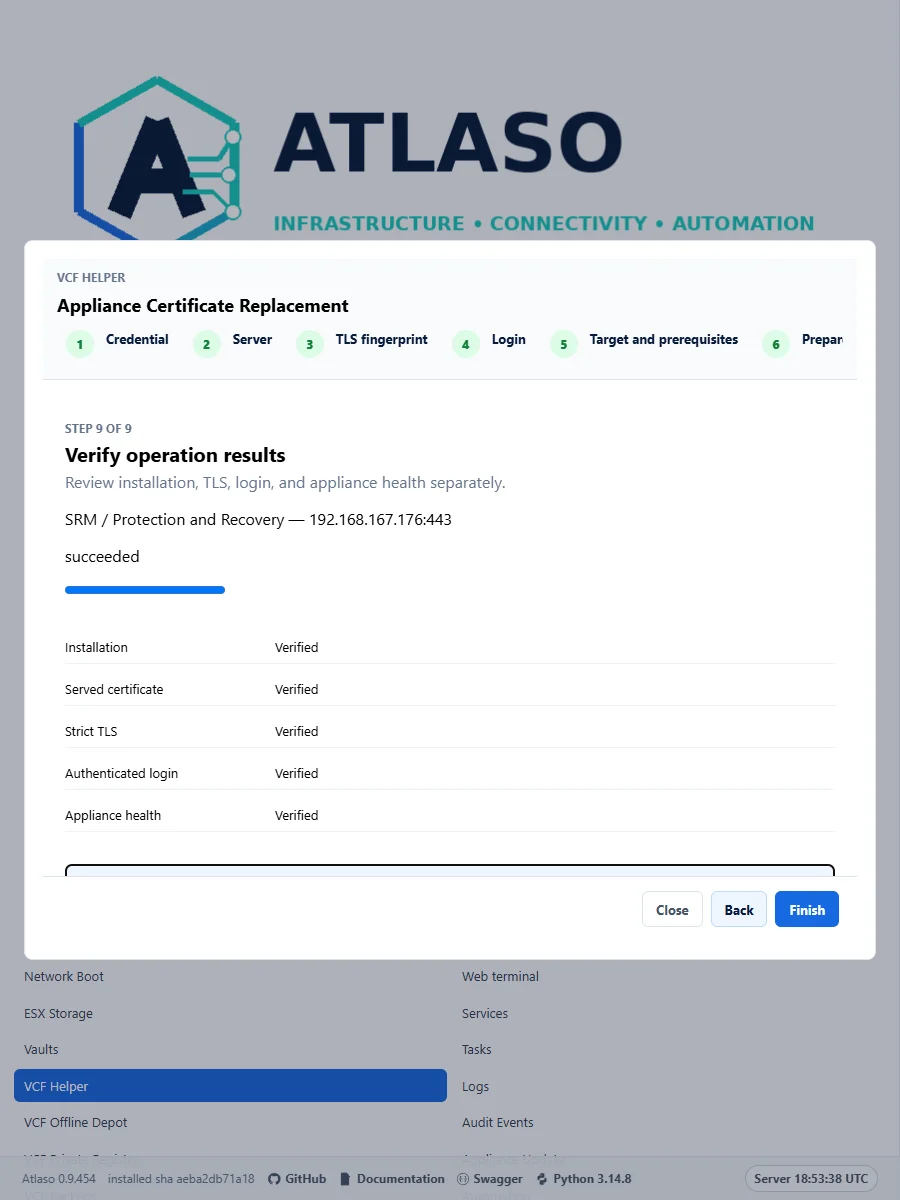
Figure: SRM 9.1.1 passed all five lab checks. Integration workflows remain untested.
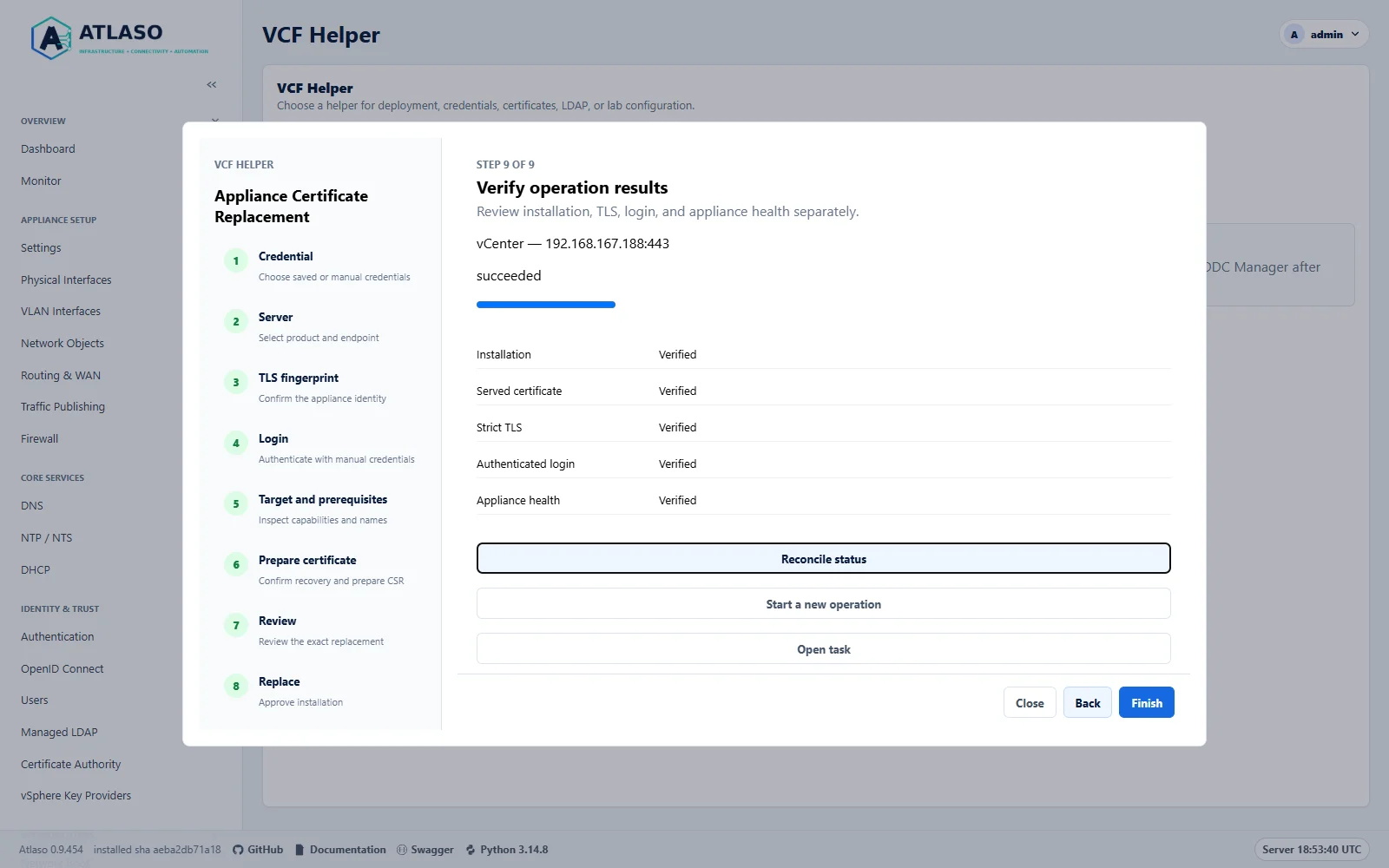
Figure: vCenter 9.1.1 passed all five lab checks. Integration workflows remain untested.
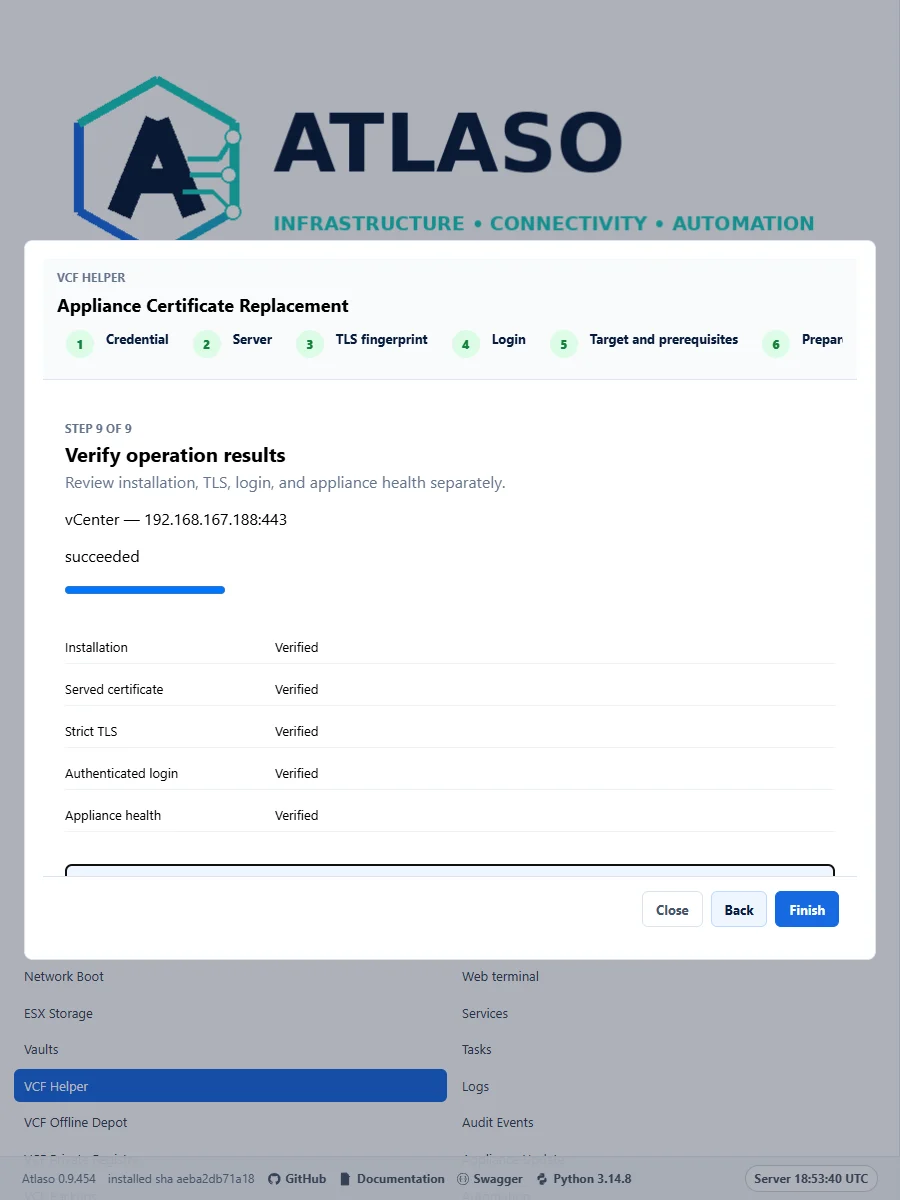
Figure: vCenter 9.1.1 passed all five lab checks. Integration workflows remain untested.
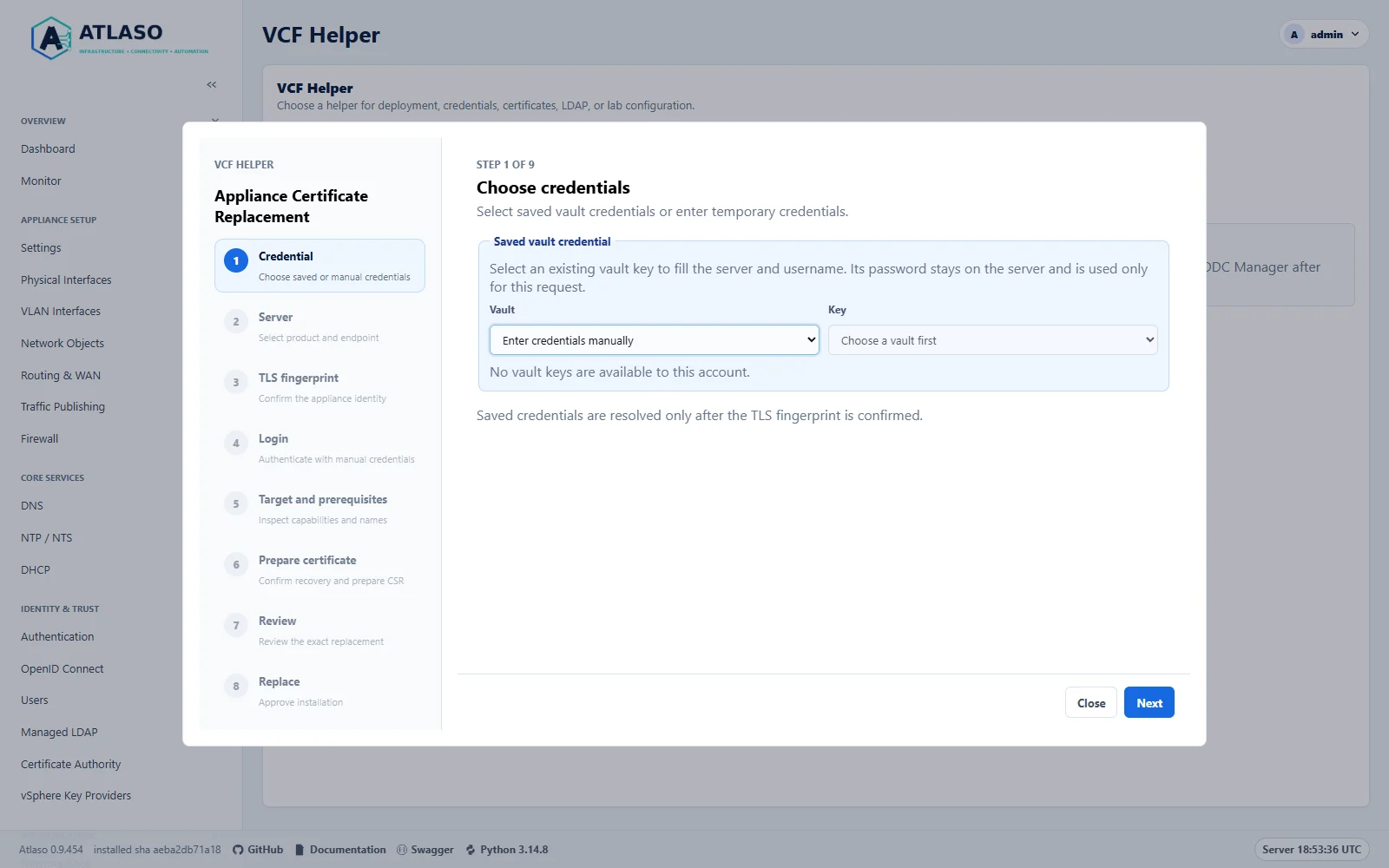
Figure: Choose a saved vault credential or request-local manual login before confirming target TLS identity.
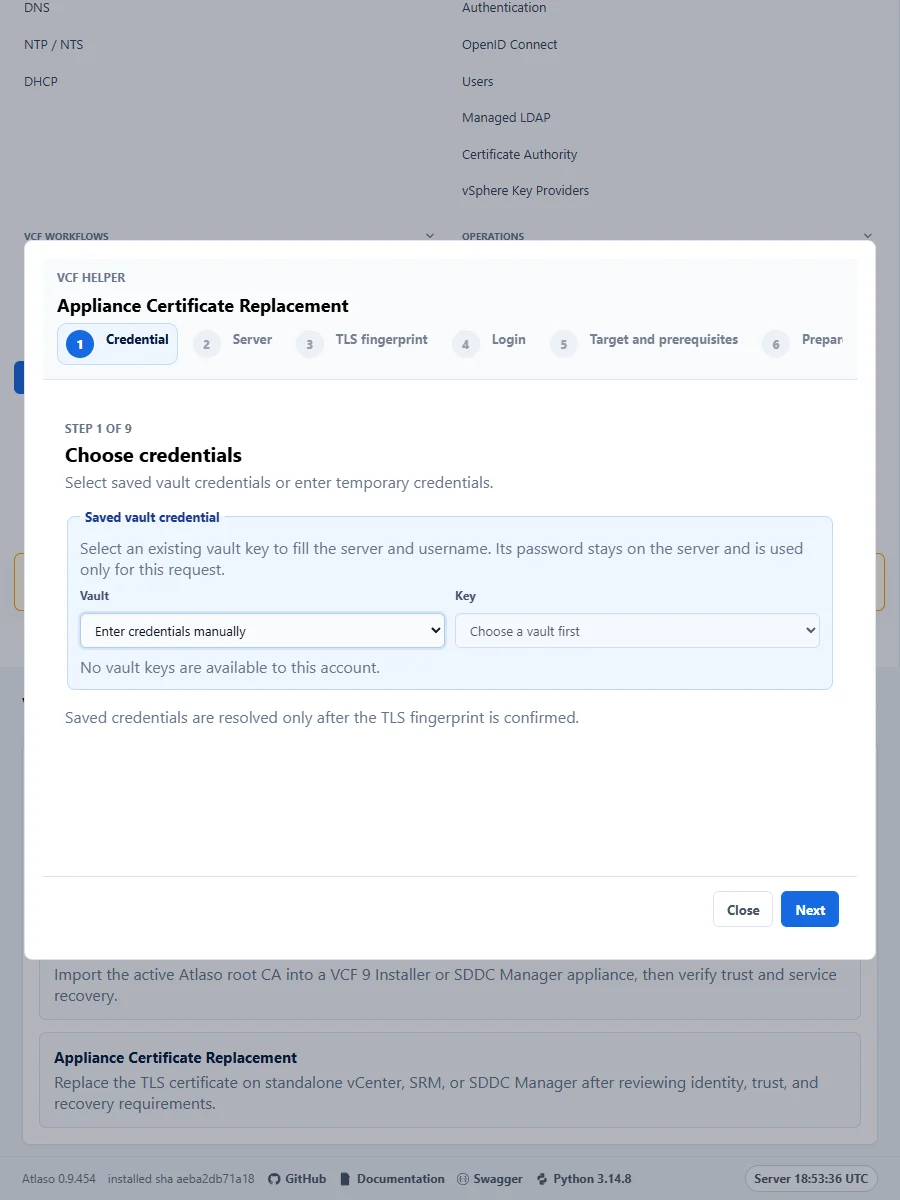
Figure: Choose a saved vault credential or request-local manual login before confirming target TLS identity.
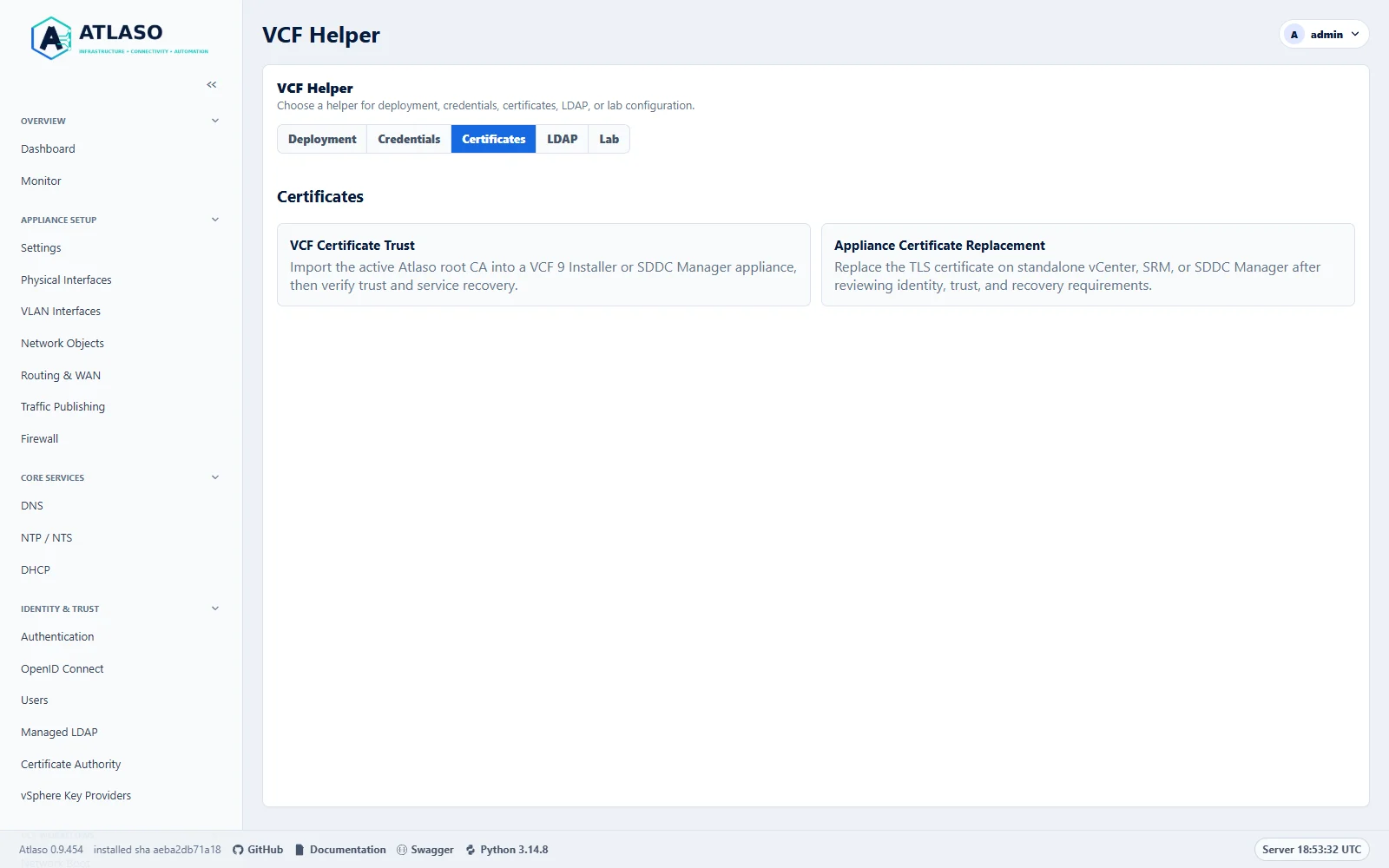
Figure: The Certificates tab groups related helpers on the dedicated lab appliance.
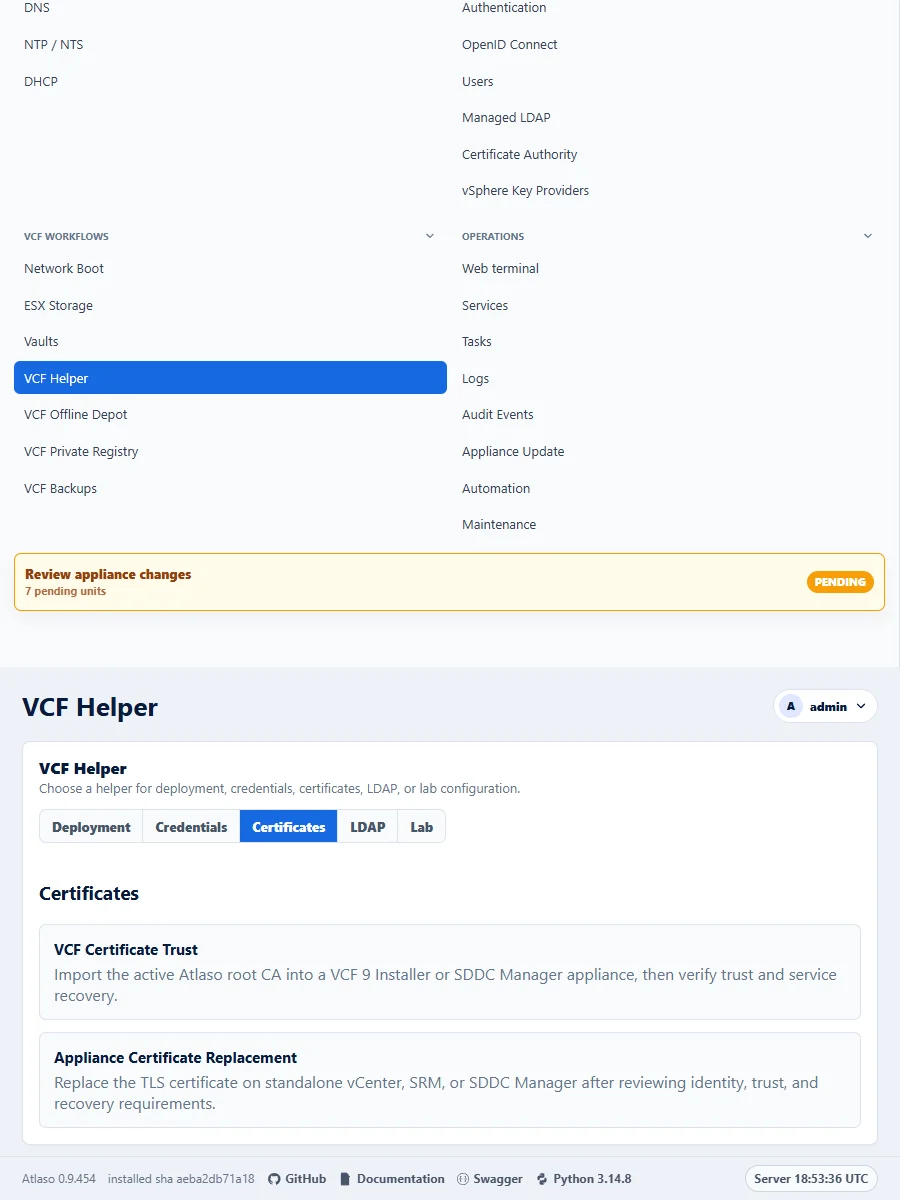
Figure: The Certificates tab groups related helpers on the dedicated lab appliance.
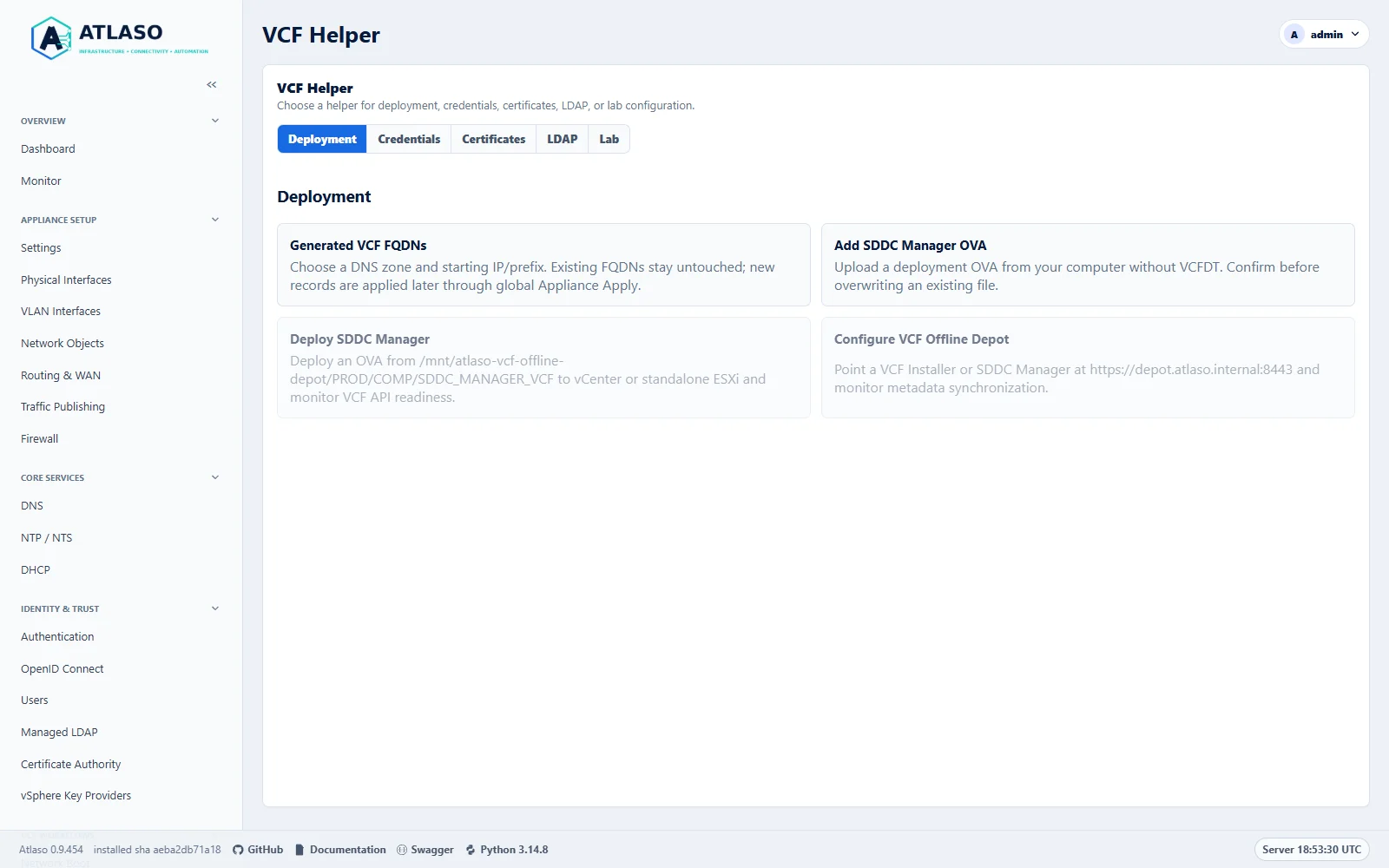
Figure: The Deployment tab groups related helpers on the dedicated lab appliance.
Vcf Offline Depot
Route: /ui/management/vcf-offline-depot
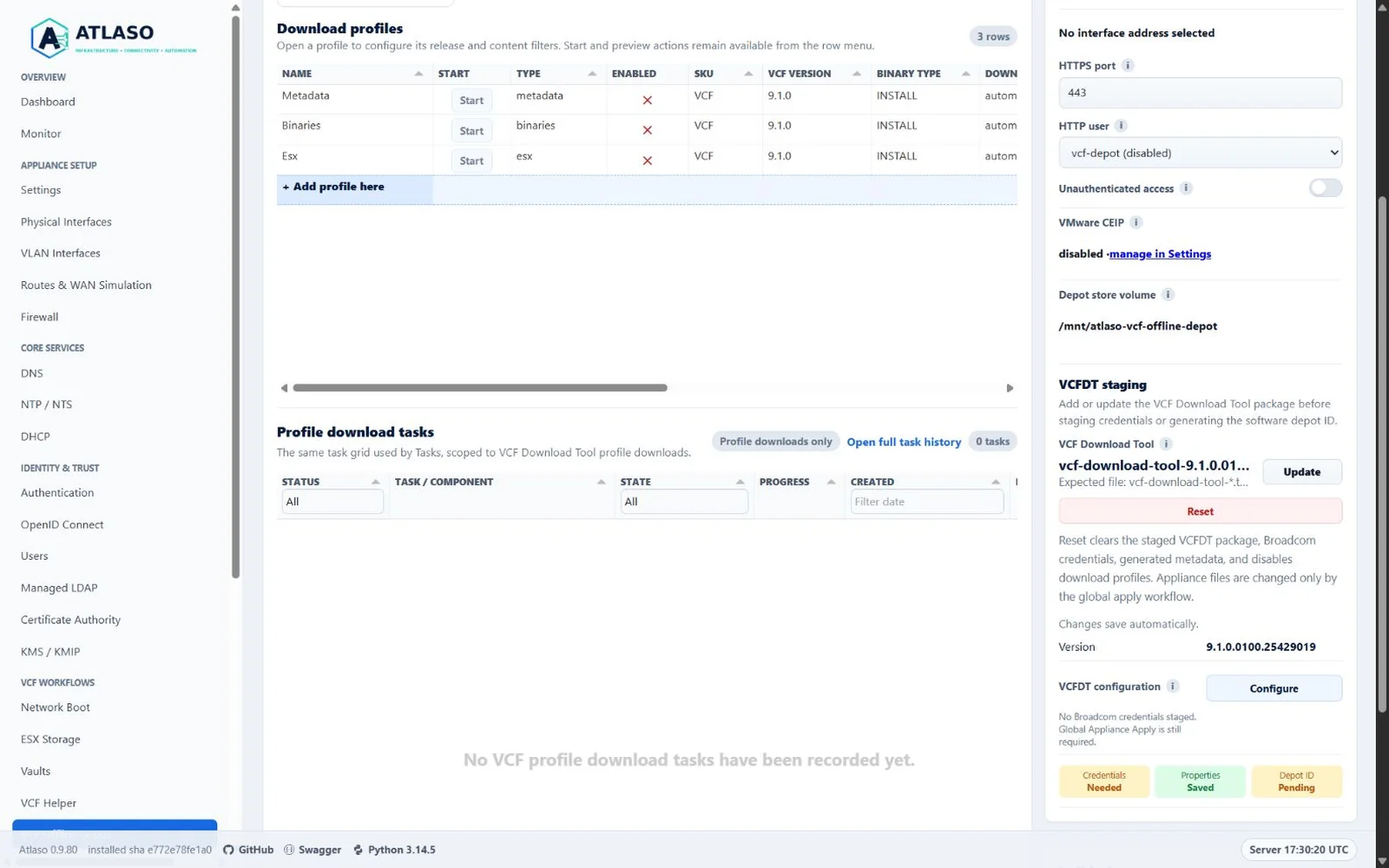
Figure: VCF Offline Depot with metadata first and the compact VCFDT configuration summary in the desktop settings rail.
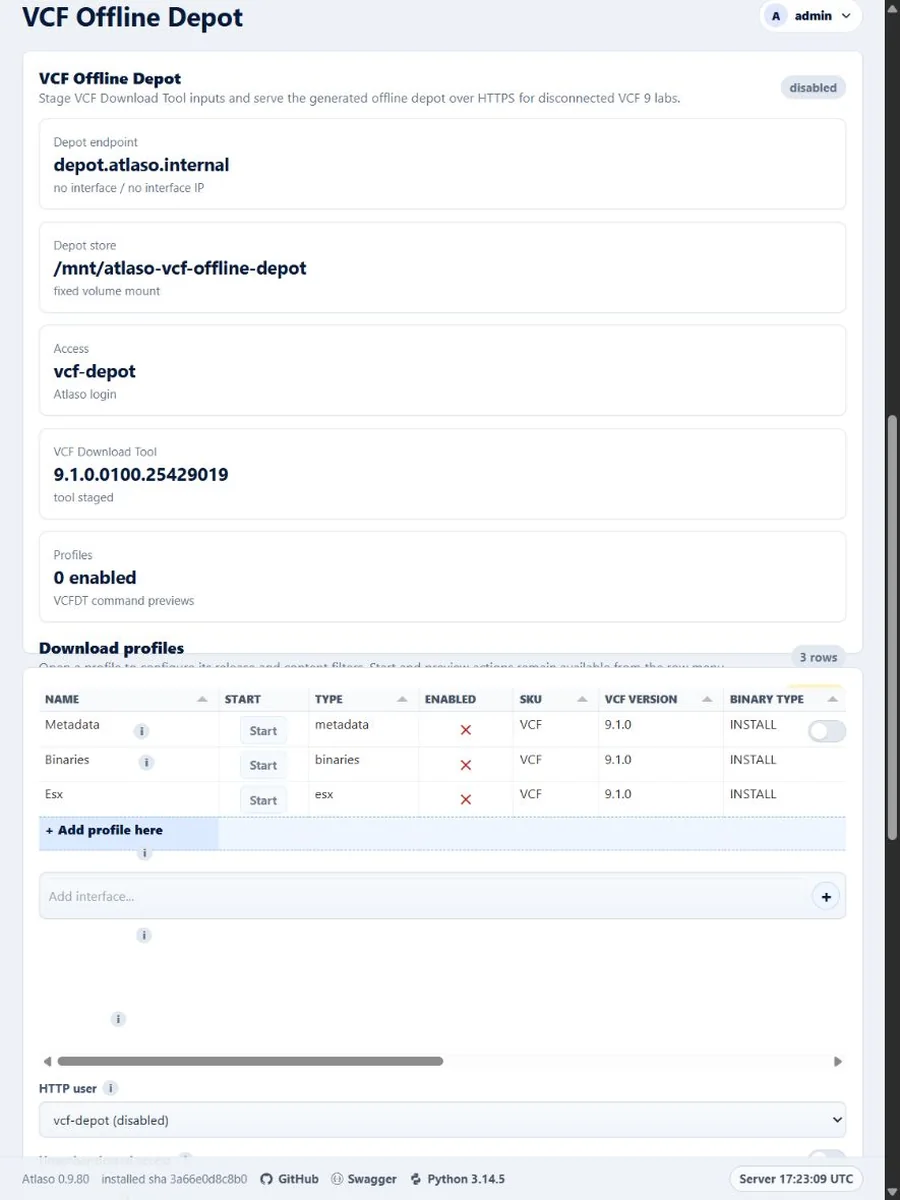
Figure: VCF Offline Depot profile ordering and staging state in the responsive viewport.
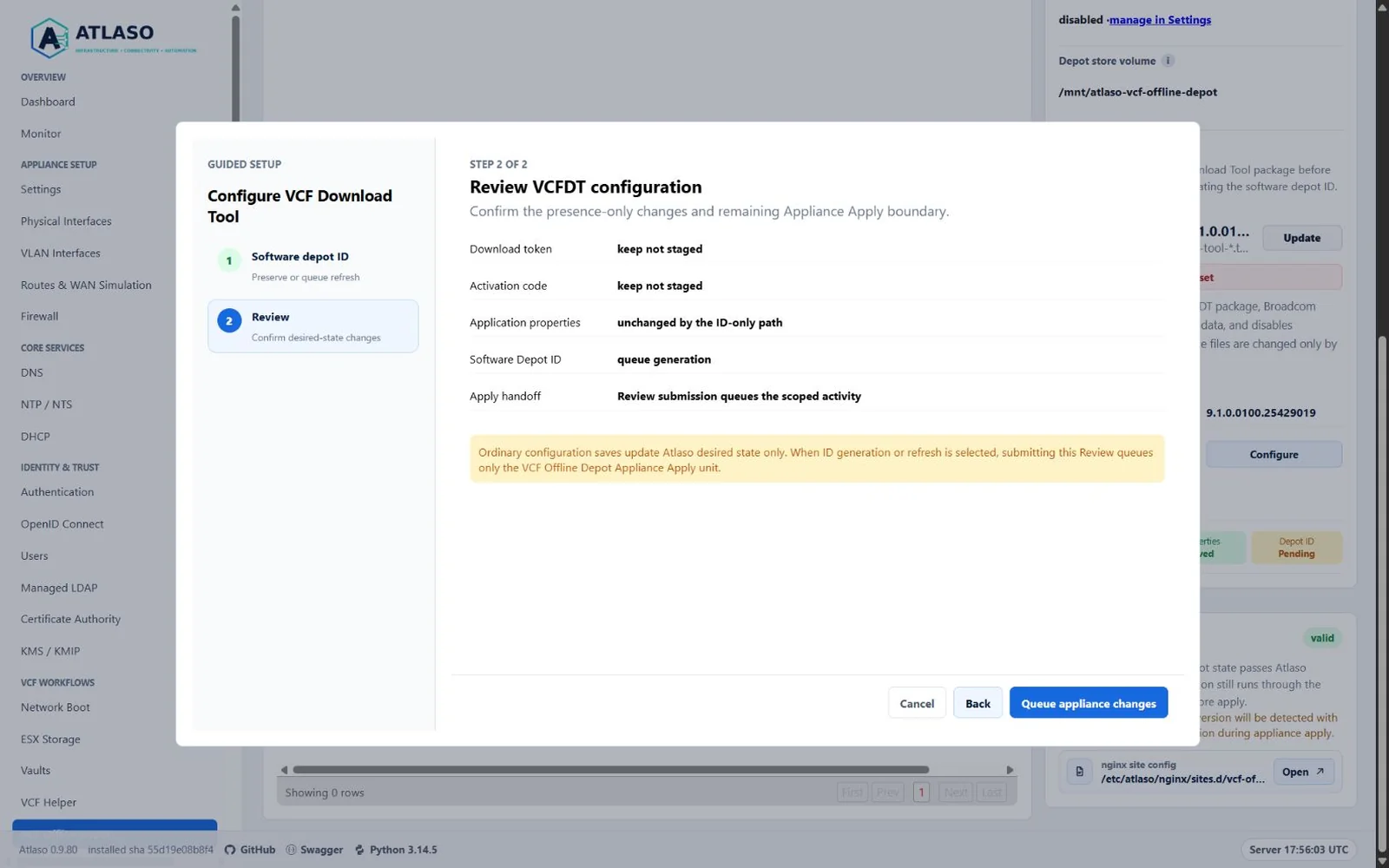
Figure: VCFDT Software Depot ID generation ends at Review, which immediately dispatches a dedicated identity task.
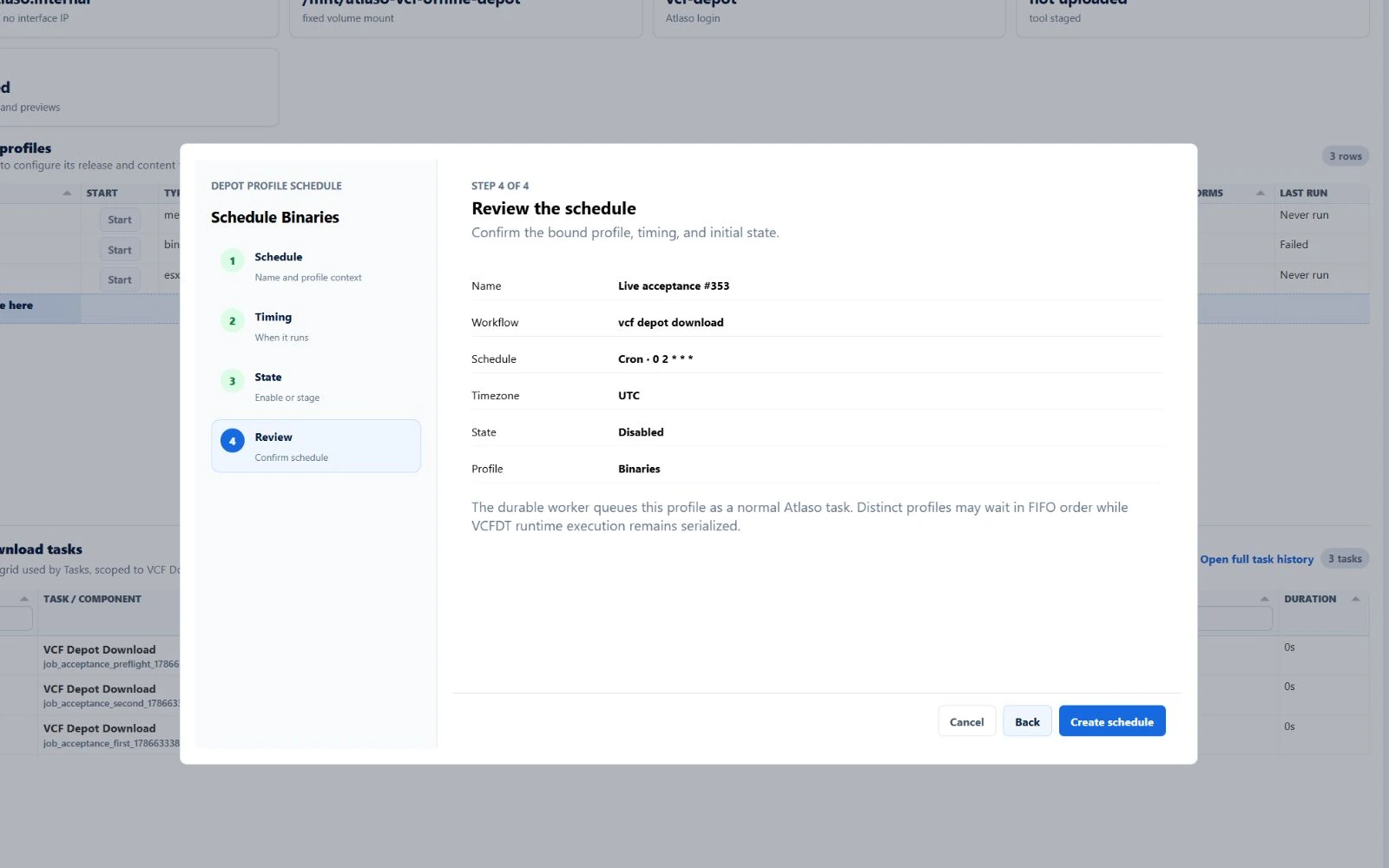
Figure: VCF Offline Depot review binds the selected profile in the contextual schedule flow.
Vcf Private Registry
Route: /ui/management/vcf-private-registry
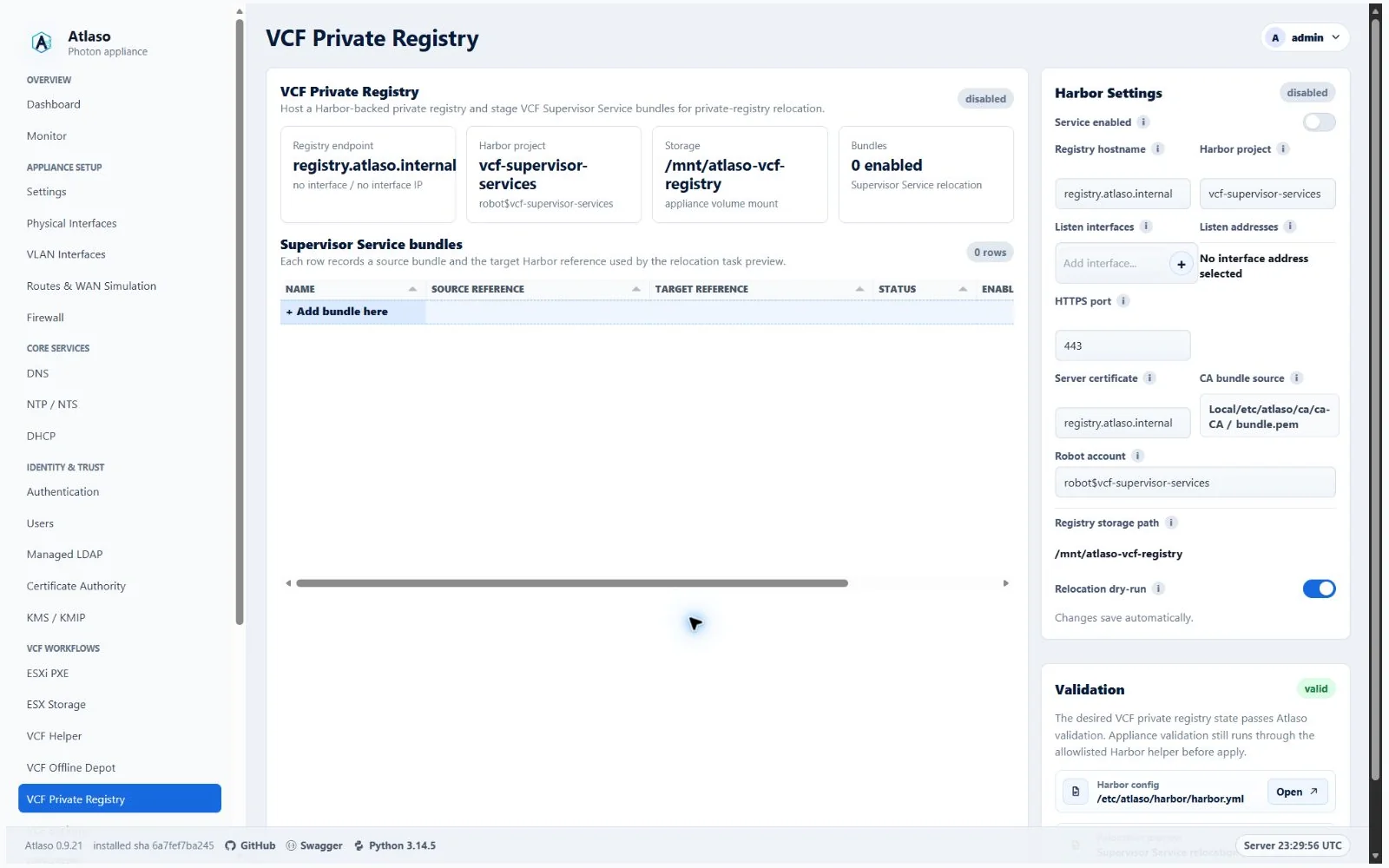
Figure: VCF Private Registry in the verified clean-appliance desktop state.
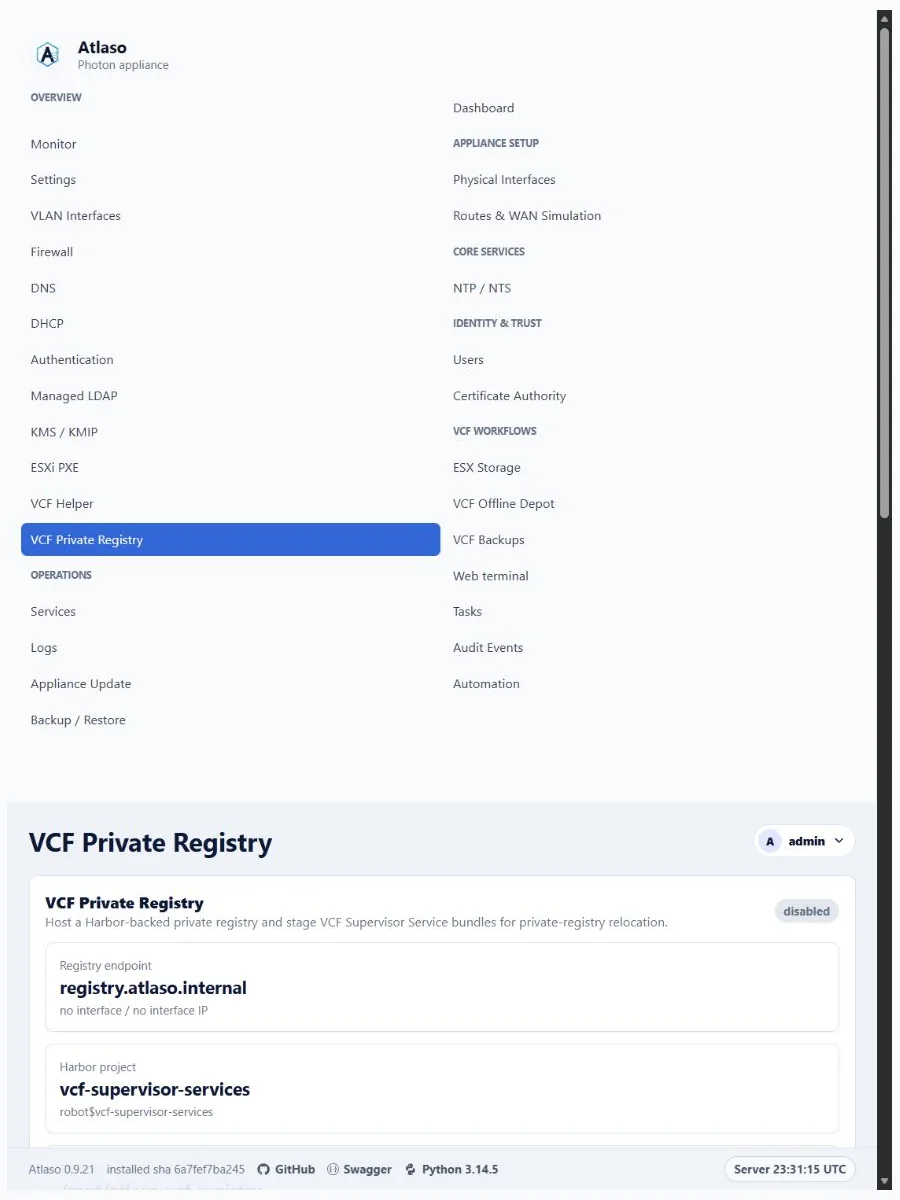
Figure: VCF Private Registry in the verified clean-appliance responsive state.
Vlan Interfaces
Route: /ui/management/vlan-interfaces
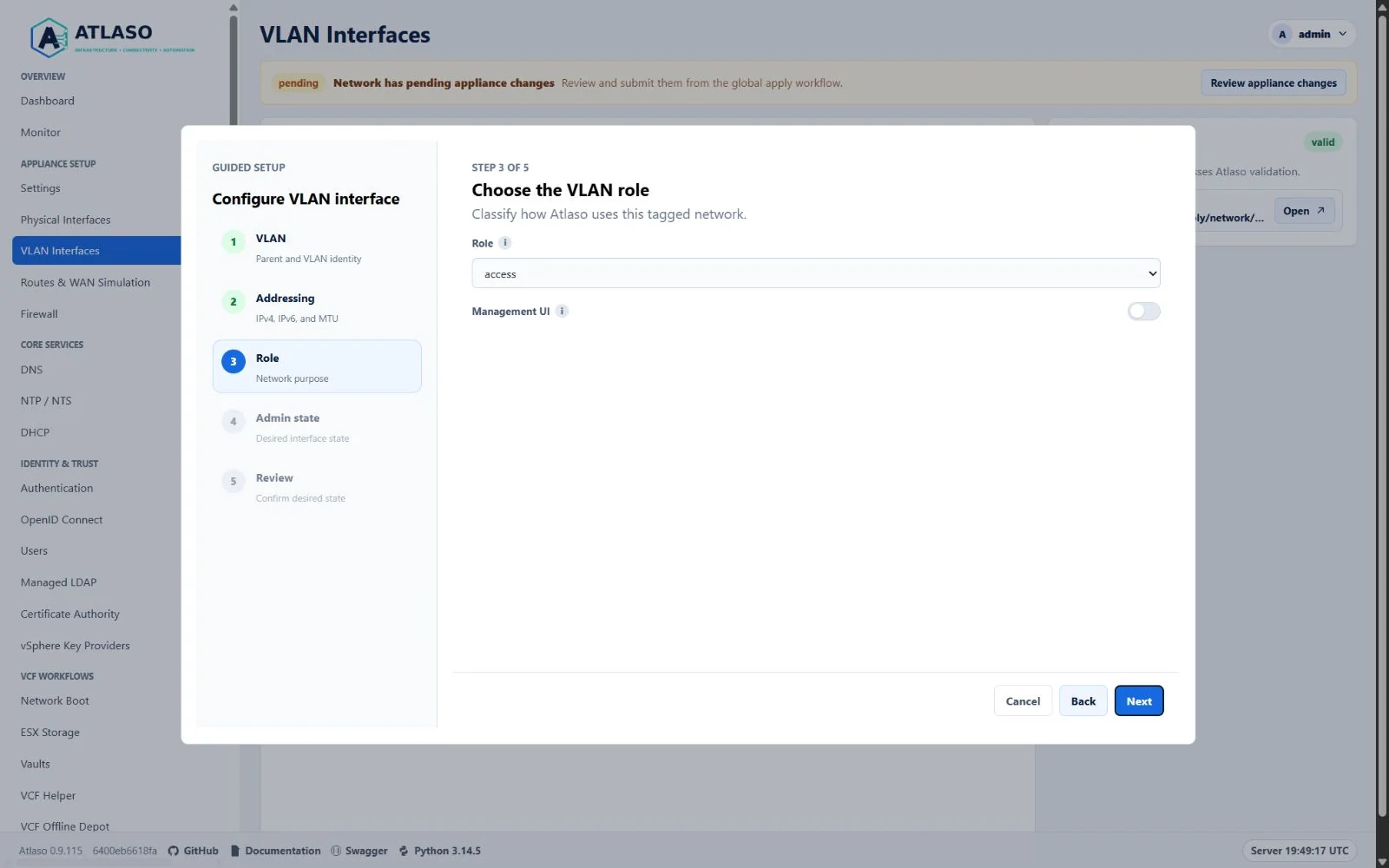
Figure: VLAN Interfaces shared Role step defaulting a new VLAN to the canonical access role.
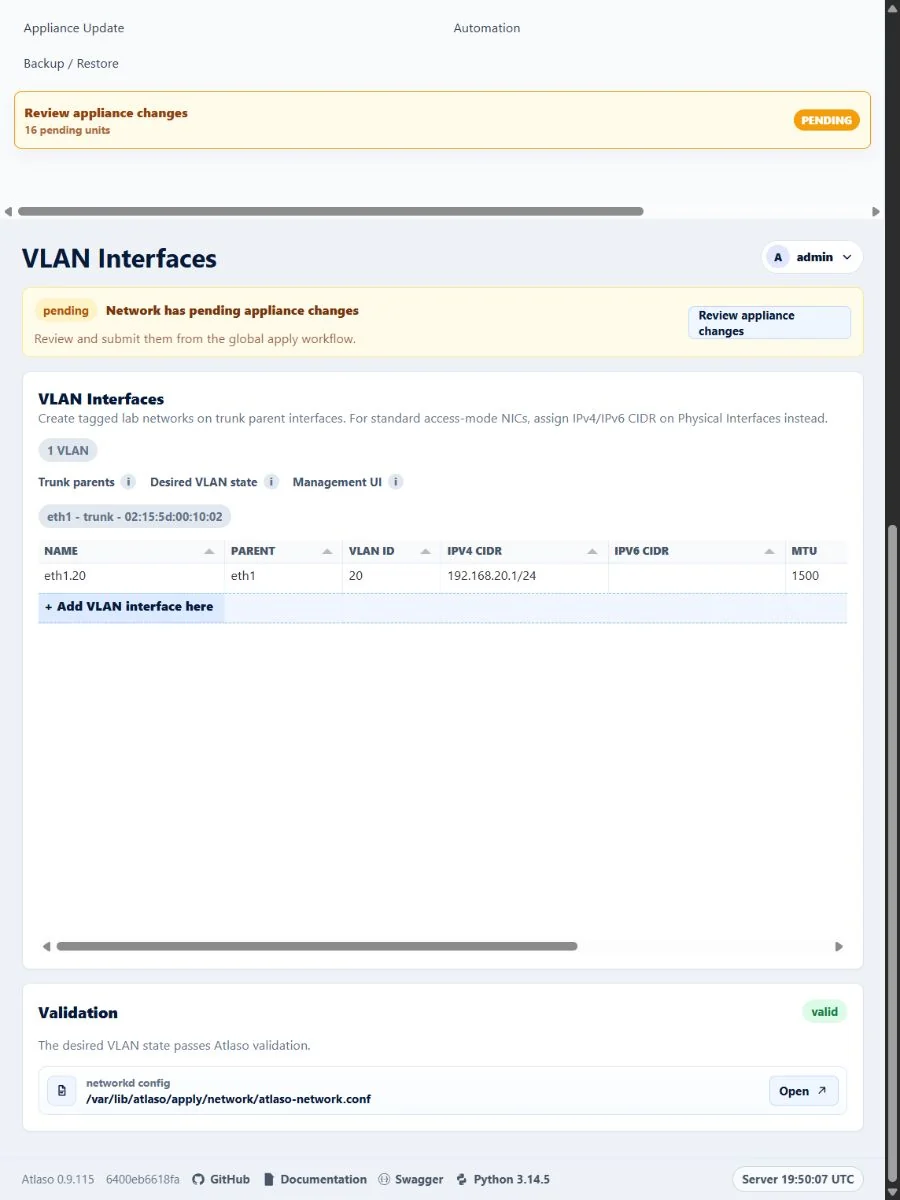
Figure: VLAN Interfaces with canonical role data in the verified responsive state.
vSphere Key Providers
Route: /ui/management/vsphere-key-providers
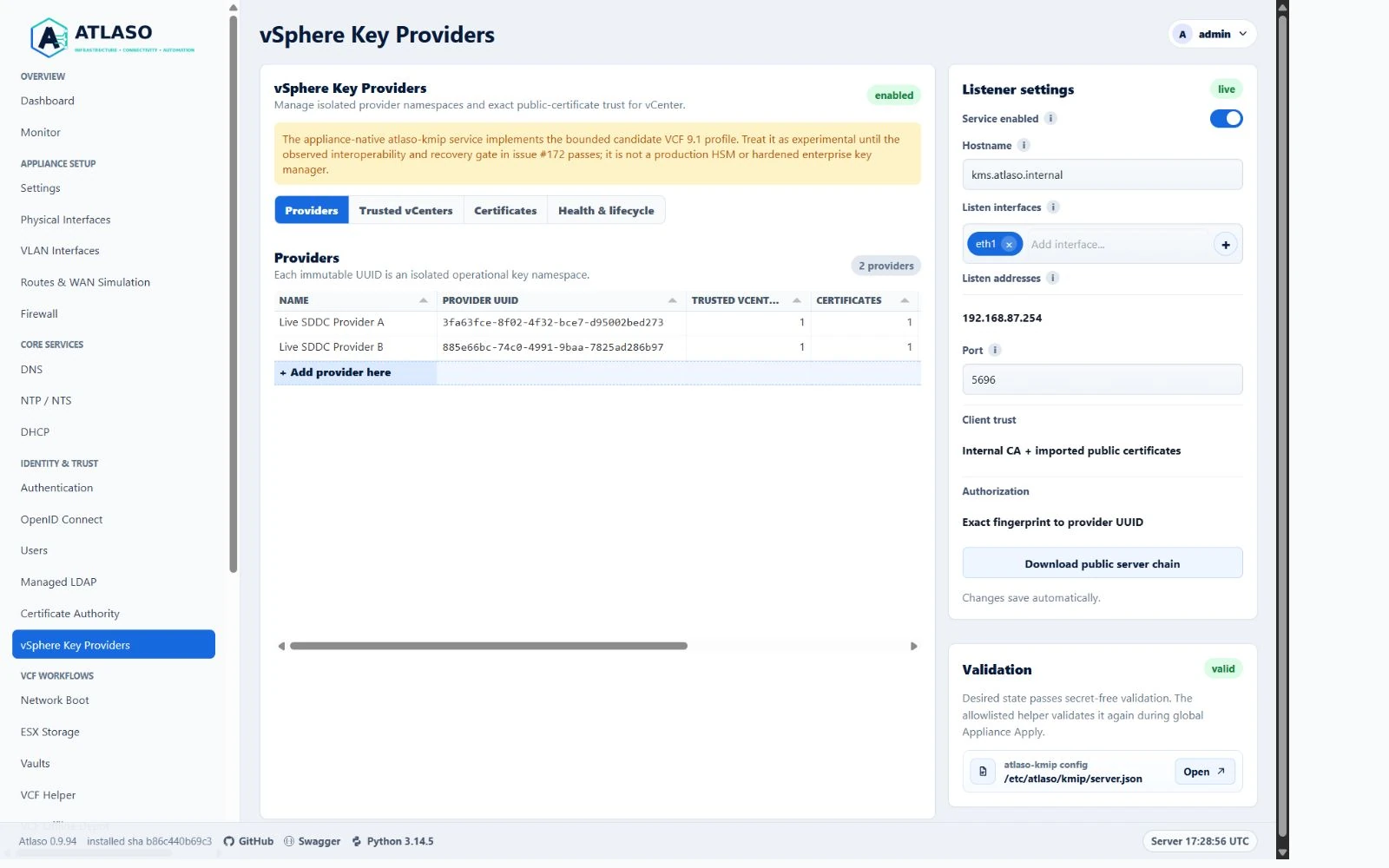
Figure: vSphere Key Providers in the verified clean-appliance desktop state.
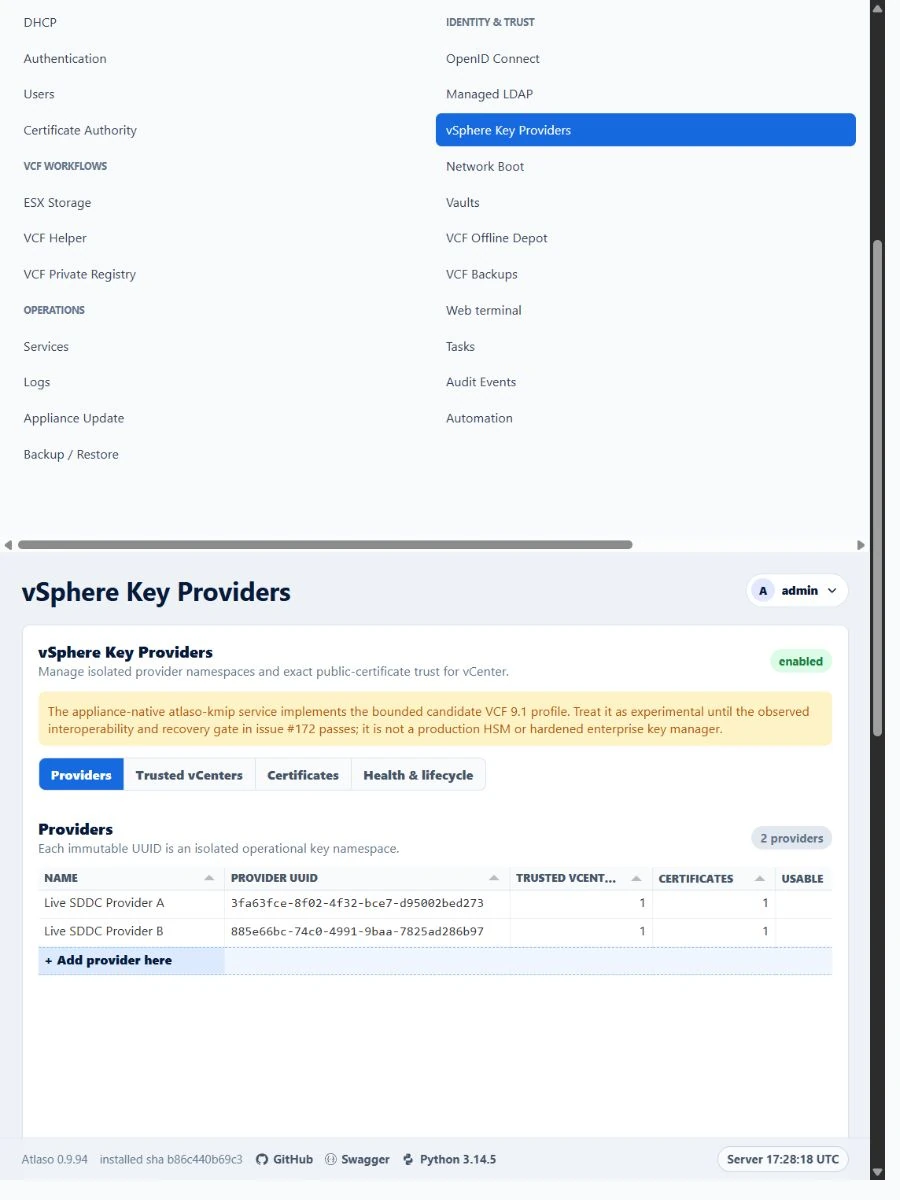
Figure: vSphere Key Providers in the verified clean-appliance responsive state.