Web Terminal
Atlaso provides a permission-controlled browser terminal for the appliance shell. It is disabled globally by default and appears under Operations > Web terminal on management after it is enabled in Settings and the related appliance changes are applied. Selected additional listeners expose it through the Public Services portal instead of the admin shell.
Interface overview
This verified appliance view provides visual orientation before you begin.
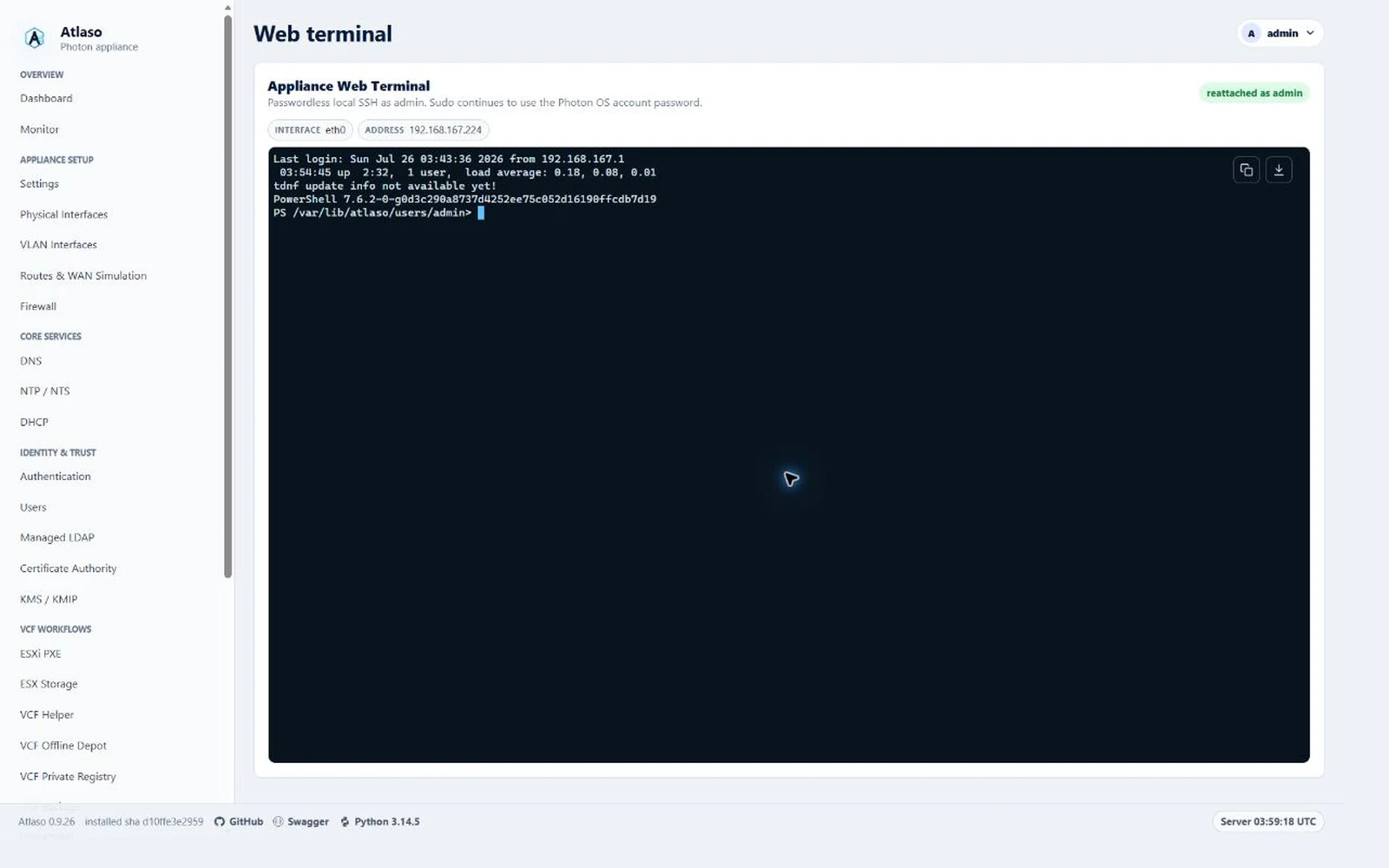
Figure: Web terminal connected to the verified Photon appliance in the desktop viewport.
Management terminal pages, ticket exchange, and WebSocket endpoints are rooted at /ui/management/terminal. Selected
Public Services listeners use /ui/public/terminal. They remain intentionally absent from Swagger rather than being
/api/v1 client contracts.
Opening Web terminal while the feature is globally disabled keeps the authenticated Atlaso application shell and shows an unavailable status with links to Appliance Settings and pending appliance changes. The browser page does not expose an API-style JSON error. JSON errors remain appropriate for the terminal ticket API and WebSocket protocol.
Configure access
- Enable Management UI HTTPS.
- Enable Web terminal access.
- Select any additional addressed interfaces in Web terminal interfaces. The management interface is always selected and cannot be removed.
- Review and submit the changed Appliance Settings, Public Services, and Firewall units from the global appliance-apply workflow.
- On Users, enable Web SSH for each local user who may open a terminal. The user must also be enabled, use an
interactive shell such as
/bin/bashor/usr/bin/pwsh, and have a Photon password applied through Local Users.
Only enabled, addressed access/route physical interfaces and enabled VLANs are valid additional bindings. Missing, disabled, unused, trunk-only, or addressless interfaces fail validation. Atlaso has no WAN interface role and web-terminal exposure does not infer internet or WAN connectivity.
The mandatory management listener may be a dedicated management physical interface, a flagged access physical
interface, or a flagged access VLAN. Web Terminal classifies its management page, one-use ticket, and WebSocket from
the last-applied Network binding. Pending role, address, or Management UI edits therefore cannot turn the current
management terminal into a public listener or cause an immediate 404. A successful protected handoff moves all three
surfaces to the new applied listener; a failed or rolled-back handoff keeps them on the previous listener. Explicitly
selected additional access listeners remain on /ui/public/terminal and never gain management-plane eligibility.
On a selected non-management address, nginx exposes only /ui/public, eligible legacy login/logout and terminal paths,
and required static assets. Management and API routes remain unavailable. The Public Services directory for that
address includes a Web Terminal tile linked to https://<selected-address>/ui/public/terminal; unselected
interfaces do not show the tile. The terminal and its login page use the Public Services header, sign-out action, and
footer rather than the admin application shell.
Session behavior
- The terminal connects automatically; there is no separate Connect button.
- One bounded server-side shell is retained per authorized user across page reloads and short WebSocket interruptions.
- Opening the terminal in another browser prompts for confirmation. Confirming moves the existing shell, current working directory, buffered output, and input ownership to the new browser. The original browser shows an overlay with an in-terminal reconnect action.
Ctrl-Dand theexitcommand intentionally end the current shell. The disconnected transcript remains visible until a new session is started.- Copy and download icons in the terminal's top-right corner export the visible session transcript. Their success notifications disappear automatically and remain above the application footer.
- A disconnected terminal uses a lighter background so stale output is visually distinct from an attached live shell.
Authentication and security boundaries
The web login session and the user's explicit Web SSH permission authorize access. On a Public Services listener, non-bootstrap local users authenticate against their applied Photon password. The local SSH connection then uses a one-use browser ticket, an ephemeral Ed25519 key, and a short-lived OpenSSH user certificate issued by the appliance-owned user CA. The certificate is restricted to loopback source and disables forwarding, agent forwarding, X11, and user RC processing. Host keys are pinned locally.
This removes the SSH password prompt only. sudo continues to require the Photon OS account password according to the
normal OS policy. Root certificates and passwordless sudo are not permitted.
The service enforces bounded idle time, total lifetime, input, output, and retained transcript size. CA private keys never reach the browser or the Atlaso service account.
Administrators can also open an SSH or SFTP URI from a Vault entry's row context menu. This path requires Web Terminal to be applied and ready. Atlaso first displays the remote server's SHA-256 host-key fingerprint for explicit confirmation, issues a 30-second one-use launch token, rechecks the key, and then decrypts the selected vault password only for server-side SSH authentication. The launch token is carried in a browser-only URL fragment and removed before the terminal connects, so it is not sent in the terminal page request. The browser receives neither the password nor an authenticated URI. Audit events identify only the vault entry and URI position. An SFTP URI opens the endpoint's interactive SSH shell.
Apply and troubleshooting
Changing terminal interfaces should make these apply units pending:
appliance_settingsfor HTTPS and SSH user-CA configuration;public_servicesfor selected non-management nginx listeners and directory entries;firewallfor interface-bound TCP/443 access.
Submitting these global changes can also re-render an already changed DNS/DHCP unit. When DNS uses the management DHCP
lease for upstream forwarding, Atlaso preserves those resolvers even though local DNS makes resolvectl show loopback.
The exact management systemd-networkd lease remains the fallback source. DNS/DHCP validation stops the apply if that
fallback is required but unavailable; unscoped IPv6 link-local lease resolvers are not considered usable. Renew the
lease or configure explicit DNS upstreams before retrying.
The Public Services renderer merges terminal routes into an existing HTTPS listener when CA or depot routes already use
the same address. It must emit only one /static/ location per nginx server block.
First-boot management HTTPS and ordinary Appliance Settings apply both supply nginx's actual listener address to
Atlaso through X-Atlaso-Listener-Address. This keeps an enabled management terminal usable with the bootstrap
configuration. If the selected and applied addresses are correct but the terminal returns 404 on an older appliance,
check that /etc/atlaso/nginx/sites.d/management.conf sets this header to $server_addr in its HTTPS proxy location.
Reconcile Appliance Settings through global appliance apply to regenerate an older configuration. Do not substitute a
client-supplied header or relax terminal listener authorization.
On an Access interface with Management UI enabled, CA and same-port OIDC hostname listeners also proxy management
terminal WebSocket upgrades. Nginx selects a hostname server before a location, so upgrade headers in the separate
IP-address server are insufficient. The management server is also the default TLS server for each flagged address,
so the appliance hostname selects the management certificate while explicit CA/OIDC names retain their service
certificates. If the page opens but the terminal disconnects immediately, compare the WebSocket handshake through
the browser's hostname and the management IP. A successful upgrade returns HTTP 101; HTTP 404 can indicate an
older hostname server missing the terminal upgrade locations. Apply Public Services after upgrading to regenerate
these listeners. Unflagged service listeners and OIDC on a separate port do not gain management access.
If apply fails, inspect the Public Services child task and validate
/var/lib/atlaso/apply/public-services/atlaso-public-services.conf. On the appliance, validate nginx with nginx -t,
confirm atlaso.service is active, and verify the selected address separately:
https://<address>/ui/public/terminalshould redirect to public-plane login or open the terminal;/ui/management/loginand/openapi.jsonmust remain unavailable on an additional listener;- the management
/openapi.jsonendpoint must remain reachable.
After a management-listener handoff, verify /ui/management/terminal, ticket creation, and one WebSocket session on the
new applied physical or VLAN address. Repeat after reboot. For a deliberately failed or rolled-back handoff, repeat the
same checks on the previous address and confirm an explicitly selected additional listener still uses the public shell.
When local DNS and management DHCP are in use, also verify one managed Atlaso name and one external name after the Web Terminal apply. This confirms the unrelated setting change did not remove effective DNS upstreams.
Additional verified states
These captures show responsive layouts and useful operational states referenced by this page.
Web terminal
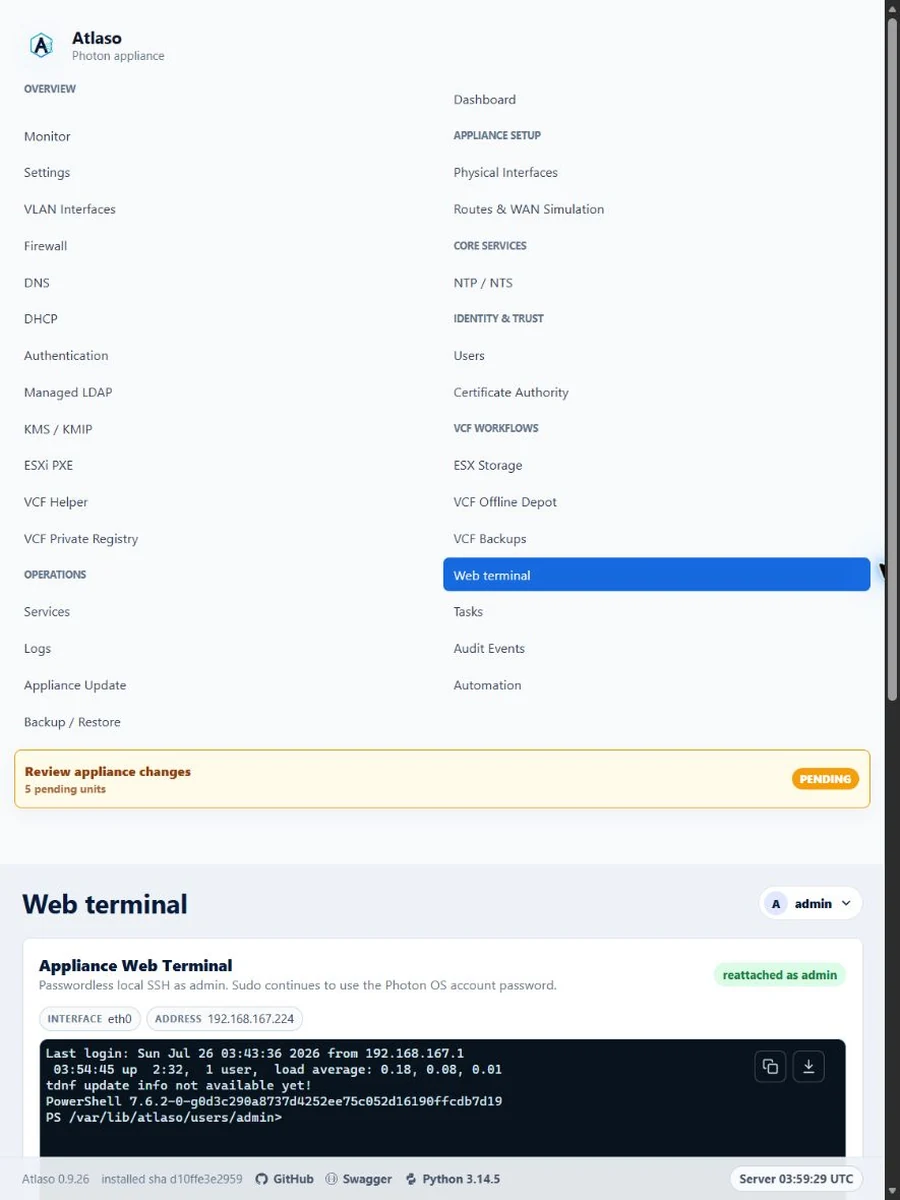
Figure: Web terminal connected to the verified Photon appliance in the responsive viewport.